80S-2080F480F5.pdf - 第111页
SIPLACE 80S-20/F4/F5 User M anual 2 Introduction and Basic Concepts 05/99 Issue from Software Version SR.405.xx 2.3 Overview of the User Interface and Menu Functions 2 - 27 2.3.3 Flow Chart fo r the "Options" M…
2 Introduction and Basic Concepts SIPLACE 80S-20/F4/F5 User Manual
2.3 Overview of the User Interface and Menu Functions 05/99 Issue from Software Version SR.405.xx
2 - 26
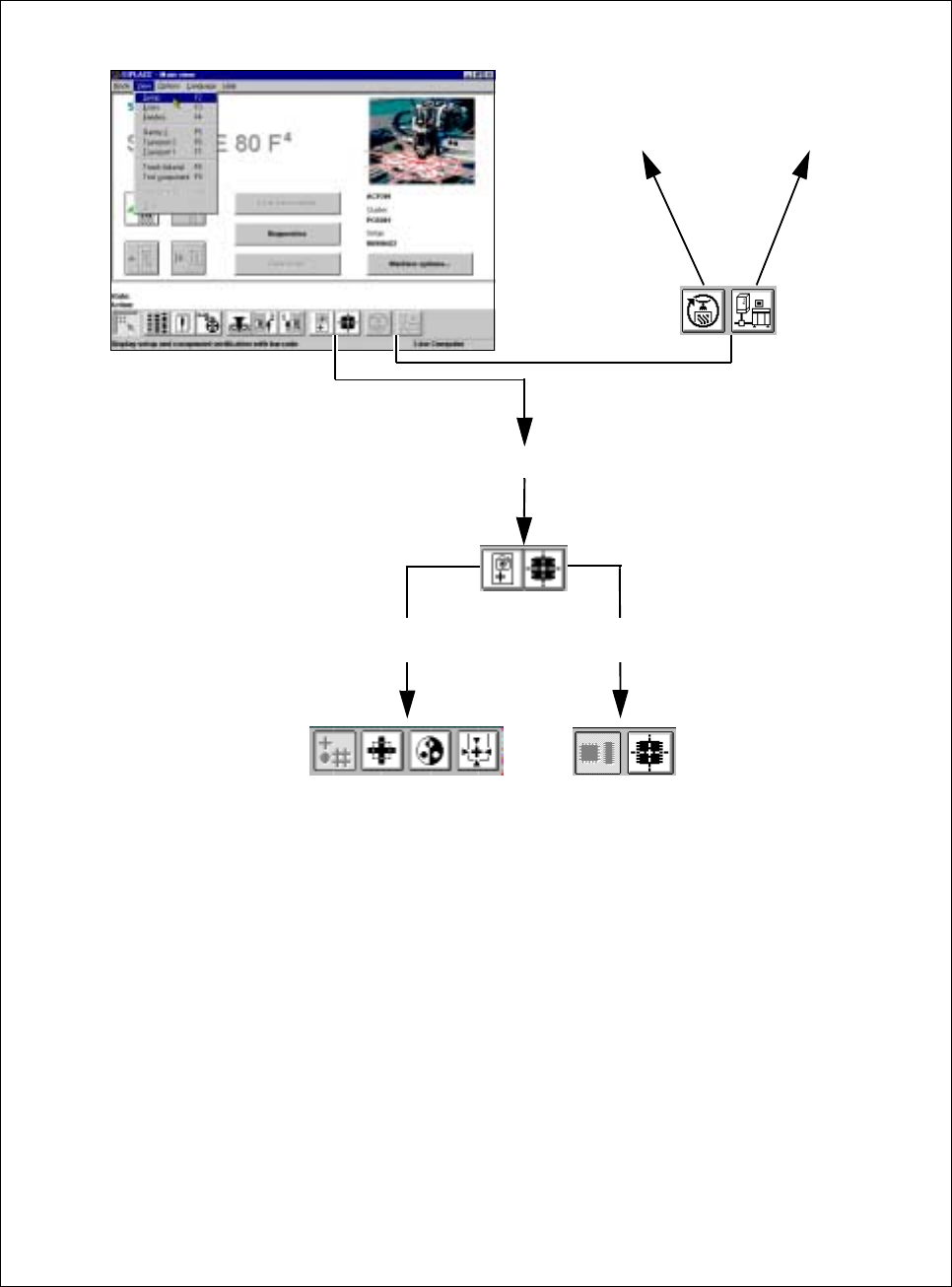
Fig. 2.3.5 Flowchart for the View menu - part 3
Vision system (to Chapter 5)
GEM
(Section 11.9
GEM Interface)
SITEST (see
SITEST
user manual)
Teach and test
fiducial
Test component and edit
package form data
Test component
Package form and camera type
Test and center fiducial
Change contrast sensitivity
Teach fiducial, search area and resolution
Select fiducial and gantry
SIPLACE 80S-20/F4/F5 User Manual 2 Introduction and Basic Concepts
05/99 Issue from Software Version SR.405.xx 2.3 Overview of the User Interface and Menu Functions
2 - 27
2.3.3 Flow Chart for the "Options" Menu
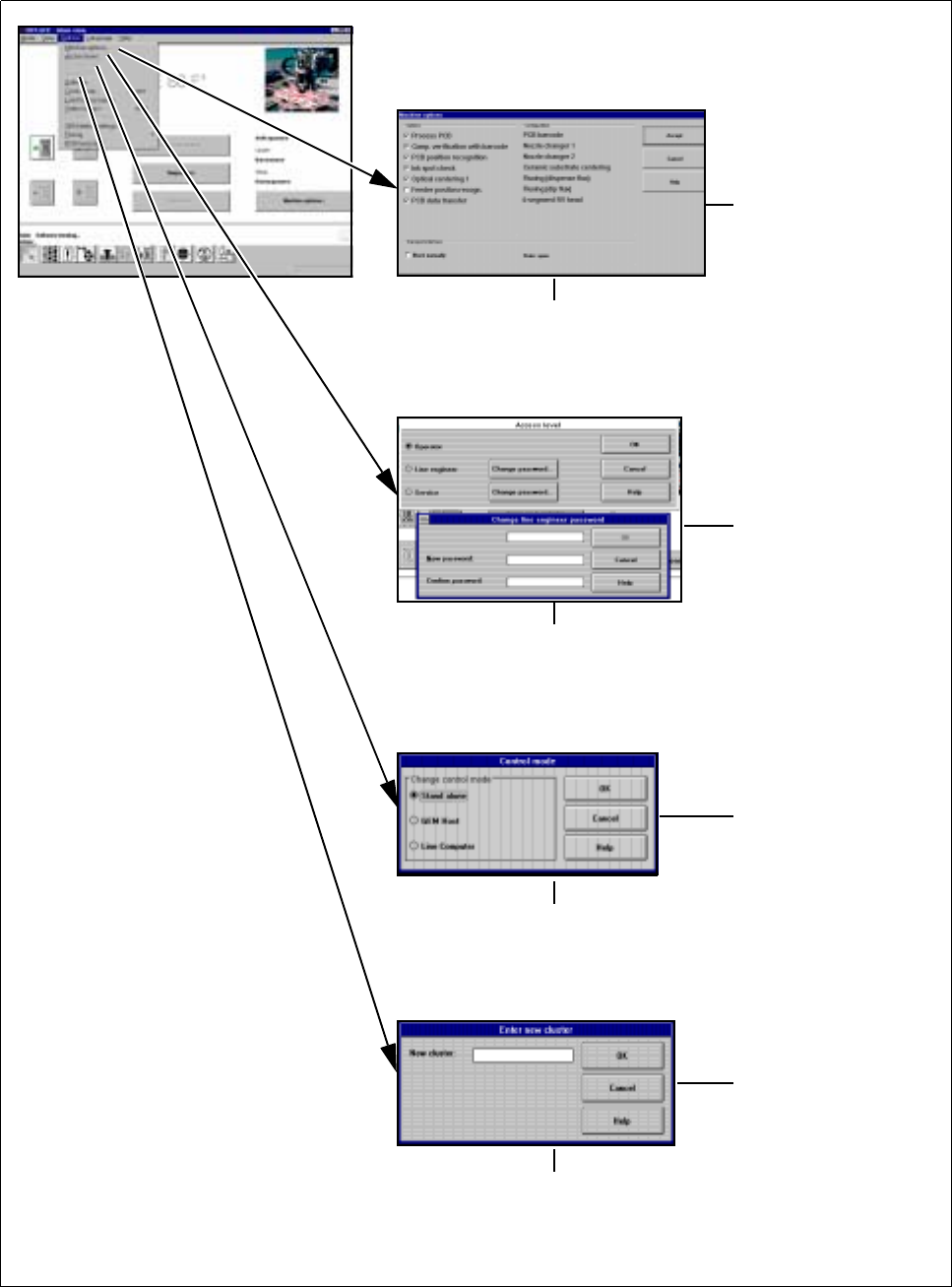
Fig. 2.3.6 Flowchart for the Options menu - part 1
See
Section 2.4.4.3
See
Section 2.4.4.4
See
Section 2.4.4.2
See
Section 2.4.4.1
➩ Displays the configured machine options
➩ Operator can only query
➩ Line engineer can activate / deactivate
➩ Allocate
operator control level and
passwords for
operator, line engineer
or service technician
➩ The operating mode can be either
Stand-alone (for service purposes only)
or GEM host (only available as an option).
➩ The default is line computer
➩ In Stand-alone operating mode,
a cluster can be loaded from the
hard disk for service purposes
2 Introduction and Basic Concepts SIPLACE 80S-20/F4/F5 User Manual
2.3 Overview of the User Interface and Menu Functions 05/99 Issue from Software Version SR.405.xx
2 - 28
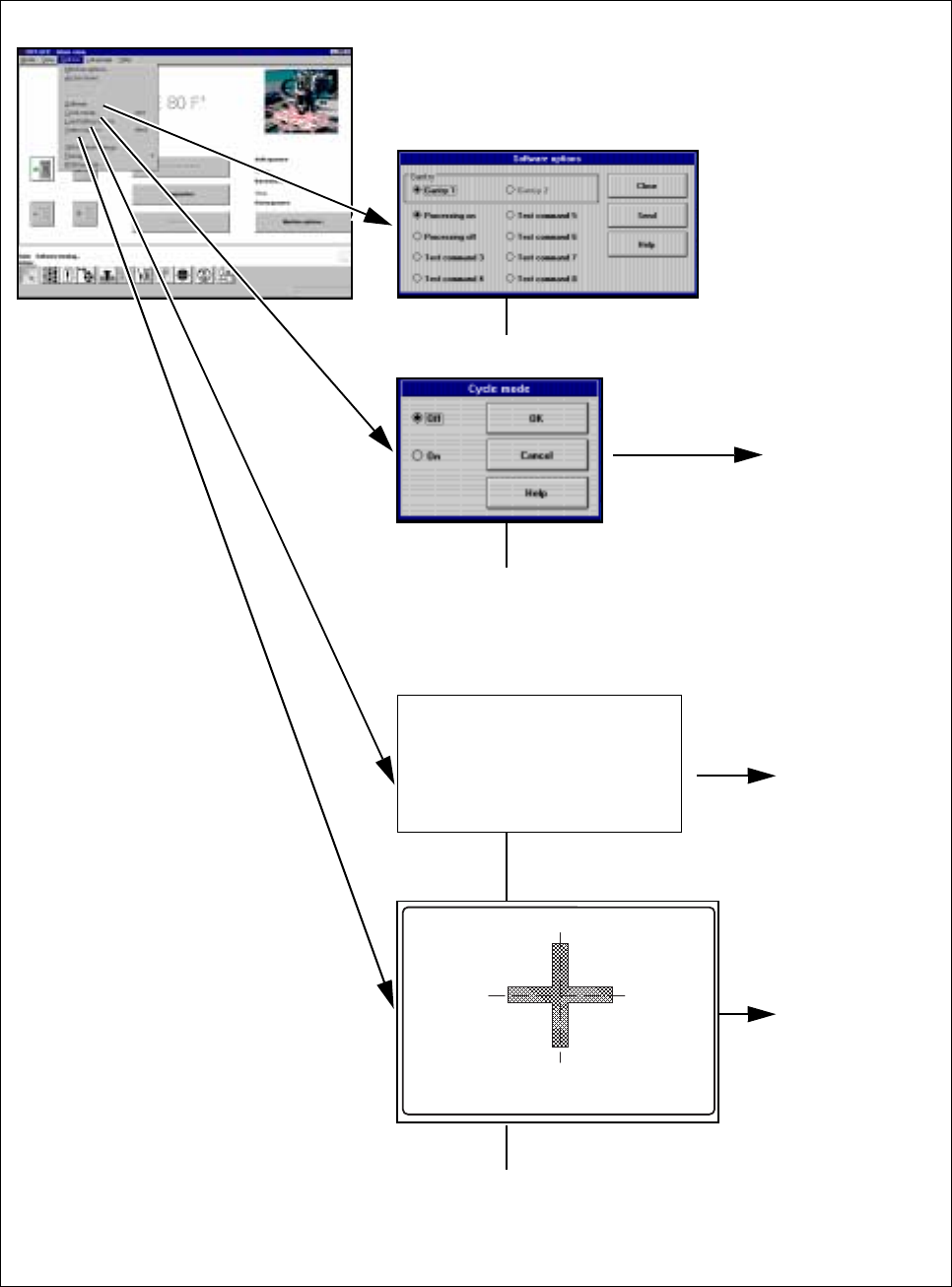
Fig. 2.3.7 Flowchart for the Options menu - part 2
➩ For service technicians only
See
Section 2.4.4.8
See
Section 2.4.4.6
See
Section 2.4.4.7
➩ Cycle mode ON can be activated
in order to localize errors
➩ The start button must be pressed for
every placement step
➩ Load table program:
Loading the program
for the table
program control
➩ Switching to the camera
image of the MVS system
(vision evaluation unit)
➩ Press the ESC key to exit