80S-2080F480F5.pdf - 第264页
5 Vision Functions SIP LACE 80S-20/F4/F5 Us er Manual 5.3 Component Vision System 05/99 Issue from Software Version SR.405.xx 5 - 32 Line en gineer
SIPLACE 80S-20/F4/F5 User Manual 5 Vision Functions
05/99 Issue from Software Version SR.405.xx 5.3 Component Vision System
Line engineer 5 - 31
5.3.5 Safety Instructions for Component Vision Systems in 80F
4
or 80F
5
Machines
DANGER
You must not make any modifications whatsoever to or tamper with the safety features of 80F
4
or 80F
5
machines or the IC or flip-chip modules.
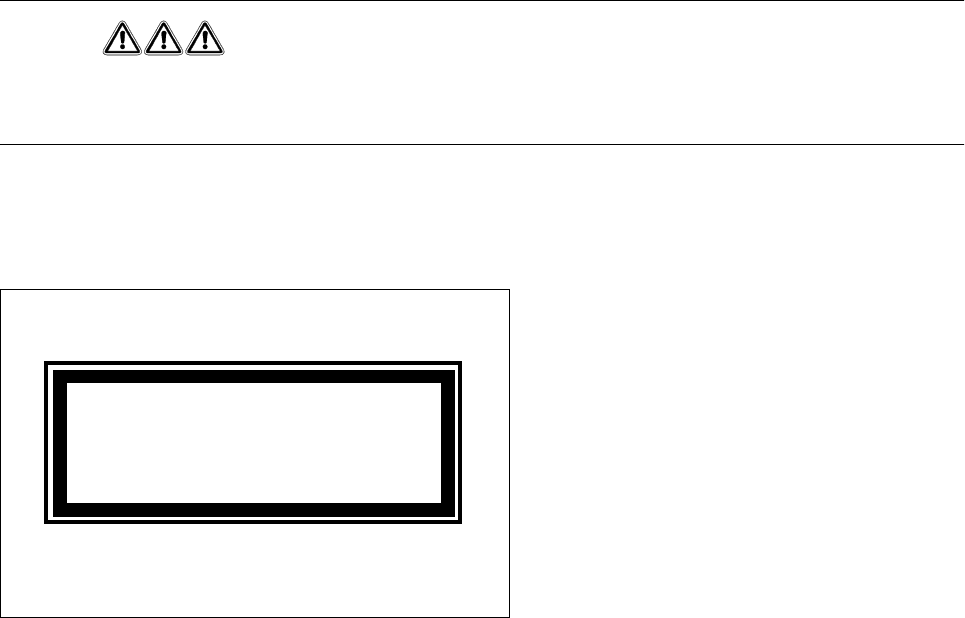
The optical range of the IC and flip-chip camera conforms to laser class 1, provided that the camera is perma-
nently fixed in the automatic placement system and that the protective covers are closed (EN 60825-1 and
IEC 825).
Fig. 5.3.3 Identification label for
Laser class 1
s
5 Vision Functions SIPLACE 80S-20/F4/F5 User Manual
5.3 Component Vision System 05/99 Issue from Software Version SR.405.xx
5 - 32 Line engineer
SIPLACE 80S-20/F4/F5 User Manual 5 Vision Functions
05/99 Issue from Software Version SR.405.xx 5.4 Access to the Teach Fiducial and Test Component Options
Line engineer 5 - 33
5.4 Access to the
Teach Fiducial
and
Test Component
Options
Access to the
Teach fiducial
and
Test component
options is only available to user class
Line engineer
and
higher. The
Teach fiducial
and
Test component
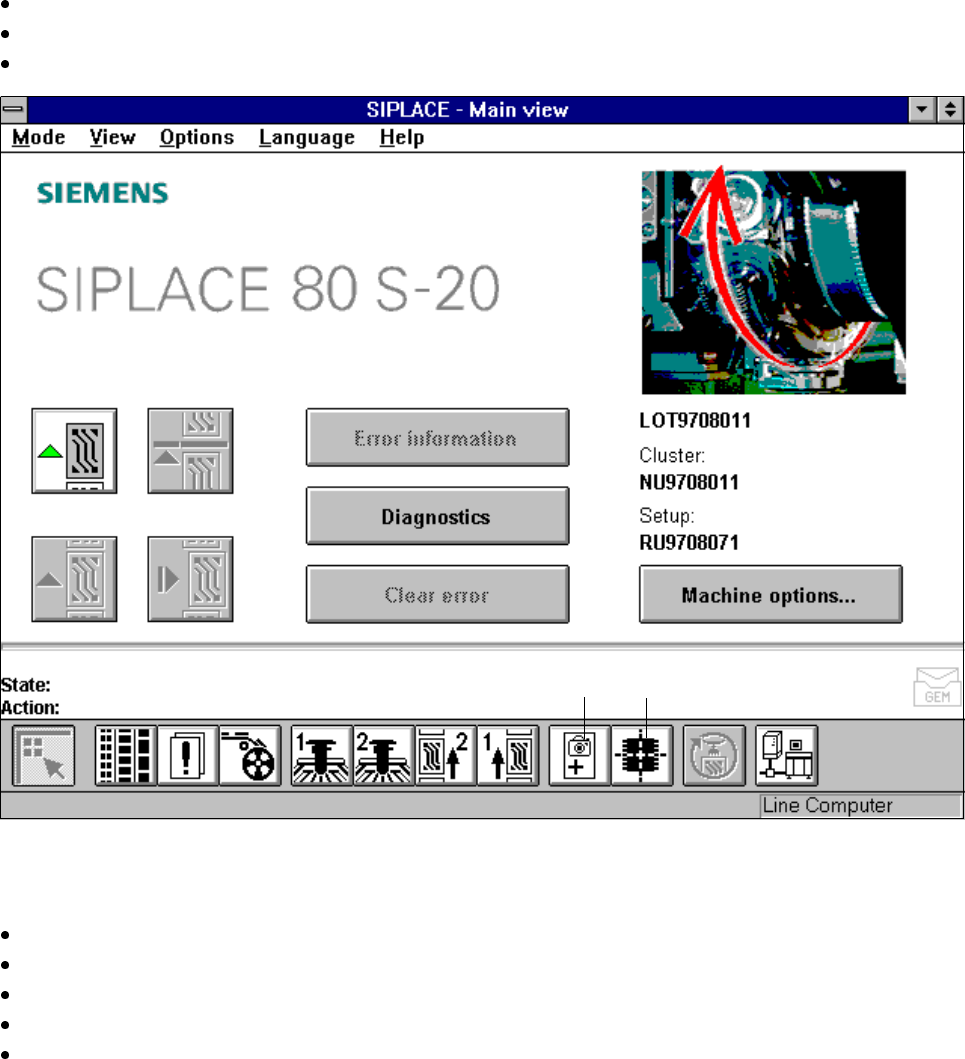
icons will remain grayed out until user classes
Line engi-
neer
or
Service engineer
have been selected. These grayed-out structures of the icons will then appear
black, indicating that the options are available.
Selection of user classes:
In the menu bar of the
Main view
menu click on the
Options
pull-down menu.
Click on the
Access level
option. The user class option box will drop down.
Select the appropriate user class.
Fig. 5.4.1 Access to the options
Teach fiducial
and
Test component
You can also protect the user classes Line engineer and Service engineer by entering a password at the
station computer which will then be used to control access.
In the menu bar of the Main view menu click on the Options pull-down menu.
Click on the Access level option. The user class option box will drop down.
Click on the Change password. The input box for the password will drop down.
Type in the password and then confirm this.
Click on OK to accept the password or Cancel to reject it.
Icon ’Test component’Icon ’Teach fiducial’