80S-2080F480F5.pdf - 第282页
5 Vision Functions SIP LACE 80S-20/F4/F5 Us er Manual 5.5 Teach Fiducial 05/99 Issue from Software Version SR.405.xx 5 - 50 Line en gineer 5.5.3 .5 Save Fiducial Option With thi s option you can sav e fidu cials together…
SIPLACE 80S-20/F4/F5 User Manual 5 Vision Functions
05/99 Issue from Software Version SR.405.xx 5.5 Teach Fiducial
Line engineer 5 - 49
5.5.3.4
Define New Fiducial
Option
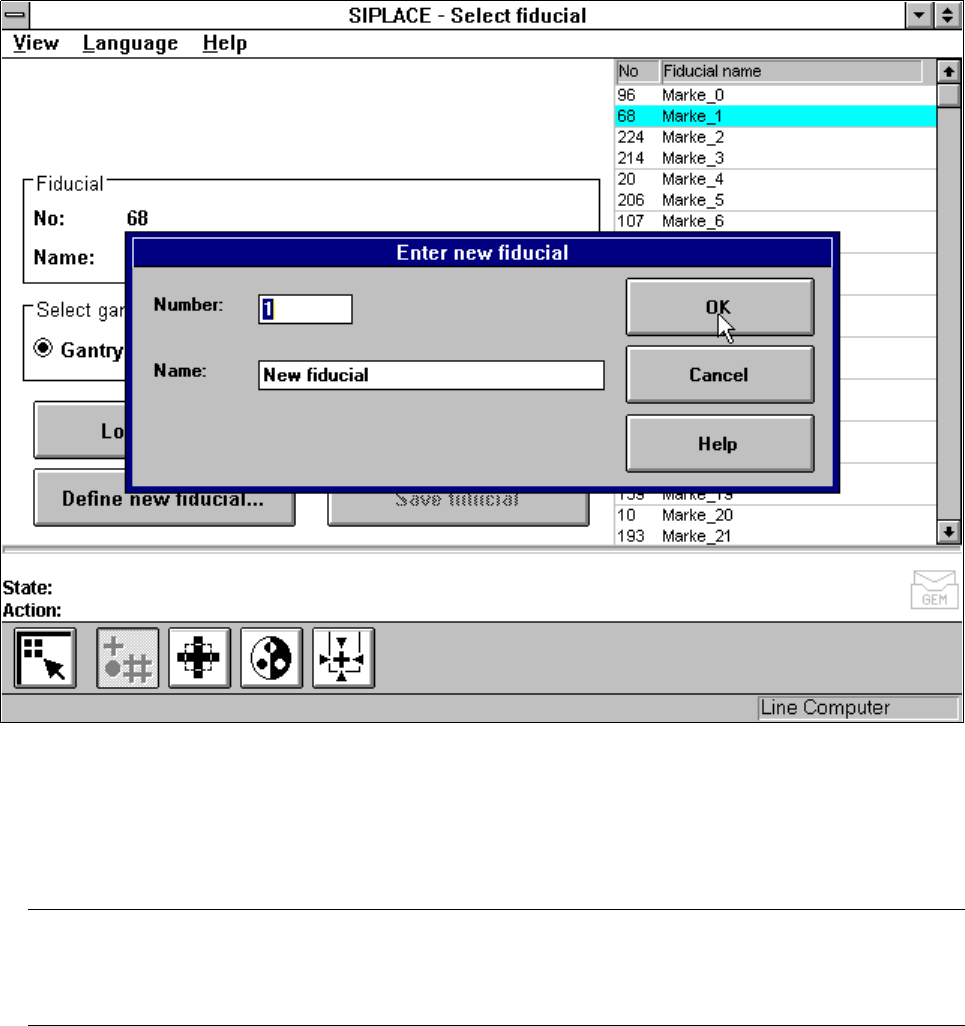
With this option you can generate a new fiducial.
– Click on the
Define new fiducial
button.
The input box for the fiducial number and the fiducial name will appear on the screen.
Fig. 5.5.11
Select fiducial
menu,
Define new fiducial
option, input box
– Input a fiducial number and the fiducial name.
– Conclude your input with
OK
or discard your input with
Cancel
.
– The new fiducial can also be taught with standard values and further processed.
– When finished save the fiducial by clicking on the
Save fiducial
button.
NOTE
If a fiducial number already exists after clicking on OK you will be asked if you want to overwrite the exist-
ing fiducial.
5 Vision Functions SIPLACE 80S-20/F4/F5 User Manual
5.5 Teach Fiducial 05/99 Issue from Software Version SR.405.xx
5 - 50 Line engineer
5.5.3.5
Save Fiducial
Option
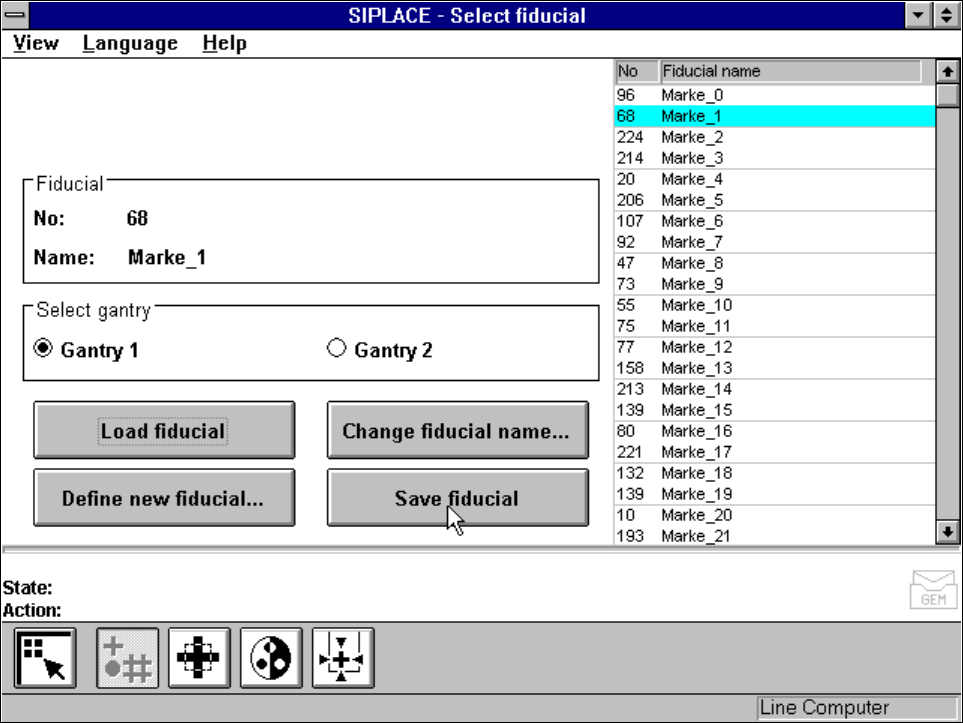
With this option you can save fiducials together with their modified parameters. The button will only become
activated if you have
– changed the fiducial name or
– generated a new fiducial.
Fig. 5.5.12
Select fiducial
menu,
Save fiducial
option
SIPLACE 80S-20/F4/F5 User Manual 5 Vision Functions
05/99 Issue from Software Version SR.405.xx 5.5 Teach Fiducial
Line engineer 5 - 51
5.5.4
Teach Fiducial
Menu
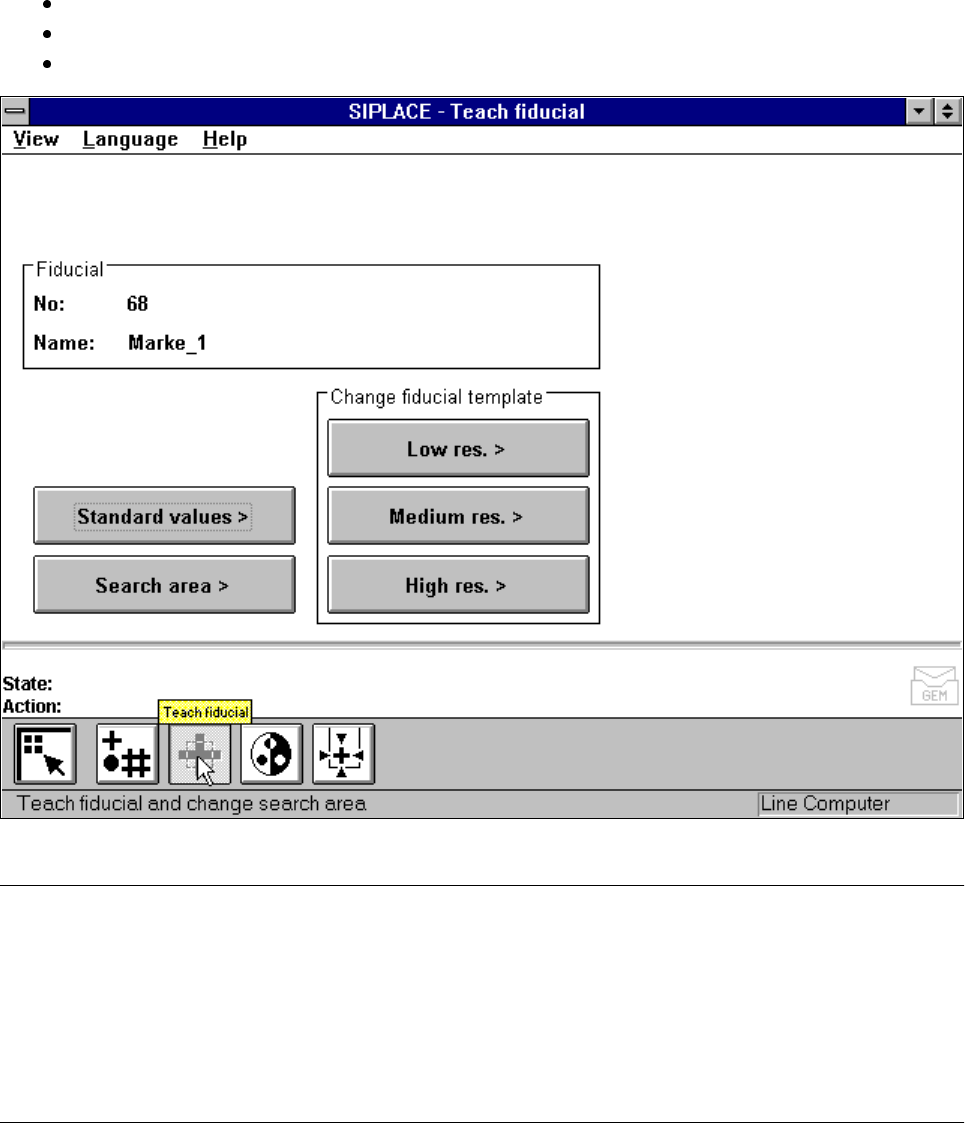
As the diagram shows, the
Teach fiducial
menu offers the following options:
– Standard values
– Search area
– Change search area with
low resolution,
middle resolution and
high resolution
Fig. 5.5.13
Teach fiducial
menu, options
NOTE:
Buttons are active when the text on the button is black (rather than gray). This means that you can launch the
associated function by clicking on the button with the mouse.
The Search area button will, for example, only be active if you have
– already loaded a fiducial or
– created a new fiducial.
A model must already exist for the selected fiducial.