80S-2080F480F5.pdf - 第340页
5 Vision Functions SIP LACE 80S-20/F4/F5 Us er Manual 5.6 Test Component 05/99 Issue from Software V ersion SR.405.xx 5 - 108 Line en gineer 5.6.4 .1 1 Ball Illustration Option With thi s option you can cha nge the ball …
SIPLACE 80S-20/F4/F5 User Manual 5 Vision Functions
05/99 Issue from Software Version SR.405.xx 5.6 Test Component
Line engineer 5 - 107
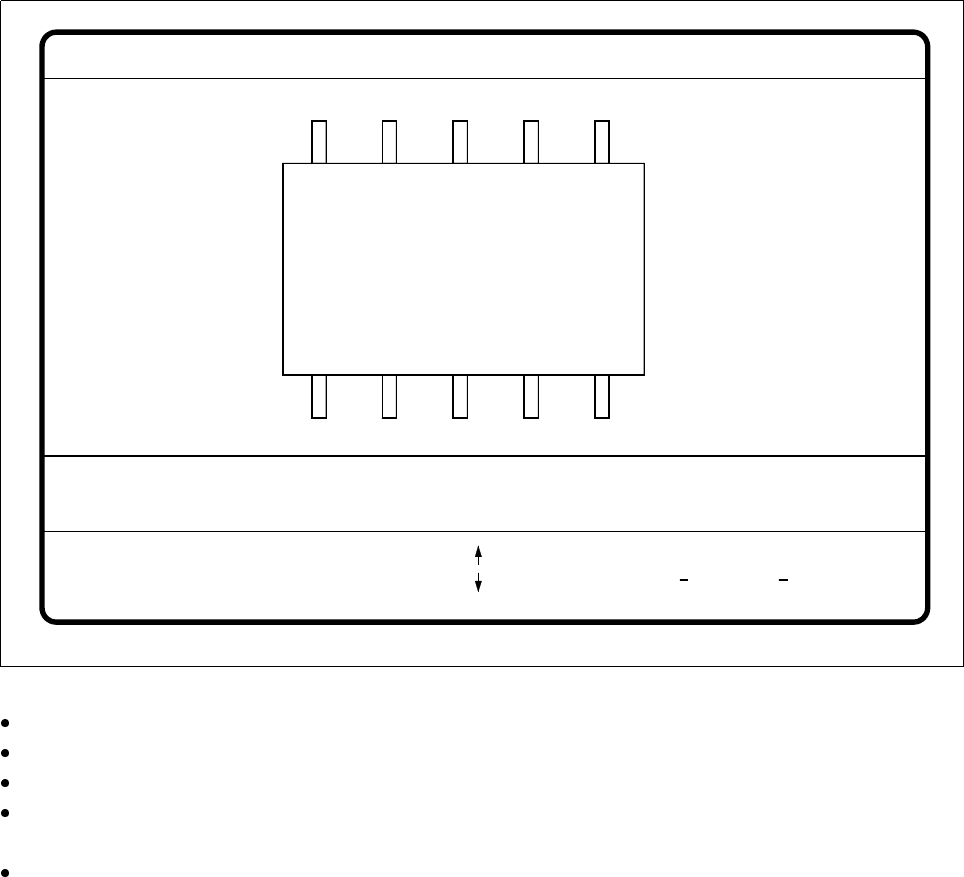
5.6.4.10
Pin Dimension
Option
With this option you can change the optical pin width and length. In addition, you can also change the pin con-
trast if imaging reduction results in the pins not being dependably recognized.
Fig. 5.6.28
Test component
menu,
Pin dimension
option
Use the tabulator key to select the pin model.
With the spacebar select the side of the pin.
Use the
+
and
-
keys to raise or lower the pin contrast.
The arrow keys are used for changing the pin width and length. The component will appear as a silhouette
on the screen together with the updated geometric pin data.
With the
Return
key you can trigger the individual measurement steps which are specified in the measure-
ment conditions for the specified component.
Press
Esc
to cancel the option, even if not all measurement steps have been carried out. You will then be
returned to the Test component menu.
GF No. = 5Pin dimension
+ : contrast +
opt. l. [mm] = ... opt. w. [mm] = ...
Pin side =
Pin definition = 1..n
RET: Test component
Tab: Pin model
Blank: Pin side
Pin contrast =
: larger
: smaller
: contrast
5 Vision Functions SIPLACE 80S-20/F4/F5 User Manual
5.6 Test Component 05/99 Issue from Software Version SR.405.xx
5 - 108 Line engineer
5.6.4.11
Ball Illustration
Option
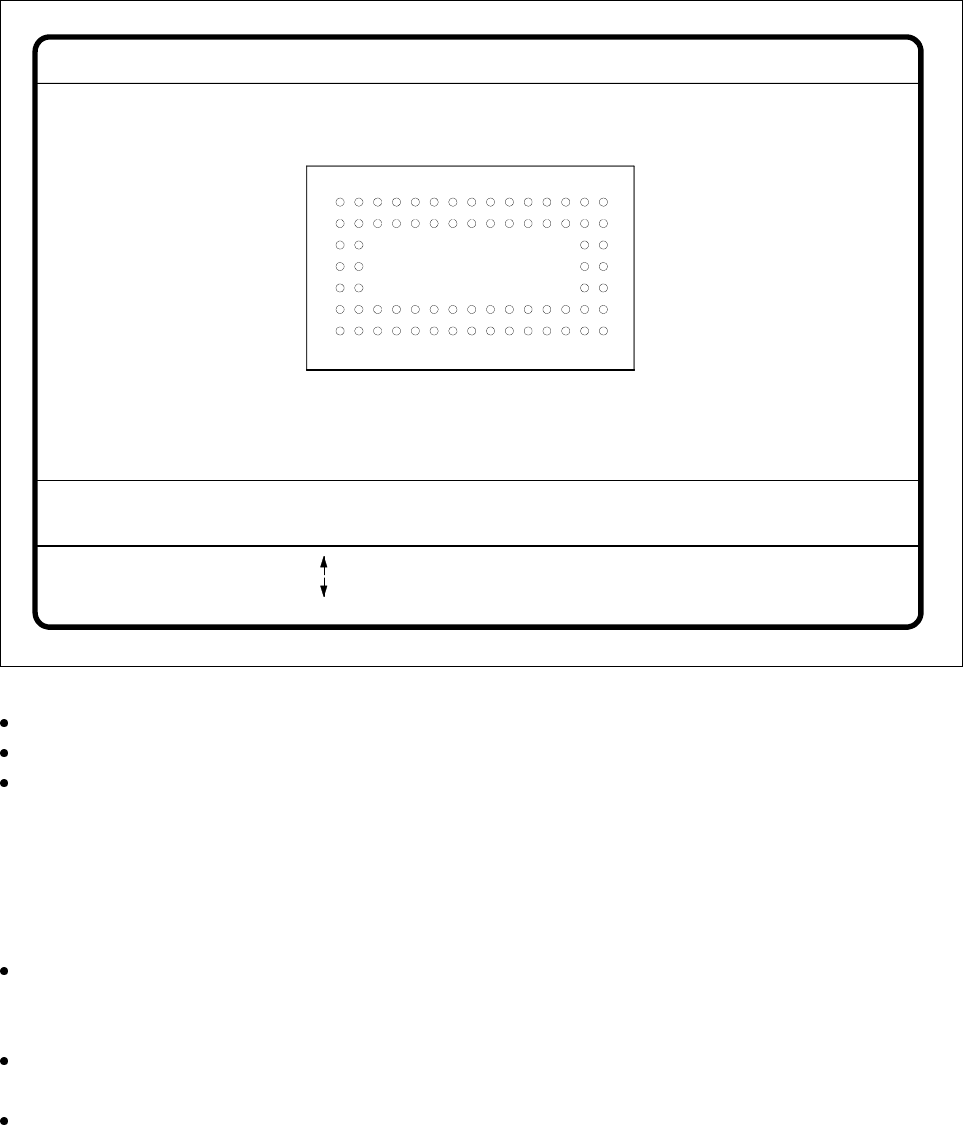
With this option you can change the ball model description.
Fig. 5.6.29
Test component
menu,
Ball image
video image
Use the tabulator key to select the ball model.
With the spacebar select the radius type - inner or outer radius.
Use the arrow keys to enlarge or reduce the internal or external radius of the ball. The balls will be dis-
played in their geometric dimensions as a pixel image on the lefthand edge of the video image.
The value of the inner radius the ball shape:
– If the inner radius is equal to 0, the ball will take the form of a circle.
– If the inner radius is greater than 0, the ball will take the form of a doughnut (not frequently used).
Use the
+
or
-
keys to increase or reduce the ball contrast.
Select ball contrast > 0, if the ball is lighter than the background.
Select ball contrast < 0, if the ball is darker than the background.
With the Return key you can trigger the individual measurement steps which are specified in the measure-
ment conditions for the specified component.
Press Esc to cancel the option, even if not all measurement steps have been carried out. You will then be
returned to the Test component menu.
GF no. = 5Ball image
RET: Test comp.
Tab: Ball model
Rad. i.[mm]
Ball model = 1
Rad. e.[mm]
Rad. type: intern./extern.
= 0.500
= 1.500
+ : Contrast +
- : Contrast -
Contrast a.
Contrast i.
= 10
= 20
: larger
: smaller
Blank: Radius type
SIPLACE 80S-20/F4/F5 User Manual 5 Vision Functions
05/99 Issue from Software Version SR.405.xx 5.6 Test Component
Line engineer 5 - 109
5.6.4.12
Transform ...
Option
When you activate this option the
Select contrast sensitivity
option box will open.
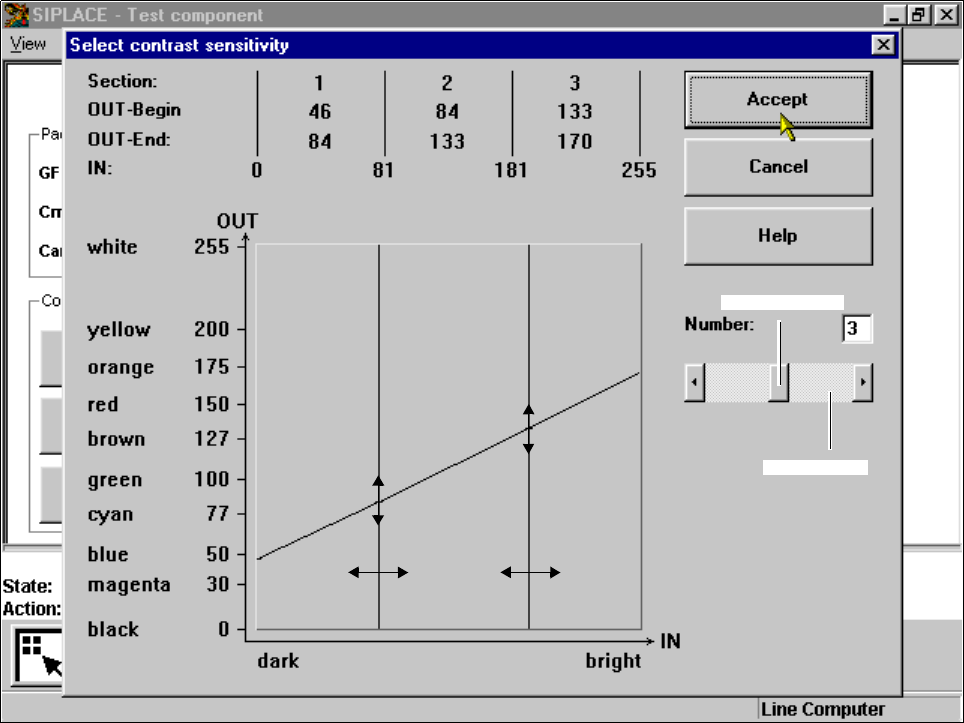
Fig. 5.6.30
Test component
menu,
Select contrast sensitivity
option box
You can select the following parameters:
– Number of sections which contain the transformation table: number between 1 and 5
– Selection of value pairs: with 5 sections 10 pairs of values are permitted.
Layout of the
Select contrast sensitivity
option box:
Numerical presentation of the table
The numerical values are indicated in the upper part of the option box. These are:
Section: Number of sections
OUT Begin: OUT End: Ranges of values for the transformation of the individual sections
IN: Range limits of the individual sections
Graphic presentation of the table
In the diagram
– the abscissae (x axis) represent the input values range, subdivided into sections.
– the ordinates (y axis) represent the output values with their color allocation.
Scroll bar
Scroll field