80S-2080F480F5.pdf - 第96页
2 Introduction and Ba sic Concepts SIPLACE 80S-20/F4/F5 User Manual 2.2 Principles and Structure of the User Interface 05/99 Issue from Software Version SR.405.xx 2 - 12 2.2.2.1 Ti tle bar The title bar shows the mach in…
SIPLACE 80S-20/F4/F5 User Manual 2 Introduction and Basic Concepts
05/99 Issue from Software Version SR.405.xx 2.2 Principles and Structure of the User Interface
2 - 11
2.2 Principles and Structure of the User Interface
The menu guidance system and the appearance of the user interface for the SIPLACE 80S-20/F
4
//F
5
use
MS Windows and are based on the MS Windows NT 4.0 standard.
2.2.1 Working with the Trackball and Touch Screen
The trackball with its mouse buttons is integrated into the keyboard (see Fig. 2.1.2).
The trackball is used to move the mouse pointer over the screen onto the menus, menu names, icons (but-
tons) or selector fields, which can then be selected or activated with the lefthand mouse button. Another way
of doing this is to touch the screen (touch screen) directly with your fingertip to select or activate functions. In
the sections which follow these actions are described as ’clicking’.
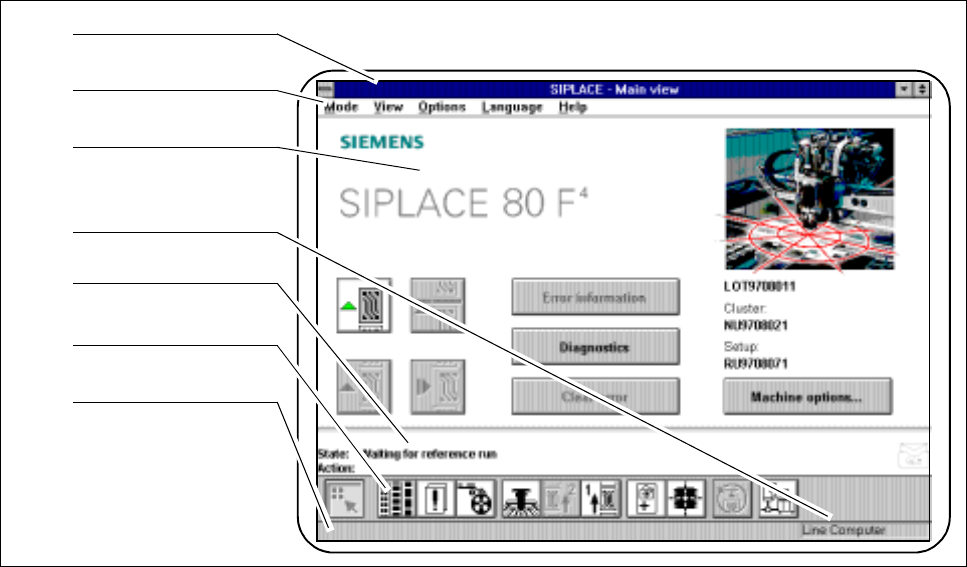
2.2.2 Organization of the Screen
Fig. 2.2.1 Organization of the screen
- Key to Fig. 2.2.1
1 Menu line 2 Title bar
3 Working or client area 4 Machine control mode
5 Status window 6 Symbol strip
7 Status line
1
2
3
4
5
6
7
2 Introduction and Basic Concepts SIPLACE 80S-20/F4/F5 User Manual
2.2 Principles and Structure of the User Interface 05/99 Issue from Software Version SR.405.xx
2 - 12
2.2.2.1 Title bar
The title bar shows the machine type and the view currently selected.
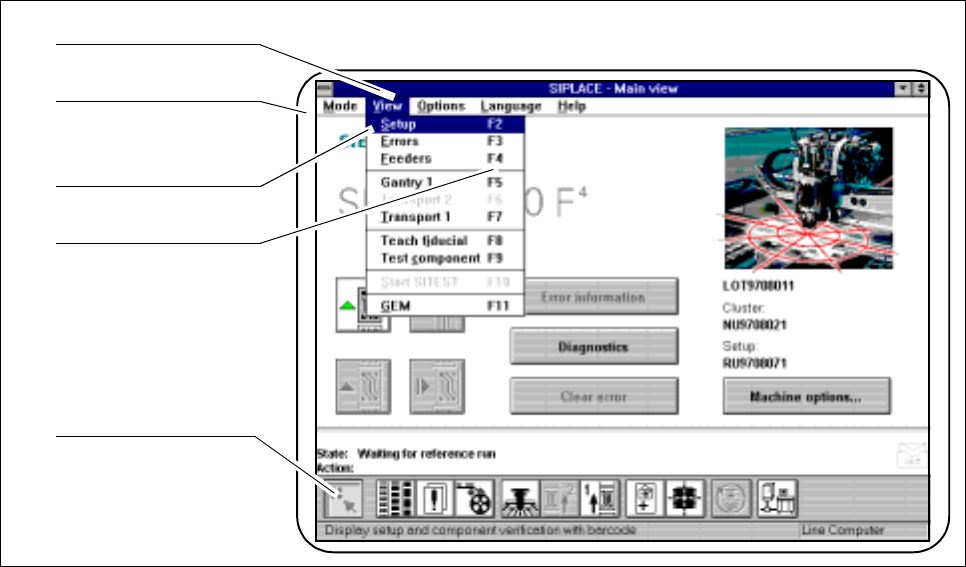
2.2.2.2 Menu Line
The menu line offers various menus, under which submenus can be opened and actions executed.
Fig. 2.2.2 Example of a menu line
- Key to Fig. 2.2.2
1 Menu 2 Menu line
3 Submenu 4 Key combination
5 With key combinations F1 to F12 max.
The menus or the items on the menu line can be selected and executed by using the trackball, the touch
screen or key combinations F1 to F12.
The key combination Shift+ F1 opens the Help menu.
The commands in the View menu can also be executed by clicking on the corresponding icons on the symbol
strip.
1
2
3
4
5
SIPLACE 80S-20/F4/F5 User Manual 2 Introduction and Basic Concepts
05/99 Issue from Software Version SR.405.xx 2.2 Principles and Structure of the User Interface
2 - 13
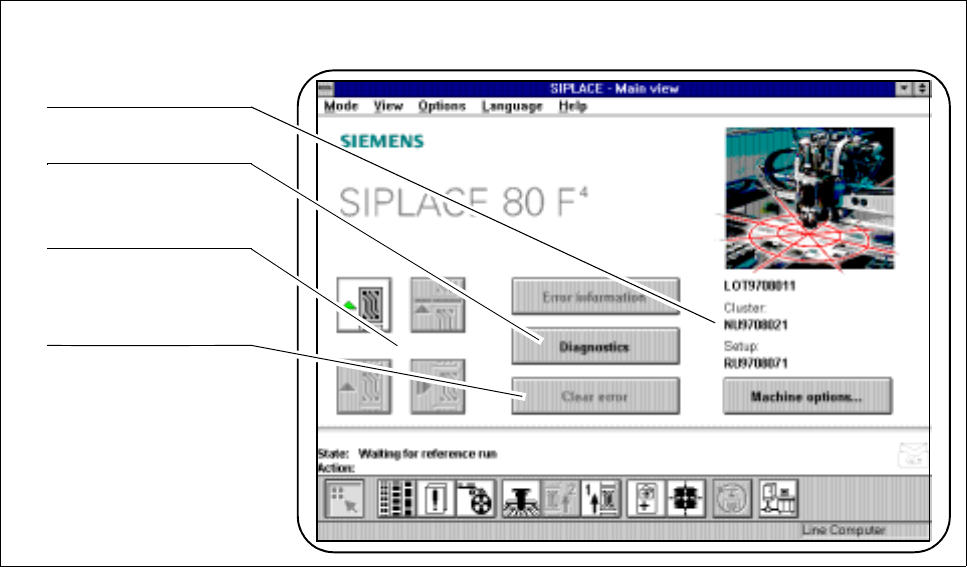
2.2.2.3 Working Area
Depending on the menu or object selected, the working area presents the operator with actions or displays.
Fig. 2.2.3 Example of the working area
- Key to Fig. 2.2.3
1 Job, cluster and set-up name 2 Selector field for submenus
3 Symbols (buttons) for operator actions 4 Selector fields for operator actions
Actions appearing in the working area can be selected or launched by using either the trackball or the touch
screen.
1
2
3
4