SIPLACE Vision Customer_en.pdf - 第24页
User Interface Editing the Camera Image (for all Vision Menus) Station Interface for Teaching Component Shapes S tudent Guide SIPLACE V ision (Customer) User Interface Edition 12/2008 EN 24 4.4 Editing the Camera Image (…
User Interface
Station Interface for Teaching Component Shapes Operating Level " Supervisor"
Student Guide SIPLACE Vision (Customer)
Edition 12/2008 EN User Interface
23
4.3.2 Station Interface for Teaching Component Shapes
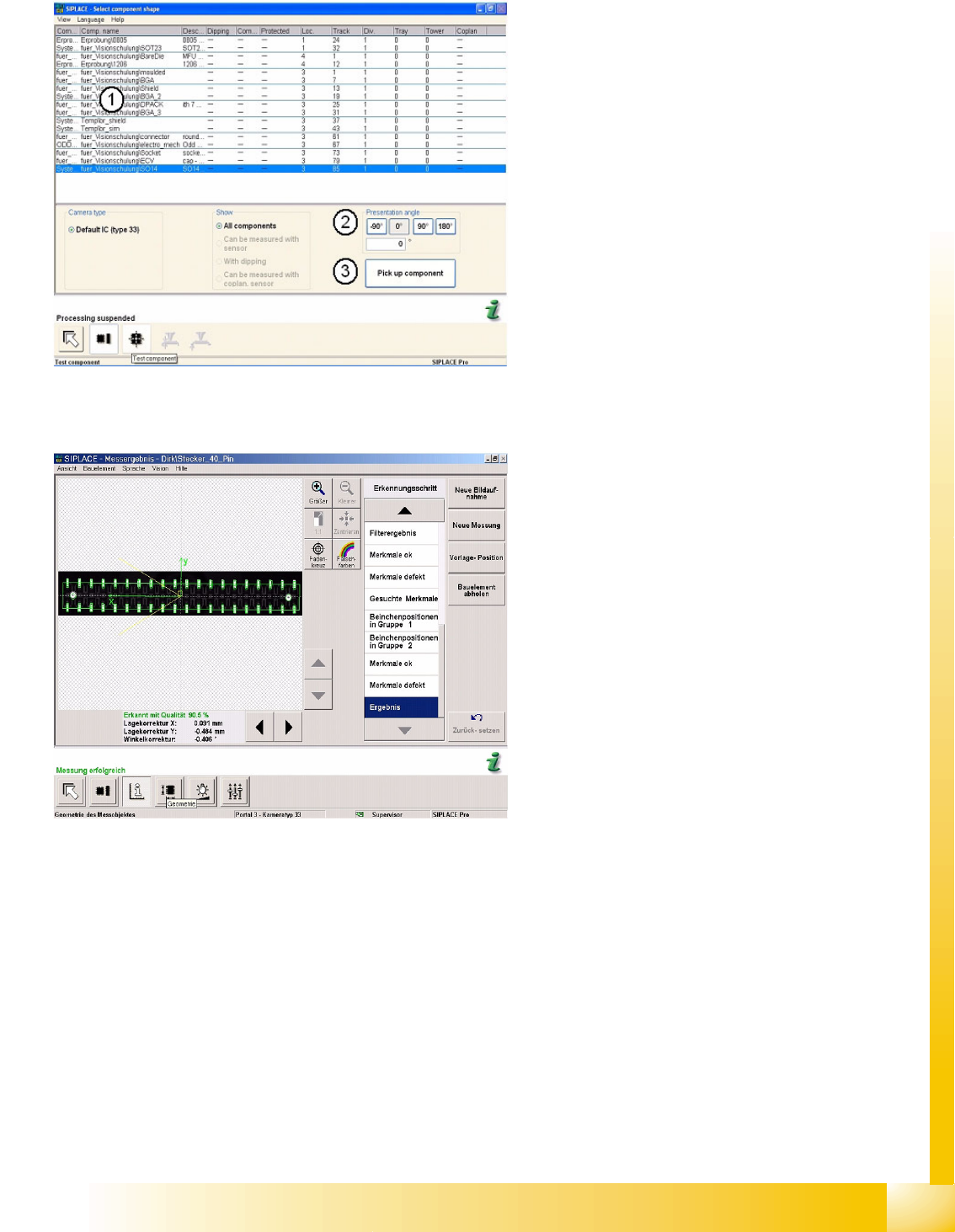
4-6: Component selection menu at the station with programming privileges
for geometry
1. Select the component to be measured from
the list of components for the predefined
setup.
2. By selecting the presentation angle you can
define the angular position of the component
shape for measurement. This setting is NOT
only available for Twin Head.
3. The pickup procedure is triggered by the
Pickup Component button.
The component can then be measured by the
component camera.
The diagram shows the operating level Supervisor
for CS testing and teaching.
4-7: Centering steps for SOxx
The station user interface shown in the adjacent
figure displays the operating level Service. This is
also shown in the teach menu at the station and
allows full access to the CS programming data,
with all write privileges.
User Interface
Editing the Camera Image (for all Vision Menus) Station Interface for Teaching Component Shapes
Student Guide SIPLACE Vision (Customer)
User Interface Edition 12/2008 EN
24
4.4 Editing the Camera Image (for all Vision Menus)
The station SW has a section for SIPLACE Vision tasks e.g. for displaying the optical processes at the
station to perform machine checks, for optical recognition of the PCB or component position and quality.
This display area can only be accessed in operating level
Line engineer
.
Displaying the camera image
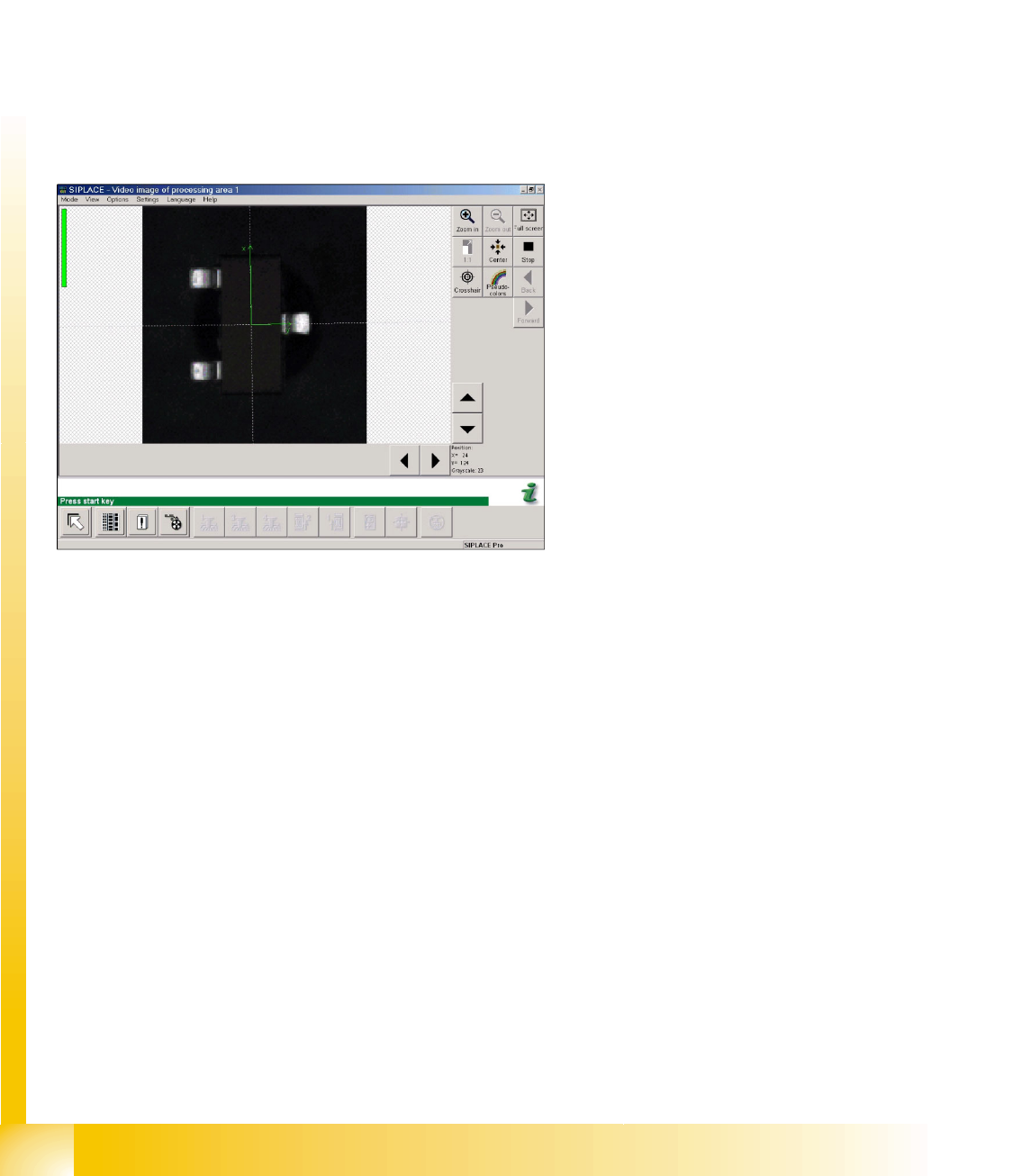
In the case of recognition problems, this "Vision monitor" can be enabled instead of the station computer
(press "Alt" 8 for placement area 1 (PA1) or "Alt" 9 for PA2 to activate). This also applies for the powering
up procedure before the start button is pressed for the first time. The procedures for "measuring
component table position", feeder position recognition etc. are then shown on the camera image.
Halt stops the optical centering images. However, the machine does NOT stop the reference or
placement run.
The last 10 images in the process can be analyzed with the back/forwards button.
This shows the interface for optical centering of a
component during the placement procedure.
The top left of the image shows the centering
quality as a green bar. If centering errors occur
(red bar) the image will be saved for subsequent
analysis.
User Interface
Station Interface for Teaching Component Shapes Editing the Camera Image (for all Vision Menus)
Student Guide SIPLACE Vision (Customer)
Edition 12/2008 EN User Interface
25
Editing the camera image
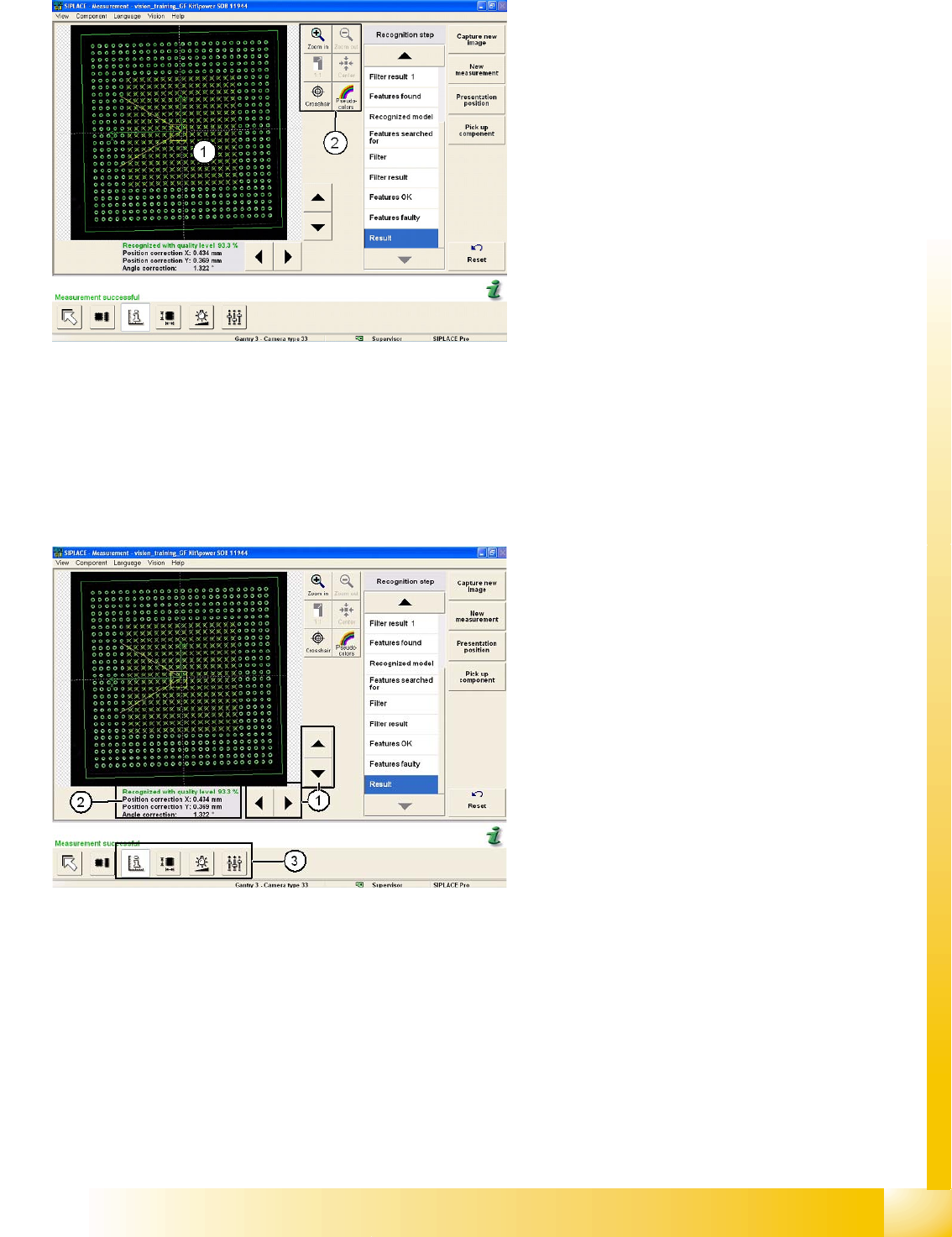
Legend
The digital camera image can be made larger (up
to the display of individual pixels) and smaller with
the zoom function.
1. Camera image of component (camera center)
2. Camera tools menu with the following buttons:
Zoom in
zooms in on the component image
step by step, starting from the component
center. The same happens when the user
touches any part of the camera image.
Zoom out
reduces the size of the camera
image again, step by step.
1:1 resets the image to its original size and
aligns it in the center of the image area.
Center
centers the component image section.
Crosshairs
shows camera crosshairs in the
image for position and size assessment.
Pseudo colors
This helps you evaluate the
contrast of specific features.
Legend
1. Use the arrow keys to move the section of the
camera image.
2. This shows the centering result/error or the
evaluation, consisting of position correction
data (X, Y and Z values) and the angle
correction value.
3. Further Vision menus include
Result
,
Geometry
,
Illumination
and
Algorithms
.