SIPLACE Vision Customer_en.pdf - 第27页
User Interface Station Interface for Teaching Component Shape s Checking and Correcting the Geometr y. S tudent Guide SIPLACE Vision (Customer) Edition 12/2008 EN User Interface 27 4.6 Checking and Correcting the Geometr…
User Interface
Menu for Results and Recognition Steps Station Interface for Teaching Component Shapes
Student Guide SIPLACE Vision (Customer)
User Interface Edition 12/2008 EN
26
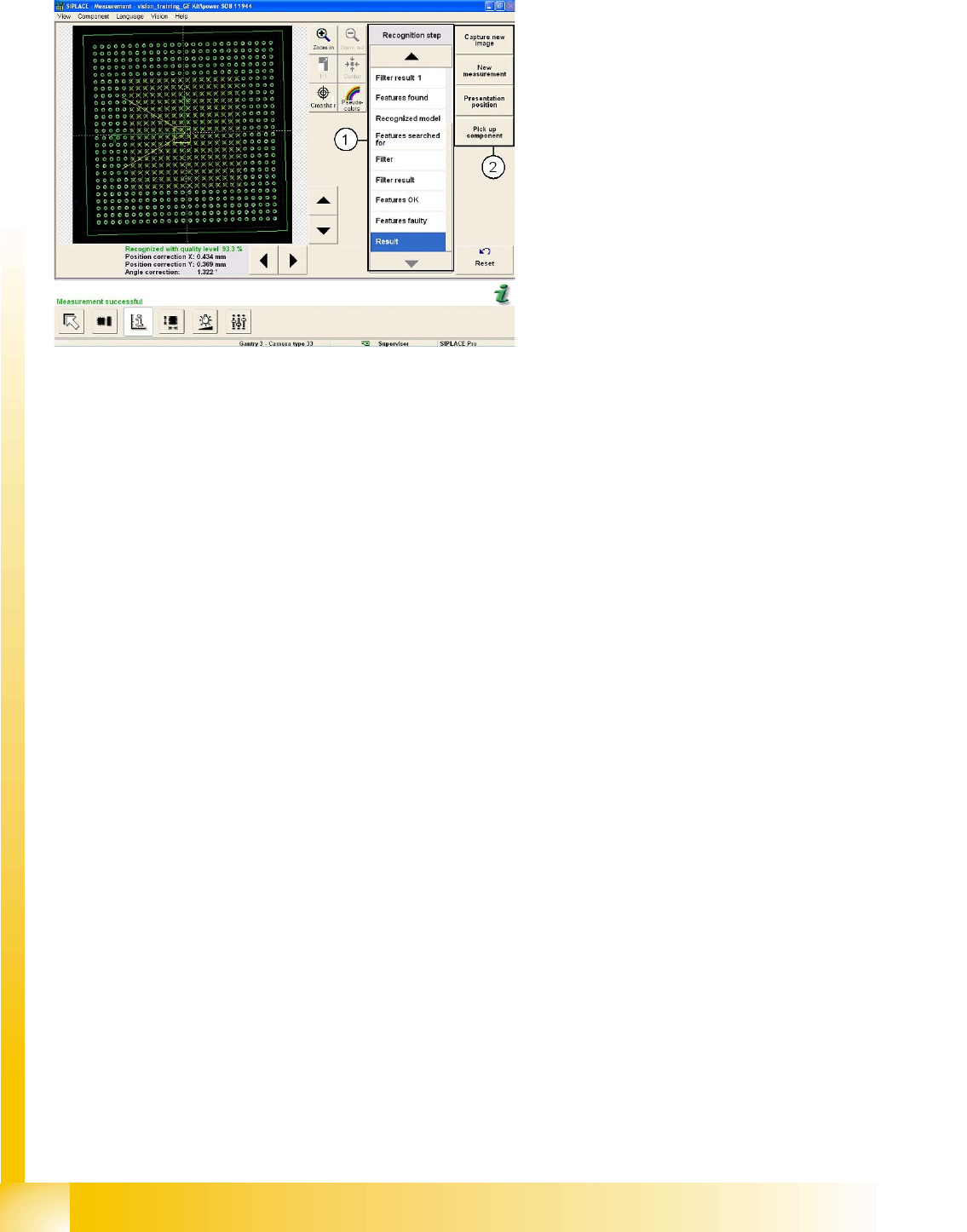
4.5 Menu for Results and Recognition Steps
1. Individual step selection for centering of
component type.
Recognition step selection: each individual
centering step for a particular CS type can be
selected for (error) analysis purposes.
2. Camera menus:
– Capture new image: The camera
illuminates the component and records a
new image.
– New measurement : A new analysis is
performed with the stored data from the
last image recording.
– Presentation position: This shows the
expected component position.
– Pick up component: This rejects the
current component, fetches a new one
from the feeder and places it in front of the
camera.
User Interface
Station Interface for Teaching Component Shapes Checking and Correcting the Geometry.
Student Guide SIPLACE Vision (Customer)
Edition 12/2008 EN User Interface
27
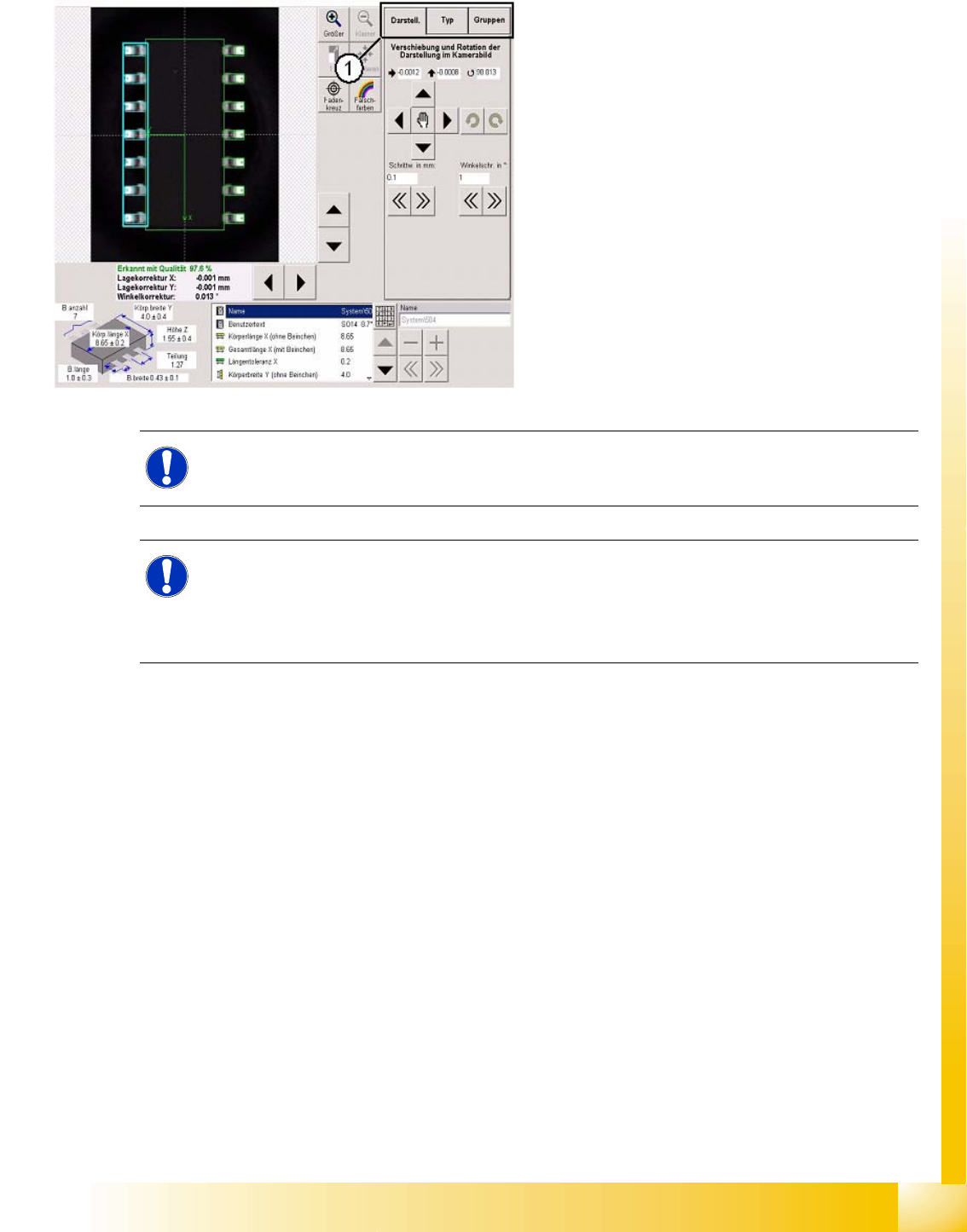
4.6 Checking and Correcting the Geometry.
1. The following settings can be defined in the
three tabs provided:
– Use the menu View to set the green,
programmed CS outline on top of the
camera image.
– Use the Type tab to reassign the SIPLACE
Vision CS type.
Make sure that the programming
corresponds to the newly selected CS
type, otherwise the system will overwrite
your CS data with standard settings!
– Use the menu Groups to reprogram the
lead group and the lead itself.
NOTE:
The above diagram shows an angle of 90 degrees.
NOTE: Changes affect the optical recognition in ICOS camera systems
If a common CS description has been selected for this component in SIPLACE Pro, the settings
will also influence the optical recognition by the ICOS camera systems.
X You may need to select Requires separate group description in SIPLACE Pro. After this,
reteach the component shape.
User Interface
Setting the Illumination Station Interface for Teaching Component Shapes
Student Guide SIPLACE Vision (Customer)
User Interface Edition 12/2008 EN
28
4.7 Setting the Illumination
In general, the standard illumination values guarantee reliable and stabile recognition of the various
component properties for that component type.
However, in some cases, you may need to adjust the illumination at the station.
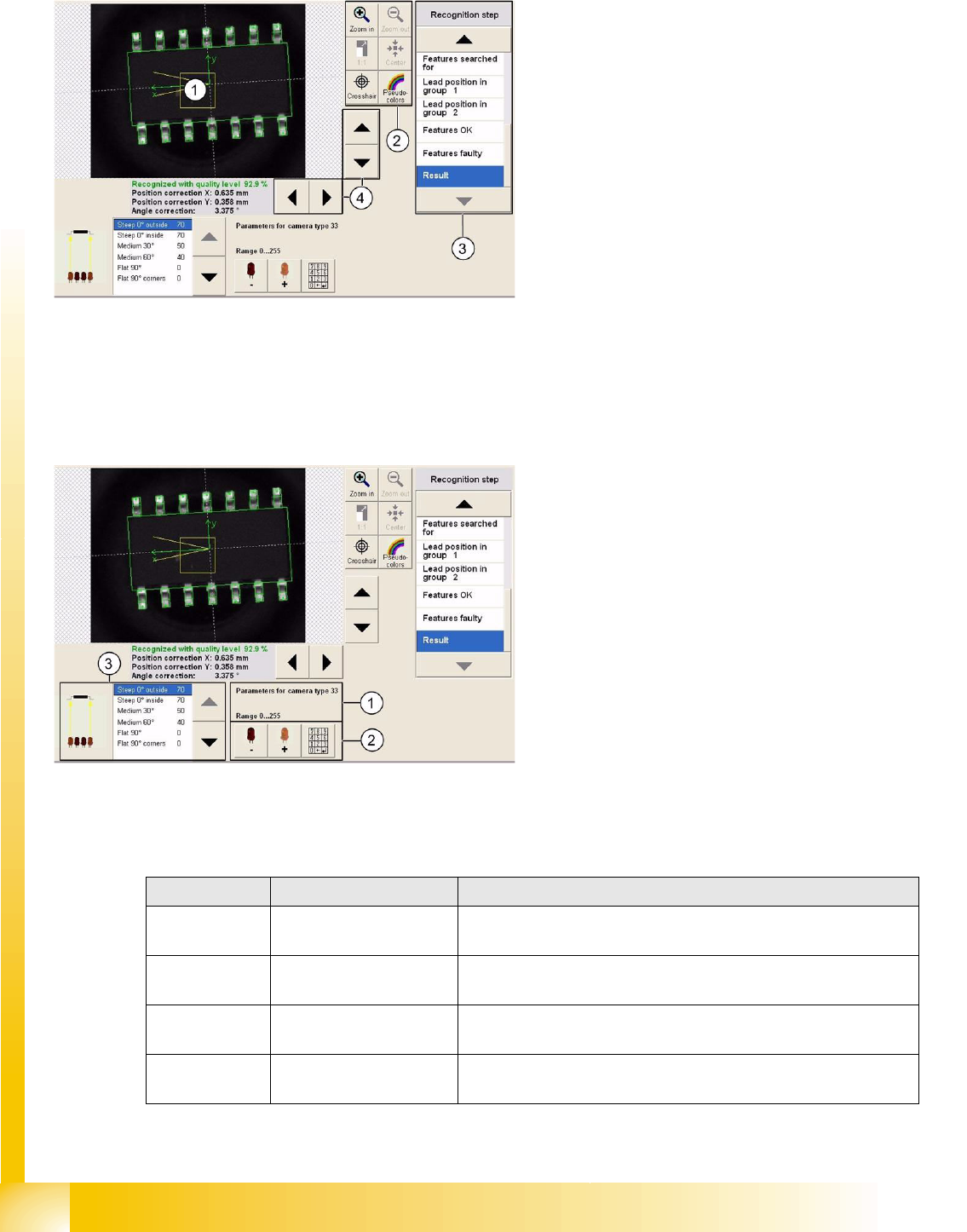
1. The illumination setting is visible in the camera
image. Each component type definition sets
the optimum standard illumination type for that
particular component shape. Where special
component shapes or surfaces are used, the
illumination can be individually adjusted. The
changes made can be reset to factory settings
or to the last value stored whenever required.
2. The image editing functions (zoom, pseudo-
colors) can also be altered during illumination
adjustment.
3. This shows the list of recognition step details.
The illumination can be adjusted
independently of the selection made here.
4. To optimally set a critical section of the camera
image, use the arrow keys in the zoom
function to navigate within the image.
1. This shows the camera type currently used.
(33 TWIN IC camera)
2. To alter the values for the selected level,
simply use the relevant LED icon or enable the
touchscreen number field and enter the
required value.
3. This shows a list of all illumination parameters
for the current camera. The currently selected
parameter is highlighted.
Lead shape Typical CO Example of standard illumination values for TWIN
Wraparound Chip / Melf / Moulded Steep inside 60, steep outside 60, middle 30° 40, middle 60° 25,
flat 0, flat corners 0.
Gullwing SOxx / QFP / SOT /
DPACK / Socket / ECV
Steep inside 75, steep outside 75, middle 30° 30, middle 60° 0,
flat 0, flat corners 0.
J-Lead PLCC / SOJ Steep inside 90, steep outside 90, middle 40° 30, middle 60° 30,
flat 40, flat corners 40.
Balls BGA Steep inside 0, steep outside 0, middle 30° 0, middle 60° 0,
flat 110, flat corners 130.