00198764-01_IM_SIPLACE_Pro_17.0_R19-2_EN - 第12页
SIPLACE Pro 17.0 (R19-2) / Installation Manual 11/2019 Edition 12 As default, t he SIPLACE P ro database and SIPLACE Pro Server are installed on the same computer as displayed in the followi ng figure. Figure 5-1 : Defau…
SIPLACE Pro 17.0 (R19-2) / Installation Manual 11/2019 Edition
11
5 Software Components and Configuration
This chapter describes the software components of SIPLACE Pro and possible configurations.
5.1 Software Components
SIPLACE Pro consists of the following software components to be installed:
Server components:
– SIPLACE Pro Server
contains the server program.
– SIPLACE Pro Database
contains the SIPLACE Pro database.
Client components:
– SIPLACE Pro Line Control Server
to be used on computers dedicated to perform download of production data to the line.
– SIPLACE Pro Desk
contains the user interface of SIPLACE Pro.
– SIPLACE Pro Line Control GUI
contains the user interface of SIPLACE Line Control Server.
5.2 Configuration
The system installation can be installed on one computer or distributed across several computers.
If the SIPLACE Pro software is installed on separate computers, you work with one computer as
the dedicated server and one or more other computers as clients.
If the SIPLACE Pro software is installed on one computer, this computer functions as both server
and client.
In typical factory layouts, you can either have one central database containing all data for all lines
or a dedicated SIPLACE Pro Server for each line. A central database makes it possible to share
the same data for all lines, like component shape definitions. The dedicated SIPLACE Pro Servers
are independent from each other.

SIPLACE Pro 17.0 (R19-2) / Installation Manual 11/2019 Edition
12
As default, the SIPLACE Pro database and SIPLACE Pro Server are installed on the same
computer as displayed in the following figure.
Figure 5-1: Default configuration
The database can optionally be installed on another computer than SIPLACE Pro Server as
displayed in the following figure. Please refer to section 6.2.5 for more information.
Figure 5-2: Database installed on remote computer
SIPLACE Pro 17.0 (R19-2) / Installation Manual 11/2019 Edition
13
6 Installing the SIPLACE Pro Software
This chapter describes important preparations to be performed prior to installation and how to
install the SIPLACE Pro and SIPLACE Pro Language Pack software respectively.
6.1 Preparations Prior to Installation
– For more detailed information which software is essential and has to be successfully installed
before performing the installation of SIPLACE Pro please refer to the Support Media and the
respective manual.
► Make sure you use the Prerequisite Analyzer of Support Media.
► Select SIPLACE Pro as planned Product to install all required missing prerequisites for
SIPLACE Pro (e.g. License Manager, Operation Manager, Error Reporter Service, Net
Framework).
– By default, Support Media installs SQL Express editions only. If you want to use SQL Server
edition instead, install it manually by following the steps described in the SQL installation
documentation on Support Media before using the Prerequisite Analyzer for further preparation.
We strongly recommend that you follow the installation documentation on Support Media, since
it describes the settings needed for SIPLACE Line Software.
– If you install SIPLACE Pro via remote desktop connection:
► Ensure that you establish a connection to the session for administering the server. This can
be done by using the parameter /admin when executing the remote desktop application
mstsc.exe.
► To avoid conflicts with running applications, ensure that no other users are logged on to the
server during the installation.
– If you install the database on a remote computer, Support Media has to be executed on this
computer with the ASM Net – SQL Server Prerequisites – Apply ASM SQL settings profile
after the SQL Server has been installed.
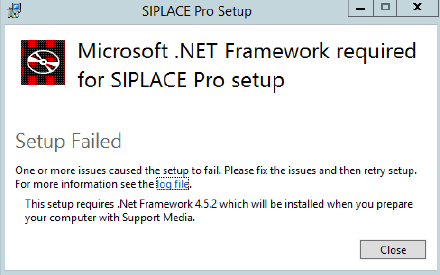
– If you have not prepared your computer with Support Media and your computer has no .Net
Framework installed, you may get the following error message after starting the SIPLACE Pro
Setup:
Figure 6-1: .Net Framework missing
► Ensure that you have prepared your computer with Support Media to avoid this problem.