00198764-01_IM_SIPLACE_Pro_17.0_R19-2_EN - 第18页
SIPLACE Pro 17.0 (R19-2) / Installation Manual 11/2019 Edition 18 NOTICE If you perform an upgrade installatio n using an older versi on of Support Media, the password for the SiplaceAdmin user might be an older one that…
SIPLACE Pro 17.0 (R19-2) / Installation Manual 11/2019 Edition
17
NOTICE
This selection only affects the installation drive of the package. If you want to change the
location of the database or its backup files, you have to click the checkbox displayed
later to change the default database settings.
Please refer to section 6.2.1 for more information on database settings.
► Click the Next button.
The following dialogs appear if all software components have been selected for installation.
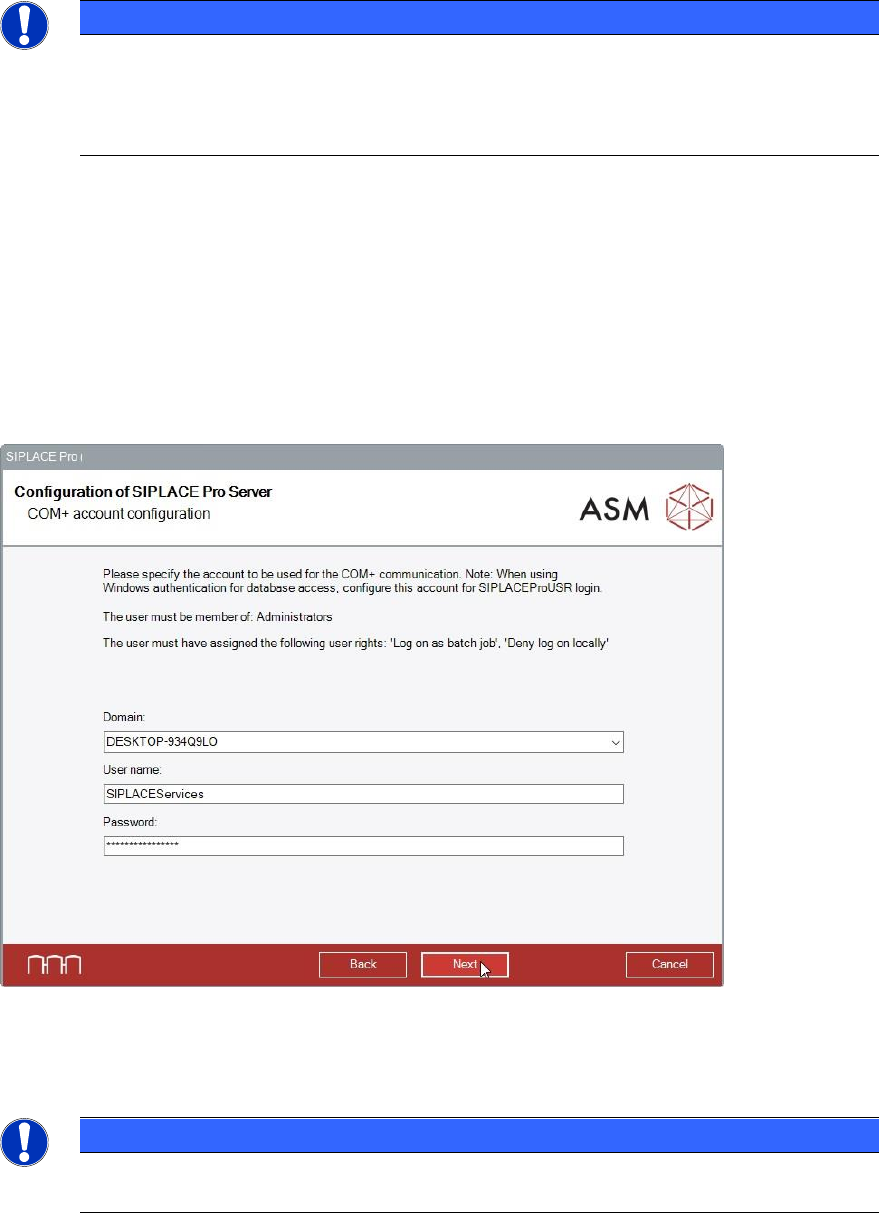
The Configuration of SIPLACE Pro Server dialog is displayed.
In this dialog you specify under which Windows user account the server component of SIPLACE
Pro should run. The current computer name appears as the default value in the domain text box.
This means, it is usually sufficient just to add the user name and the password for local accounts.
However, if this account is from your domain, be sure to change the domain specification
appropriately.
Figure 6-7: Specifying Windows user account
► Enter the Domain, User name and Password for the Windows user. If no domain network is
available, enter the computer name instead.
NOTICE
The user must be a member of the administrator group and have the following user
rights: "Log on as batch job" and "Deny log on locally".
► Click the Next button.
The setup will validate the specified user credentials and the permissions of the specified account
and only continue if all requirements are fulfilled.
SIPLACE Pro 17.0 (R19-2) / Installation Manual 11/2019 Edition
18
NOTICE
If you perform an upgrade installation using an older version of Support Media, the
password for the SiplaceAdmin user might be an older one that is not known by the
setup. In this case, you will get a login error message and have to enter the correct
password manually.
If you perform a new installation using a current Support Media and did not configure a
custom password, the password for the SiplaceAdmin user will be the default password.
In this case you do not have to enter the password for the account in this step – the
setup wizard will try to use the default password if you do not enter a different one.
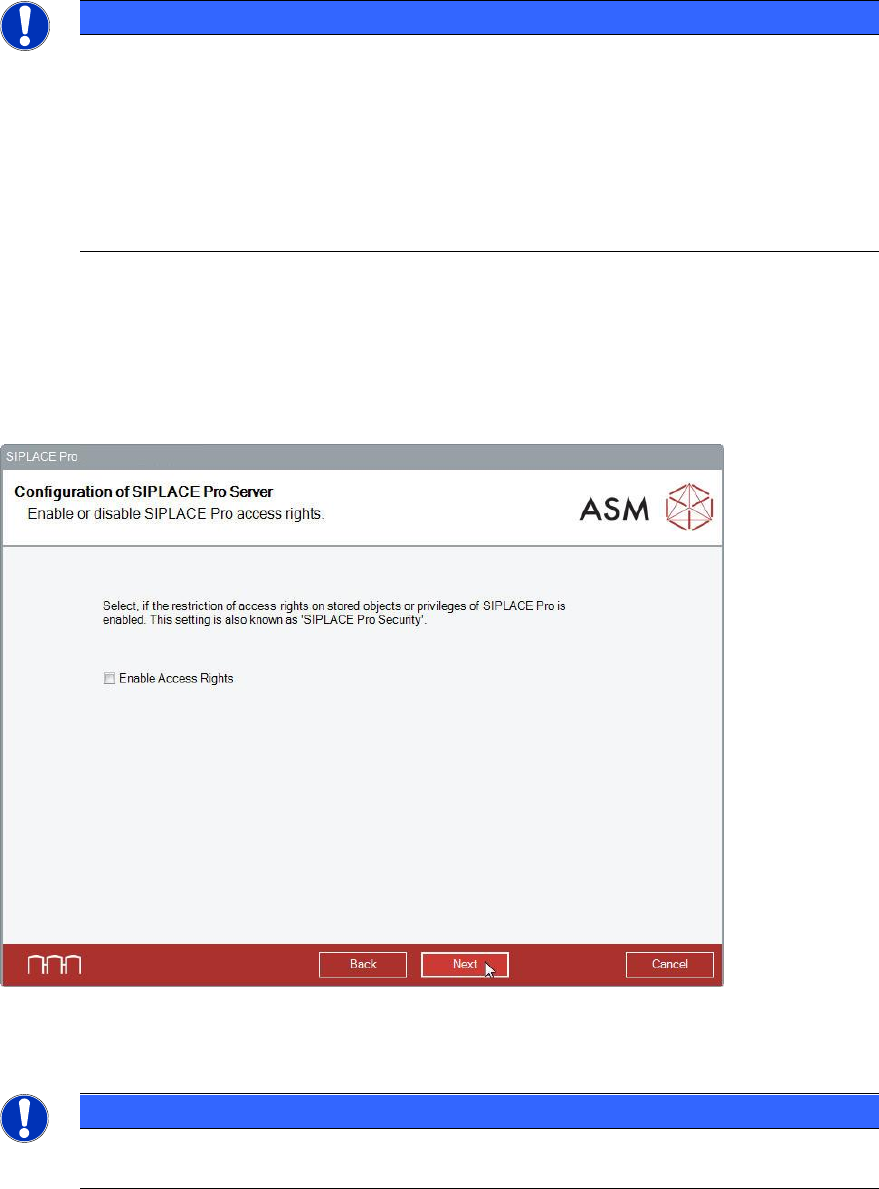
In the next dialog, the SIPLACE Pro access rights (SIPLACE Pro Security) can be enabled.
For new installations and upgrades, the Enable Access rights option is disabled by default. This
means there is no restriction of access rights on stored objects.
We recommend that you leave this option disabled until you have created Users, Groups and set
Privileges & Permissions in SIPLACE Pro Desk. After that, you may activate the Enable Access
Rights option by modifying the Security On/Off option in the Settings tab of SIPLACE Pro Desk.
Figure 6-8: Enabling / disabling SIPLACE Pro access rights
► Click the Next button.
NOTICE
► To reconfigure your SIPLACE Pro installation, run the setup again after installation
and select Modify. Please refer to chapter 8.
SIPLACE Pro 17.0 (R19-2) / Installation Manual 11/2019 Edition
19
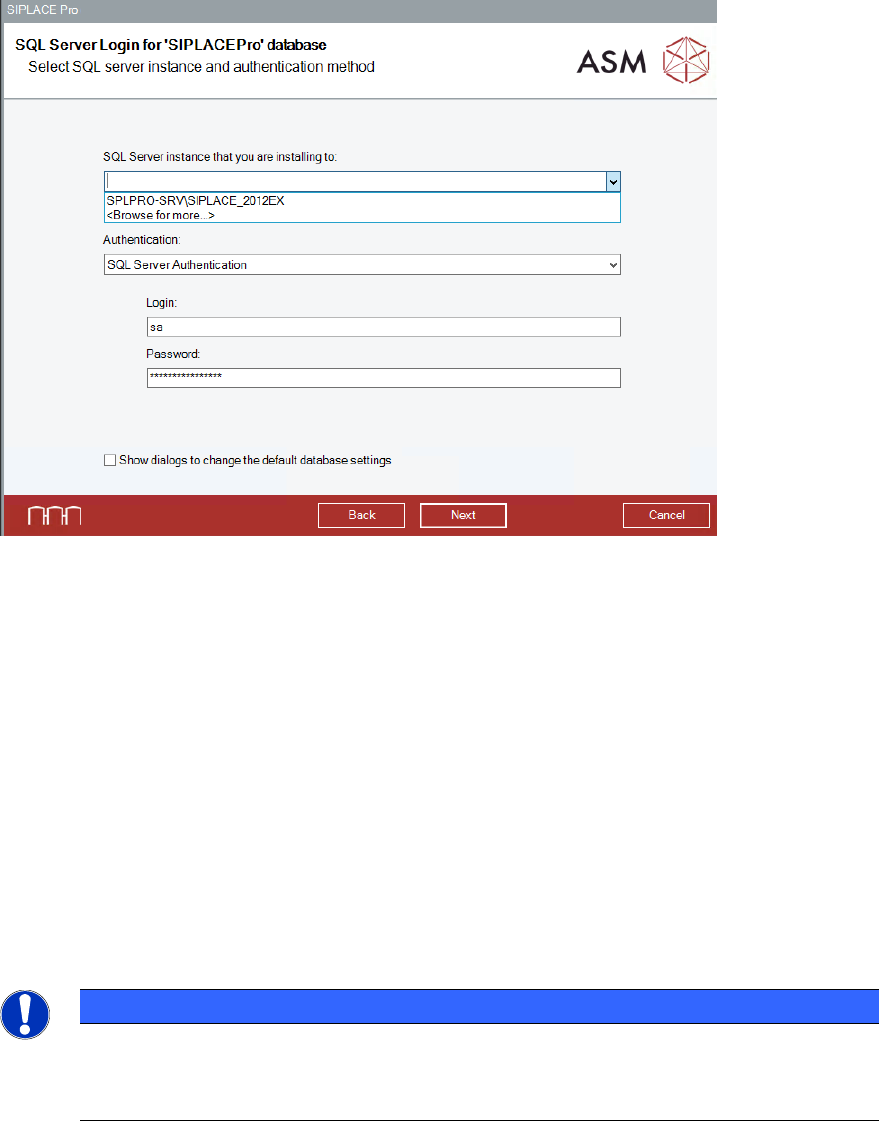
If you are installing a local database, the SQL Server Login dialog is displayed. In this dialog you
enter the information required to connect to the SQL Server and database.
If the check results in error messages, these messages will be displayed, and the setup cannot
continue with this database. Only after selecting another database server or after restoring the
database in an error-free state, setup can continue.
Figure 6-9: Selecting database server and authentication method
► Select the appropriate database instance for the listed database.
► Select the desired authentication mode from the Authentication drop-down menu and enter
the required login parameters:
SQL Server Authentication
► Enter the SQL login name and the corresponding password.
The SQL Server performs the authentication.
Windows Authentication (current user)
The currently logged in user name is automatically applied.
The operating system or, if present, the domain controller performs the authentication.
Windows Authentication
► Enter the user name and the corresponding password that you want to use for your login.
The operating system or, if present, the domain controller performs the authentication.
NOTICE
SQL Server role "sysadmin"
The given login must have the "sysadmin" SQL server role, regardless of the
Authentication in which you log in.
► If you want to specify further SQL related settings different from the default settings, select the
Show dialogs to change the default database settings option. Please refer to section 6.2.3.
► In default case, click the Next button.