00198764-01_IM_SIPLACE_Pro_17.0_R19-2_EN - 第22页
SIPLACE Pro 17.0 (R19-2) / Installation Manual 11/2019 Edition 22 Figure 6- 13 : Not enough recommended di sk space The setup checks for the recom mended disk space to ensure t hat enough disk space is a vailable for ins…
SIPLACE Pro 17.0 (R19-2) / Installation Manual 11/2019 Edition
21
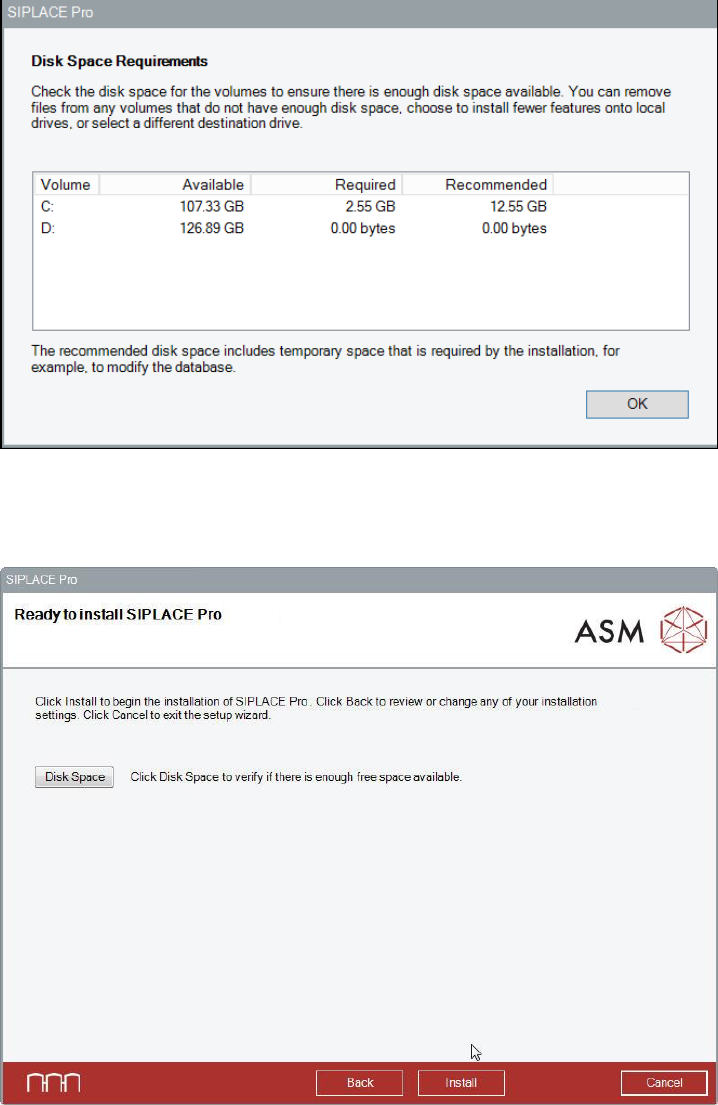
Figure 6-11: Disk space requirements
► Click the OK button.
The following dialog is displayed.
Figure 6-12: Ready for installation
► Click the Install button to start the installation.
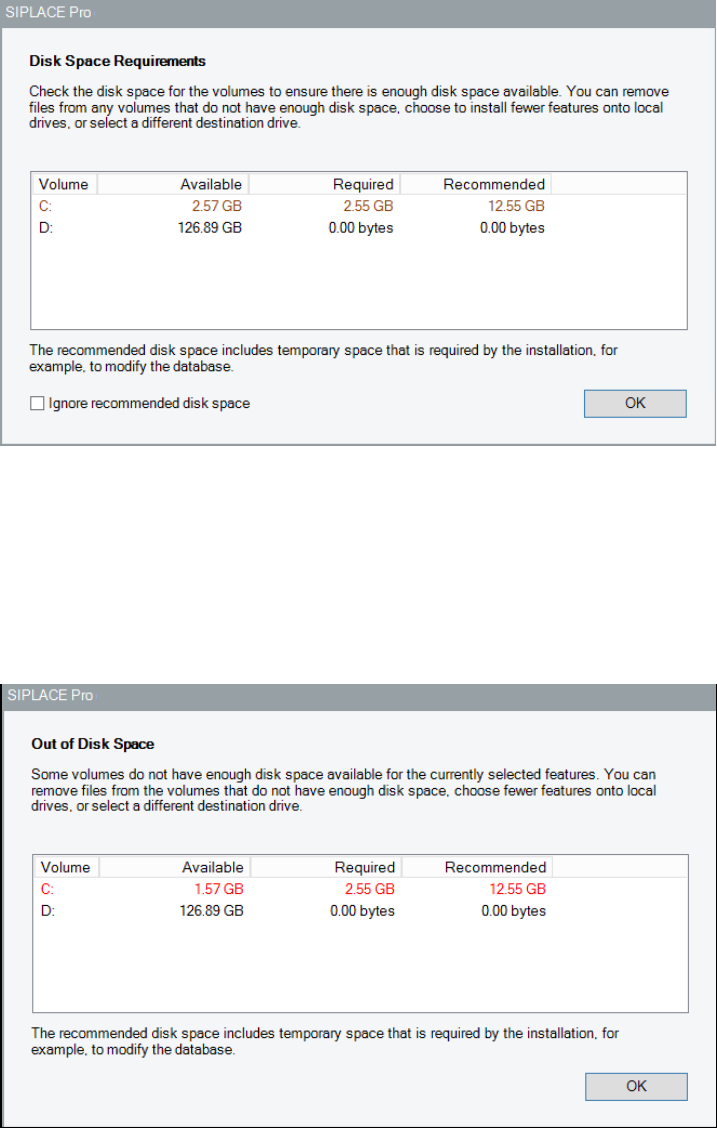
Now the setup explicitly checks the available, required and recommended disk space again. If your
free disk space does not match the recommended disk space the following dialog is displayed.
SIPLACE Pro 17.0 (R19-2) / Installation Manual 11/2019 Edition
22
Figure 6-13: Not enough recommended disk space
The setup checks for the recommended disk space to ensure that enough disk space is available
for installation processes. We strongly recommend this disk space. However, you may override this
check.
► In this case, activate the Ignore recommended disk space checkbox.
After that, the setup allows to continue the installation.
If the disk space is insufficient, the Out of Disk Space dialog is displayed.
Figure 6-14: Out of disk space
► Click the OK button and solve the problem.
SIPLACE Pro 17.0 (R19-2) / Installation Manual 11/2019 Edition
23
NOTICE
Important!
The recommended disk space is that large because it is not only calculated based on the
installation drive of your package but also on the files on the disk where the database is
located.
Additionally, the setup has to ensure there is about 10 GB free disk space on the disk
where the database log file is located. Certain operations during the setup may cause
the database log file to grow very large temporarily.
If you change the installation drive because of insufficient disk space, this does not affect
the location of the database and its backups. To change the database related settings,
you have to go back to the database connection dialog and select the checkbox to
change the default database settings.
Please refer to section 6.2.1 for more information.
The Ready to Install dialog will be automatically displayed as soon as the required disk space is
available.
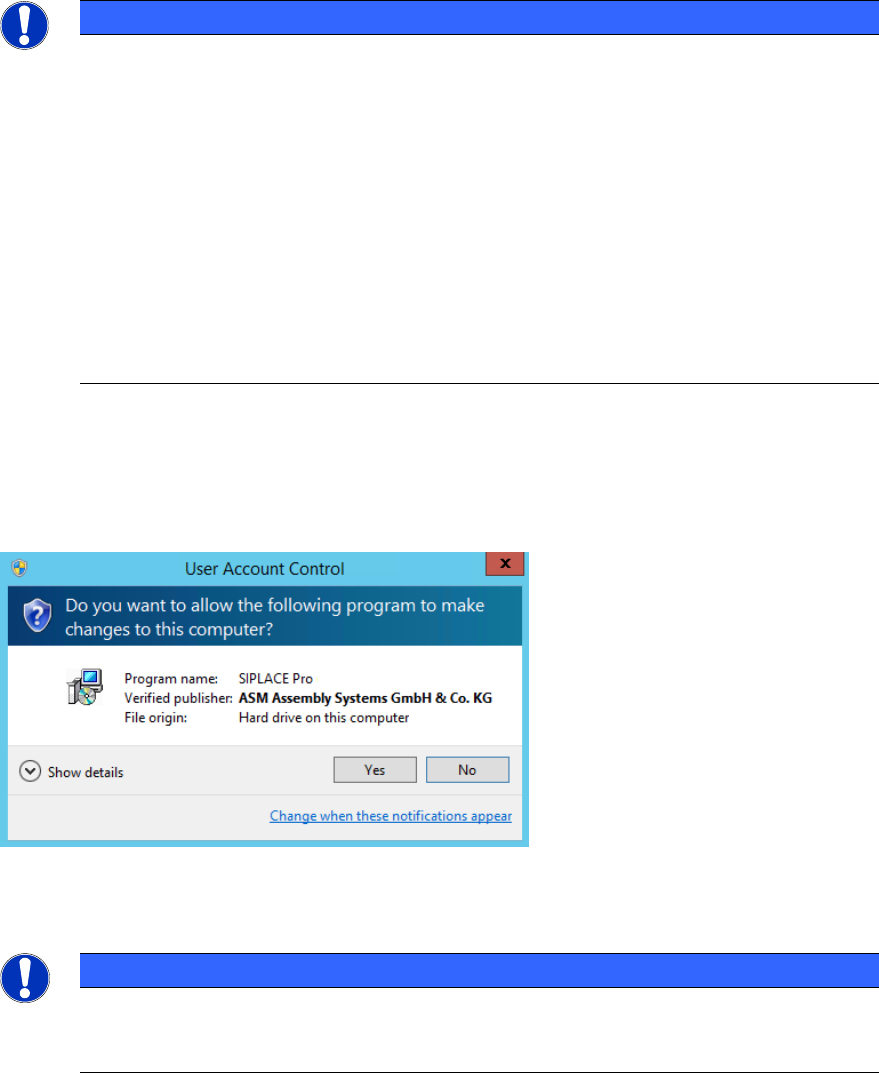
If User Account Control is enabled on Windows 7 or newer, the following dialog is additionally
displayed before the installation starts.
Figure 6-15: User Account Control
► Click the Yes button to allow the SIPLACE Software installation.
NOTICE
It is important to confirm the User Account Control window! This window is visible for
about one minute. If you overlook it or do not click the Yes button, the installation fails
with An error occurred message but no further error information.