00198764-01_IM_SIPLACE_Pro_17.0_R19-2_EN - 第31页
SIPLACE Pro 17.0 (R19-2) / Installation Manual 11/2019 Edition 31 6.2.4.1 Assigning a Login that U ses SQL Server Authenti cation If the SQL Server Authentication optio n is selected, the available options in the Assign …
SIPLACE Pro 17.0 (R19-2) / Installation Manual 11/2019 Edition
30
6.2.4 Setting Up the Database Users
If several database users are defined in an installation, the Assign a login to the database user
dialog is displayed for each SQL login. In SIPLACE Pro, two database users are available:
● SIPLACEProDBA
– This user is the owner of the database.
● SIPLACEProUSR
– This user is used by SIPLACE Pro for reading and writing operations on the database.
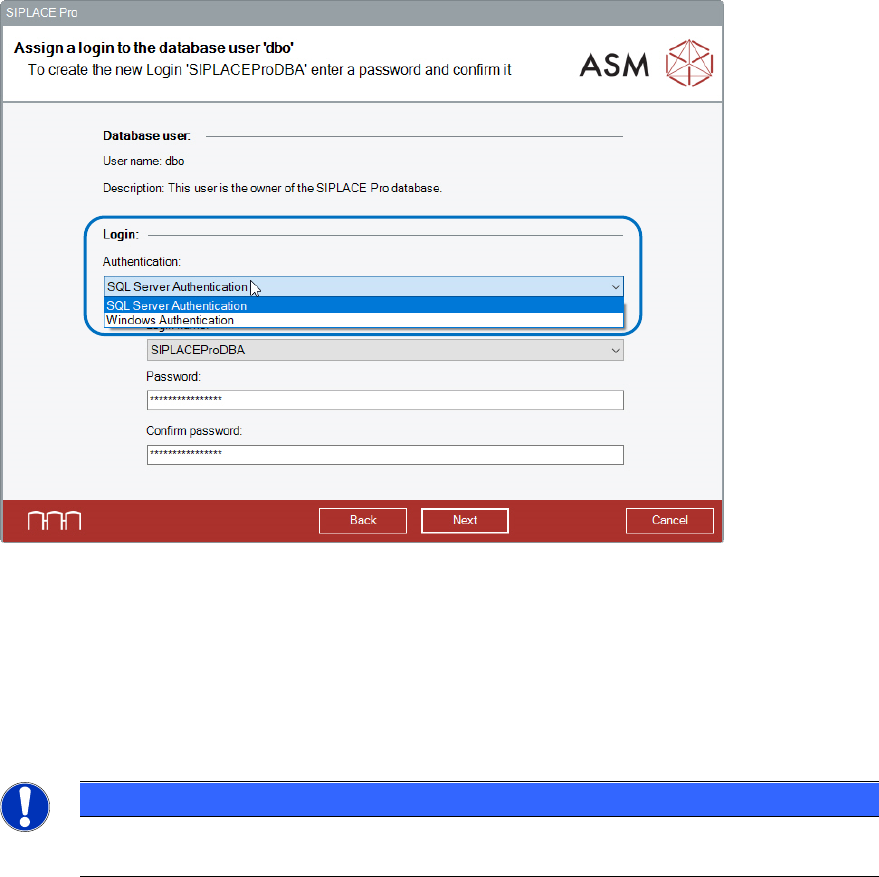
Figure 6-25: Assign a login to the database user dialog – Authentication Variants
Two authentication options are available for the login that is assigned to the database user:
● SQL Server Authentication
● Windows Authentication
Once all logins (DBA and USR) are validated accordingly, the Backup directory dialog is
displayed.
NOTICE
Depending on the selected authentication option, different options are displayed in the
Assign a login to the database user dialog.
SIPLACE Pro 17.0 (R19-2) / Installation Manual 11/2019 Edition
31
6.2.4.1 Assigning a Login that Uses SQL Server Authentication
If the SQL Server Authentication option is selected, the available options in the Assign a login
to the database user dialog also depend on whether the SQL Server login already exists, and if a
new password needs to be created, if applicable.
Creating an SQL Server Login
The SQL Server login does not yet exist and needs to be created. The password has to be
specified.
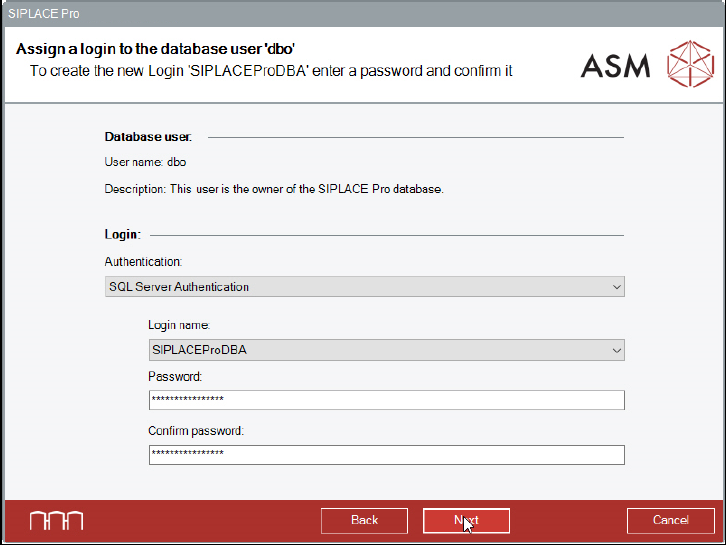
Figure 6-26: Creating the SQL Server Login 'SIPLACEProDBA'
► Under Authentication, select SQL Server Authentication.
► You can either use the proposed Password (default password) for the SQL Login or enter an
own password.
► Click the Next button.
It is checked if the password complies with the prevailing password policies. If the validation fails, a
message is displayed and you must choose a different password.
SIPLACE Pro 17.0 (R19-2) / Installation Manual 11/2019 Edition
32
Assigning an Existing SQL Server Login
The SQL Server login already exists. The login password has to be confirmed or a new password
created.
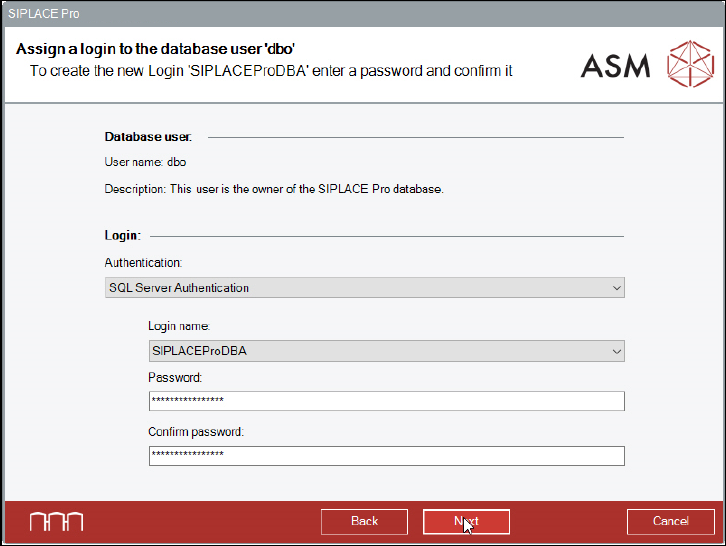
Figure 6-27: Validating the SQL Server Login 'SIPLACEProDBA'
► You must enter the currently valid password for the SQL login. The last entered password is
suggested.
► Click the Next button.
It is checked if you entered the correct password.
If the password is not correct, the setup will display an error message. You may either assign a
new password to the already existing SQL user or re-type the password.
If you choose to assign a new password, the Assign new password for the SQLServer Login
dialog is displayed. This changed dialog now behaves like the previously described SQL login
creation dialog.
► Enter the new password for the user in the two password fields.
► Click the Next button to continue.
It is checked if the password complies with the prevailing password policies.
Similar dialogs will appear for the SIPLACEProUser SQL Server login.