00198764-01_IM_SIPLACE_Pro_17.0_R19-2_EN - 第32页
SIPLACE Pro 17.0 (R19-2) / Installation Manual 11/2019 Edition 32 Assigning an Existing SQL Server L ogin The SQL Server login already exi sts. The login password ha s to be confirmed or a new pass word created. Figure 6…
SIPLACE Pro 17.0 (R19-2) / Installation Manual 11/2019 Edition
31
6.2.4.1 Assigning a Login that Uses SQL Server Authentication
If the SQL Server Authentication option is selected, the available options in the Assign a login
to the database user dialog also depend on whether the SQL Server login already exists, and if a
new password needs to be created, if applicable.
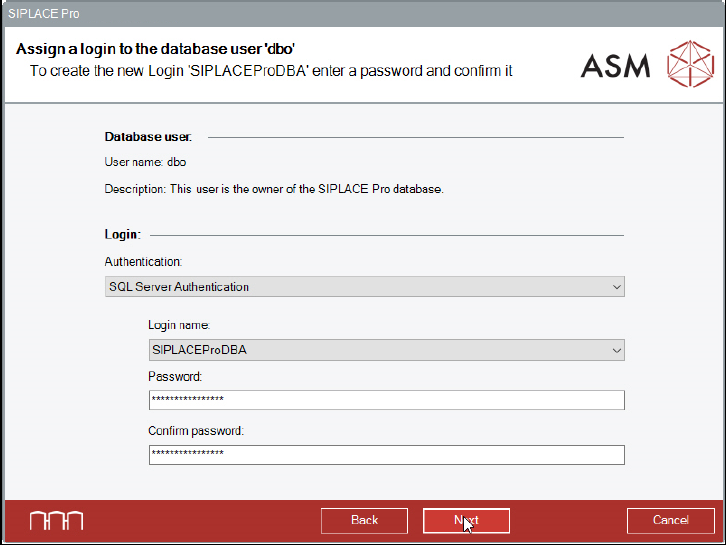
Creating an SQL Server Login
The SQL Server login does not yet exist and needs to be created. The password has to be
specified.
Figure 6-26: Creating the SQL Server Login 'SIPLACEProDBA'
► Under Authentication, select SQL Server Authentication.
► You can either use the proposed Password (default password) for the SQL Login or enter an
own password.
► Click the Next button.
It is checked if the password complies with the prevailing password policies. If the validation fails, a
message is displayed and you must choose a different password.
SIPLACE Pro 17.0 (R19-2) / Installation Manual 11/2019 Edition
32
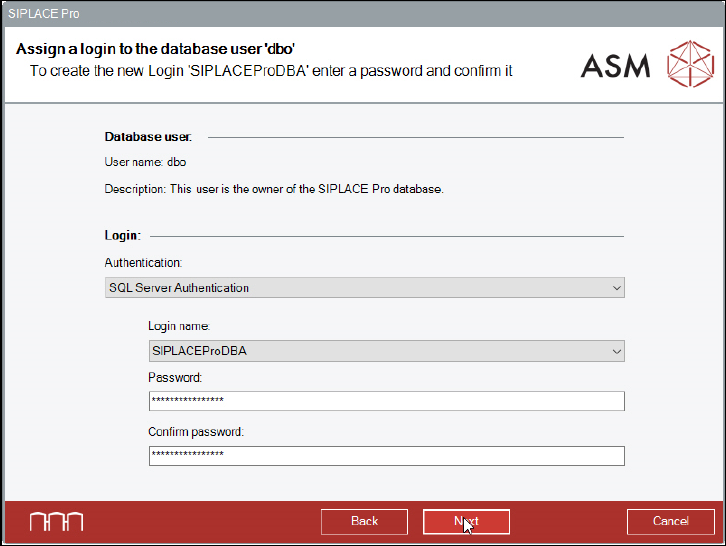
Assigning an Existing SQL Server Login
The SQL Server login already exists. The login password has to be confirmed or a new password
created.
Figure 6-27: Validating the SQL Server Login 'SIPLACEProDBA'
► You must enter the currently valid password for the SQL login. The last entered password is
suggested.
► Click the Next button.
It is checked if you entered the correct password.
If the password is not correct, the setup will display an error message. You may either assign a
new password to the already existing SQL user or re-type the password.
If you choose to assign a new password, the Assign new password for the SQLServer Login
dialog is displayed. This changed dialog now behaves like the previously described SQL login
creation dialog.
► Enter the new password for the user in the two password fields.
► Click the Next button to continue.
It is checked if the password complies with the prevailing password policies.
Similar dialogs will appear for the SIPLACEProUser SQL Server login.
SIPLACE Pro 17.0 (R19-2) / Installation Manual 11/2019 Edition
33
6.2.4.2 Assigning a Login that Uses Windows Authentication
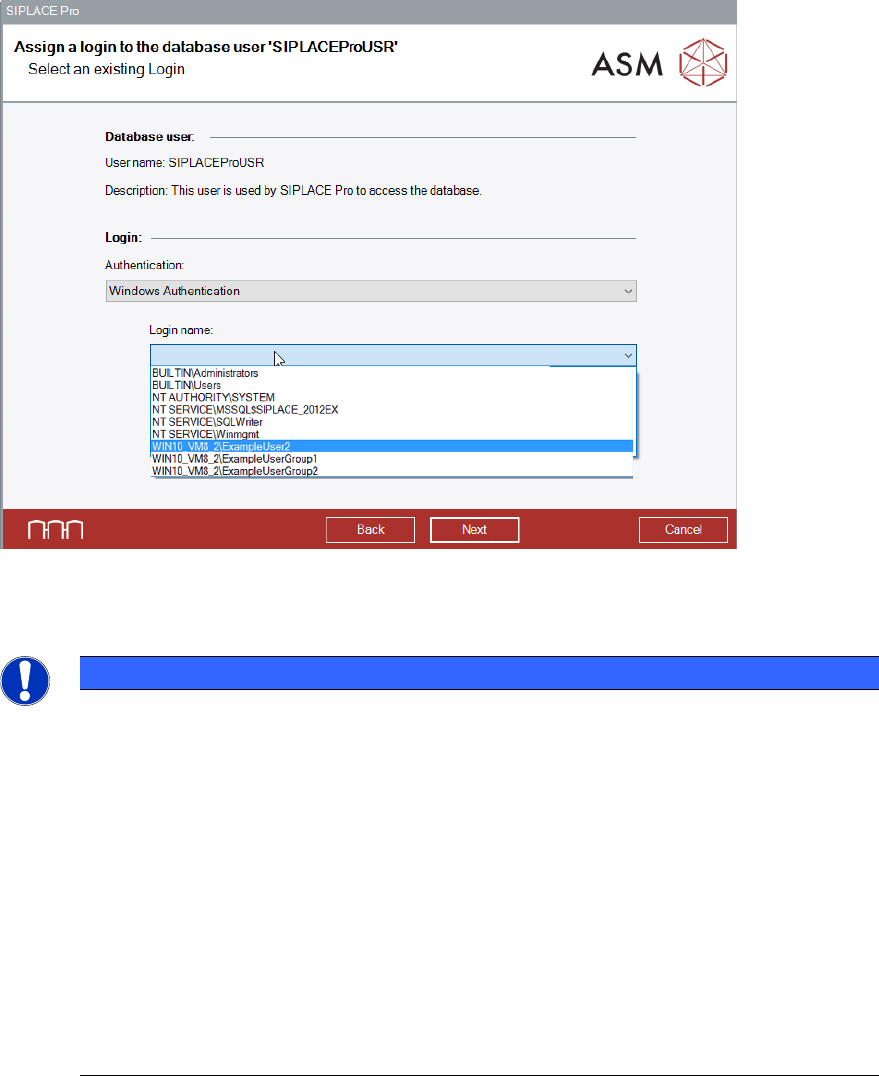
Figure 6-28: Assign a login to the database user dialog – Select Login Name
► Under Login name, select the required login.
NOTICE
Windows Authentication login
The database owner (dbo) can only have one login assigned that is authenticated by a
Windows user. Logins that are authenticated by a Windows user group are not permitted
and hence are not available in the drop-down menu.
A login can be assigned to only one database user within one database. If a login has
already been assigned to a database user, the login is no longer available in the drop-
down menu.
When selecting a login, observe the following:
► The application that requests access to the database must also be started using the
respective user context.
► If authentication occurs by a Windows user group, the user and their user context
within which the application is started must be a member of that Windows user
group.
► Click the Next button.