00198764-01_IM_SIPLACE_Pro_17.0_R19-2_EN - 第34页
SIPLACE Pro 17.0 (R19-2) / Installation Manual 11/2019 Edition 34 6.2.4.3 Selecting the Backup Director y The following dialog is displayed in which you can select the backup directory for the SIPLACE Pro Database. The c…
SIPLACE Pro 17.0 (R19-2) / Installation Manual 11/2019 Edition
33
6.2.4.2 Assigning a Login that Uses Windows Authentication
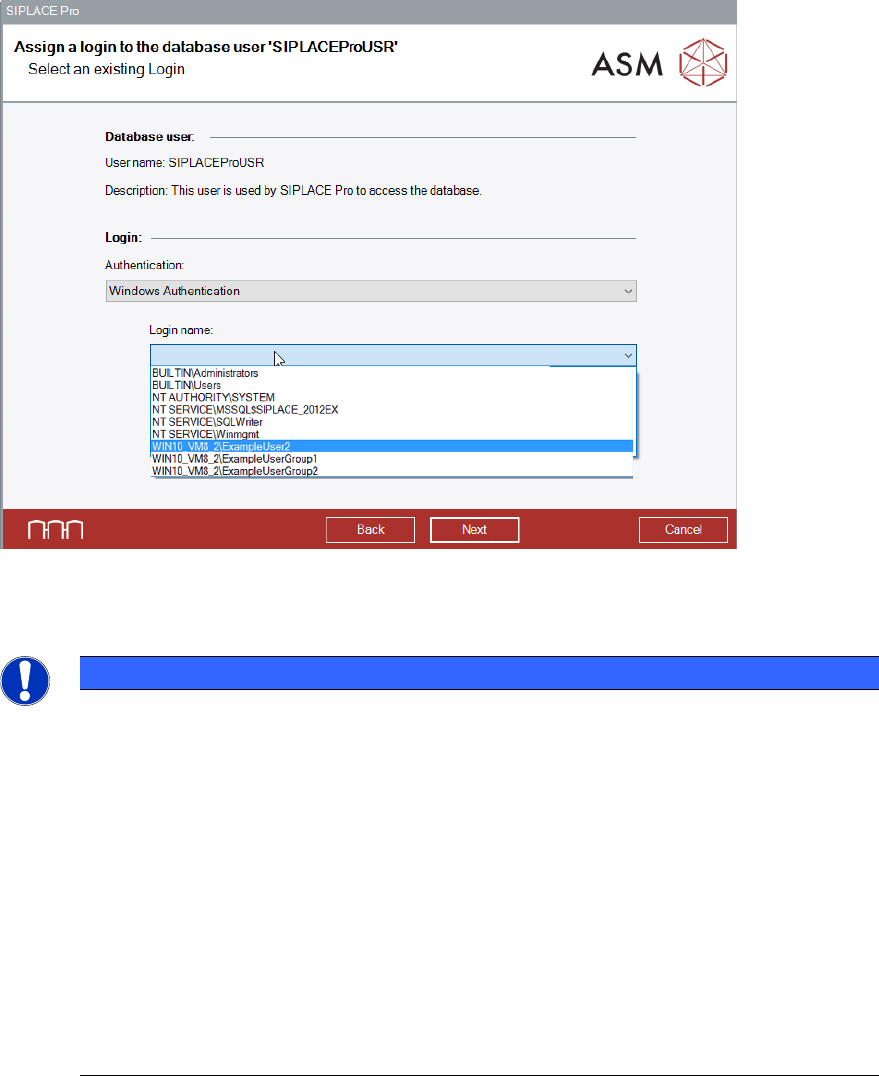
Figure 6-28: Assign a login to the database user dialog – Select Login Name
► Under Login name, select the required login.
NOTICE
Windows Authentication login
The database owner (dbo) can only have one login assigned that is authenticated by a
Windows user. Logins that are authenticated by a Windows user group are not permitted
and hence are not available in the drop-down menu.
A login can be assigned to only one database user within one database. If a login has
already been assigned to a database user, the login is no longer available in the drop-
down menu.
When selecting a login, observe the following:
► The application that requests access to the database must also be started using the
respective user context.
► If authentication occurs by a Windows user group, the user and their user context
within which the application is started must be a member of that Windows user
group.
► Click the Next button.
SIPLACE Pro 17.0 (R19-2) / Installation Manual 11/2019 Edition
34
6.2.4.3 Selecting the Backup Directory
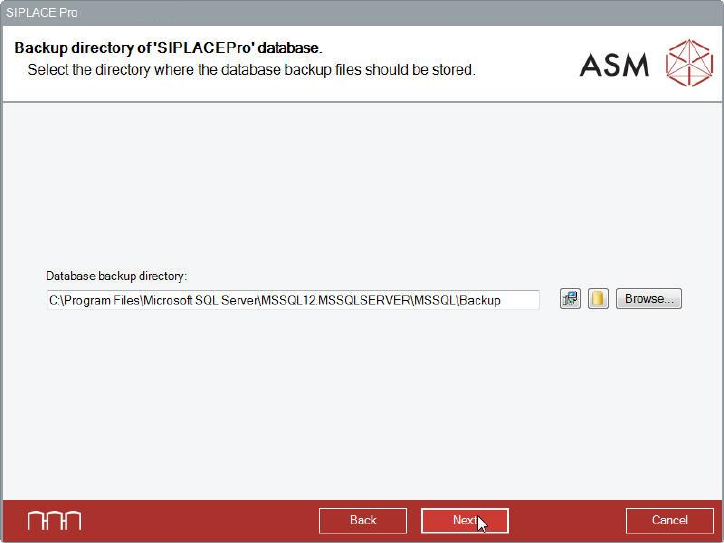
The following dialog is displayed in which you can select the backup directory for the SIPLACE Pro
Database. The current backup directory is displayed as default value.
Figure 6-29: Selecting backup directory
► Click the Next button if the database backup files shall be stored in the currently set backup
directory.
Or
► Click the Browse… button to search and set another directory in which the database backup
files shall be stored.
Or
► Switch between different suggestions for the directories of the database backups by clicking
one of the two buttons between the text field and the Browse... button. The left button suggests
the default backup directory as given by the setup. The right button suggests the default
backup directory for databases as defined in your SQL installation.
► Click the Next button.
SIPLACE Pro 17.0 (R19-2) / Installation Manual 11/2019 Edition
35
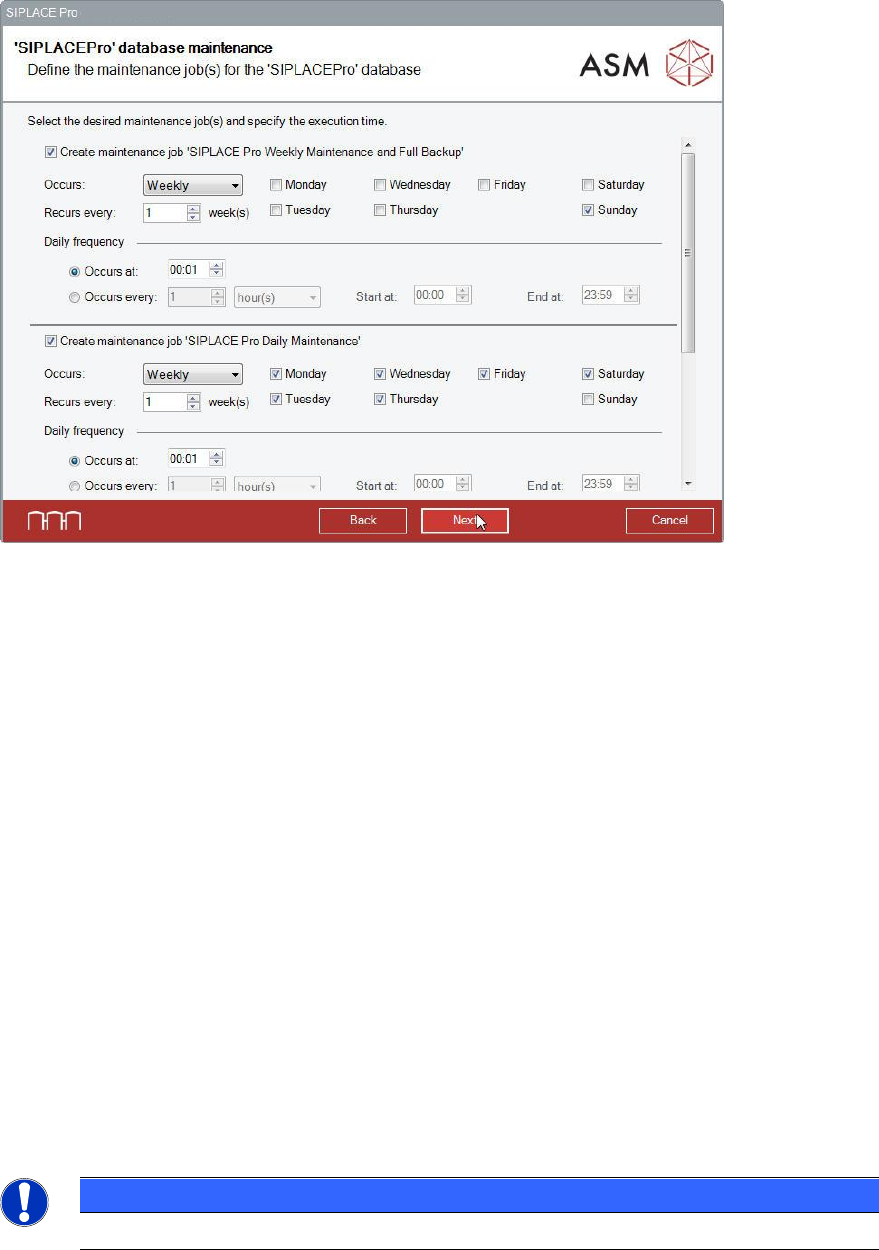
In the next dialog you can change the execution time for defined maintenance job(s) for the
SIPLACE Pro Database.
Figure 6-30: Changing execution time for maintenance job(s)
► Perform the changes you want to make for the maintenance jobs.
► Click the Next button.
Database Maintenance Tasks
Depending on the Recovery Model of your database, the following maintenance tasks will be
created.
On SQL Server Editions, these tasks are SQL Agent tasks. On SQL Express Editions, these tasks
are Windows Scheduled Tasks.
Simple Recovery Model (default)
Weekly Backup: Full backup; backups will be archived for 4 weeks.
Daily Backup: Delta backup, if possible. If not possible, (for example, if previously created backups
are missing) full backup; backups will be archived for 4 weeks.
Full Recovery Model
Weekly Backup: Full backup; backups will be archived for 4 weeks.
Daily Backup: Transactionlog backup, if possible. If not possible, (for example, if previously created
backups are missing) full backup; backups will be archived for 4 weeks.
NOTICE
The Full Recovery Model can be changed in SQL Management Studio.