00198764-01_IM_SIPLACE_Pro_17.0_R19-2_EN - 第40页
SIPLACE Pro 17.0 (R19-2) / Installation Manual 11/2019 Edition 40 In the next dialog you can change the execution time f or defined maintenance job(s) for the SIPLACE Pro database. There is n o difference to a local inst…
SIPLACE Pro 17.0 (R19-2) / Installation Manual 11/2019 Edition
39
NOTICE
The paths to the remote database are only checked for correct spelling! It will not be
checked if:
– the defined drive exists
– the defined drive is writable
– the defined path exists
– a database file with the same name exists on the defined path
– there is enough disk space on the defined path
► Modify the default settings for database creation as required.
By clicking the yellow "Database" icon to the right, the entered directory is reset to the default
directory for databases as defined in your SQL installation.
The Browse... buttons are disabled in case of a remote database.
► After you have modified the settings as required, click the Next button to continue.
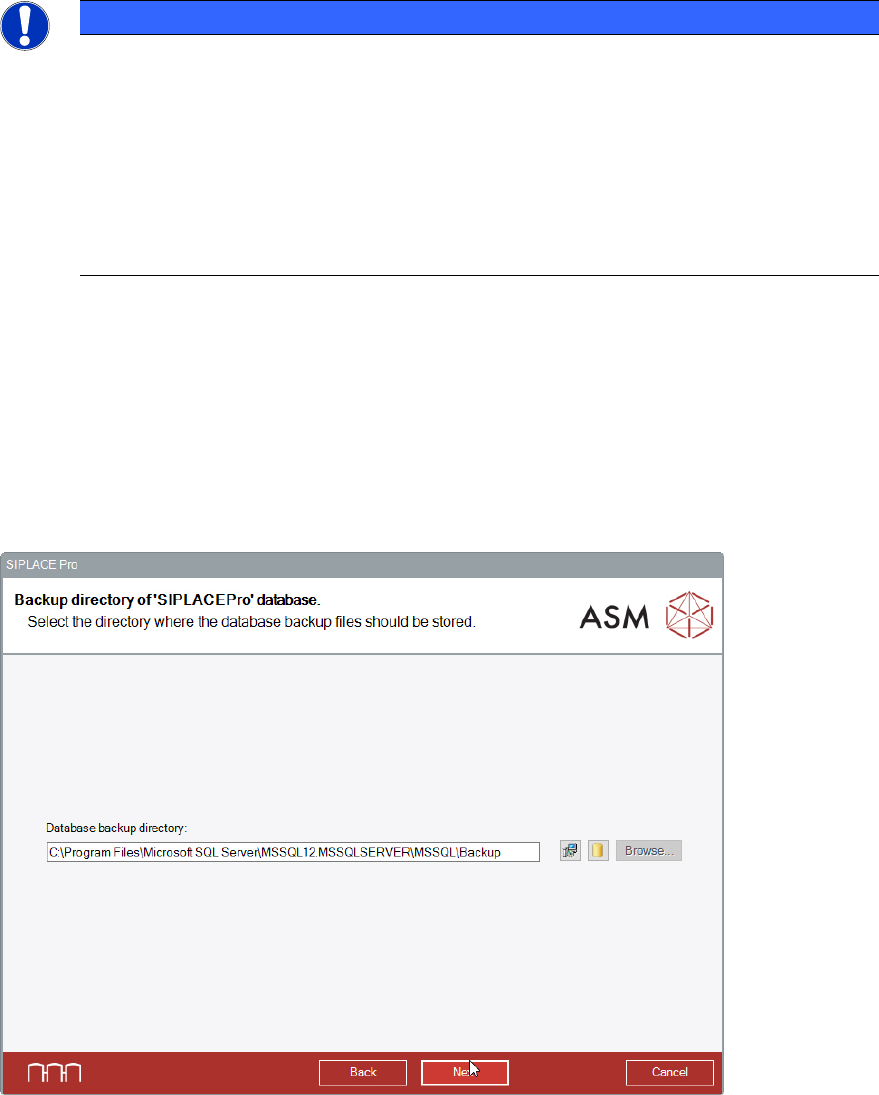
The following dialog is displayed in which you can select the backup directory for the SIPLACE Pro
database. For the backup path, the same rules apply as for the paths in the previous dialog.
Figure 6-36: Selecting backup directory
► Modify the settings as required.
By clicking the yellow "Database" icon to the right, the entered directory is reset to the default
directory for databases as defined in your SQL installation.
The Browse... buttons are disabled in case of a remote database.
► Click the Next button.
SIPLACE Pro 17.0 (R19-2) / Installation Manual 11/2019 Edition
40
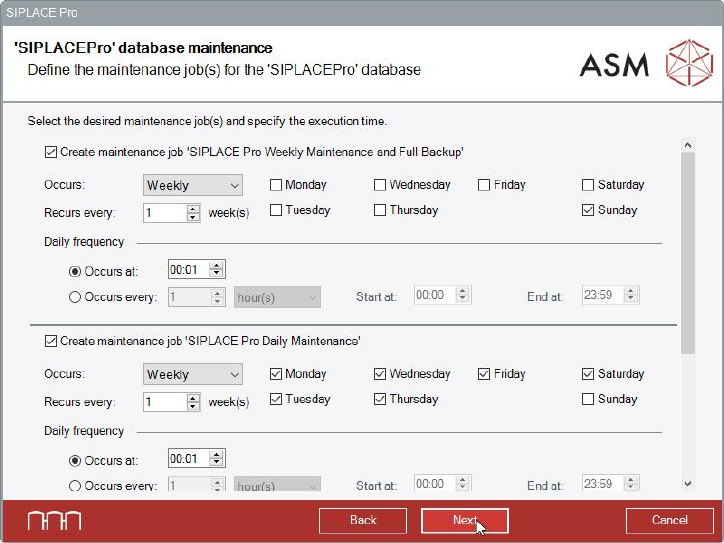
In the next dialog you can change the execution time for defined maintenance job(s) for the
SIPLACE Pro database. There is no difference to a local installation of the database.
Figure 6-37: Changing execution time for maintenance job(s)
► Perform the changes you want to make for the maintenance jobs.
► Click the Next button.
SIPLACE Pro 17.0 (R19-2) / Installation Manual 11/2019 Edition
41
6.3 Installing the SIPLACE Pro Language Pack
Before you install the language pack, please:
► Verify that SIPLACE Pro is installed.
► Ensure that the installed version of SIPLACE Pro is compatible with the version of the language
pack you intend to install. If it is not compatible, installation of the language pack will not be
allowed.
► Check the version.txt files on the language pack for related version information.
Once you have verified this, the language pack can be installed. For more details please refer to
section 6.3.1.
SIPLACE Pro is delivered with English, German and Simplified Chinese. All additional languages
are delivered with a separate SIPLACE Pro Language Pack version that can be downloaded free of
charge from the ASM Download Center.
Follow the instructions listed below to install the language pack successfully.
► Log in using an administrative user account on the computer.
► Download the *.iso file to the computer and mount it.
► Open Windows Explorer.
► Double-click the BundleInstaller file to start installing SIPLACE Pro Language Pack.
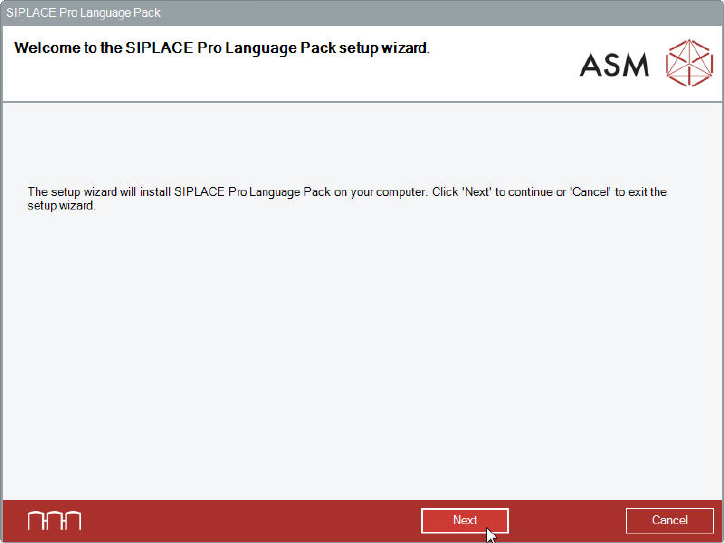
The Welcome dialog of the SIPLACE Pro Language Pack setup wizard is displayed.
Figure 6-38: Welcome dialog
► Click the Next button.