00198764-01_IM_SIPLACE_Pro_17.0_R19-2_EN - 第42页
SIPLACE Pro 17.0 (R19-2) / Installation Manual 11/2019 Edition 42 The Show License dialog is displa yed. Figure 6- 39 : Accepting licens e conditions ► Select I accept the ter ms of the license agreeme nt to accept the l…
SIPLACE Pro 17.0 (R19-2) / Installation Manual 11/2019 Edition
41
6.3 Installing the SIPLACE Pro Language Pack
Before you install the language pack, please:
► Verify that SIPLACE Pro is installed.
► Ensure that the installed version of SIPLACE Pro is compatible with the version of the language
pack you intend to install. If it is not compatible, installation of the language pack will not be
allowed.
► Check the version.txt files on the language pack for related version information.
Once you have verified this, the language pack can be installed. For more details please refer to
section 6.3.1.
SIPLACE Pro is delivered with English, German and Simplified Chinese. All additional languages
are delivered with a separate SIPLACE Pro Language Pack version that can be downloaded free of
charge from the ASM Download Center.
Follow the instructions listed below to install the language pack successfully.
► Log in using an administrative user account on the computer.
► Download the *.iso file to the computer and mount it.
► Open Windows Explorer.
► Double-click the BundleInstaller file to start installing SIPLACE Pro Language Pack.
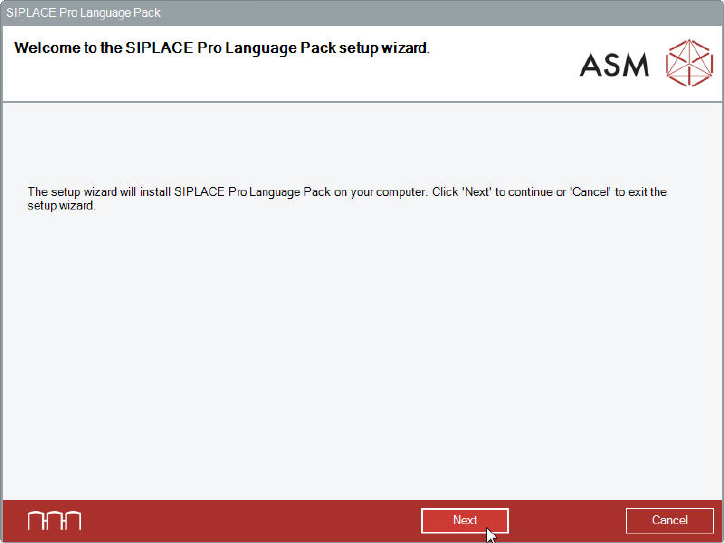
The Welcome dialog of the SIPLACE Pro Language Pack setup wizard is displayed.
Figure 6-38: Welcome dialog
► Click the Next button.
SIPLACE Pro 17.0 (R19-2) / Installation Manual 11/2019 Edition
42
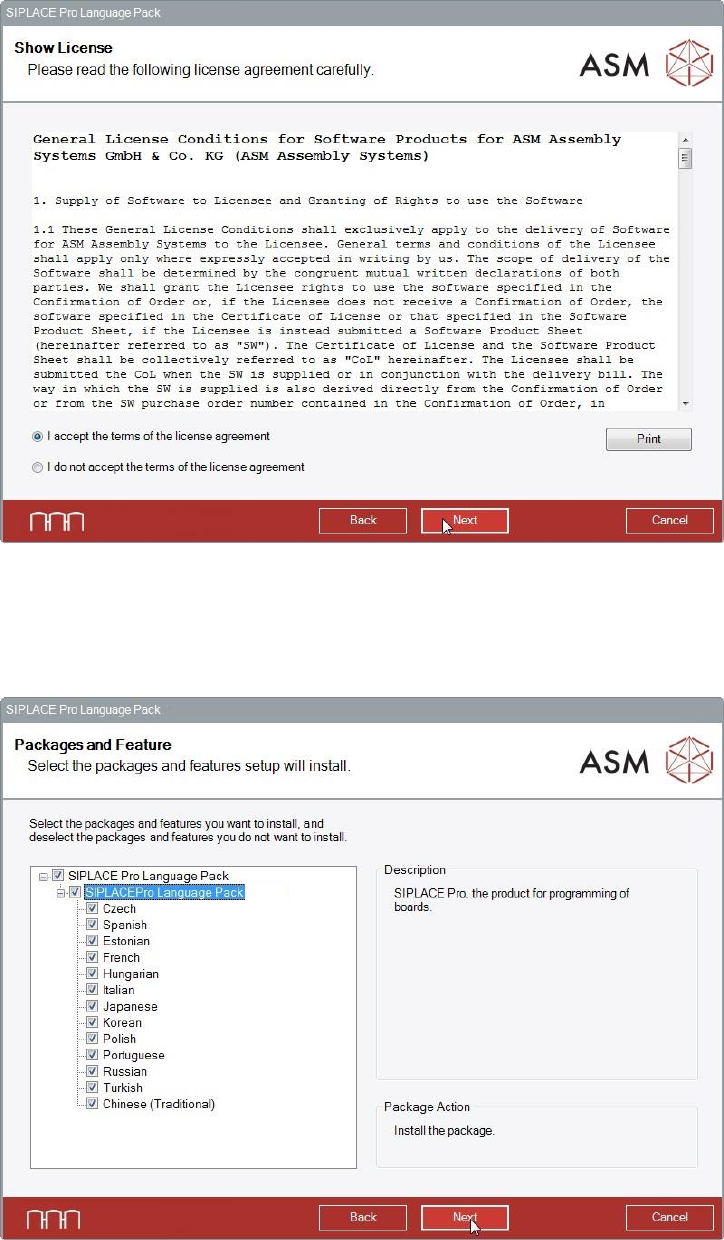
The Show License dialog is displayed.
Figure 6-39: Accepting license conditions
► Select I accept the terms of the license agreement to accept the license conditions.
► Click the Next button.
The Packages and Features dialog is displayed.
Figure 6-40: Packages and features
SIPLACE Pro 17.0 (R19-2) / Installation Manual 11/2019 Edition
43
All available languages are enabled by default.
► If desired, unselect languages you do not want to install.
► Click the Next button.
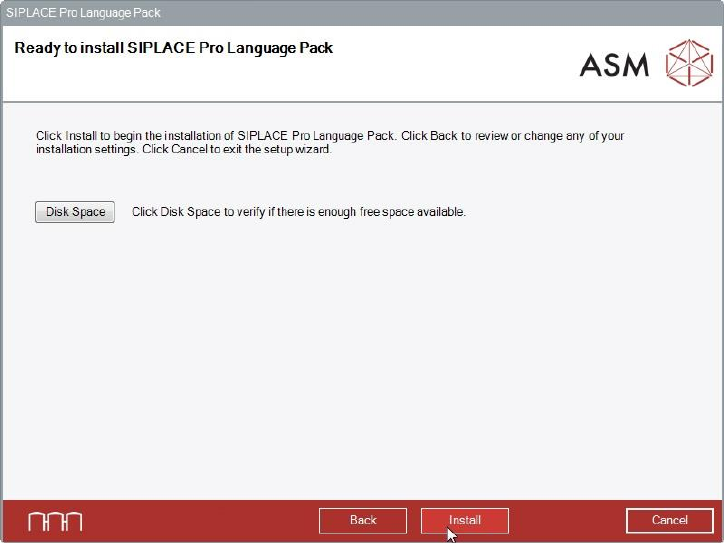
SIPLACE Pro Language Pack is now ready to be installed. The following dialog is displayed.
Figure 6-41: Ready for installation
Before installing, you can check the available, required and recommended disk space (per drive) to
perform the installation as described in section 6.2.
► Click the Install button to start the installation.