00198764-01_IM_SIPLACE_Pro_17.0_R19-2_EN - 第43页
SIPLACE Pro 17.0 (R19-2) / Installation Manual 11/2019 Edition 43 All available languages are enable d by default. ► If desired, unselect languages you do not want to inst all. ► Click the Next button. SIPLACE Pro Langua…
SIPLACE Pro 17.0 (R19-2) / Installation Manual 11/2019 Edition
42
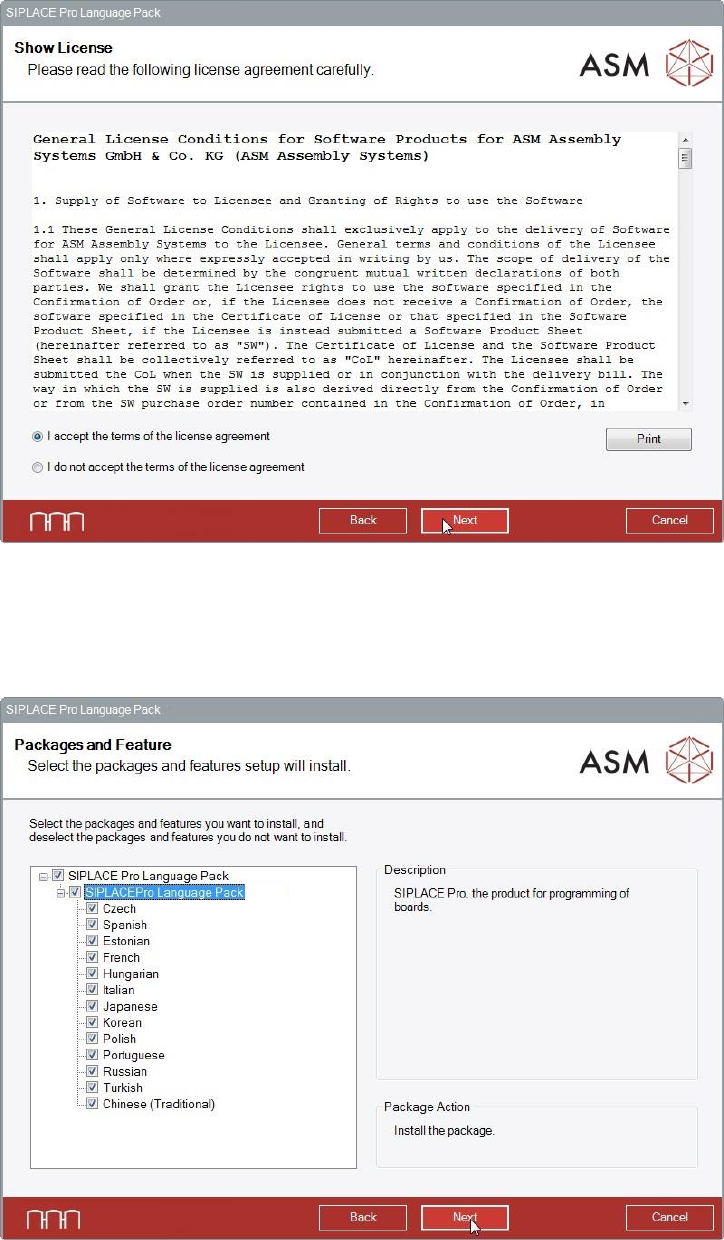
The Show License dialog is displayed.
Figure 6-39: Accepting license conditions
► Select I accept the terms of the license agreement to accept the license conditions.
► Click the Next button.
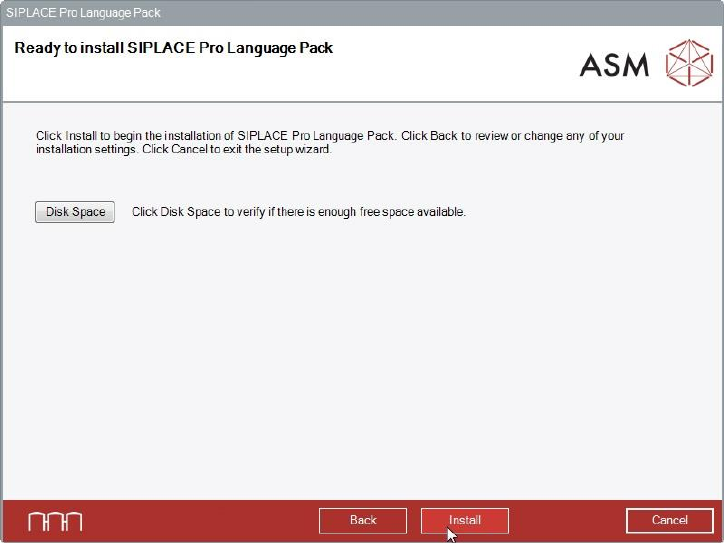
The Packages and Features dialog is displayed.
Figure 6-40: Packages and features
SIPLACE Pro 17.0 (R19-2) / Installation Manual 11/2019 Edition
43
All available languages are enabled by default.
► If desired, unselect languages you do not want to install.
► Click the Next button.
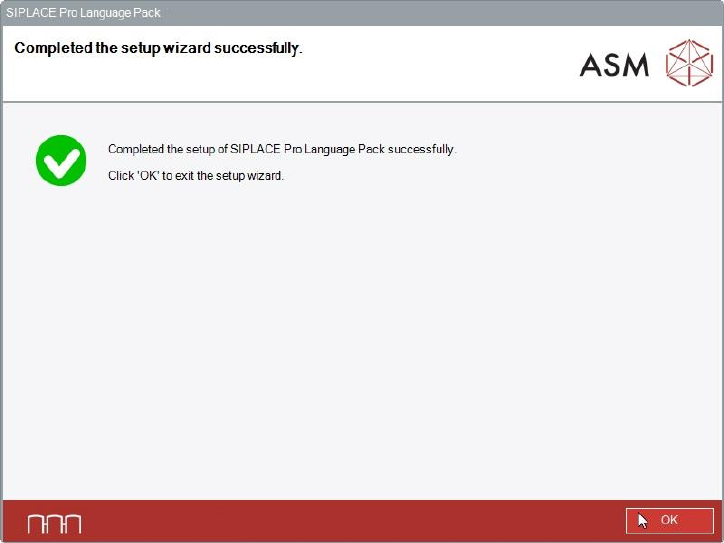
SIPLACE Pro Language Pack is now ready to be installed. The following dialog is displayed.
Figure 6-41: Ready for installation
Before installing, you can check the available, required and recommended disk space (per drive) to
perform the installation as described in section 6.2.
► Click the Install button to start the installation.
SIPLACE Pro 17.0 (R19-2) / Installation Manual 11/2019 Edition
44
After successful installation, the following dialog is displayed.
Figure 6-42: Installation completed
► Click the OK button to exit the setup wizard.
When the installation has been completed, the language(s) you selected will be available in the
SIPLACE Pro applications.
You can switch to the other language(s) as follows:
► Open the SIPLACE Pro Desk.
► Select Tools – Change language.
Or
► Open the Line Control GUI.
► Select Options – Languages.