00198764-01_IM_SIPLACE_Pro_17.0_R19-2_EN - 第44页
SIPLACE Pro 17.0 (R19-2) / Installation Manual 11/2019 Edition 44 After successful installation , the following dialog is displayed. Figure 6- 42 : Installation c ompleted ► Click the OK button to exit the setup wizard. …
SIPLACE Pro 17.0 (R19-2) / Installation Manual 11/2019 Edition
43
All available languages are enabled by default.
► If desired, unselect languages you do not want to install.
► Click the Next button.
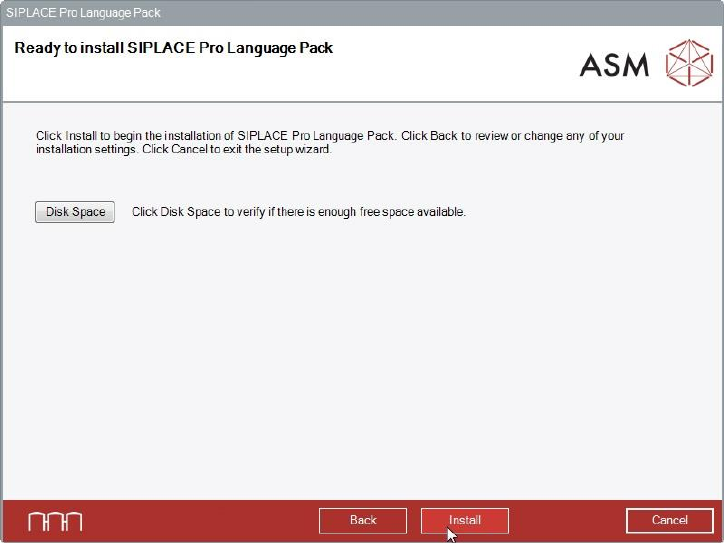
SIPLACE Pro Language Pack is now ready to be installed. The following dialog is displayed.
Figure 6-41: Ready for installation
Before installing, you can check the available, required and recommended disk space (per drive) to
perform the installation as described in section 6.2.
► Click the Install button to start the installation.
SIPLACE Pro 17.0 (R19-2) / Installation Manual 11/2019 Edition
44
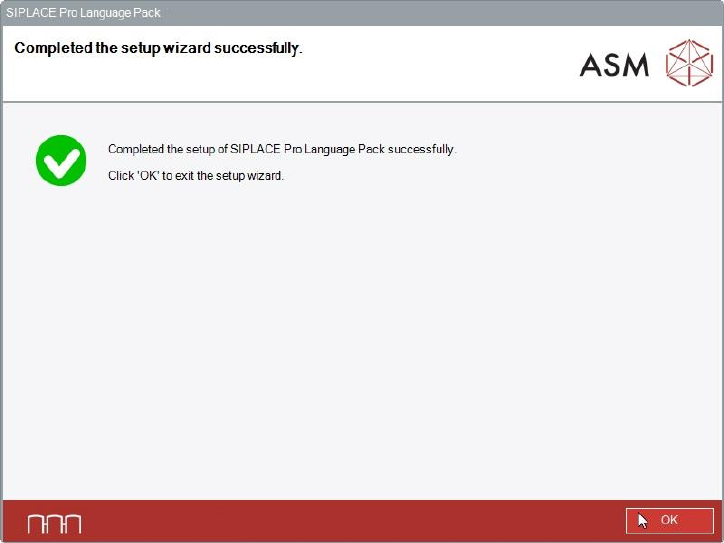
After successful installation, the following dialog is displayed.
Figure 6-42: Installation completed
► Click the OK button to exit the setup wizard.
When the installation has been completed, the language(s) you selected will be available in the
SIPLACE Pro applications.
You can switch to the other language(s) as follows:
► Open the SIPLACE Pro Desk.
► Select Tools – Change language.
Or
► Open the Line Control GUI.
► Select Options – Languages.
SIPLACE Pro 17.0 (R19-2) / Installation Manual 11/2019 Edition
45
6.3.1 Compatibility of SIPLACE Language Packs
Before installing the Language Pack, SIPLACE Pro checks if the language pack version and the
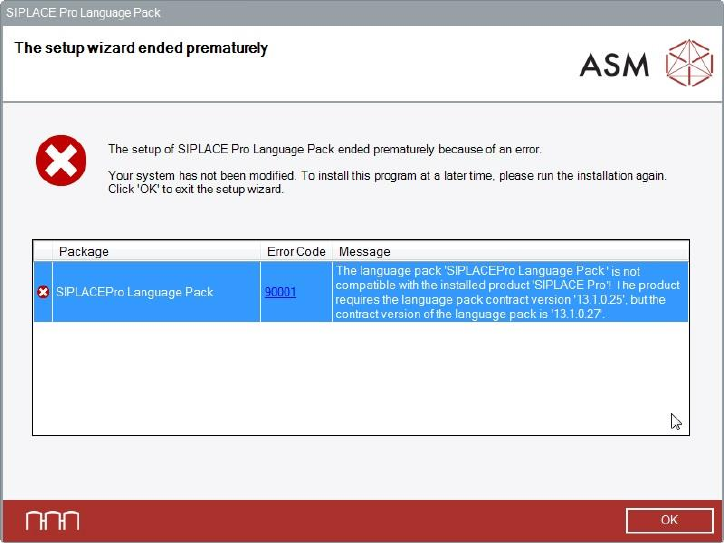
SIPLACE Pro basic version are compatible. If not, the following dialog is displayed.
Figure 6-43: Language pack not compatible
The following use cases are possible.
Language Pack version is not compatible to the basic SIPLACE Pro installation
► Make sure that you have installed the compatible basic SIPLACE Pro version or that you install
the language pack version that is compatible to the basic product version.
No SIPLACE Pro installed at all
► Make sure that you have installed the compatible basic SIPLACE Pro version or that you install
the language pack version that is compatible to the basic product version.
During an SIPLACE Pro upgrade - the newly upgraded SIPLACE Pro basic version is not
compatible with the already installed Language Pack version
► Perform the SIPLACE Pro upgrade as usual.
The incompatible language pack will be automatically uninstalled. After the upgrade only the
standard languages English, German and Simplified Chinese are available.
► Install the language pack that is compatible to the new SIPLACE Pro version (if available).