00198764-01_IM_SIPLACE_Pro_17.0_R19-2_EN - 第48页
SIPLACE Pro 17.0 (R19-2) / Installation Manual 11/2019 Edition 48 7.3 Troubleshooting after Installation 7.3.1 SystemFeeder Inventory It might happen that the SystemFee der import does not work direct ly after installati…
SIPLACE Pro 17.0 (R19-2) / Installation Manual 11/2019 Edition
47
7 After Installation
This chapter contains information on basic actions to be performed after installation and describes
some characteristics in the SIPLACE Pro configuration. Additionally, troubleshooting is offered for
known issues that might occur.
7.1 Importing Standard Shape Library
After a new installation of the database, it is necessary to import the standard shape library. This
step is required to use SIPLACE Pro and it ensures that data is available to be used for reporting.
► In SIPLACE Pro Desk, select Tools – Import – Standard Shape Library...
Two import variants are available:
– Component shape numbers
– Component shape names
► Do not import the two variants parallel or mixed.
After having upgraded the database from a previous version (see chapter 3) it is not necessary to
import data from the component shape library.
7.2 Logging of Changes to User Data
To enable our customers to fulfill legal responsibilities stemming from the GDPR of the European
Union which became effective 25-May-2018 – the SIPLACE Pro User Manager must log any
changes to User data that a User Manager Administrator is performing.
During installation of SIPLACE Pro, the ASM_AS_Security event log is created (if not already
existing).
The SIPLACE Pro applications logs all relevant actions into this log on the local computer on which
a SIPLACE Pro administrator with Execute permission for Security functionality makes changes to
a user, user group, or the associated privileges and permissions. For all such actions, an entry will
be made into the ASM_AS_Security event log. The entries consist of text which clearly describes
what data is changed (including 'original' and 'new' values) and identifies the user who made the
changes as well as the affected user or user groups.
The following actions performed in SIPLACE Pro Desk under Tools – Administration will be
logged:
– Create / delete / update user(s)
– Create / delete / update user group(s), modify user <-> group assignments
– Modify privileges and permissions of the user groups
– Create / delete / update folder permissions,
– User name and real names of the user making the change
– User name and real names of the affected user(s)
Additionally, all actions when importing and exporting Security Settings data under Tools –
Extras in SIPLACE Pro Desk will be logged.

SIPLACE Pro 17.0 (R19-2) / Installation Manual 11/2019 Edition
48
7.3 Troubleshooting after Installation
7.3.1 SystemFeeder Inventory
It might happen that the SystemFeeder import does not work directly after installation. You will get
an appropriate warning message at the end of the installation. In this case:
► Reboot the computer.
► Start the SystemFeeder import manually by clicking the appropriate start menu shortcut.
7.3.2 COM+ Installation Problems
If you did not close all applications and services using SIPLACE Pro (like ASM OIB), you may get
COM+ installation error messages during the installation of SIPLACE Pro. In this case:
► Reboot the computer.
► If still installed, uninstall SIPLACE Pro completely as described in the appropriate chapter.
CAUTION
► Ensure you stop all applications and services that might use the SIPLACE Pro
Interface – especially ASM OIB Services.
SIPLACE Pro 17.0 (R19-2) / Installation Manual 11/2019 Edition
49
Ensure that no SIPLACE Pro COM+ component is still installed by performing the following actions:
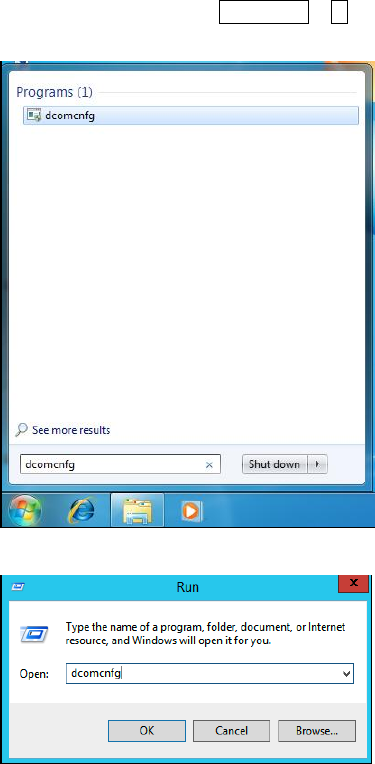
► Open the DCom configuration tool of Windows by typing dcomcnfg in the search field of the
Start menu or press Windows + R to open the Run window of Windows and type dcomcnfg
in the field.
Figure 7-1: Opening DCom configuration tool using the search field in Windows 7
Figure 7-2: Opening DCom configuration tool using the Run window