00198764-01_IM_SIPLACE_Pro_17.0_R19-2_EN - 第49页
SIPLACE Pro 17.0 (R19-2) / Installation Manual 11/2019 Edition 49 Ensure that no SIPLACE Pro COM+ component is st ill installed by performing the following a ctions: ► Open the DCom config uration tool of Windows by typi…

SIPLACE Pro 17.0 (R19-2) / Installation Manual 11/2019 Edition
48
7.3 Troubleshooting after Installation
7.3.1 SystemFeeder Inventory
It might happen that the SystemFeeder import does not work directly after installation. You will get
an appropriate warning message at the end of the installation. In this case:
► Reboot the computer.
► Start the SystemFeeder import manually by clicking the appropriate start menu shortcut.
7.3.2 COM+ Installation Problems
If you did not close all applications and services using SIPLACE Pro (like ASM OIB), you may get
COM+ installation error messages during the installation of SIPLACE Pro. In this case:
► Reboot the computer.
► If still installed, uninstall SIPLACE Pro completely as described in the appropriate chapter.
CAUTION
► Ensure you stop all applications and services that might use the SIPLACE Pro
Interface – especially ASM OIB Services.
SIPLACE Pro 17.0 (R19-2) / Installation Manual 11/2019 Edition
49
Ensure that no SIPLACE Pro COM+ component is still installed by performing the following actions:
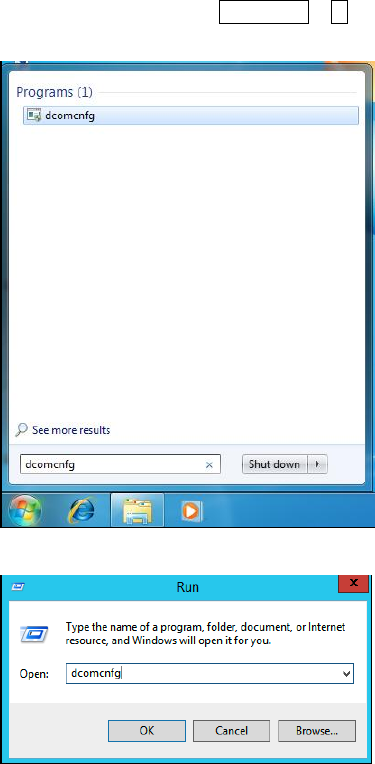
► Open the DCom configuration tool of Windows by typing dcomcnfg in the search field of the
Start menu or press Windows + R to open the Run window of Windows and type dcomcnfg
in the field.
Figure 7-1: Opening DCom configuration tool using the search field in Windows 7
Figure 7-2: Opening DCom configuration tool using the Run window
SIPLACE Pro 17.0 (R19-2) / Installation Manual 11/2019 Edition
50
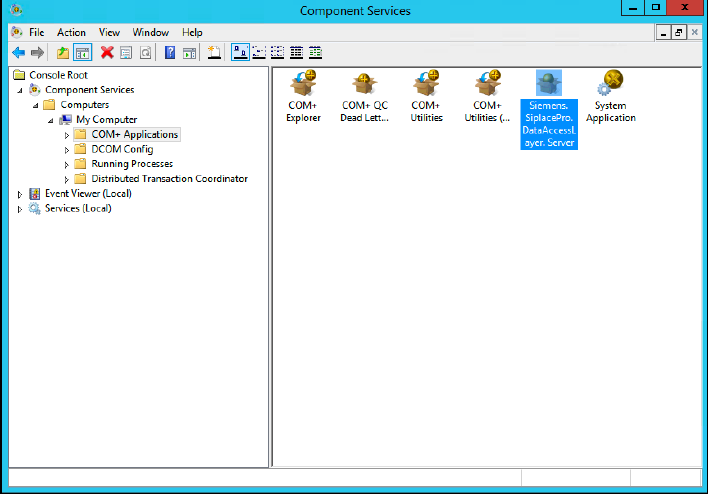
The Component Services window opens.
Figure 7-3: Component Services window
► In the left pane, navigate to Component Services – Computers – My Computer – COM+
Applications.
► In the right part of the window, verify if the Siemens.SiplacePro.DataAccessLayer.Server
component exists.