00198764-01_IM_SIPLACE_Pro_17.0_R19-2_EN - 第50页
SIPLACE Pro 17.0 (R19-2) / Installation Manual 11/2019 Edition 50 The Component Services window opens. Figure 7-3: Component Services window ► In the left pane, navig ate to Component Services – Computers – My Computer –…
SIPLACE Pro 17.0 (R19-2) / Installation Manual 11/2019 Edition
49
Ensure that no SIPLACE Pro COM+ component is still installed by performing the following actions:
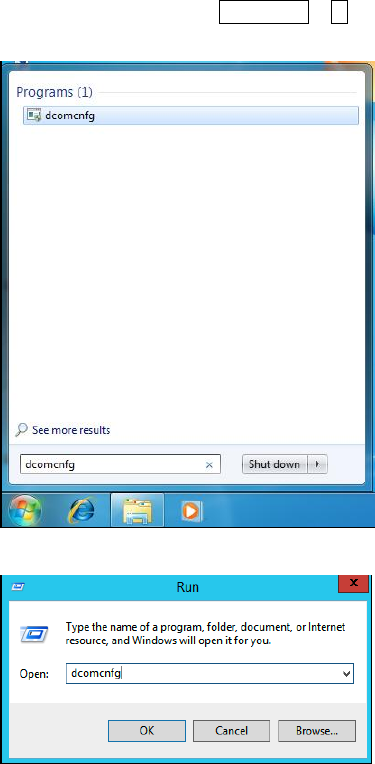
► Open the DCom configuration tool of Windows by typing dcomcnfg in the search field of the
Start menu or press Windows + R to open the Run window of Windows and type dcomcnfg
in the field.
Figure 7-1: Opening DCom configuration tool using the search field in Windows 7
Figure 7-2: Opening DCom configuration tool using the Run window
SIPLACE Pro 17.0 (R19-2) / Installation Manual 11/2019 Edition
50
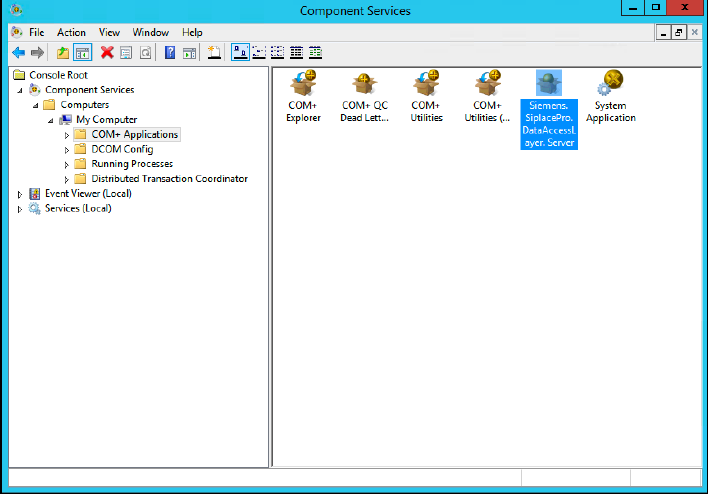
The Component Services window opens.
Figure 7-3: Component Services window
► In the left pane, navigate to Component Services – Computers – My Computer – COM+
Applications.
► In the right part of the window, verify if the Siemens.SiplacePro.DataAccessLayer.Server
component exists.
SIPLACE Pro 17.0 (R19-2) / Installation Manual 11/2019 Edition
51
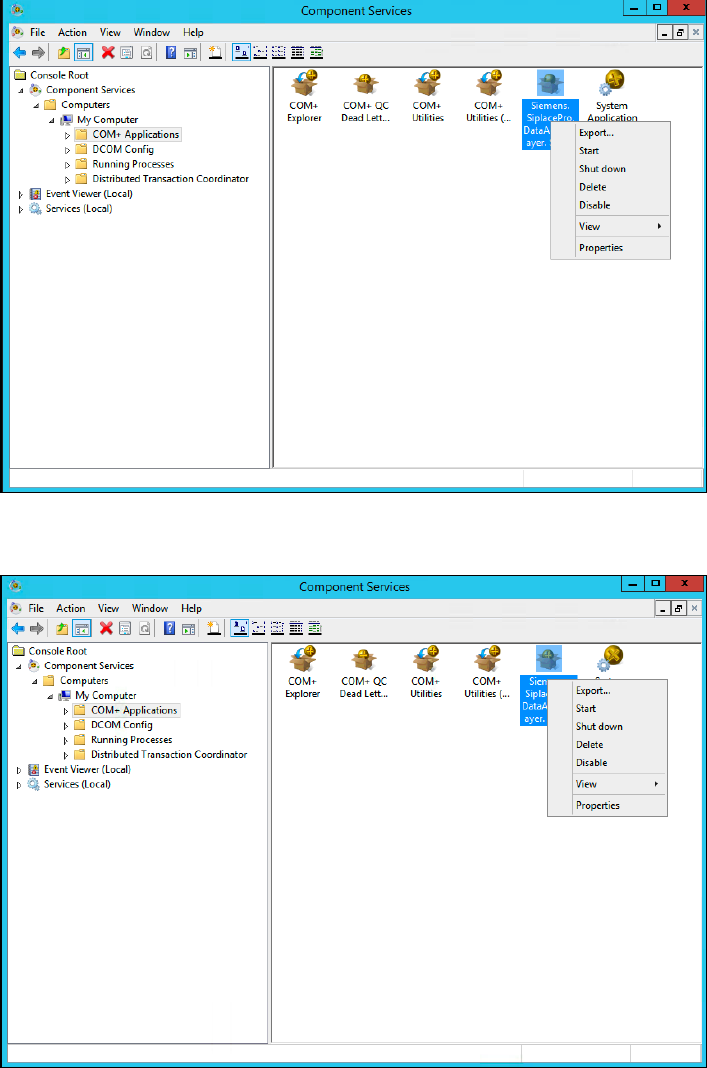
If it exists, perform the following actions:
Figure 7-4: Shutting down component
► - Right-click the component and select Shut down.
Figure 7-5: Deleting component
► Right-click the component and select Delete.