00198764-01_IM_SIPLACE_Pro_17.0_R19-2_EN - 第53页
SIPLACE Pro 17.0 (R19-2) / Installation Manual 11/2019 Edition 53 8 Modifying the Installation The Modify option allows you to change the current installat ion entries. NOTICE You must be logged in as Ad ministrator to c…
SIPLACE Pro 17.0 (R19-2) / Installation Manual 11/2019 Edition
52
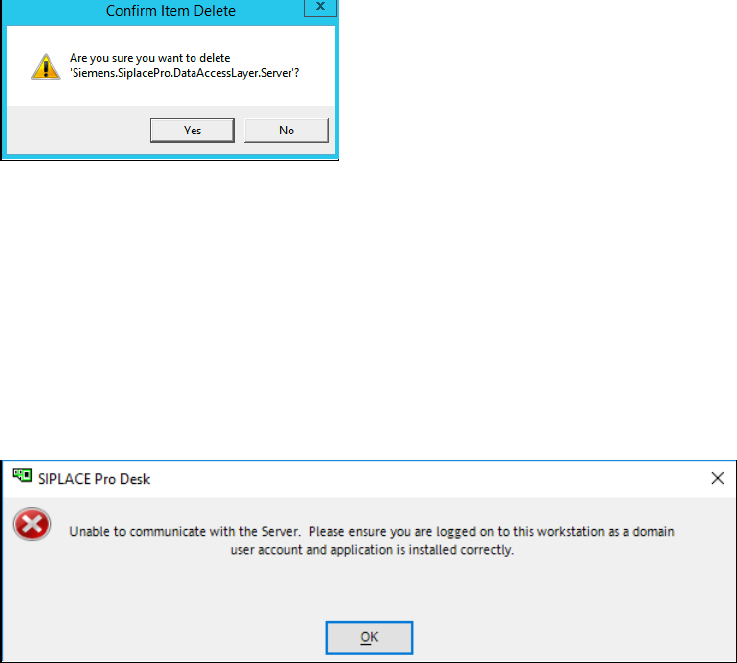
Figure 7-6: Confirming deletion
► Accept the confirmation message by clicking Yes.
► After that perform a new installation of SIPLACE Pro, but ensure you already have stopped
relevant applications and services before, as described above.
7.3.3 Client Server Installation – Client Does Not Open
The following error message may be displayed:
Figure 7-7: Client does not open
There are multiple possible causes for this problem.
► If the account you are currently using is local, please ensure that it also exists on the Server
with the same password.
► Please ensure that the account you have configured during setup for the COM+ component on
the Server also exists on the Client with the same password.
SIPLACE Pro 17.0 (R19-2) / Installation Manual 11/2019 Edition
53
8 Modifying the Installation
The Modify option allows you to change the current installation entries.
NOTICE
You must be logged in as Administrator to change the installation.
8.1 Modifying the SIPLACE Pro Installation
► Log in using an administrative account on the computer.
► Insert the installation media and mount the *.iso file.
► Open Windows Explorer.
► Double-click the BundleInstaller file to modify SIPLACE Pro.
Alternatively, you can start the Modify option as follows:
► Open the Start menu and select Control Panel.
► Select Uninstall a program.
► Click with the right mouse key on the SIPLACE Pro entry in the list of installed programs.
► Select Change from the context menu.
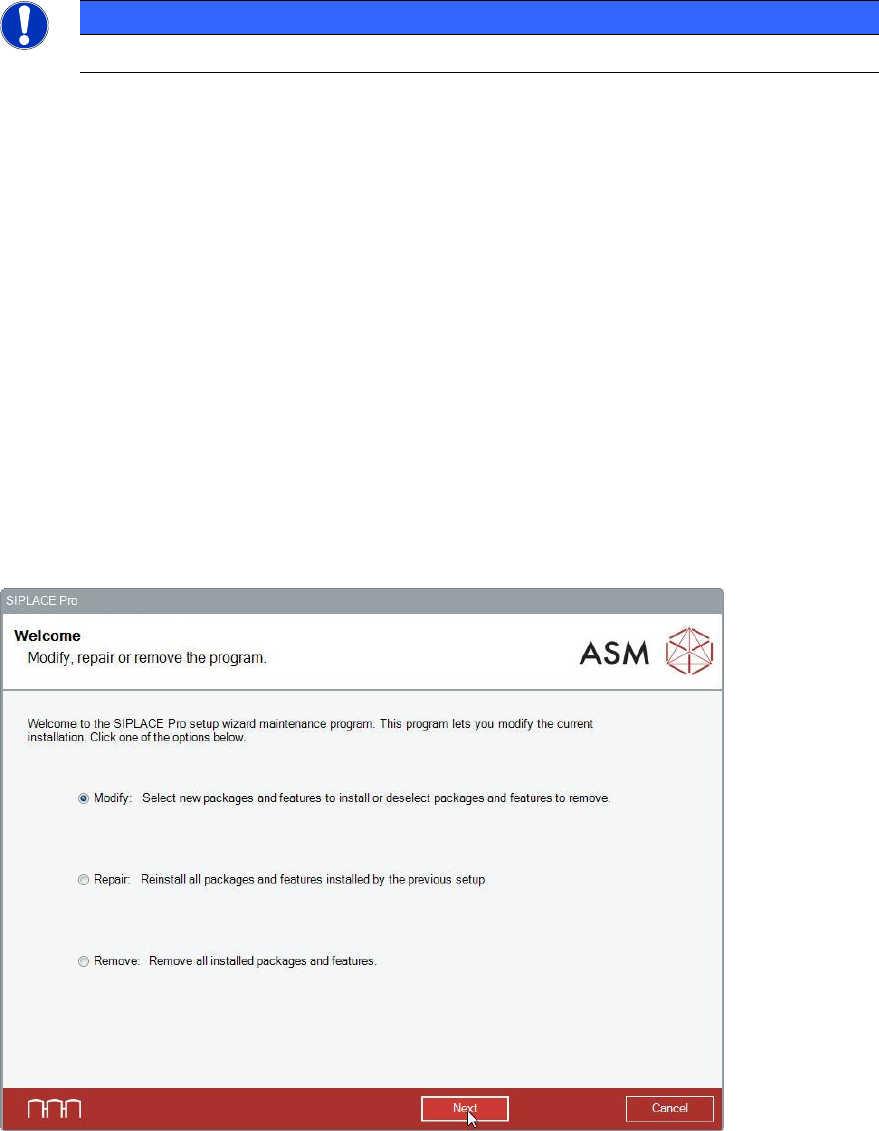
The following dialog is displayed.
Figure 8-1: Modify, repair or remove program
SIPLACE Pro 17.0 (R19-2) / Installation Manual 11/2019 Edition
54
► Select the Modify button.
► Click the Next button.
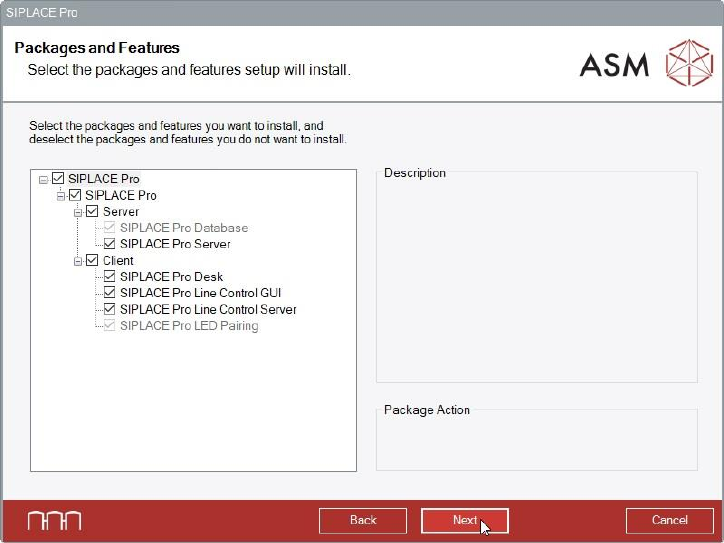
The Packages and Features dialog is displayed.
Figure 8-2: Packages and features
► Verify the installed features, change the selection as needed and click the Next button.
Unselected features (were installed before) will not be installed.
If you install a local SIPLACE Pro Server, the Configuration of SIPLACE Pro Server dialog is
displayed.
In this dialog is specified under which Windows user account the server component of SIPLACE
Pro runs.