00198764-01_IM_SIPLACE_Pro_17.0_R19-2_EN - 第61页
SIPLACE Pro 17.0 (R19-2) / Installation Manual 11/2019 Edition 61 SIPLACE Pro Language Pack is no w ready to be modified. The followin g dialog is displayed. Figure 8- 11 : Ready for modificati on ► Click the Modify butt…
SIPLACE Pro 17.0 (R19-2) / Installation Manual 11/2019 Edition
60
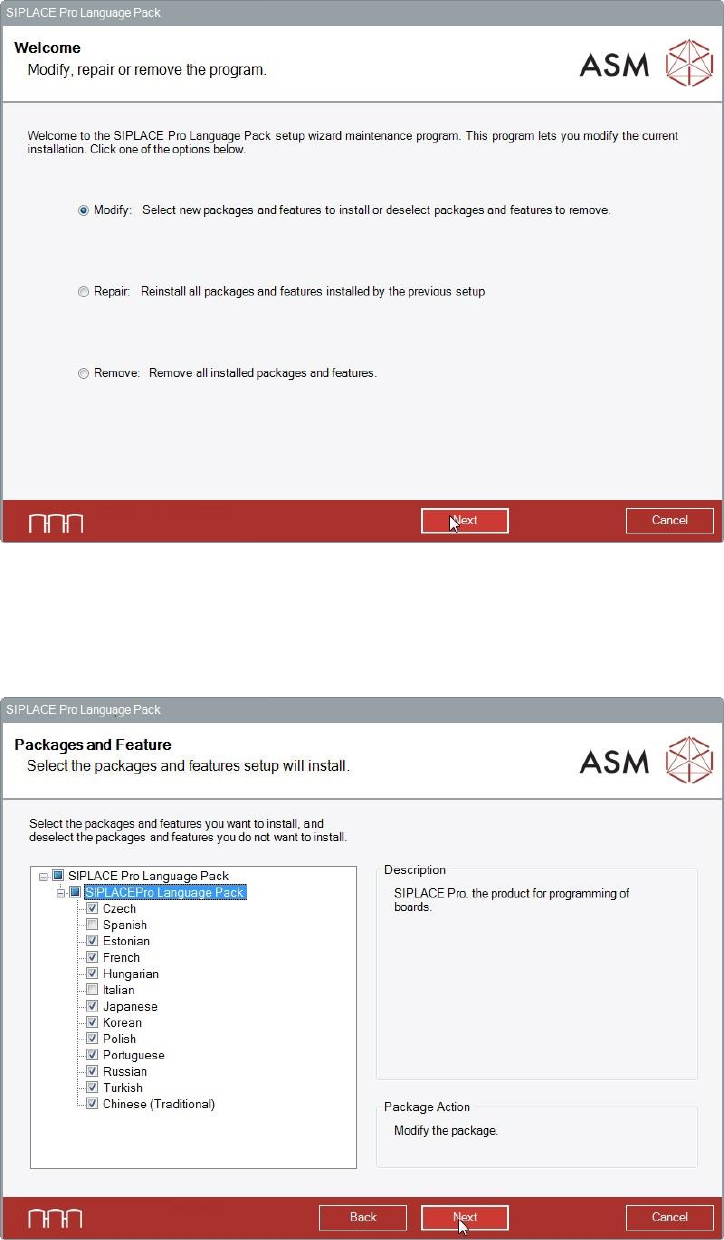
The following dialog is displayed.
Figure 8-9: Modify, repair or remove program
► Select the Modify button.
► Click the Next button.
The Packages and Features dialog is displayed.
Figure 8-10: Packages and features
► Select or unselect the languages you want to modify.
In the example above, Spanish and Italian have been unselected and will not be installed.
► Click the Next button.
SIPLACE Pro 17.0 (R19-2) / Installation Manual 11/2019 Edition
61
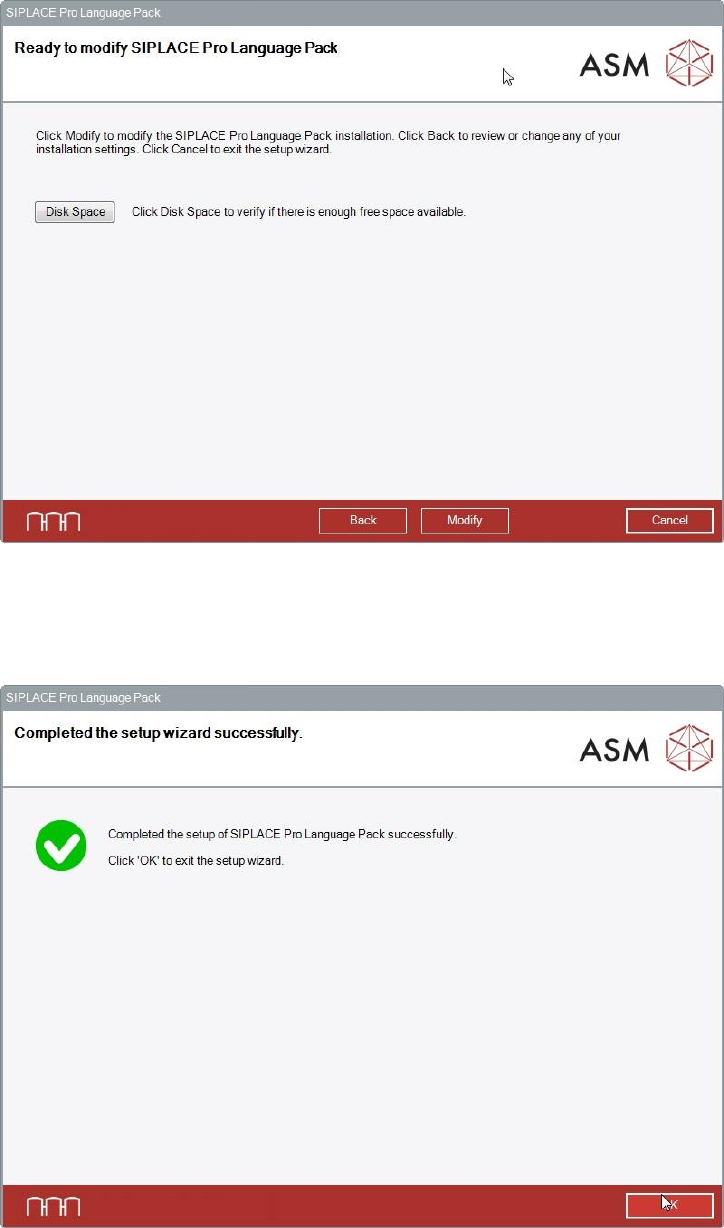
SIPLACE Pro Language Pack is now ready to be modified. The following dialog is displayed.
Figure 8-11: Ready for modification
► Click the Modify button to start modifying the installation.
During modifying, the setup status is displayed. After successful modification, the following dialog is
displayed.
Figure 8-12: Setup successfully completed
► Click the OK button to exit the setup wizard.
The line computer has to be restarted for the changes to take effect.
SIPLACE Pro 17.0 (R19-2) / Installation Manual 11/2019 Edition
62
9 Uninstalling the SIPLACE Pro Software
Uninstalling SIPLACE Pro deletes all SIPLACE Pro software components from the system except
for the SIPLACE Pro Database.
The SIPLACE Pro Database is not automatically uninstalled in order to prevent possible data loss.
NOTICE
You must be logged in as Administrator to uninstall the software.
9.1 Uninstalling the SIPLACE Pro Software
► Log in using an administrative account on the computer.
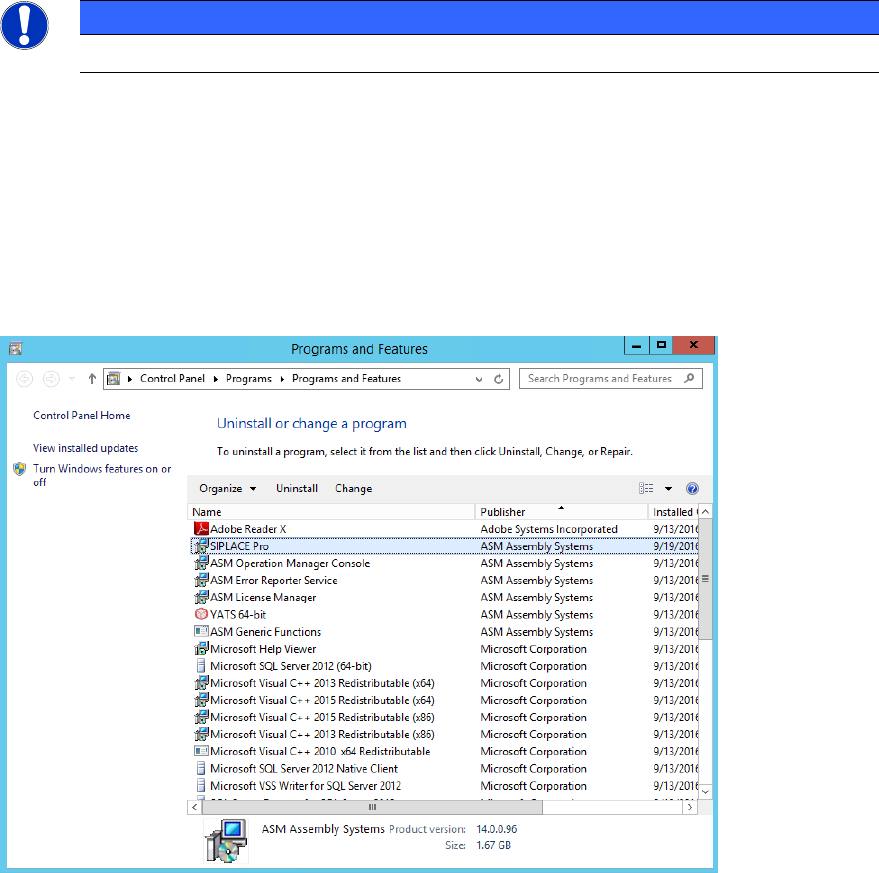
► Open the Start menu and select Control Panel.
► Select Uninstall a program.
A list with the names of the software packages installed on the computer is displayed.
Figure 9-1: Selecting SIPLACE Pro
► Click with the right mouse key on the SIPLACE Pro entry in the list of installed programs.