00198764-01_IM_SIPLACE_Pro_17.0_R19-2_EN - 第65页
SIPLACE Pro 17.0 (R19-2) / Installation Manual 11/2019 Edition 65 The following window might be displayed, if applications are using files to be replaced. Figure 9-6: Applications opened By default, the setup tries t o c…
SIPLACE Pro 17.0 (R19-2) / Installation Manual 11/2019 Edition
64
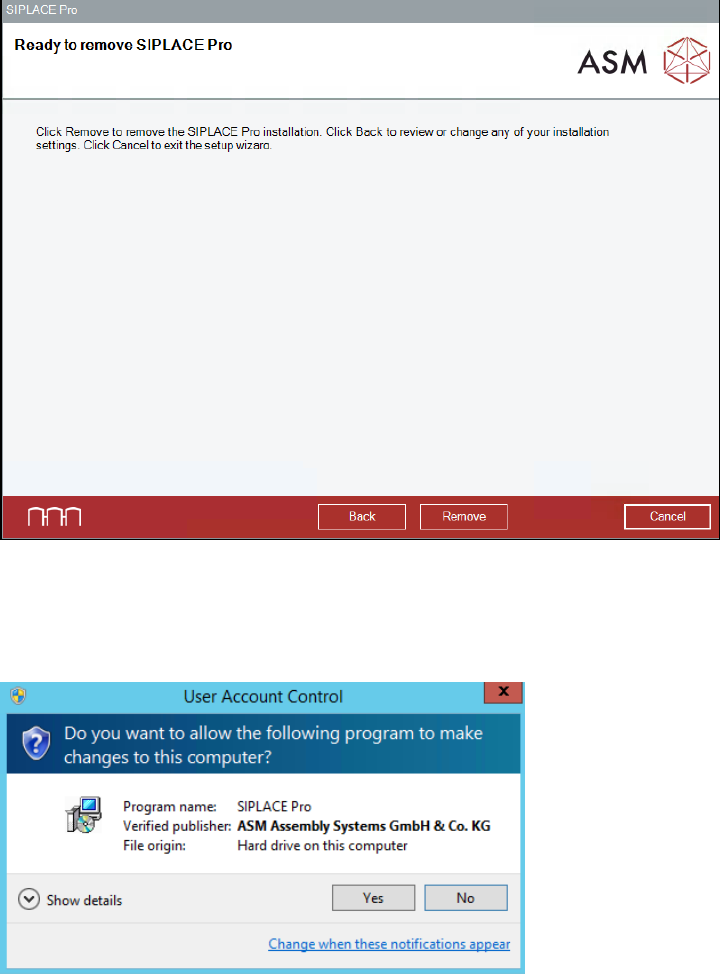
SIPLACE Pro is now ready to be removed. The following dialog is displayed.
Figure 9-4: Removing SIPLACE Pro
► Click the Remove button to confirm uninstalling the SIPLACE Pro software.
If User Account Control is enabled on Windows 7 or newer, the following dialog is additionally
displayed before the removal starts.
Figure 9-5: User Account Control
► Click the Yes button to allow the changes to your system.
SIPLACE Pro 17.0 (R19-2) / Installation Manual 11/2019 Edition
65
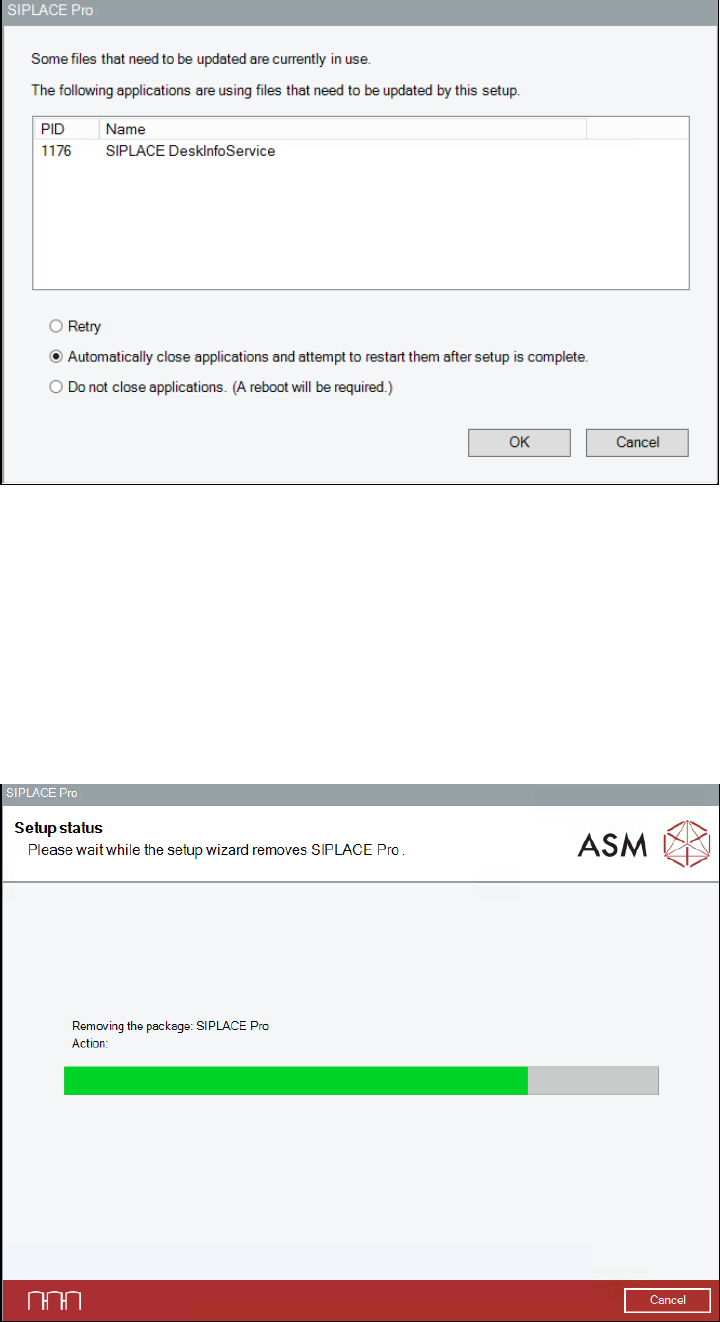
The following window might be displayed, if applications are using files to be replaced.
Figure 9-6: Applications opened
By default, the setup tries to close the conflicting applications automatically.
► To accept this behavior, click the OK button.
You may also close the conflicting applications manually, then select the Retry option and click
the OK button.
► If you do not want to close conflicting applications (not recommended!), select the Do not
close applications option and click the OK button.
In this case, a reboot will be required after the setup has been completed.
The setup status is displayed during removal.
Figure 9-7: Setup status
SIPLACE Pro 17.0 (R19-2) / Installation Manual 11/2019 Edition
66
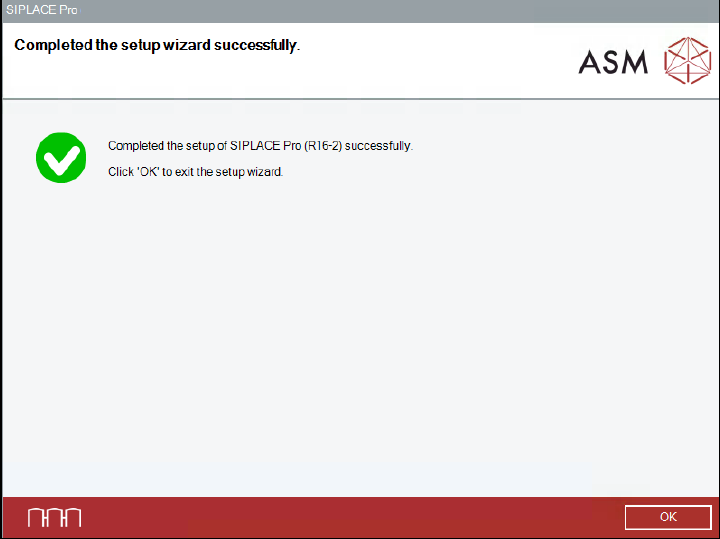
After successful removal, the following dialog is displayed.
Figure 9-8: Removing SIPLACE Pro completed
► Click the OK button to exit the setup wizard.
The line computer has to be restarted for the changes to take effect.