00198764-01_IM_SIPLACE_Pro_17.0_R19-2_EN - 第67页
SIPLACE Pro 17.0 (R19-2) / Installation Manual 11/2019 Edition 67 9.2 Uninstalling the SIPLACE Pro Language Pack ► Log in using an admini strative account on the com puter. ► Open the Start menu a nd select Control Panel…
SIPLACE Pro 17.0 (R19-2) / Installation Manual 11/2019 Edition
66
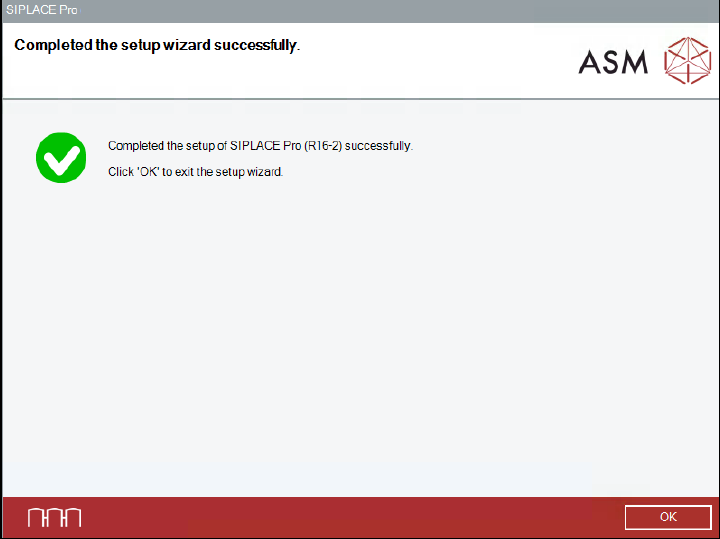
After successful removal, the following dialog is displayed.
Figure 9-8: Removing SIPLACE Pro completed
► Click the OK button to exit the setup wizard.
The line computer has to be restarted for the changes to take effect.
SIPLACE Pro 17.0 (R19-2) / Installation Manual 11/2019 Edition
67
9.2 Uninstalling the SIPLACE Pro Language Pack
► Log in using an administrative account on the computer.
► Open the Start menu and select Control Panel.
► Select Uninstall a program.
A list with the names of the software packages installed on the computer is displayed.
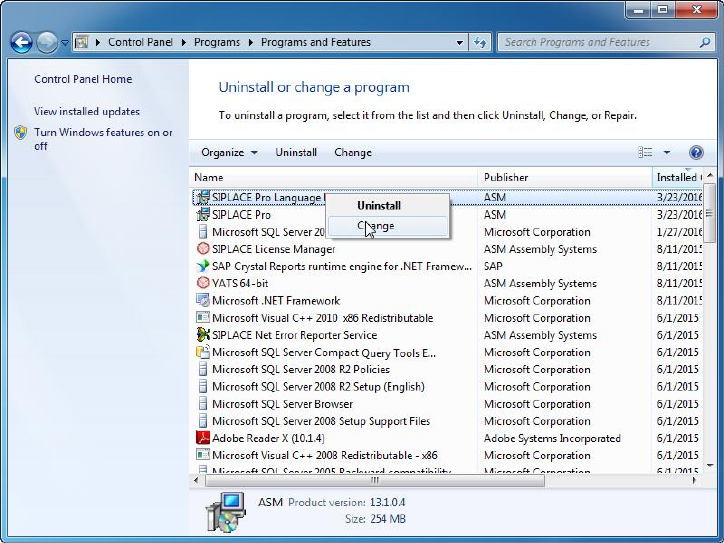
Figure 9-9: Selecting SIPLACE Pro Language Pack
► Click with the right mouse key on the SIPLACE Pro Language Pack entry in the list of installed
programs.
► Select Uninstall from the context menu.
SIPLACE Pro Language Pack is now ready to be removed.

SIPLACE Pro 17.0 (R19-2) / Installation Manual 11/2019 Edition
68
The following dialog is displayed.
Figure 9-10: Removing SIPLACE Pro Language Pack
► Click the Remove button to confirm uninstalling the SIPLACE Pro Language Pack software.
The setup status is displayed during removal. After successful removal, the following dialog is
displayed.
Figure 9-11: Removing SIPLACE Pro Language Pack completed
► Click the OK button to exit the setup wizard.
The line computer has to be restarted for the changes to take effect.