3OM-1343-008_w.pdf - 第301页
6-70 AKFEDT -ID 3. Nozzle Data It can be speci fi ed which nozzle types are allocated for each nozzle stocker . The nozzle data can also be set. When the [NOZ. DA T A] button on the menu bar is pressed after the [MACH SET…
6-69
AKFEDT-ID
2.3.2 Alarm Setup
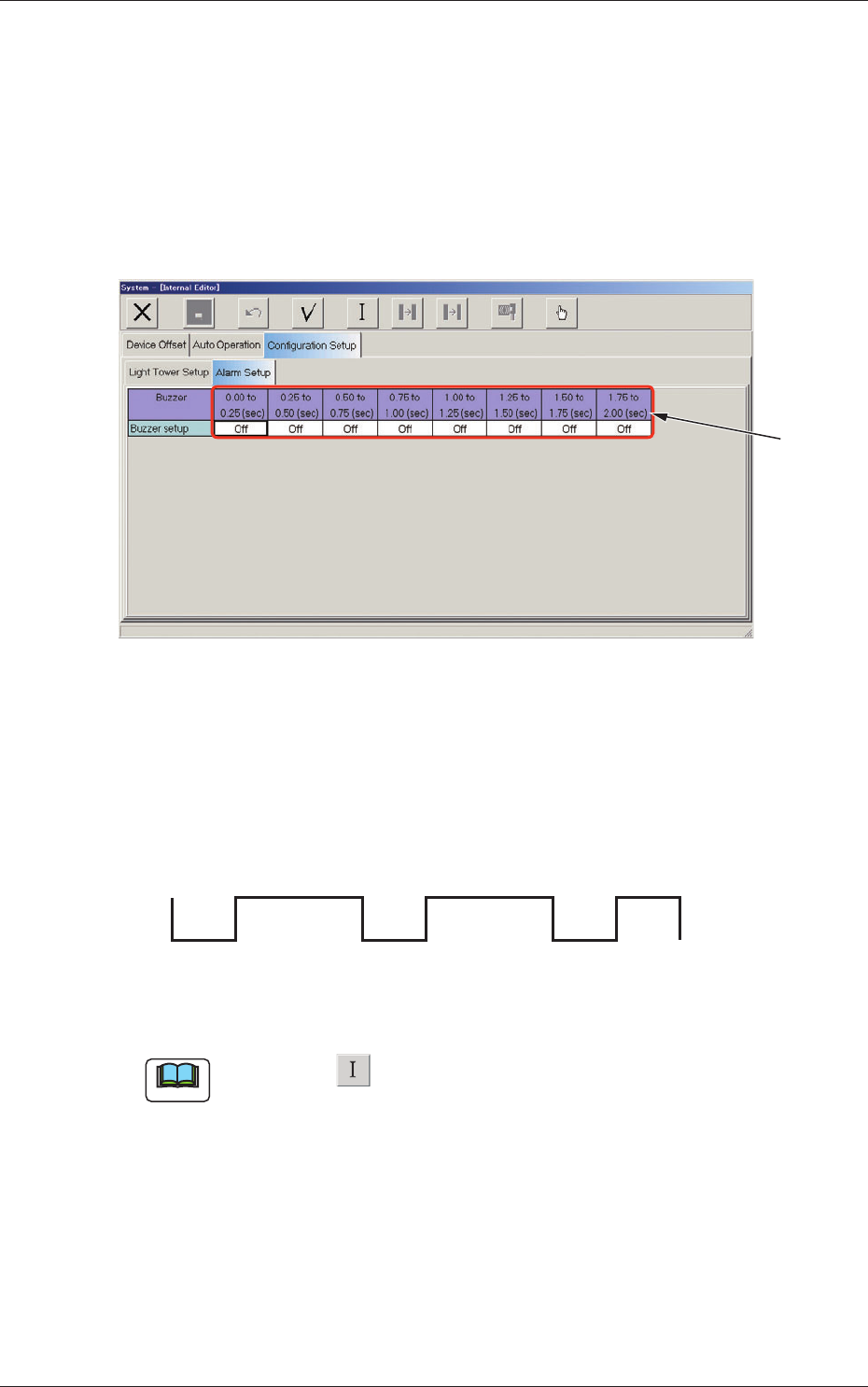
The corresponding tab sheet enables the operator to specify a pattern of the
buzzer sounds when "Optl Snd" is selected in a buzzer text box of the "Light
Tower Setup" tab sheet.
When the "Alarm Setup" tab is pressed in the "Confi guration Setup" tab
sheet, the following tab sheet appears.
[1]
Fig. 3F58 "Alarm Setup" Tab Sheet
[1] Time Parameters
An optional alarm sounds in a cycle of two seconds. The two seconds is
divided into 8 intervals and each interval is assigned as "ON" or "OFF"
to make a sound of your own.
OFF OFF
ON ON ON ON ON
OFF
Fig. 3F59 Example of Buzzer Sound Setting
Note
When the icon ( ) is pressed, the parameter specifi ed in the selected
text box is initialized to the default.
0601-002
2.3 Confi guration Setup Data
6-70
AKFEDT-ID
3. Nozzle Data
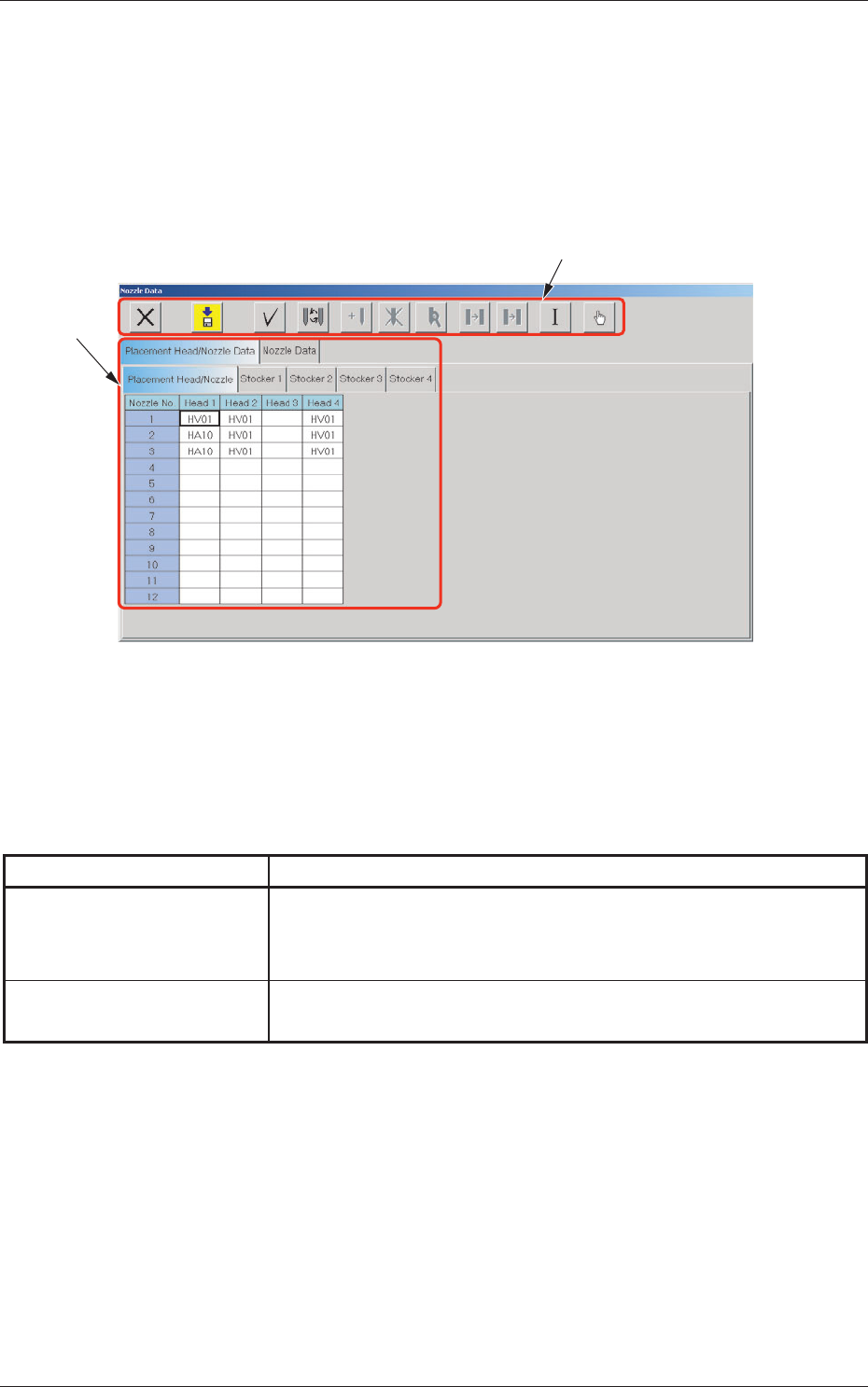
It can be specifi ed which nozzle types are allocated for each nozzle stocker.
The nozzle data can also be set.
When the [NOZ. DATA] button on the menu bar is pressed after the [MACH
SET] button on the main menu bar is selected, the following window opens.
[1]
[2]
Fig. 3F60 "Nozzle Data" Window
[1] Tabs and Tab Sheets
The "Nozzle Data" window is provided with the following tabs. When
each tab is pressed, the corresponding tab sheet appears.
Table 3F5
Tabs Description
Placement Head/Nozzle
Data
The corresponding tab sheet enables the operator to register the
nozzle types (Nozzle IDs) to be allocated to each individual heads and
nozzle stockers.
Nozzle Data
The corresponding tab sheet enables the operator to edit the nozzle
type data.
0601-002
3. Nozzle Data
6-71
AKFEDT-ID
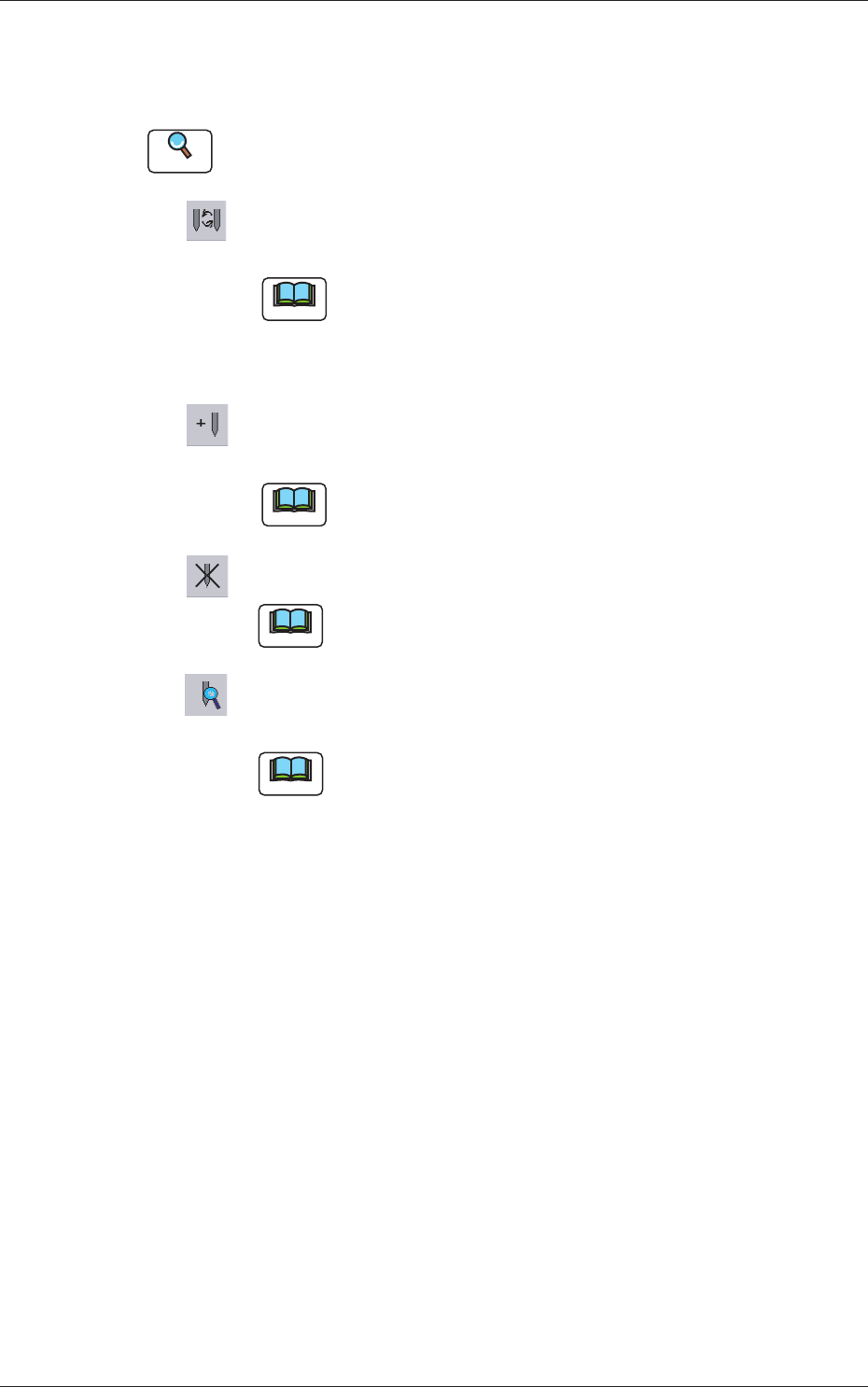
[2] Icons
The following describes the functions of the icons that can be used only
in the "Nozzle Data" window.
Reference
Refer to "1.2 Basic Icons" in "Chapter 2" for the meaning of the basic
icons.
: When pressed, this opens the "Nozzle Type" window, enabling
you to change the nozzle types.
Note
(a) Double-clicking a text box also opens the "Nozzle
Type" window.
(b) Clicking a "Nozzle No." label (title) selects the nozzle
Nos. on all heads at a time.
: When pressed, this opens the "Nozzle Type Property"
window, enabling the operator to add a new nozzle type.
Note
This function is available only in the "Nozzle Data" tab
sheet.
:
When pressed, this deletes the selected nozzle type.
Note
This function is available only in the "Nozzle Data" tab
sheet.
: When pressed, this opens the "Nozzle Type Property" window,
enabling the operator to change the selected nozzle type.
Note
This function is available only in the "Nozzle Data" tab sheet.
0601-002
3. Nozzle Data