3OM-1343-008_w.pdf - 第323页
6-92 AKFEDT -ID 6. Date & T ime Setting When the [DA TE & TIME] button on the "MACH SET" menu bar is pressed, the "DA TE & TIME DA T A" window appears. The system clock (year , month, day …

6-91
AKFEDT-ID
0604-003
[1] [Password Set] Button
When this button is pressed, the "Password Set" window opens.
[2]
"Avlbl
Area Set" Buttons
Set the scope of authority (available range) to use the described
functions.
Every time the button (corresponding to the desired function) is pressed,
the label changes in scrolling such as "OP2"
→
"OP1"
→
"SUP"
→
"OP2".
The labels on the buttons indicate that the functions described on the
left side of the buttons are available for the following operators.
SUP :
This indicates that only the supervisor is given the authority to
use the function.
A red bar appears on the right side of the function name.
OP1 :
This indicates that the supervisor and the operator #1 are given
the authority to use the function.
Red and green bars appear on the right side of the function
name.
OP2 :
This indicates that the supervisor, the operator #1, and the
operator #2 are given the authority to use the function.
That is, the selection means that all operators can use the
function.
Red, green, and yellow bars appear on the right side of the
function name.
5.2 Setting of Available Range for Passwords
6-92
AKFEDT-ID
6. Date & Time Setting
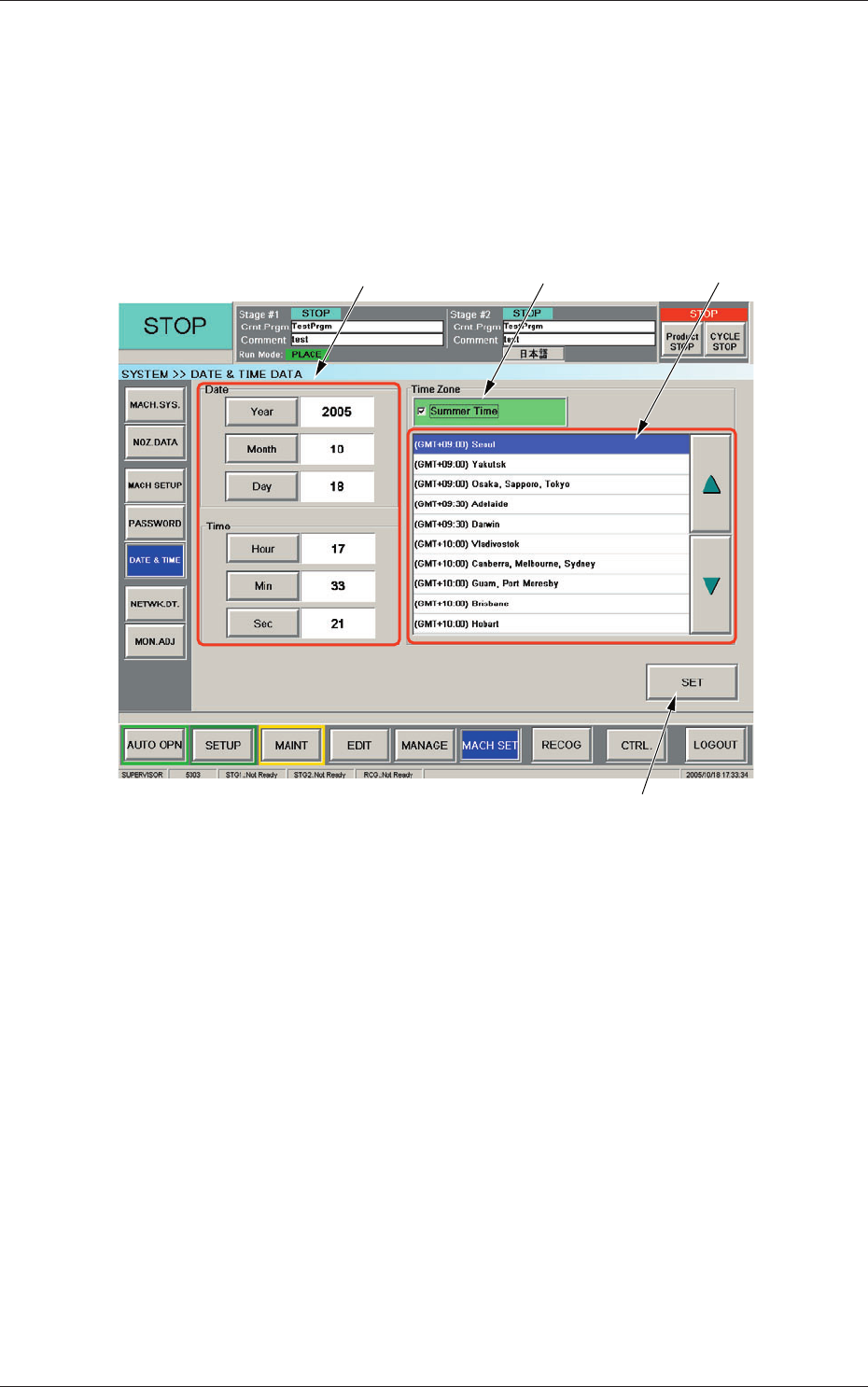
When the [DATE & TIME] button on the "MACH SET" menu bar is pressed,
the "DATE & TIME DATA" window appears.
The system clock (year, month, day, hours, minutes, and seconds) can be
adjusted and a time zone can be selected.
[1]
[2]
[4]
[3]
Fig. 3F83 "DATE & TIME DATA" Window
[1] Edit Buttons
When one of these buttons is pressed, the corresponding edit window
opens.
[2] "Summer Time" Check Box
Tick this button to specify the summer time. A check mark appears
inside the box, indicating that the summer time is selected.
[3] "Time Zone" List
Select the proper time zone from this list.
[4] [SET] Button
The data adjusted with the edit buttons is confi rmed and set in the
machine by means of this button.
0607-003
6. Date & Time Setting

6-93
AKFEDT-ID
•
How to specify the date and time
Procedure
(1) When the [Year] button is pressed, the "Year" edit window opens.
(2) Enter a year in the entry fi eld of the "Year" edit window and press the [Set]
button.
The entered year appears in the corresponding text box.
(3) Follow the same procedure to specify a month, a day, hours, minutes, and
seconds.
(4) Select the proper time zone from the "Time Zone" list pane.
(5) When the [SET] button is pressed, the settings are determined.
0601-002
6. Date & Time Setting