Dek-265GSX-User-Manual.pdf.pdf - 第100页
STAGE 8 Load Paste, Run a Product in Step Mode If using squeegees with paste dispenser continue with Section Auto Paste Dispense. If using squeegees without paste dispenser go to Section Manual Paste Load. If using ProFl…
26.
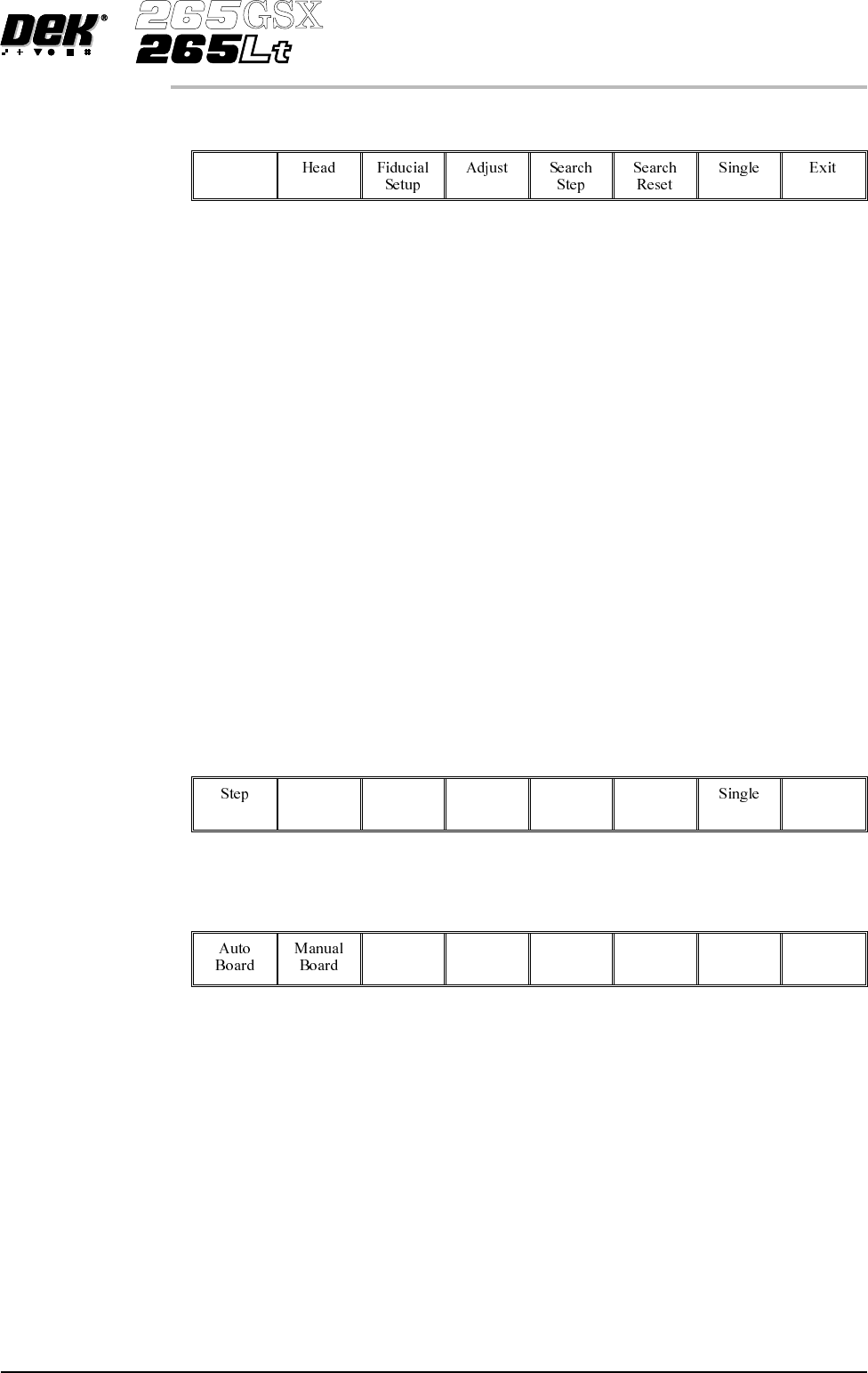
Select Step (F1).
Step
NOTE
If selective print/pass through is enabled, the first board fiducial should now be
displayed on the monitor. In this case repeat Steps 14 - 26 for this fiducial.
The first screen fiducial should now be displayed on the monitor.
27. Repeat Steps 14 - 25 for this fiducial.
28.
Continue for other selected fiducials by selecting Step at the end of each
fiducial setup.
29. After Step 28 for the second screen fiducial the message
’Saving Fiducial Data - Please Wait
Board data file saved’ is displayed.
Afteraligningscreentoboardthecamerachecksallfourfiducialpositions.
30.
Select Exit (F8).
Exit
31.
Select Exit (F8).
Exit
Software Version 6 User Manual 1.83
MACHINE PROGRAMMING
STAGE 7
STAGE 8
Load Paste, Run a Product in Step Mode
If using squeegees with paste dispenser continue with Section Auto Paste
Dispense. If using squeegees without paste dispenser go to Section Manual
Paste Load. If using ProFlow go to Section Run a Product in Step Mode.
Auto Paste Dispense 1.
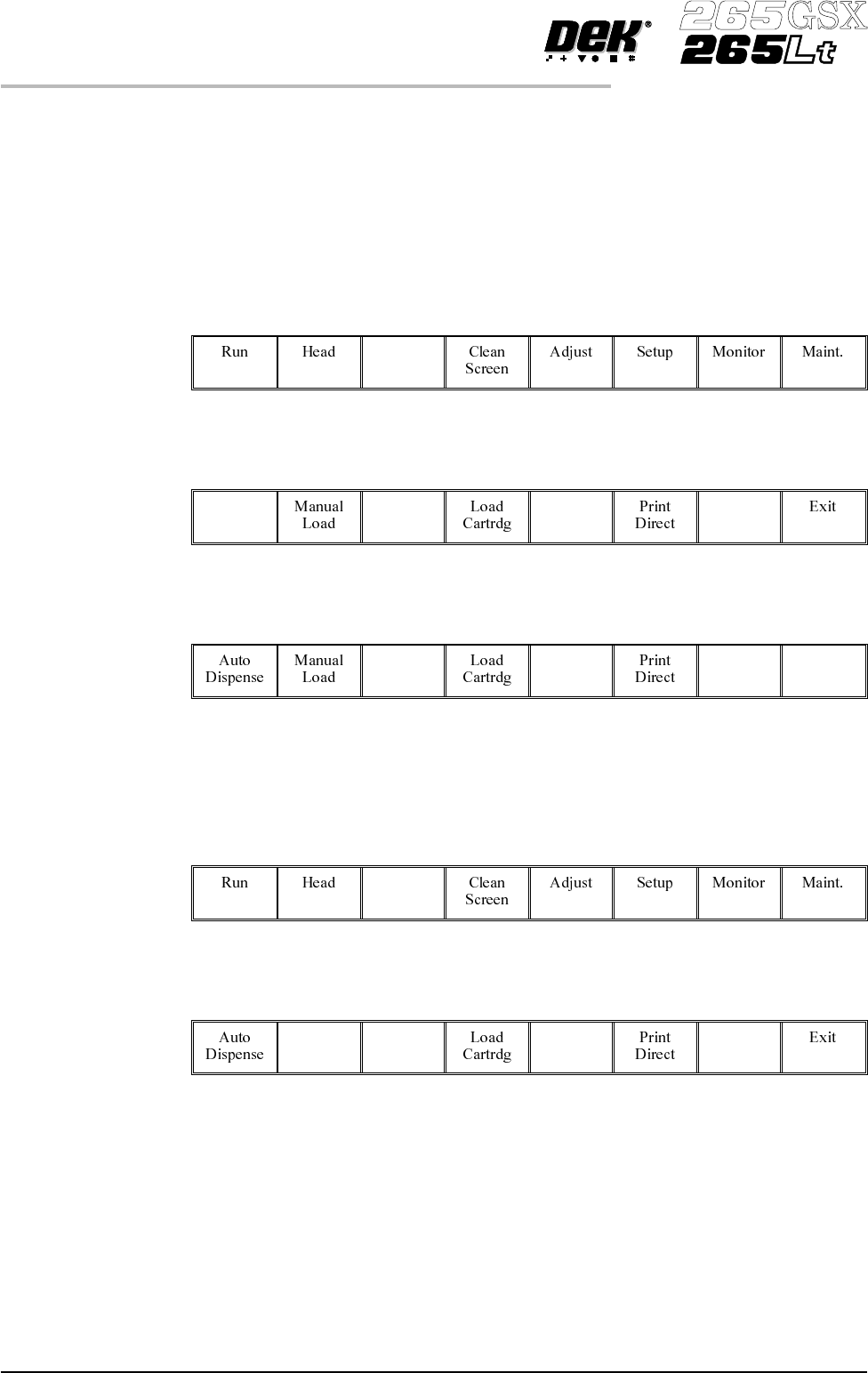
Select Paste Load (F3).
Paste
Load
2.
Select Auto Dispense (F1).
Auto
Dispense
3.
Select Exit (F8).
Exit
4. Go to Section Run a Product in Step Mode.
Manual Paste Load 1.
Select Paste Load (F3).
Paste
Load
2.
Select Manual Load (F2).
Manual
Load
3. Lift the front printhead cover.
1.84 User Manual Software Version 6
MACHINE PROGRAMMING
STAGE 8
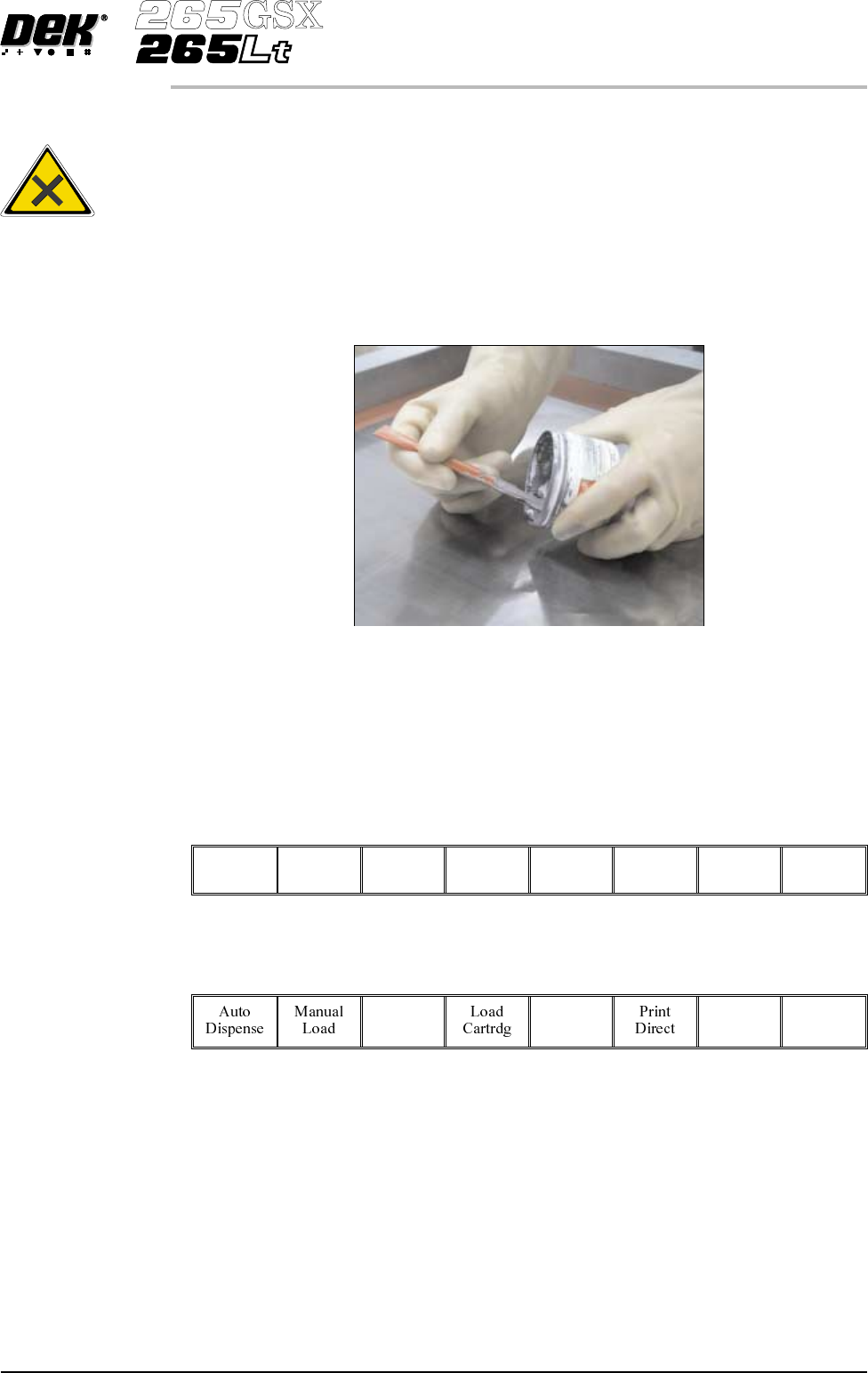
4. Load the solder paste onto the screen.
5. Lower the front printhead cover.
6.
Press the System button.
7.
Select Continue (F1).
Continue
8.
Select Exit (F8).
Exit
Software Version 6 User Manual 1.85
MACHINE PROGRAMMING
STAGE 8
WARNING
SOLDERPASTEANDSOLVENTS. WHENUSINGORHANDLINGAN
Y
SOLDER PASTE OR SOLVENT FORMULATION THE
MANUFACTURERS' RECOMMENDED SAFETY PRECAUTIONS
MUSTBESTRICTLYADHEREDTO.