Dek-265GSX-User-Manual.pdf.pdf - 第139页
Downline Protocol Sets the protocol for transferring boards to adjacent machines, options are: NO FMI; SANYO; SANYO FLOWOUT; SMPI; SMEMA; FUJI; DYNA (Dynapert); SIEMENS; PANASONIC; TDK; MANUAL; SMEMA2 The default is spec…
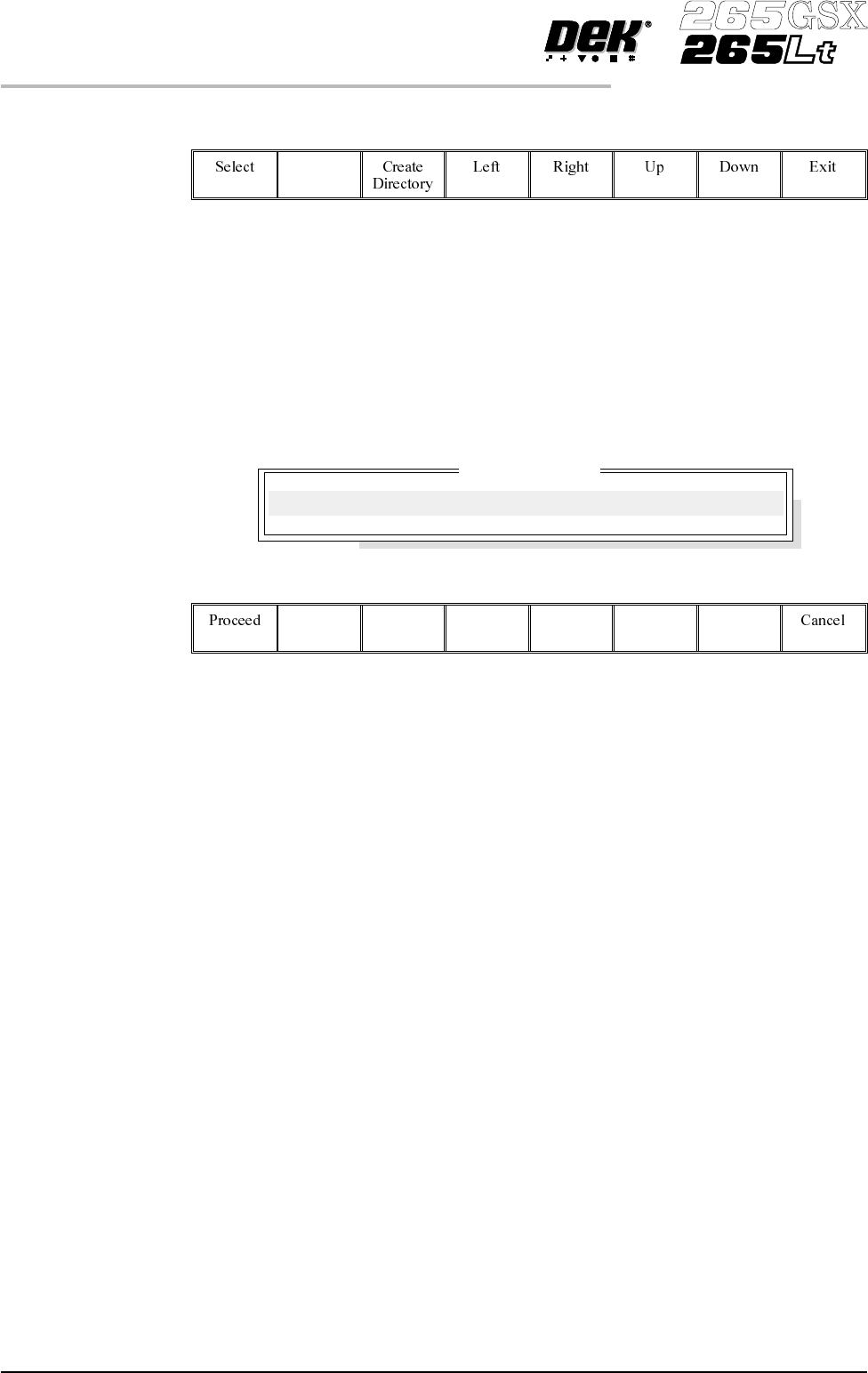
The menu bar changes to the following:
The message ‘Select a directory to become the current location for Process
Program files.’ is displayed in the message bar.
Use the Up and Down keys to scroll up and down the highlighted column.
Use the Left and Right keys to move between columns.
Use the Exit key to close the Directory Structure On Drive window.
Selecting the Create Directory key opens the following window:
The menu bar changes to the following:
Use the keyboard to type the name of the new directory.
Select the Proceed key, a new directory is created providing:
• The string entered constitutes a valid name for a directory.
• A file or directory of that name does not already exist.
• The current directory is accessible for writing.
Transport Mode Sets the input and output side of the printer, options are:
Left to Right; Right to Left; Right to Right, Left to Left, No Transfer.
The default is Left to Right.
Machine Units Sets the unit of measurement, options are:
Metric; Imperial units.
The default is Metric.
Upline Protocol Sets the protocol for transferring boards from adjacent machines, options are:
NO FMI; SANYO; SANYO FLOWOUT; SMPI; SMEMA; FUJI; DYNA
(Dynapert); SIEMENS; PANASONIC; TDK; MANUAL; SMEMA2
The default is specified by customers requirements.
2.4 User Manual Software Version 6
SET PREFERENCES
PREFERENCES
Create Directory
New Name:

Downline Protocol Sets the protocol for transferring boards to adjacent machines, options are:
NO FMI; SANYO; SANYO FLOWOUT; SMPI; SMEMA; FUJI; DYNA
(Dynapert); SIEMENS; PANASONIC; TDK; MANUAL; SMEMA2
The default is specified by customers requirements.
Transfer Period Sets a programmable time periodusedbycertaintransfer protocols, options are:
Min 0 sec
Max 99 sec
Increments 1 sec
The default is 20 seconds.
PeriodofTransfer Time - This is the period of time which the machineallows for
a transfer of a board before displaying a ‘Board Transfer Error’ for upline or
downline.
Period of Waiting Time - This is the period of time which the machine allows
when waiting for the upline or downline machine to request a board for transfer
before displaying a message of ‘Waiting for Upline/Downline’.
Selective Print/Pass Sets whether the facility to selective print or pass through a board is to be used,
options are:
Enabled; Disabled
The default is Disabled
This feature is protected by Feature Licence Authentication.
When enabled the identity of the incoming board is checked using a separate
fiducial on the board only, called a Select Mark. If the identity of the board
matches the current product file the board is printed. If the board is different or
cannot be recognized, it is passed through without printing.
Paste Dispense
Position
Sets the position from which paste is dispensed, in relation to the screen image,
options are:
Front; Rear; Auto
The default is Auto.
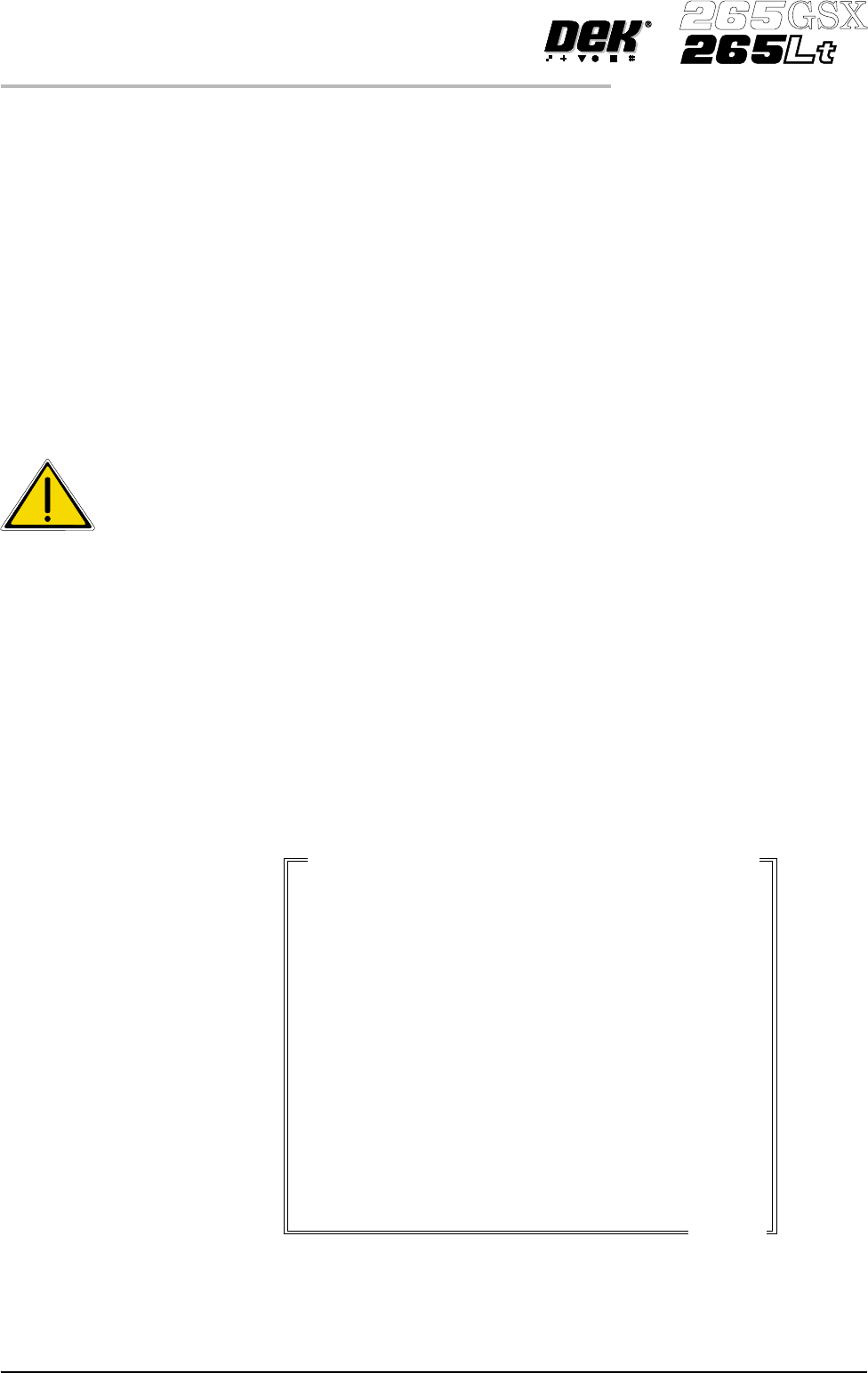
When exiting Set Preferences after setting option to either Rear or Auto the
following window is displayed:
Software Version 6 User Manual 2.5
SET PREFERENCES
PREFERENCES
Please confirm that there will be no obstruction
when your paste dispenser dispenses paste at the
rear of the image
Paste Dispense Position
Comms Protocol Sets the communications protocol to be used for serial communications to a host
computer, options are:
Secs; GEM; Net_file; No Comms
The menu bar changes depending on the option chosen, see the Host
Communications Chapter for further details.
NOTE
Host Comms is available for the 265GSX only.
CAUTION
Do not select SECS Protocol without having the SECS II Interface fitted to
the Machine. If this is inadvertently selected, call DEK Service Dept. for
advice.
Event Recording Sets which events are recorded in the event log file, options are:
Custom; Group 3; Group 2; Group 1
The default is Custom.
Over 200 possible events may be recorded using the event logging set
preference.
On selecting Custom in the Event Recording set preference the following set up
window opens:
The window displays how each event is logged in the three possible ways; Disk,
Host and Grp.
2.6 User Manual Software Version 6
SET PREFERENCES
PREFERENCES
WARNING
SAFETYDEVICES. THE SAFETYFEATURES DESIGNED INTOTHE
MACHINE ARE FOR THE PROTECTION OF ALL OPERATOR AND
MAINTENANCE PERSONNEL. DEK STRONGLY RECOMMEND
SAFETYDEVICESARENEVEROVERRIDDEN.
Event Report Setting: Disk Host Grp
System Power On
System Power Down
Pneumatic Power Down
Front Squeegee Error
Rear Squeegee Error
Rising Table Error
Print Cariage Error
Paste Carriage Error
Camera X Axis Error
Camera YAxis Error
Rail Width Error
Screen XF Error
Screen XR Error
on
on
on
on
on
on
on
on
on
on
on
on
on
on
off
off
off
off
off
off
off
off
off
off
off
off
off
off
1
1
2
3
2
2
1
1
1
3
3
3
1
1
...more