Dek-265GSX-User-Manual.pdf.pdf - 第145页
Change Mode Option Sets the screen change mode, options are: Manual; Dual Shuttle NOTE The dual shuttle option is only relevant on a machine with a dual shuttle unit fitted. Screen Size Sets the screen size frame: 265; F…
Remote Barcode
Hardware
This preference is only available if the TCP/IP version of Host Comms is used
and Serial Host Comms is not selected from the Comms Protocol set preference,
options are:
Enabled; Disabled
The optional External Product Barcode Reader provides a generic bar code
interface for the capturing by GEM and SPC of a product bar code before the
product is passed to the printer. Use of the reader enables a host program to
decide on the action to be taken for this product and provides a method for SPC
to log product details for tracking.
The DEK printer acts as a dumb receiver of barcode data and provides no set up,
configuration or triggering information for the barcode reader.
Compatible Bar
Code Reader
The printer has been designed to operate with SICK Model CLV 212 Bar code
reader.
Options The two options available for the External Barcode parameter are Enabled and
Disabled.
If the bar code reader is set to Disabled, COM 1 is setup as per previous versions
of software and enabled to accept serial host comms.
If the bar code readeris set to Enabled, COM 1 isset to use the external bar code
reader and the option Serial Comms is removed from the Comms Protocol
parameter in the Set Preferences menu.
ProFlow Contact
Position
This parameter sets the height of theProFlow printhead so that it just touches the
stencil surface.
Min - 10mm
Max + 10mm
Increments 0.1mm
The default is 0mm.
ProFlow Down Stop
Position
This parameter pre-tensions the squeegee suspension springs to provide
ProFlow with a zero pressure datum.
Min - 10mm
Max 10mm
Increments 0.1mm
The default is 0mm.
2.10 User Manual Software Version 6
SET PREFERENCES
PREFERENCES
Change Mode
Option
Sets the screen change mode, options are:
Manual; Dual Shuttle
NOTE
The dual shuttle option is only relevant on a machine with a dual shuttle unit
fitted.
Screen Size Sets the screen size frame:
265; FUJI; 249; SANYO; SCREEN LIBRARY
With Screen Library enabled the printer is provided with detailed screen
dimensional information from a ‘read only’ library. This information is stored
within the machine configuration and product files.
Once selected in Set Preferences, detailed frame dimensions are provided to the
printer. In Edit Current Process Parameters, the parameter Image Data provides
comprehensive location and mesh details to the printer.
To enable screen library files carry out the following:
1.
Highlight Screen Size in the Set Prefs page.
2.
Using Incr. or Decr. select Screen Library.
Edit Data is now available on the menu bar.
3.
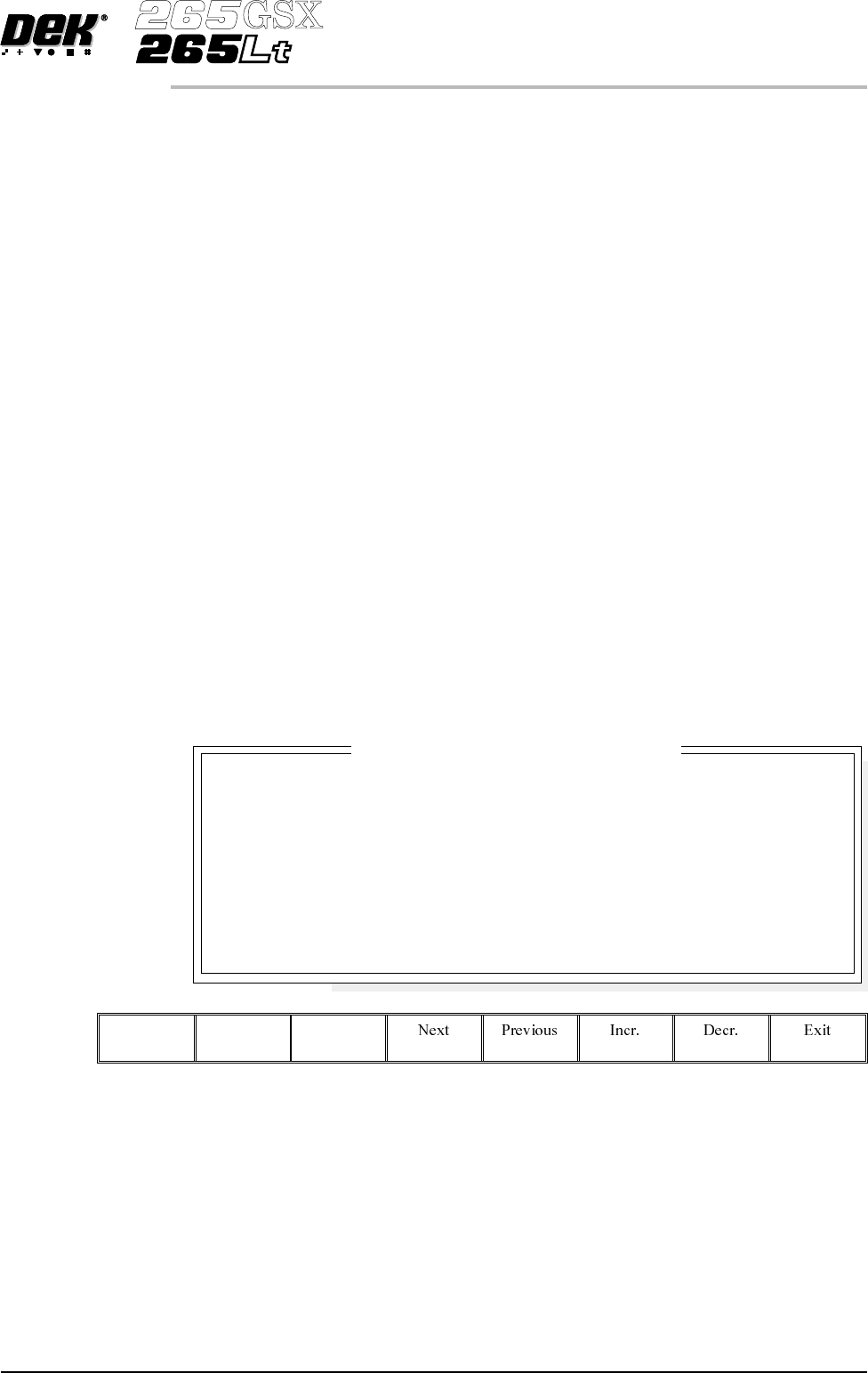
Select Edit Data, the following window and menu bar is displayed:
Use Incr.orDecr. to select the required Screen Type. If no valid screen library
files are found, the default file DEK 265 Central Image is displayed.
Use Next or Previous to select and Incr. or Decr. to modify the screen frame
parameters as required.
Software Version 6 User Manual 2.11
SET PREFERENCES
PREFERENCES
SCREEN TYPE
SCREEN LENGTH
SCREEN WIDTH
FRAME FRONT
FRAME REAR
FRAME LEFT
FRAME RIGHT
DEK 265 CENTRAL IMAGE
XXX
XXX
XXX
XXX
XXX
XXX
mm
mm
mm
mm
mm
mm
Screen Frame Configuration
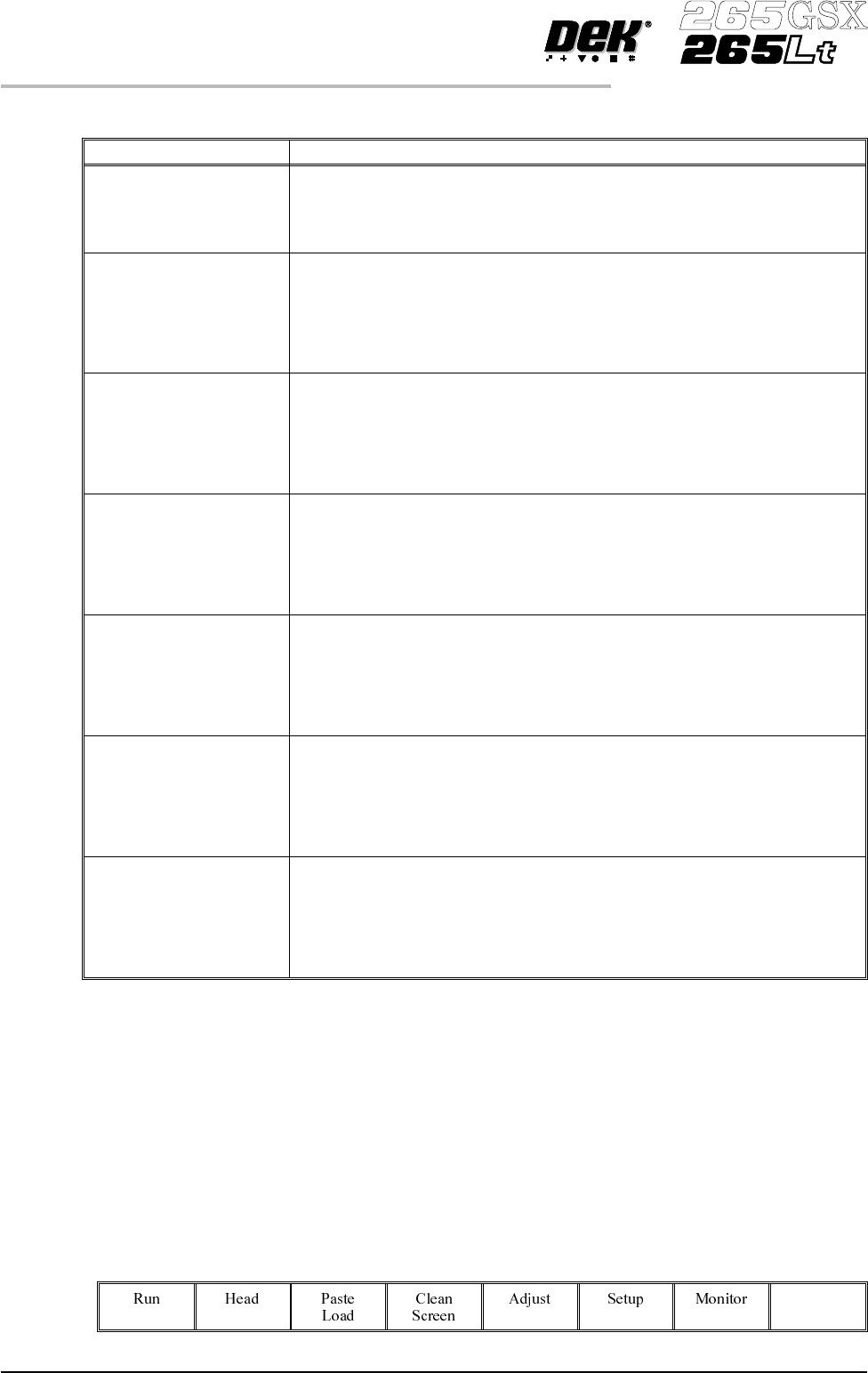
The screen library menu parameters are defined in the table below:
Parameter Definition
Screen Record ID The identity of the screen type library record containing a text string that
matches the Screen Type selected.
Format Maximum 32 character text string
Default DEK 265 Central Image
Screen Length This parameter sets overall dimension front to rear of the screen frame or
adaptor.
Minimum 550mm
Maximum 860mm
Increment 0.1mm
Default 736.6mm
Screen Width This parameter sets the overall dimension left to right of the screen frame or
adaptor.
Minimum 580mm
Maximum 736.6mm
Increment 0.1mm
Default 736.6mm
Frame Front This parameter sets the distance between the outer edge of the screen frame
or adaptor and the inner edge of the frame, at the front of the frame.
Minimum 20mm
Maximum Screen Length - 250mm
Increment 0.1
Default 38.1mm
Frame Rear This parameter sets the distance between the outer edge of the screen frame
or adaptor and the inner edge of the frame, at the rear of the frame.
Minimum 20mm
Maximum Screen Length - 250mm
Increment 0.1mm
Default 38.1mm
Frame Left This parameter sets the distance between the outer edge of the screen frame
or adaptor and the inner edge of the frame, at the left of the frame.
Minimum 20mm
Maximum Screen Length - 250mm
Increment 0.1mm
Default 38.1mm
Frame Right This parameter sets the distance between the outer edge of the screen frame
or adaptor and the inner edge of the frame, at the right of the frame.
Minimum 20mm
Maximum Screen Length - 250mm
Increment 0.1mm
Default 38.1mm
Feature Licensing Sets whether the Feature Licensing facility is fitted to the machine.
Enabled; Disabled
Introduction The Feature Licensing facility enables a user to request and install a licence to
run a new feature on the machine. The Features Licensed window lists all the
licences available and applicable to the machine and current software.
Licence Request 1.
Select Maint. (F8).
Maint.
2.12 User Manual Software Version 6
SET PREFERENCES
PREFERENCES