Dek-265GSX-User-Manual.pdf.pdf - 第149页
11. Select Next and Previous (F4 - F5) to highlight the feature to be requested. Next Previous 12. Select Request Features (F3). Request Features The following window and menu bar is displayed: 13. Select Yes (F1). Yes T…
5.
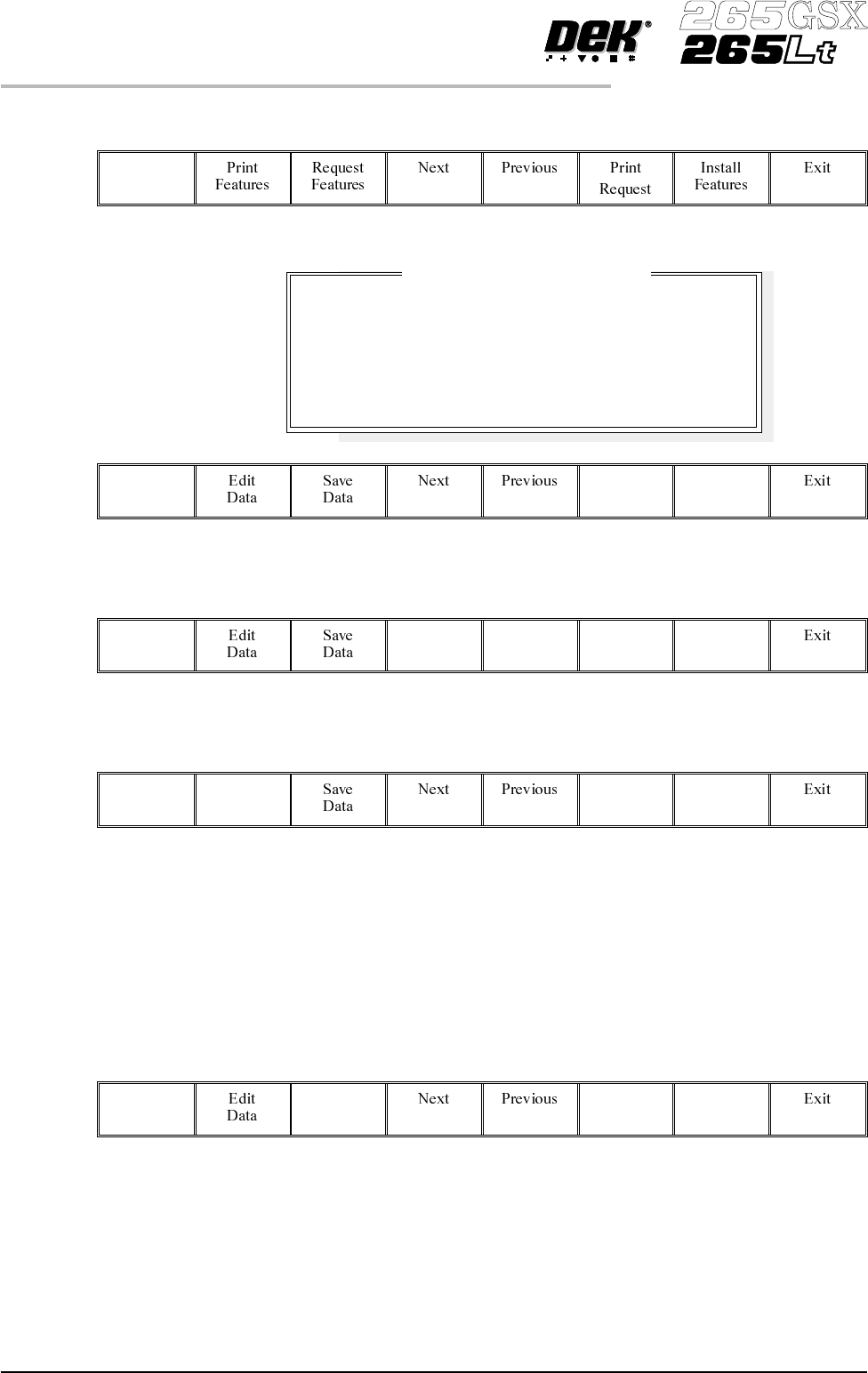
Select Customer Info (F1).
Customer
Info
The following window and menu bar is displayed:
6.
Using Next and Previous (F4 - F5) highlight the required field.
Next Previous
7.
Select Edit Data (F2).
Edit
Data
8. Using the keyboard input the required information. On completion of
editing a field, press Enter on the keyboard.
9. Repeat Steps 6 - 8 for the remaining fields.
10.
On completion of editing fields, select Save Data (F3).
Save
Data
The message ‘Printer configuration data file saved’ is displayed. The
information is written to a ‘customer.txt’ file and attached to all licence request
files, the window is closed.
2.14 User Manual Software Version 6
SET PREFERENCES
PREFERENCES
Company Name
Cust. Order Number
Contact Name
Phone Number
Fax Number
Email Address
Customers Own Informat
i
on
DEK Printing Machines Ltd
ABC01-21/10/99
George Smith
01305 760760
01305 760123
gsmith@dek.com
11.
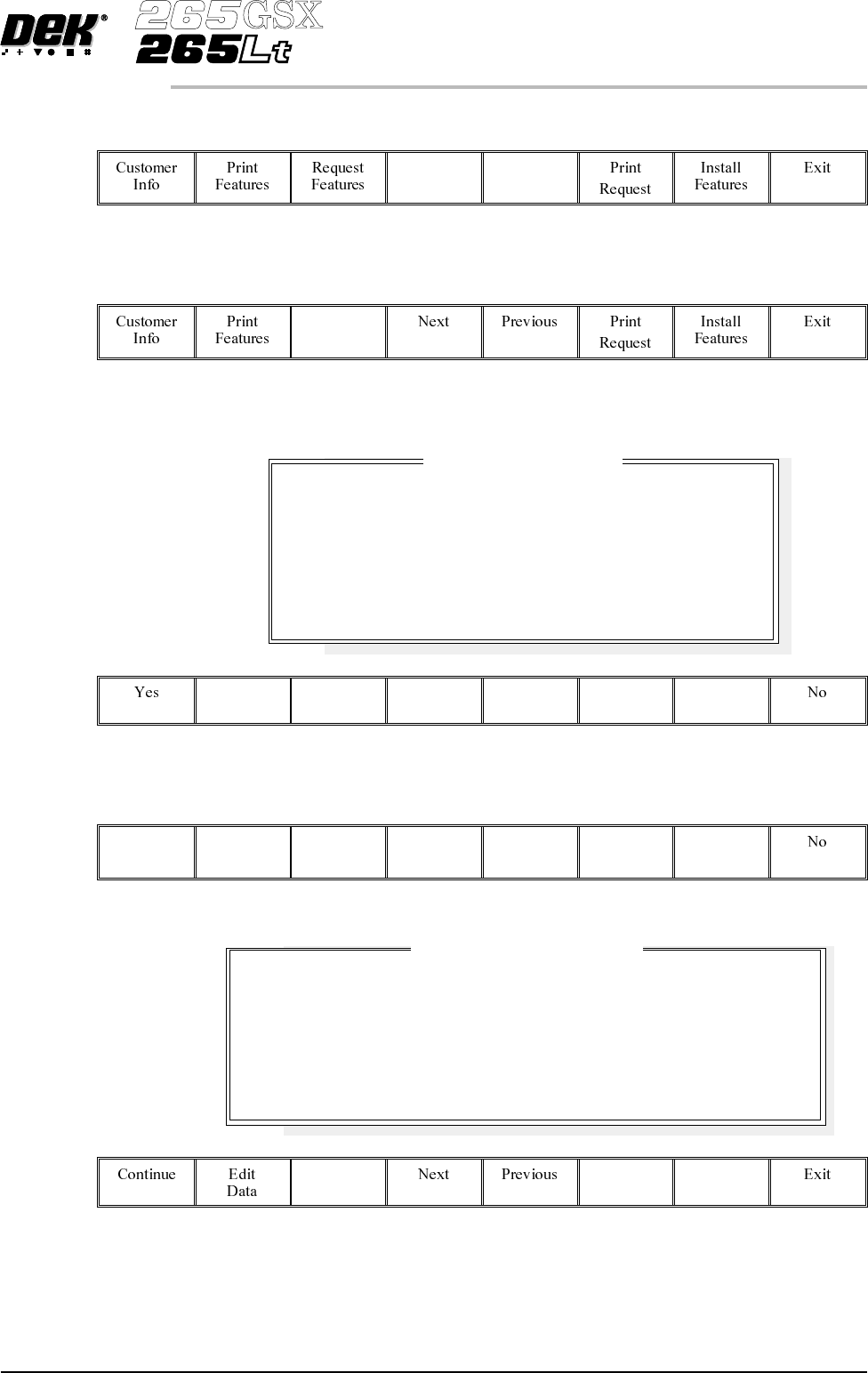
SelectNext and Previous(F4 - F5) to highlightthefeaturetoberequested.
Next Previous
12.
Select Request Features (F3).
Request
Features
The following window and menu bar is displayed:
13.
Select Yes (F1).
Yes
The following window and menu bar is displayed:
Software Version 6 User Manual 2.15
SET PREFERENCES
PREFERENCES
License Acquisition
Do you want to obtain a license to use:
Basic Screen Insp.
On Dongle :
112737
Feature License Request
Request File Path
Request File Name
A:\ GS1
request8.txt
A request to license the feature you have selected will be
written or appended to the above file
in the above directory path.
14.
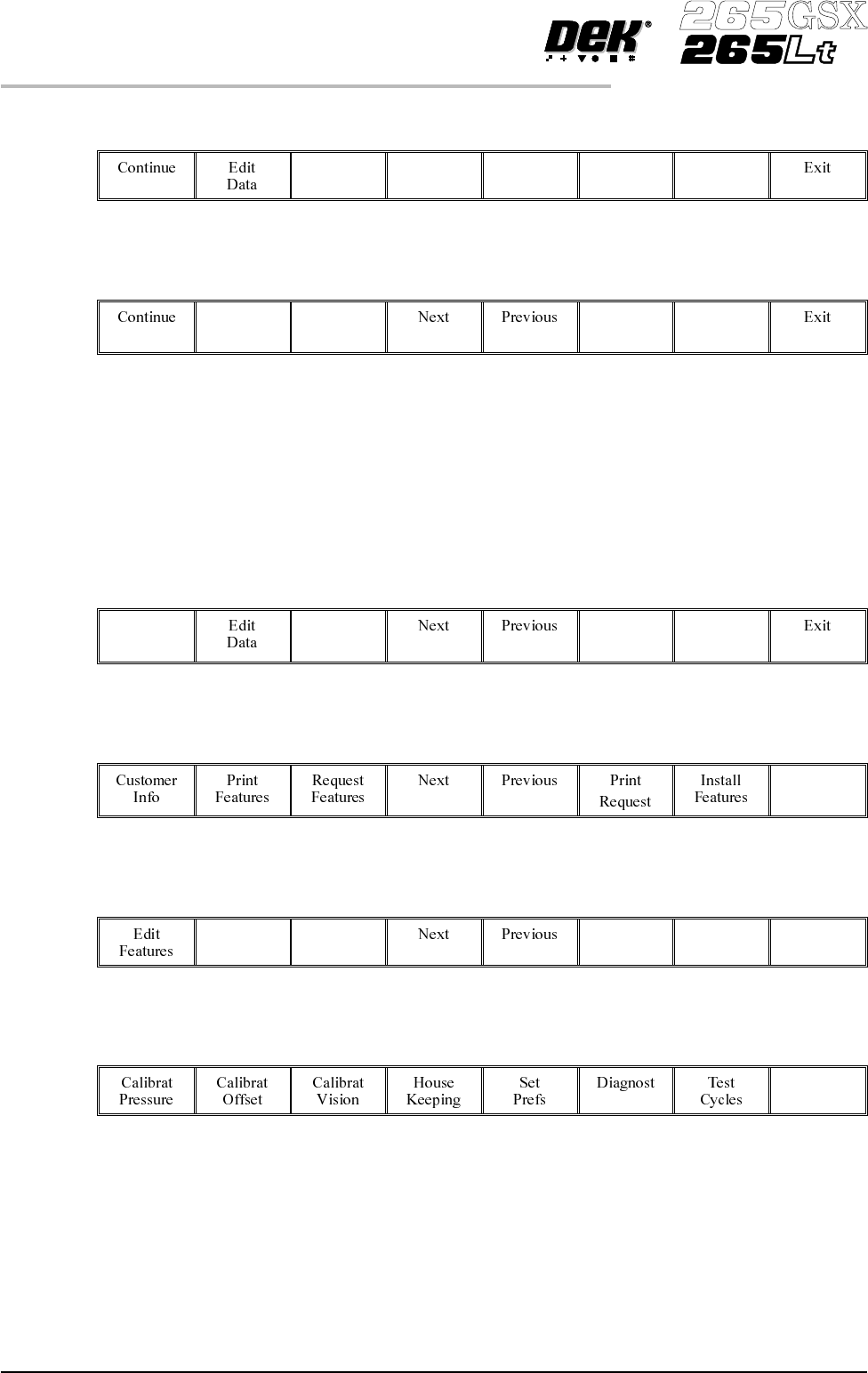
Using Next and Previous (F4 -F5) highlight the required field.
Next Previous
15.
Select Edit Data (F2).
Edit
Data
16. Using the keyboard input the required information. On completion of
editing the field, press Enter on the keyboard.
17. Repeat Steps 14 -16 for the remaining field.
18.
Select Continue (F1).
Continue
19.
Select Exit (F8).
Exit
20.
Select Exit (F8).
Exit
21.
Select Exit (F8).
Exit
22. The licence request.txt file can now be forwarded to your local DEK agent
for processing.
2.16 User Manual Software Version 6
SET PREFERENCES
PREFERENCES