Dek-265GSX-User-Manual.pdf.pdf - 第153页
6. Select Next and Previous (F4 -F5) to highlight the required field. Next Previous 7. Select Edit Data (F2). Edit Data 8. Using the keyboard enter the required information into the highlighted field. On completion, sele…
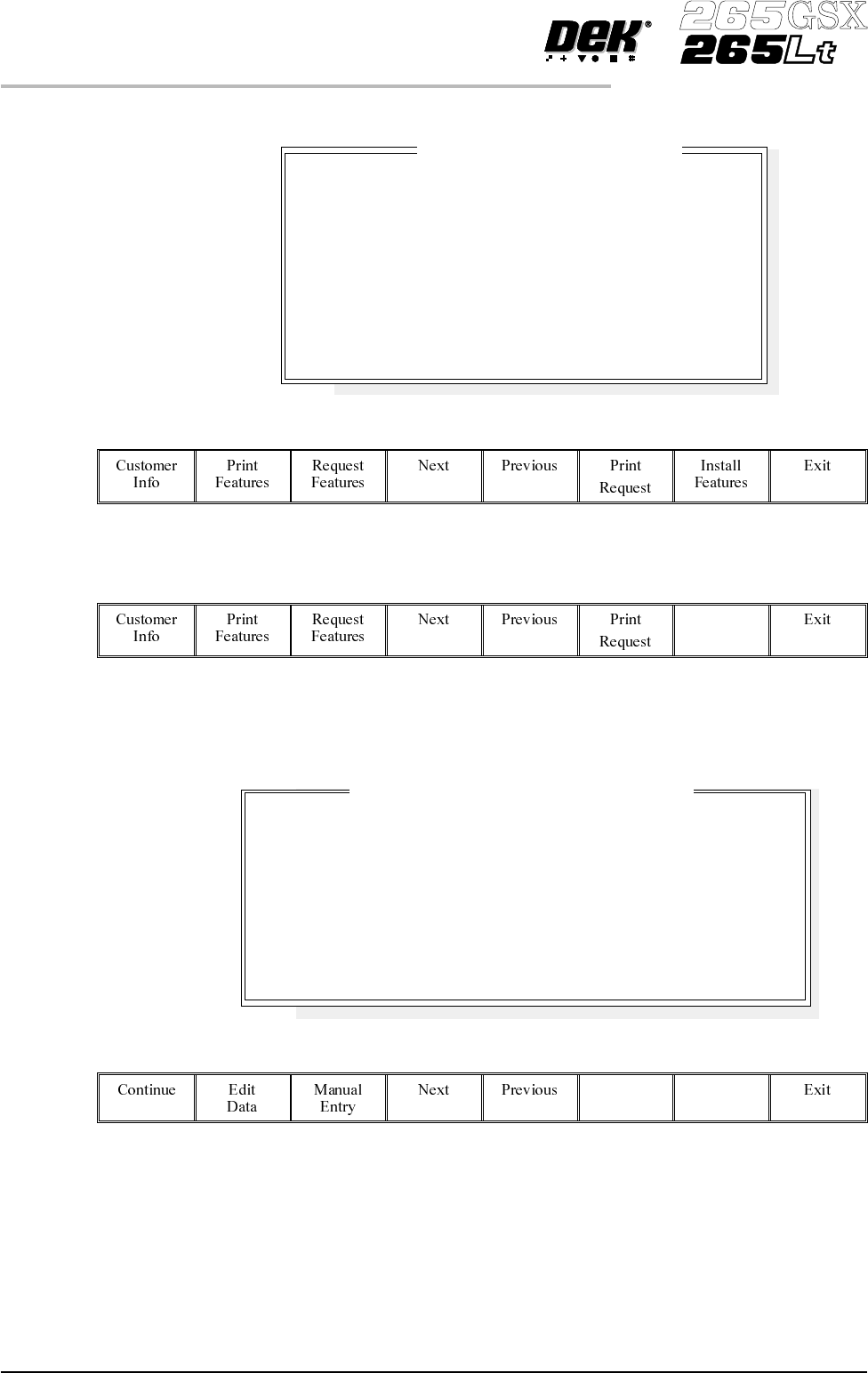
The following window and menu bar is displayed:
5.
Select Install Features (F7).
Install
Features
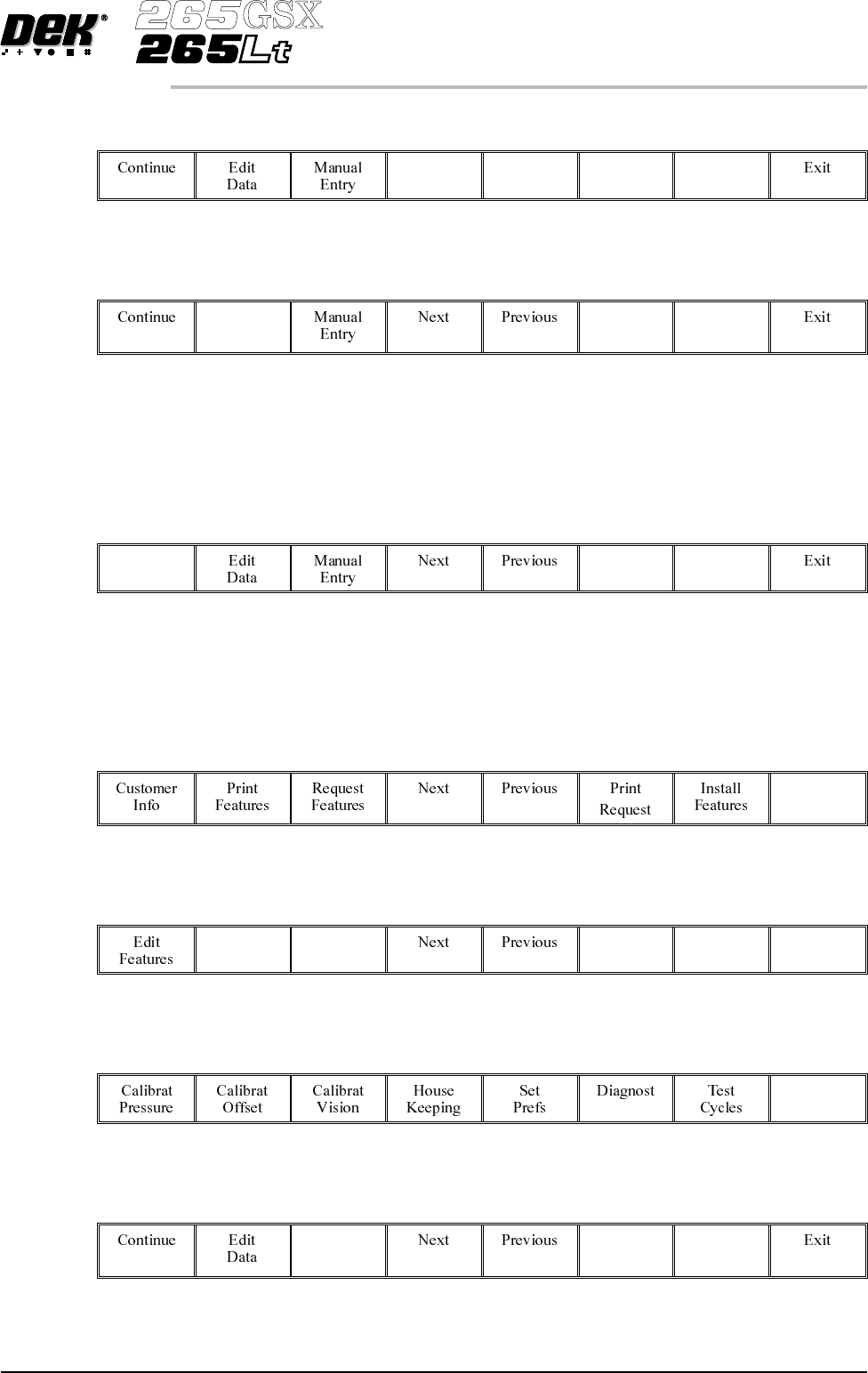
The following window and menu bar is displayed:
NOTE
Carry out Steps 6 - 12 if the input of the licence is via file.
Carry out Steps 13 - 21 if the input of the licence is via the keyboard.
2.18 User Manual Software Version 6
SET PREFERENCES
PREFERENCES
Basic Screen Insp.
Basic Board Insp.
Advanced Screen Insp.
Advanced Board Insp.
SEC GEM Option
Net Files Option
Flexi Print
Selective Prnt Pass
Tooling Monitoring
Features L
i
cense
db
y 112737
DISABLED
DISABLED
DISABLED
DISABLED
DISABLED
DISABLED
DISABLED
DISABLED
DISABLED
Feature License Installation on 112737
Install File Path
Install File Name
A:\ GS1
install8.txt
Please set the values of the fields above to specify the file
that contains the Feature License Installation Instructions
If no filename is set, or if Manual Entry is selected,
it will be assumed that the installation Instructions
are to be entered on the keyboard.
6.
Select Next and Previous (F4 -F5) to highlight the required field.
Next Previous
7.
Select Edit Data (F2).
Edit
Data
8. Using the keyboard enter the required information into the highlighted field.
On completion, select Enter on the keyboard.
9.
Select Continue (F1).
Continue
NOTE
If the installation is successful the feature appears in the Features Licensed
window.
10.
Select Exit (F8).
Exit
11.
Select Exit (F8).
Exit
12.
Select Exit (F8).
Exit
13.
Select Manual Entry (F3).
Manual
Entry
Software Version 6 User Manual 2.19
SET PREFERENCES
PREFERENCES
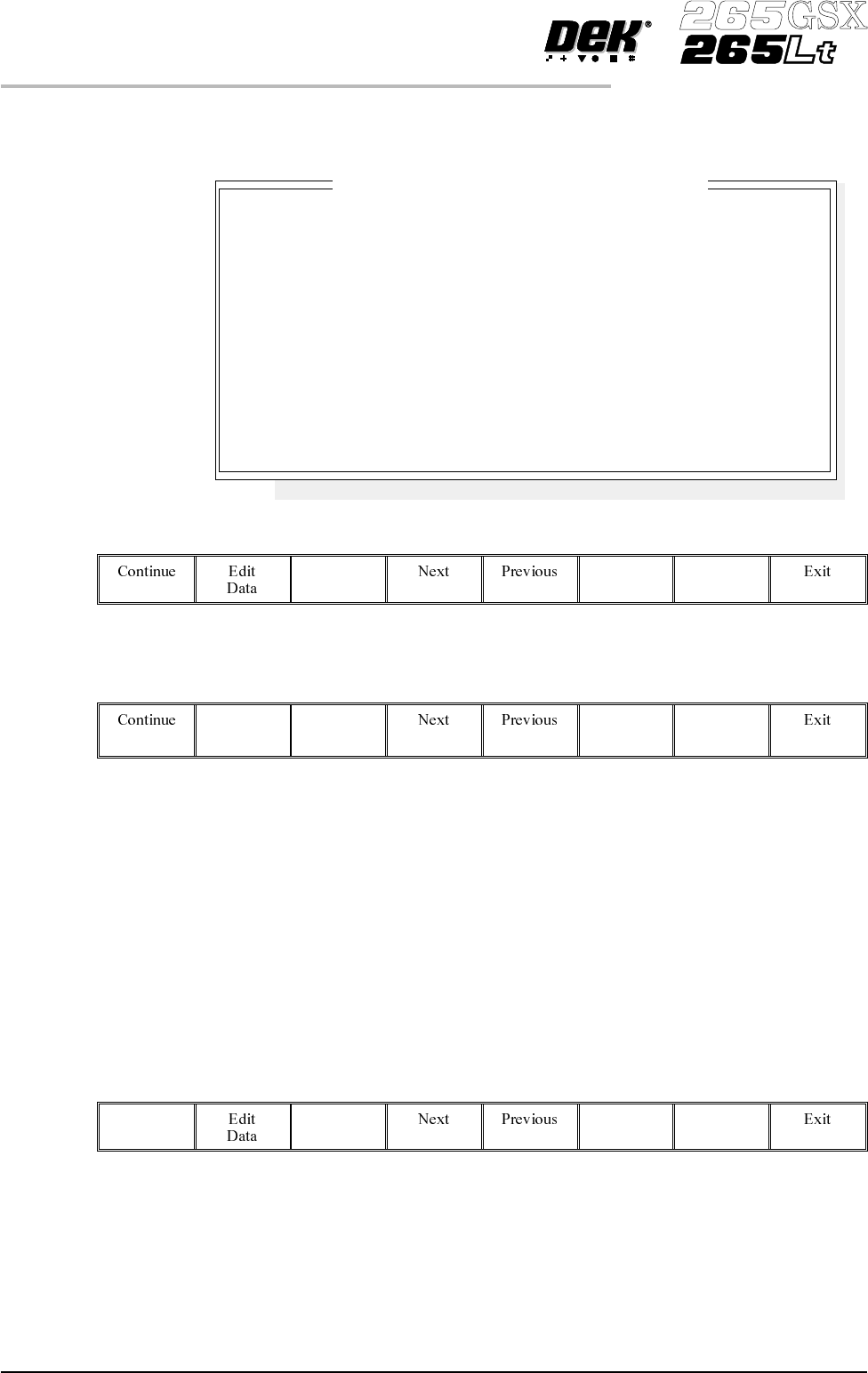
The following window and menu bar is displayed:
14.
Select Edit Data (F2).
Edit
Data
15. Using the keyboard, carefully enter the first group of 8 alphanumeric
characters and select Enter on the keyboard.
16.
Select Next (F4) to enter the next group of alphanumeric characters in the
installation instructions.
17. Repeat Steps 14 - 16 for the remaining groups of alphanumeric characters.
18.
Select Continue (F1).
Continue
2.20 User Manual Software Version 6
SET PREFERENCES
PREFERENCES
Enter License Installation Instructions
1.
2.
3.
4.
5.
6.
7.
8.
Please enter the 8 Licensing Instructions EXACTLY as they
are written as 8 groups of 8 characters each.