Dek-265GSX-User-Manual.pdf.pdf - 第196页
The menu bar changes displaying the following: Next /Prev keys move the highlight bar up and down the list of diagnostic modules. Select Module key opens a new window displaying the diagnostic functions available for the…
DIAGNOSTICS
INTRODUCTION The diagnostic function is an aid to the user to allow individual access and
control to motors and modules. It allows the user to control the sequence of the
machine so that a particular module can be exercised.
To enter the diagnostic mode the key switch on the Main Control Unit must be
inserted and turned clockwise. This enables the Maint option to appear on the
Menu Bar:
Maint.
Press the Maint button and the Menu Bar changes displaying the Diagnostic
option.
Diagnost
Press the Diagnostic button and the message ‘System Power Down’ is
displayed on the screen, presssing the ‘System’ button, enters into the main
diagnostic menu. If a password exists a window displays the message
‘Diagnostic Password’. If the password is incorrect control displays the
message ‘Invalid password entered’ and return to the previous menu. If the
correct password is entered or no password exists a pop up window displays the
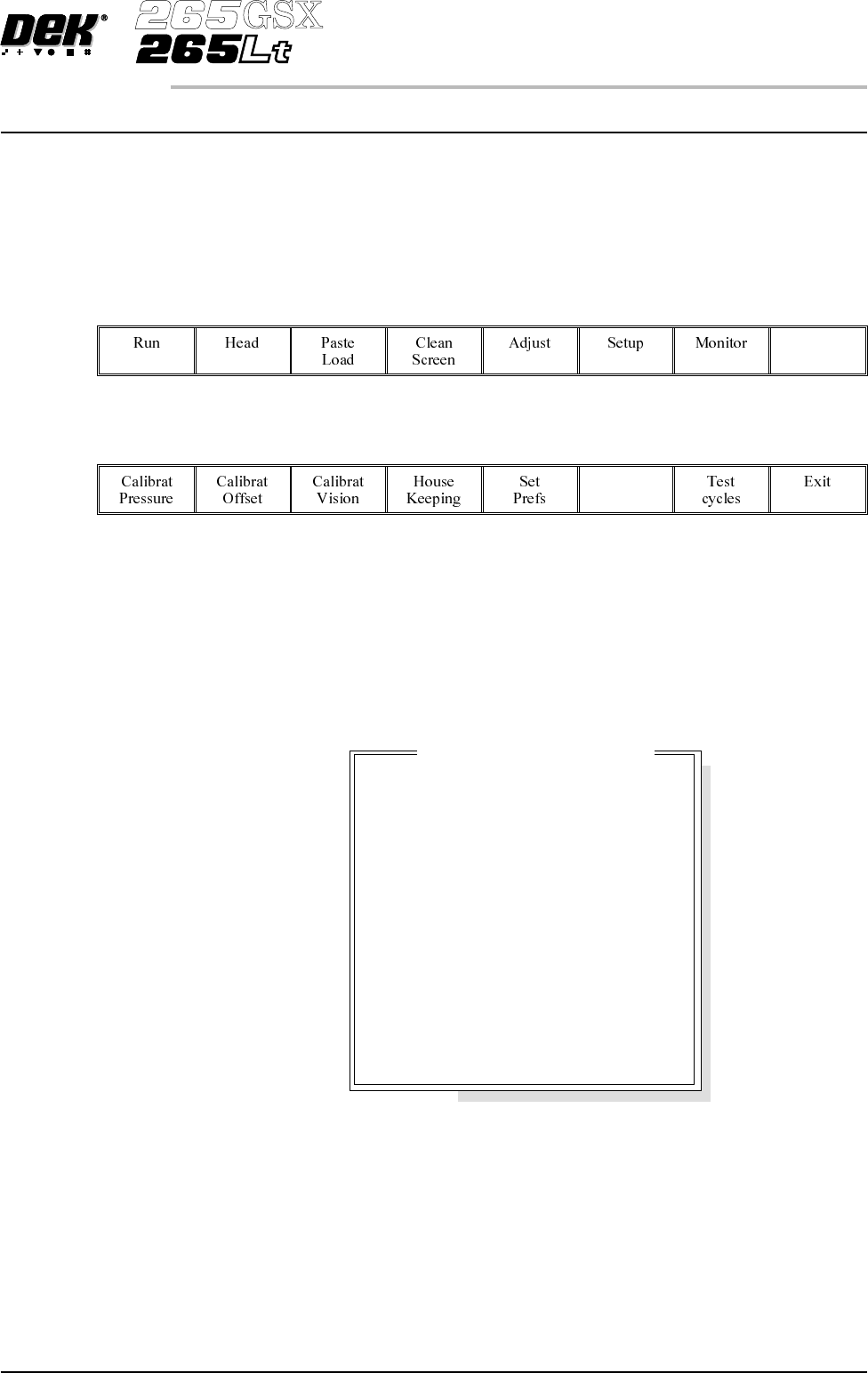
following:
Software Version 6 User Manual 5.1
DIAGNOSTICS
INTRODUCTION
Mo
d
u
l
eD
i
agnost
i
cPage
System
Print Head
Print Carriage
ProFlow / Squeegee
Camera Axes
Rail System
Paste Dispense System
Screen Alignment
Screen Change
Screen Cleaner
Rising Table
Foreign Machine Interface
Autoflex Tooling

The menu bar changes displaying the following:
Next /Prev keys move the highlight bar up and down the list of diagnostic
modules.
Select Module key opens a new window displaying the diagnostic functions
available for the selected module.
Exit returns operation to the start of initialisation
NOTE
Before any diagnostic function is used in any of the modules they must be homed
first or they are not able to initiate a command.
5.2 User Manual Software Version 6
DIAGNOSTICS
INTRODUCTION
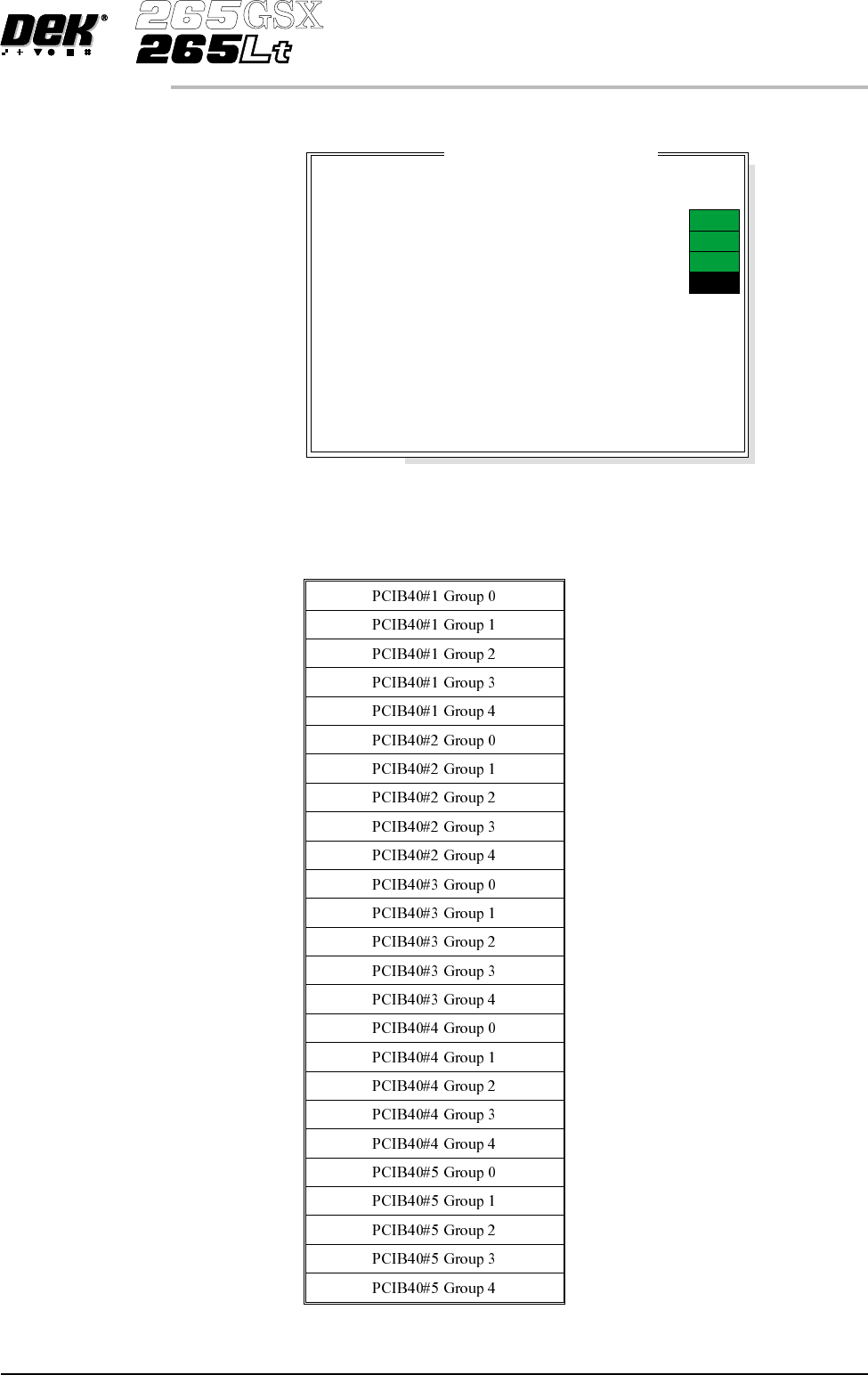
SYSTEM The system diagnostic module contains the following:
Digital Input
Status
Selecting this option, a new window is displayed showing the relevant groups.
Software Version 6 User Manual 5.3
DIAGNOSTICS
SYSTEM
System D
i
agnost
i
cs
Display all Digital Inputs
Display all Analogue Inputs
Toggle Red Beacon
Toggle Amber Beacon
Toggle Green Beacon
Data Logging
Change Edit Password
Change Diagnostic Password
Change DOS Password
Change Adjust Password
Change Fiducial Set Up Password
Change Network Auto-login Password
Terminate Control and Return to DOS
ON
ON
ON
OFF