Dek-265GSX-User-Manual.pdf.pdf - 第233页
Toggle Table Brake The brake fitted to the rising table can be toggled between on and off using this option. On is displayed when the brake is on. Toggle Vacuum Tooling Valve Enables the vacuum tooling valve to be toggle…
Raise Table to Print
Height
Selecting this option first checks that both the camera carriage and the screen
cleaner unit are home, if either are not at home the message “Home Camera
and/or Screen Cleaner first” is displayed. If both are home, the rising table
drives up to the height set by the print height parameter.
Restore Default
Heights
Selecting this option restores the vision height to the default of 50 mm and the
print height to the default of 127 mm.
Set Reference
Vision Height
The function of this option is to set the rising table so that it views the board
fiducials in focus. This is achieved by driving the table up or down while
viewing the vision monitor until the fiducial is in focus. Pressing Calibrate
Vision Height changes the menu Bar showing the option Confirm. Pressing
Confirm sets the current height of the rising table, updating the printer
configuration file.
Set Reference Print
Height
The function of this option is to set the print height so that no gap exists between
the screen and board. This is achieved by driving the table up till the board
clamp just touches the screen.
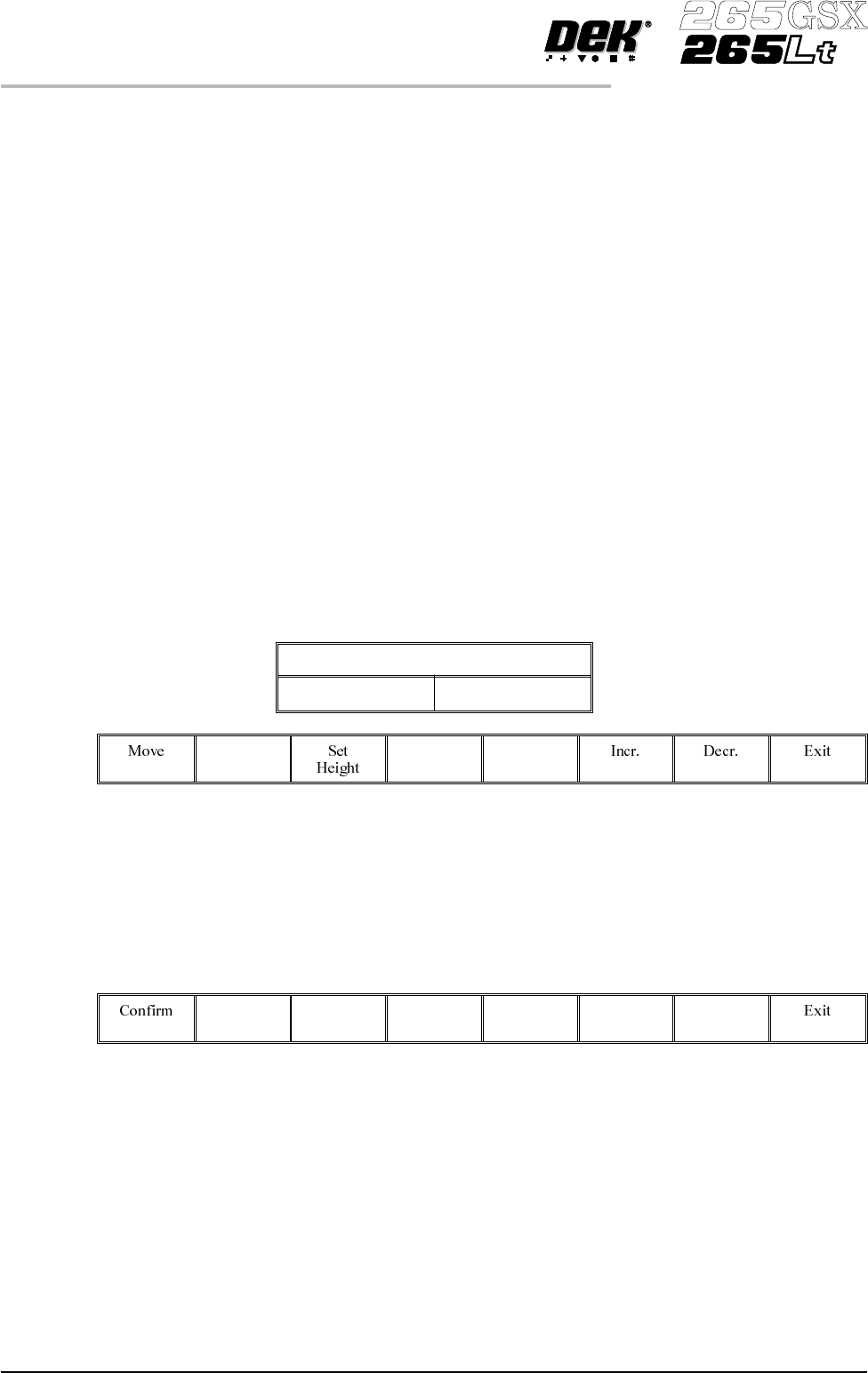
Selecting this option displays the following window and menu bar:
Table Print Height Calibration
Print Height 128.6mm
Selecting Move locks the lid bolt, moves the table to the height displayed, and
unlocks the lid bolt.
Selecting Exit exits this menu without any changes.
Selecting the Incr. and Decr. buttons allows adjustment of the print height
parameter:
Pressing Set Height changes the menu bar showing the option Confirm.
Pressing Confirm shows the following message, set the current height of the
rising table and update the printer configuration file:
‘This will alter the printer configuration file - please confirm’
Pressing Exit returns to the previous menu without changes to the configuration
file.
Drive Table using
Jog Buttons
Selecting this option enables the right jog button to drive the rising table up at
slow speed and the left jog button drives the table down, stopping immediately
the button is released.
5.38 User Manual Software Version 6
DIAGNOSTICS
RISING TABLE
Toggle Table Brake The brake fitted to the rising table can be toggled between on and off using this
option. On is displayed when the brake is on.
Toggle Vacuum
Tooling Valve
Enables the vacuum tooling valve to be toggled between on and off to facilitate
setup and maintenance.
Cycle Rising Table Selecting this option first checks that both the camera carriage and the screen
cleaner unit are home, if either are not a message is displayed “Home Camera
and/or Screen Cleaner first”. Only if both are home, a continuous cycle starts
driving the rising table to print height, dwelling for 2 seconds, driving the table
down to its datum height, dwelling for 2 seconds and repeating the cycle until
stop is pressed or the set cycle count has been reached (50).
Rail Lifted Left Continuously displays the current status of the rail lifted left sensor. Off is
displayed when the rail has been lifted.
Rail Lifted Right Continuously displays the current status of the rail lifted right sensor. Off is
displayed when the rail has been lifted.
Table at Home Continuously displays the current status of the home interlock sensor, On is
displayed when the rising table is in the home position.
Cycle Count Displays the count when the module is being cycled.
Software Version 6 User Manual 5.39
DIAGNOSTICS
RISING TABLE
FOREIGN MACHINE INTERFACE
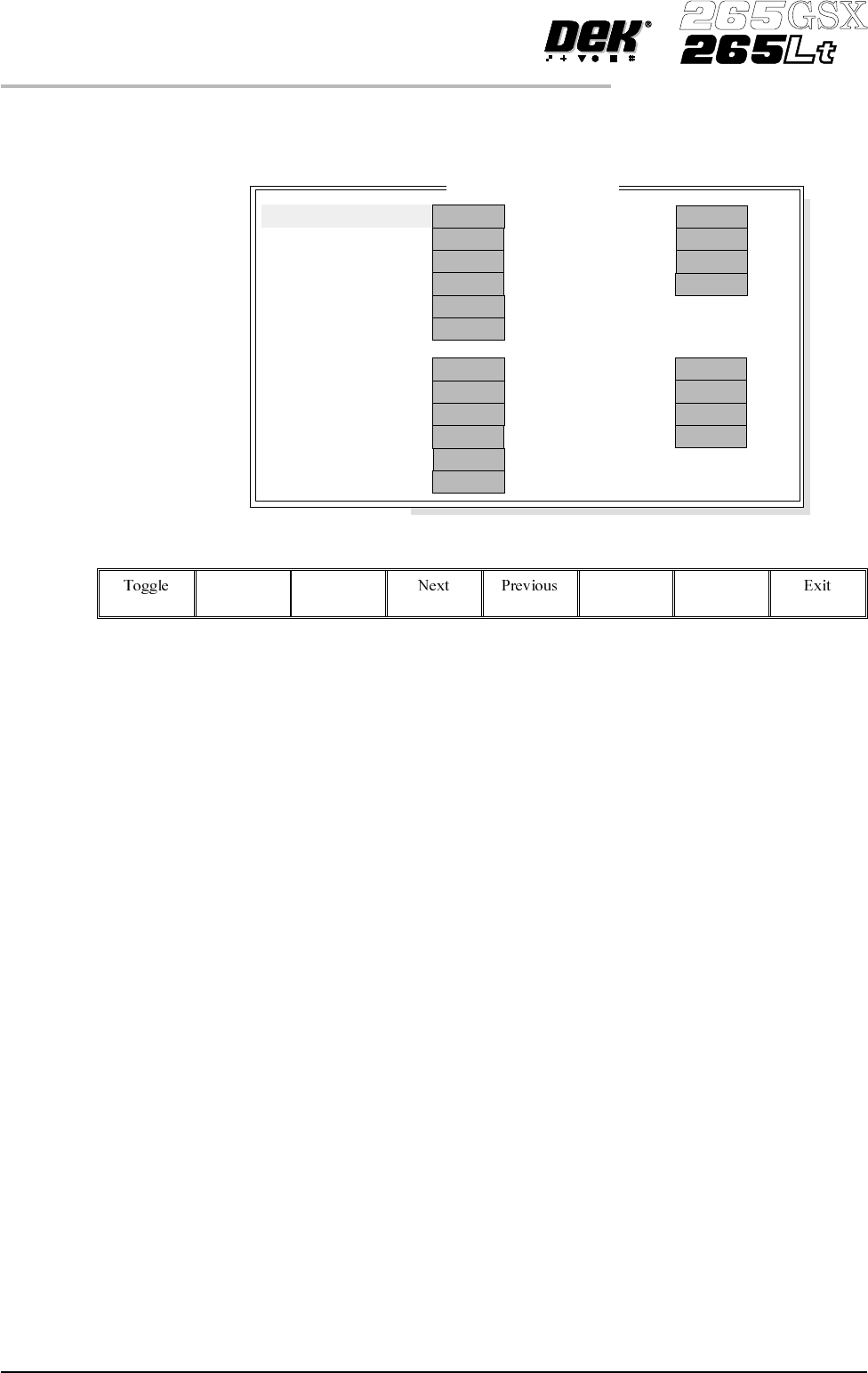
Selecting this diagnostics module opens the following window:
The menu bar changes to the following:
Toggle activates the diagnostic function, as selected by the highlight bar,
switching between clear and set. Clear indicates that no signal is sent or
received, set indicates that a signal is present.
Next/Previous keys move the highlight bar up and down the list of selectable
diagnostic functions.
Exit returns operation to the module diagnostics page.
NOTE
This diagnostic can only be run when the machine is connected to an upline and
downline machine.
Toggle Left SRO Selecting this diagnostic function sends a Send Request Out (SRO) signal to the
upline machine.
Toggle Left RRO Selecting this diagnostic function sends a Receive Request Out (RRO) signal to
the upline machine.
Toggle Left ARO Selecting this diagnostic function sends an Acknowledge Request Out (ARO)
signal to the upline machine.
Toggle Left TRO Selecting this diagnostic function sends a Transfer Request Out (TRO) signal to
the upline machine.
Toggle Left MAO Selecting this diagnostic function sends a Machine Available Out (MAO) signal
to the upline machine.
5.40 User Manual Software Version 6
DIAGNOSTICS
FOREIGN MACHINE INTERFACE
FMI D
i
agnost
i
cs
CLEAR
CLEAR
CLEAR
CLEAR
CLEAR
CLEAR
Toggle Left
SRO
RRO
ARO
TRO
MAO
GBO
CLEAR
CLEAR
CLEAR
CLEAR
CLEAR
CLEAR
Toggle Right
SRO
RRO
ARO
TRO
MAO
GBO
Left
Right
CLEAR
CLEAR
CLEAR
CLEAR
ARI
TRI
MAI
SRI
CLEAR
CLEAR
CLEAR
CLEAR
ARI
TRI
MAI
SRI