Dek-265GSX-User-Manual.pdf.pdf - 第302页
OPTIONS AFTER AN INSPECTION ALARM The machine stops at the first inspection alarm. When an inspection alarm occurs, several menu bar options become available. The options carry out the following functions: Accept Selecti…
SETUP TIPS
Problem Solution
No inspection Setup available Ensure that 2Di inspection is enabled in Set Prefs.
System not inspecting or
inspection cycle not being
carried out
The 2D inspect rate may equal 0.
Order of Inspection If a particular sequence of site inspection is required, the sites should be
selected as every cycle sites and setup in the sequence required. Every
cycle sites are inspected in the order that they were setup. General sites
are inspected in an order that depends on their position and their
inspection sequence cannot be set. If at a later date a site is edited the
sequence is affected.
Screen and Board - Cleaning
Before Setup
Before 2Di inspection setup, ensure the screen and board being used
have been thoroughly cleaned and are free of all paste deposits. If either
are not cleaned thoroughly any remaining smearing, partially blocked
apertures or paste on the board may cause an incorrect setup.
Site Area Accuracy Ensure that when setting site parameters (height, width etc.), the site
graphic is placed around the site to give clearance from the apertures
and pads and to prevent other areas being inspected.
Lighting Conditions If the inspection result is not as expected, it is possible that the site was
learnt under different lighting conditions. This problem may be
resolved by re-learning the site under new lighting conditions, or by the
use of paste scaling for paste present adjustment.
Site Quality The sites selected for inspection should be of good quality. Sites should
not have rounded or chamfered edges or uneven or excessive tinning,
this can lead to misleading results when attempting to learn sites.
Sites Being Lost Ensure that both board and screen have been learnt. After adjusting
board or screen site parameters always learn both, further editing can be
done at a later stage. The number of pads must equal the number of
apertures for a successful site.
Inspection alarms too frequent
and unnecessary
This may be a symptom of limits being set too tight. Relax the limits so
that results of an acceptable print produce pass or warning, not alarm, or
use the global limit option or limit options to disable the particular limit
checking.
Software Version 6 User Manual 8.37
2Di INSPECTION
SETUP TIPS
OPTIONS AFTER AN INSPECTION ALARM
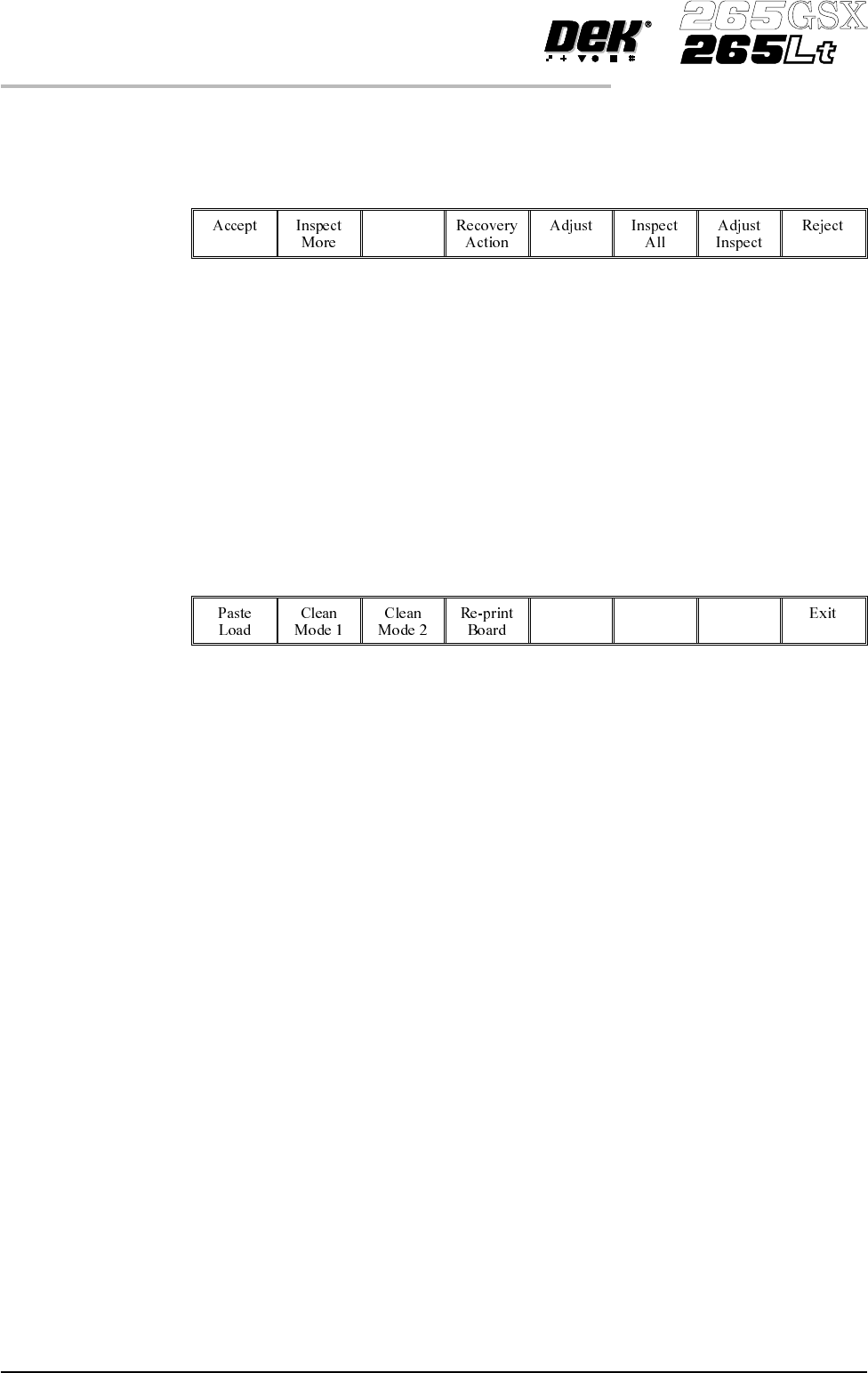
The machine stops at the first inspection alarm. When an inspection alarm
occurs, several menu bar options become available.
The options carry out the following functions:
Accept Selecting this option clears the alarm panel, changes the beacon back to green
and feeds the board through the machine.
Inspect More Selecting this option clears the alarm panel, changes the beacon back to green
and allows the inspection sequence to continue, until it either completes
inspection or raises another alarm.
Recovery Action Selecting this option displays the following menu:
The user prompt text shows the following lines:
‘Clean Mode 1 : XXXX’
‘Clean Mode 2 : YYYY’
Where XXXX and YYYY are the descriptions of the clean mode settings, ie
‘WVWD’ for wet, vac, wet, dry.
Paste Load Selecting this option initiates a paste load cycle, if a paste dispenser is fitted or
enables paste to be loaded manually.
Clean Mode 1 and 2 Selecting either clean mode 1 or clean mode 2 initiates the screen clean cycle set
up for that mode.
Re-print Board Selecting this option clears the alarm panel and changes the beacon back to
green. The board is re-printed and the inspection sequence is started again from
the begining. All the existing alarm information is cleared.
NOTE
The Re-print Board button is not available if the current board has already been
re-printed.
Adjust Selecting this option allows the adjustment of process parameters.
8.38 User Manual Software Version 6
2Di INSPECTION
OPTIONS AFTER AN INSPECTION ALARM
Inspect All Selecting this option clears the alarm panel and changes the beacon back to
green. The inspection sequence is restarted from the beginning. All the existing
alarm information is cleared.
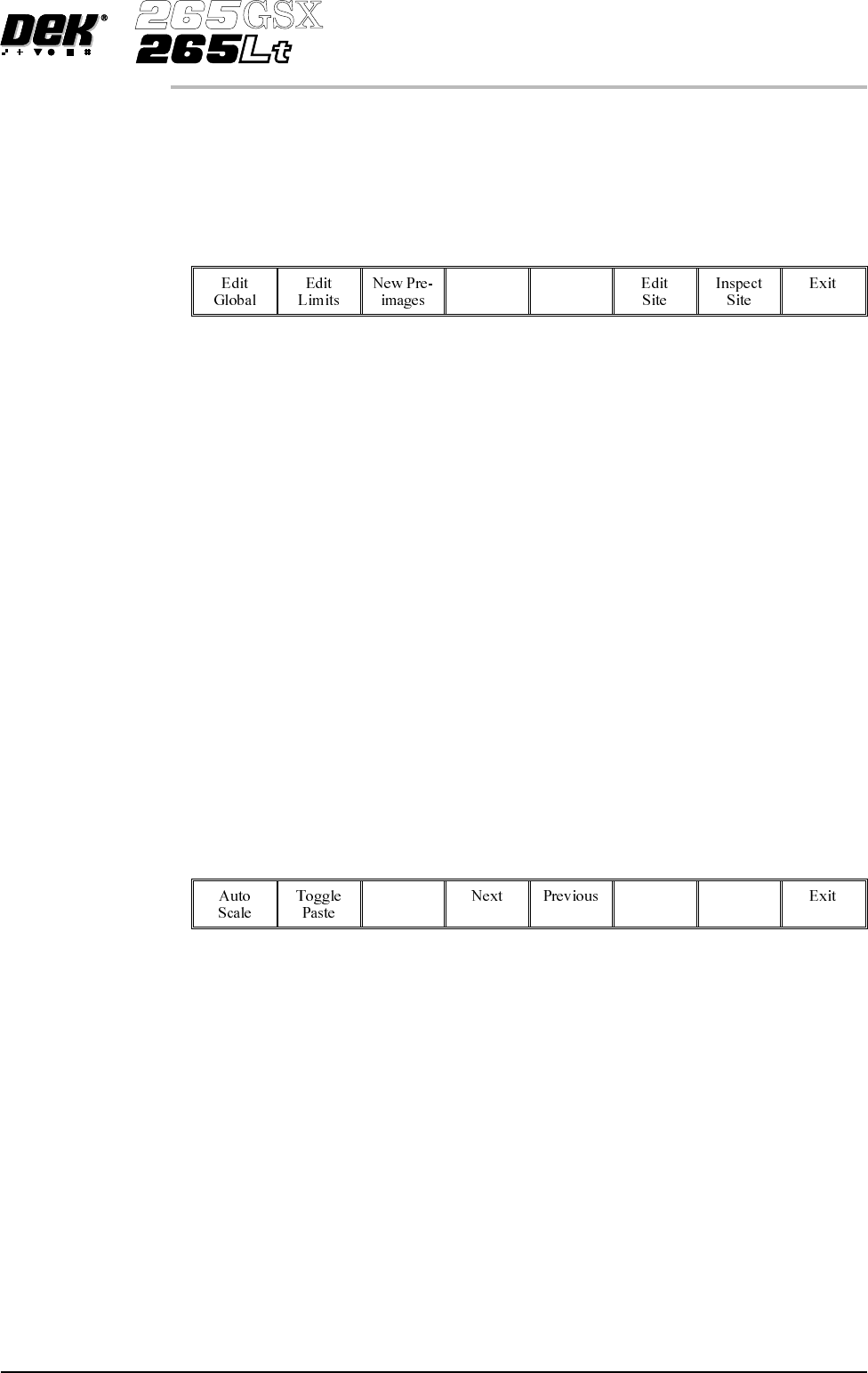
Adjust Inspect Selecting this option displays the following menu:
Edit Global Selecting this option opens the edit global parameters window, allowing
parameters that are used throughout the inspection to be altered.
Edit Limits Selecting this option opens the limit sets window, allowing a set of limit
parameters to be selected and altered.
New Pre-images Selecting this option initiates a pre-print inspection on the next print cycle to
capture the new pre-images. The message ‘New pre-images will be collected
next print cycle’ is displayed.
NOTE
The New Pre-image button is only available if pre-image is set to 1.
Edit Site Selecting this option opens the site parameters window, allowing adjustment of
the site specific parameters.
Inspect Site Selecting this option opens the inspection results window and displays the
following menu:
SelectingNext or Previousmoves the highlight up anddownthelistof site pads.
Selecting Toggle Paste either shows or hides the paste display overlay onto the
monitor. The toggle paste facility on the board image is only functional with the
board inspection type set to advanced. Toggling paste on the screen is only
availableon Horizon and Infinity machinesand only withthe screeninspect type
set to basic or advanced.
Selecting Auto Scale automatically adjusts the paste scaling value for the
current site, to cause the value of paste present, on the pad currently selected in
the inspection result list, to be reported as 100%. This is used where the site pad
causing the alarm is actually a good print.
Reject Selecting this option clears the alarm panel and the board is fed to the output end
of the rail system and held there.
Software Version 6 User Manual 8.39
2Di INSPECTION
OPTIONS AFTER AN INSPECTION ALARM