Dek-265GSX-User-Manual.pdf.pdf - 第303页
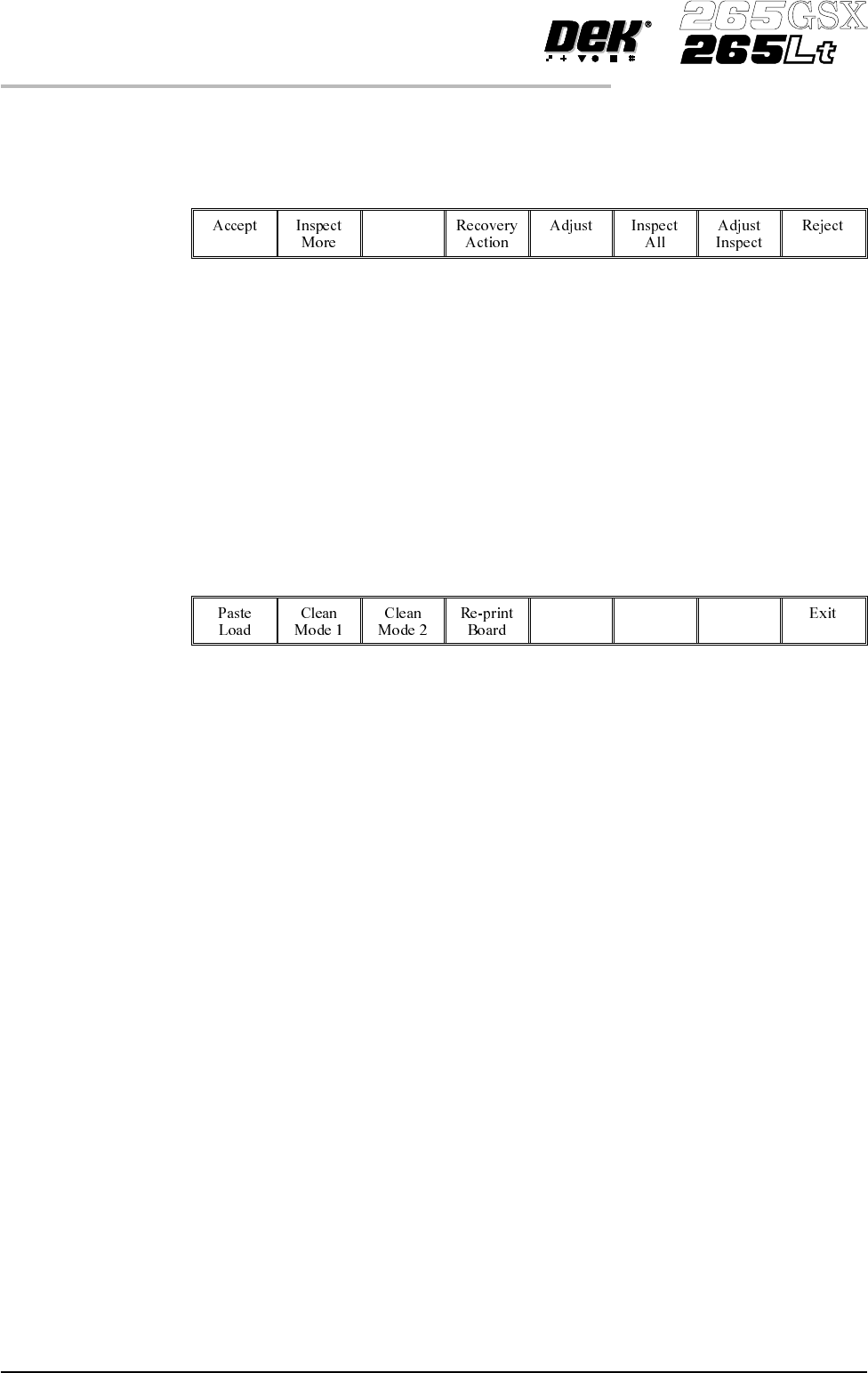
Inspect All Selecting this option clears the alarm panel and changes the beacon back to green. The inspection sequence is restarted from the beginning. All the existing alarm information is cleared. Adjust Inspect Select…
OPTIONS AFTER AN INSPECTION ALARM
The machine stops at the first inspection alarm. When an inspection alarm
occurs, several menu bar options become available.
The options carry out the following functions:
Accept Selecting this option clears the alarm panel, changes the beacon back to green
and feeds the board through the machine.
Inspect More Selecting this option clears the alarm panel, changes the beacon back to green
and allows the inspection sequence to continue, until it either completes
inspection or raises another alarm.
Recovery Action Selecting this option displays the following menu:
The user prompt text shows the following lines:
‘Clean Mode 1 : XXXX’
‘Clean Mode 2 : YYYY’
Where XXXX and YYYY are the descriptions of the clean mode settings, ie
‘WVWD’ for wet, vac, wet, dry.
Paste Load Selecting this option initiates a paste load cycle, if a paste dispenser is fitted or
enables paste to be loaded manually.
Clean Mode 1 and 2 Selecting either clean mode 1 or clean mode 2 initiates the screen clean cycle set
up for that mode.
Re-print Board Selecting this option clears the alarm panel and changes the beacon back to
green. The board is re-printed and the inspection sequence is started again from
the begining. All the existing alarm information is cleared.
NOTE
The Re-print Board button is not available if the current board has already been
re-printed.
Adjust Selecting this option allows the adjustment of process parameters.
8.38 User Manual Software Version 6
2Di INSPECTION
OPTIONS AFTER AN INSPECTION ALARM
Inspect All Selecting this option clears the alarm panel and changes the beacon back to
green. The inspection sequence is restarted from the beginning. All the existing
alarm information is cleared.
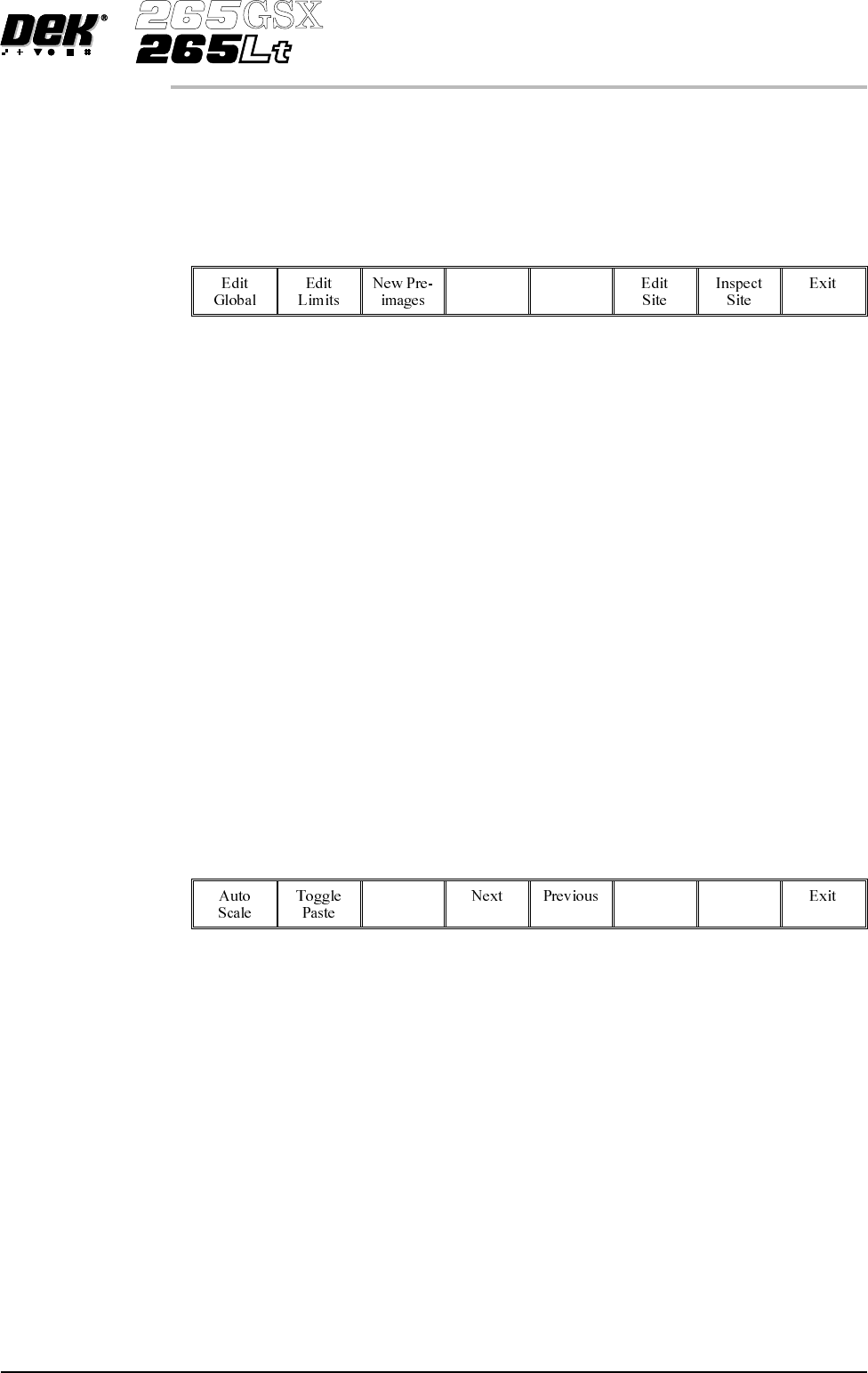
Adjust Inspect Selecting this option displays the following menu:
Edit Global Selecting this option opens the edit global parameters window, allowing
parameters that are used throughout the inspection to be altered.
Edit Limits Selecting this option opens the limit sets window, allowing a set of limit
parameters to be selected and altered.
New Pre-images Selecting this option initiates a pre-print inspection on the next print cycle to
capture the new pre-images. The message ‘New pre-images will be collected
next print cycle’ is displayed.
NOTE
The New Pre-image button is only available if pre-image is set to 1.
Edit Site Selecting this option opens the site parameters window, allowing adjustment of
the site specific parameters.
Inspect Site Selecting this option opens the inspection results window and displays the
following menu:
SelectingNext or Previousmoves the highlight up anddownthelistof site pads.
Selecting Toggle Paste either shows or hides the paste display overlay onto the
monitor. The toggle paste facility on the board image is only functional with the
board inspection type set to advanced. Toggling paste on the screen is only
availableon Horizon and Infinity machinesand only withthe screeninspect type
set to basic or advanced.
Selecting Auto Scale automatically adjusts the paste scaling value for the
current site, to cause the value of paste present, on the pad currently selected in
the inspection result list, to be reported as 100%. This is used where the site pad
causing the alarm is actually a good print.
Reject Selecting this option clears the alarm panel and the board is fed to the output end
of the rail system and held there.
Software Version 6 User Manual 8.39
2Di INSPECTION
OPTIONS AFTER AN INSPECTION ALARM

IMAGE RECORDING
Selecting Save Image saves the inspection object data using the save object
command. This option is only available if image recording in set preferences is
set to VP or PC disk. If the image recording is set to VP disk, the file name is
inspnnn.img, where nnn is the next sequence number to save. If the image
recording is set to PC disk, the file name is inspn.img, where n is a number
cyclingfrom 1 to 5. The first imagesaved afterinitialization isinsp1.img. Files
are overwritten without warning.
NOTE
VP disk saves to the Cognex HD if fitted. It is recommended to use PC disk only
for image recording.
8.40 User Manual Software Version 6
2Di INSPECTION
IMAGE RECORDING