Dek-265GSX-User-Manual.pdf.pdf - 第335页
The Screen Clean Mode window is displayed: 7. Use the Left and Right keys (F2 - F3) to highlight the next sweep number to be changed. Left Right 8. Use the Incr. and Decr. keys (F6 - F7) to select the operation required …
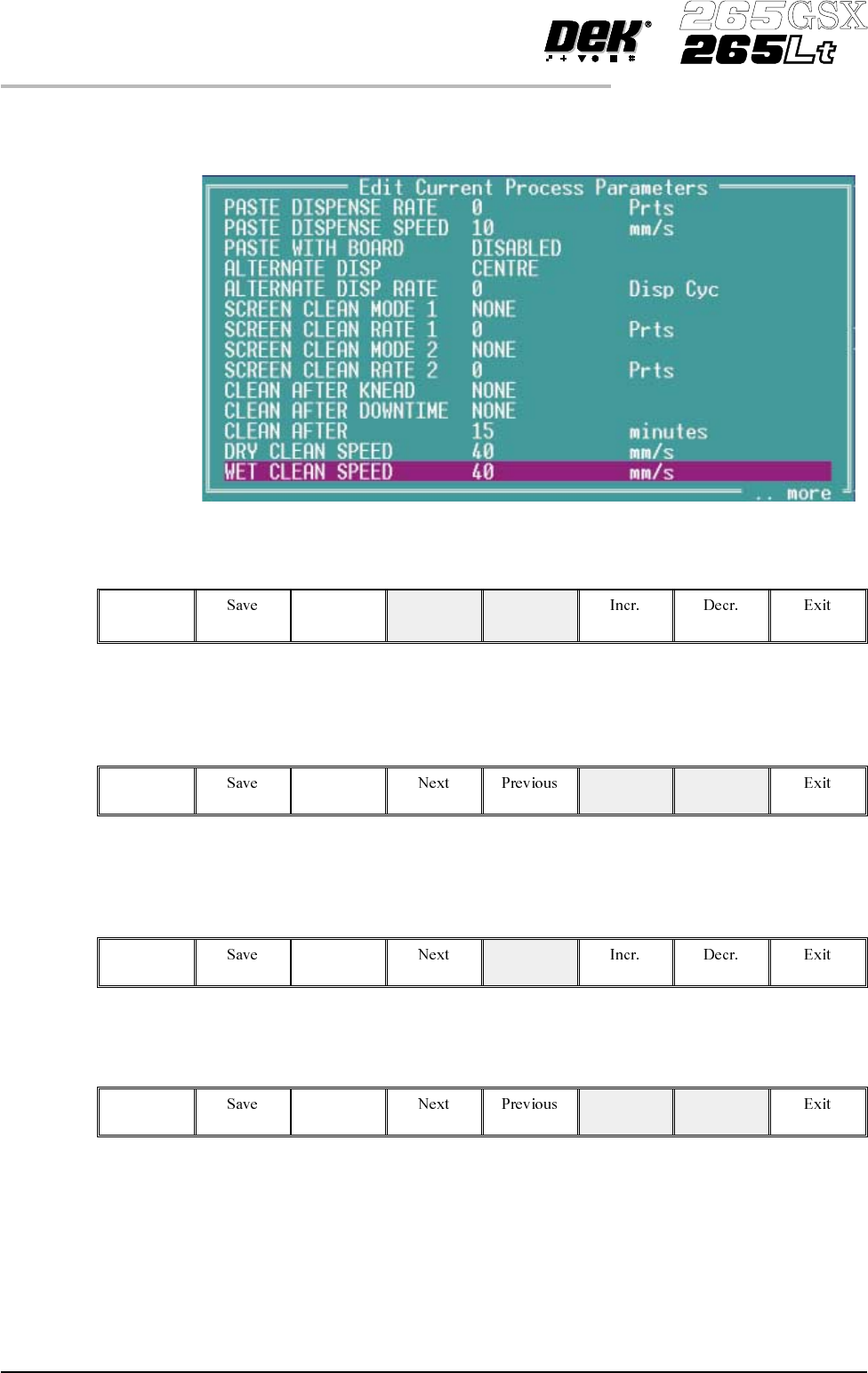
The following window is displayed:
3.
Usethe Next and Previouskeys (F4 - F5)tohighlightthescreen clean rate.
Next Previous
4.
Use the Incr. and Decr. keys (F6 -F7) to set the screen clean rate. This can
be set at any number between 0 and 200 in increments of 1.
Incr. Decr.
5.
Use the Previous key (F5) to highlight the screen clean mode. This
parameter determines the mode of operation of the screen cleaner.
Previous
6.
Press the Incr. or Decr. keys (F6 - F7) to enter the screen clean mode.
Incr. Decr.
9.20 User Manual Software Version 6
CONSUMABLE REPLENISHMENTS
BLUE UNDERSCREEN CLEANER
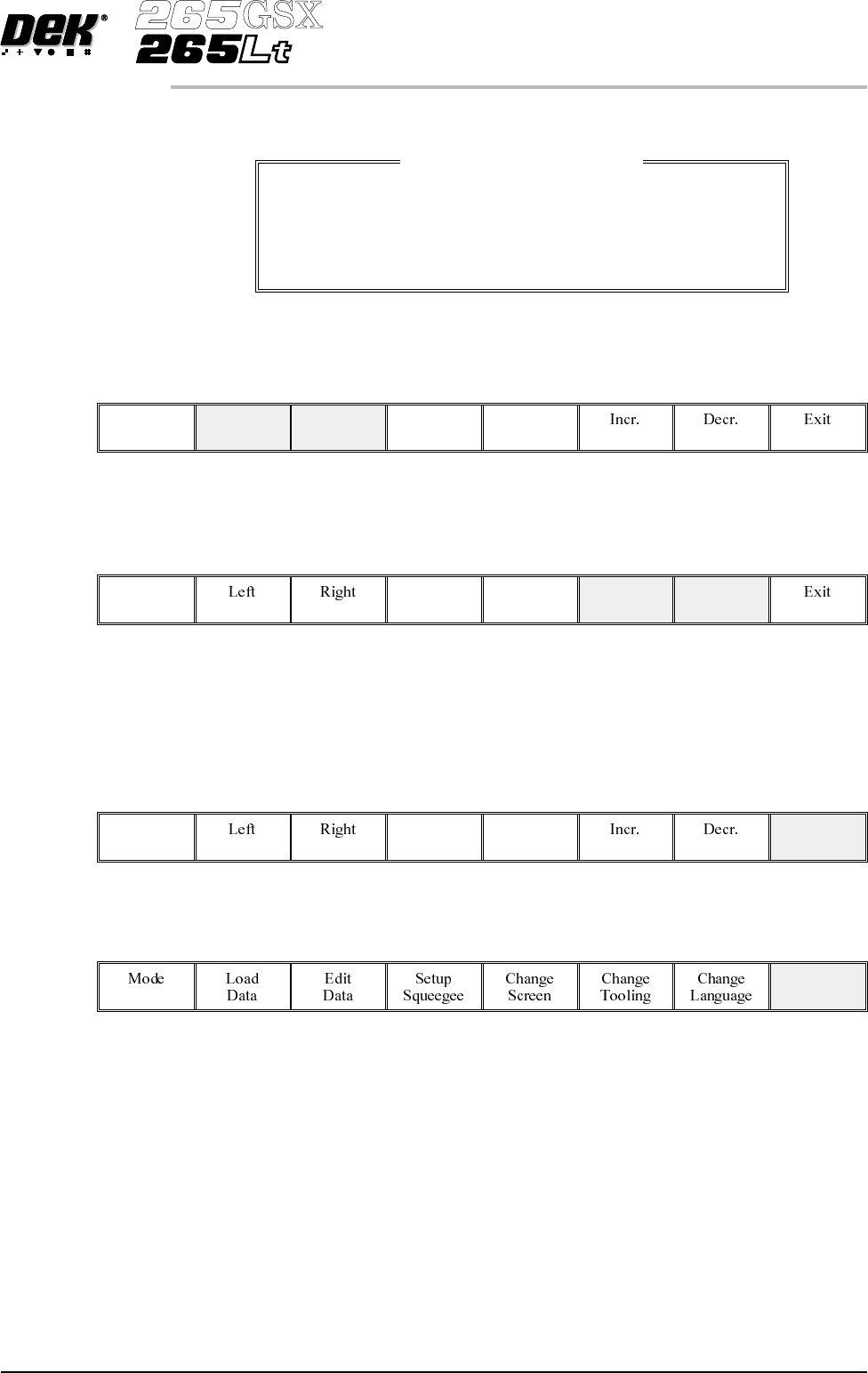
The Screen Clean Mode window is displayed:
7.
Use the Left and Right keys (F2 - F3) to highlight the next sweep number to
be changed.
Left Right
8.
Use the Incr. andDecr.keys (F6- F7)to select theoperation required for the
highlighted sweep. The four options are: VAC, DRY, WET and NONE.
Incr. Decr.
9. If the six stage sequence is setup as required, go to the next step, otherwise
return to Step 7.
10.
Press Exit (F8).
Exit
11.
Press Exit (F8).
Exit
Paper and Solvent
Replenishment
Paper and solvent replenishment can take place with the cleaner unit in the
printer. When paper or solvent needs replenishment a warning window is
automatically displayed on themonitor. The warningwindow varies,depending
on the setting of the consumable action option in set preferences. The message
in the warning window depends on whether the solvent or paper or both require
replenishment. The procedure varies, depending on whether the replenishment
is prior to a print run or during a print run.
Replenishment Prior to a Print Run:
If the set preference is set to warn, continue with Step 1. If the set preference is
set to pause or suspend go to Step 4.
Software Version 6 User Manual 9.21
CONSUMABLE REPLENISHMENTS
BLUE UNDERSCREEN CLEANER
Screen Clean Mode 1
1
WET
2
DRY
3
DRY
4
NONE
5
NONE
6
NONE
Sweep Number
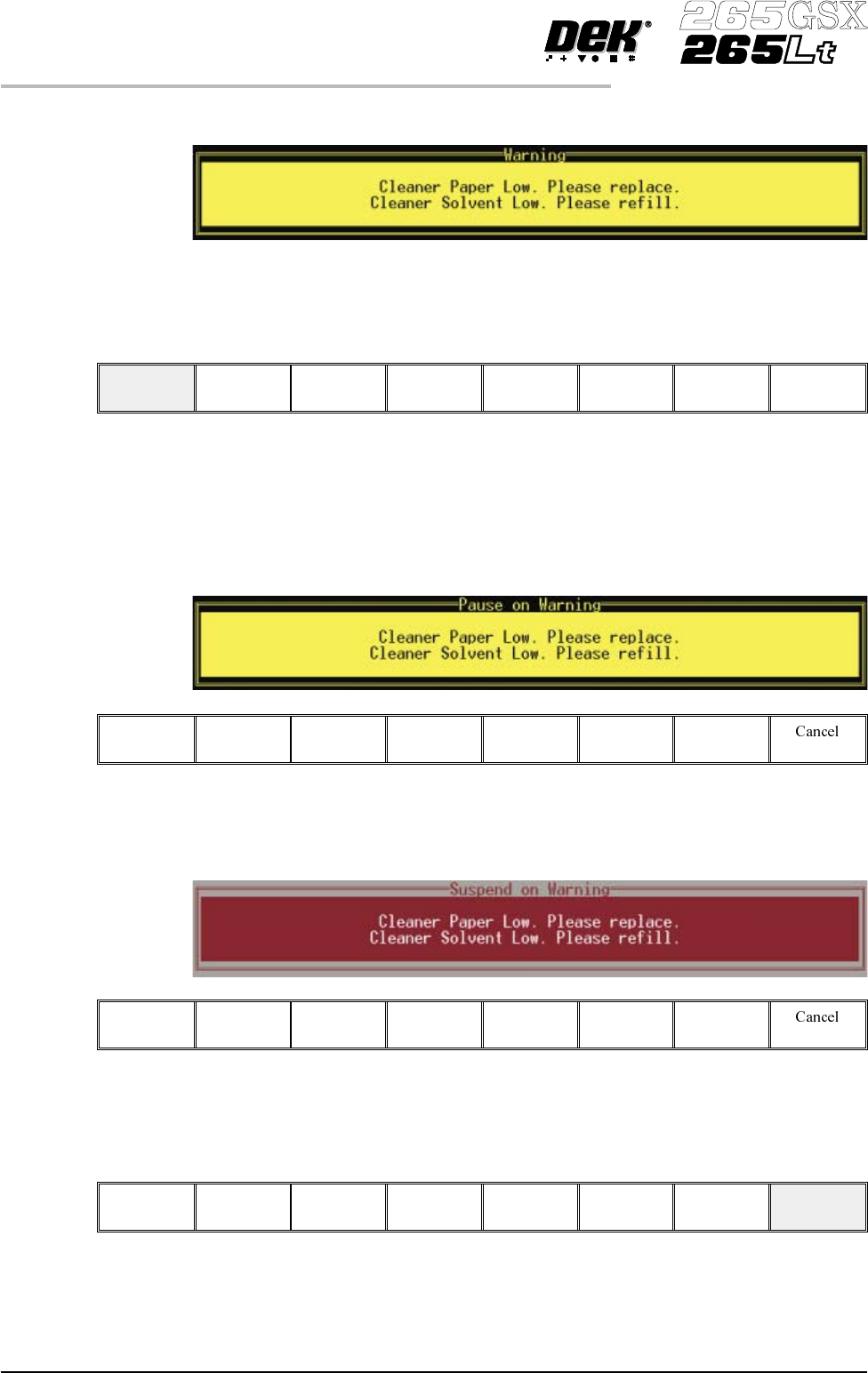
1. If the set preference is set to warn, the following window is displayed:
The tricoloured beacon shows amber/green.
2.
Select Confirm (F1).
Confirm
3. Go to Step 17.
4. If the set preference is set to pause, the following window and menu bar is
displayed:
If the set preference is set to suspend, the following window and menu bar is
displayed:
In both cases the tricoloured beacon shows red.
5.
Select Cancel (F8).
Cancel
9.22 User Manual Software Version 6
CONSUMABLE REPLENISHMENTS
BLUE UNDERSCREEN CLEANER