Dek-265GSX-User-Manual.pdf.pdf - 第382页
11. Select Exit (F8). Exit 12. Select Yes (F1). Yes The message ‘The ProFlow unit will be placed in the REAR envelope’ is displayed. 13. If the ProFlow unit is required to be placed in another envelope continue with Step…
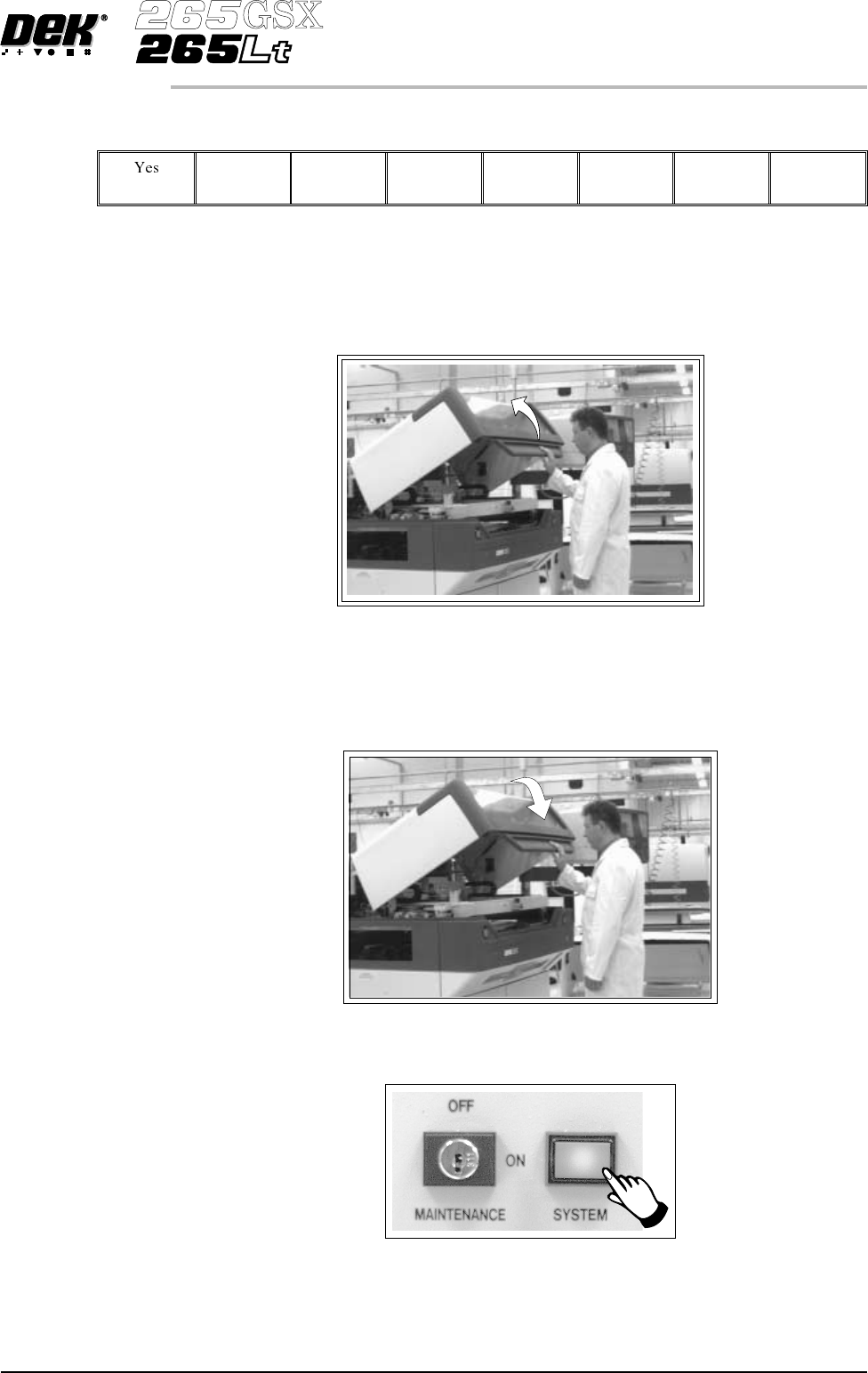
6.
Select Remove Cover (F8).
Remove
Cover
The message ‘Open the printer cover and remove the ProFlow unit’s
base cover’ is displayed.
7. Open the printhead cover.
8. Remove the ProFlow unit’s base cover.
9. Close the front printhead cover.
10.
Press the System button.
Software Version 6 User Manual 9.67
CONSUMABLE REPLENISHMENTS
PROFLOW
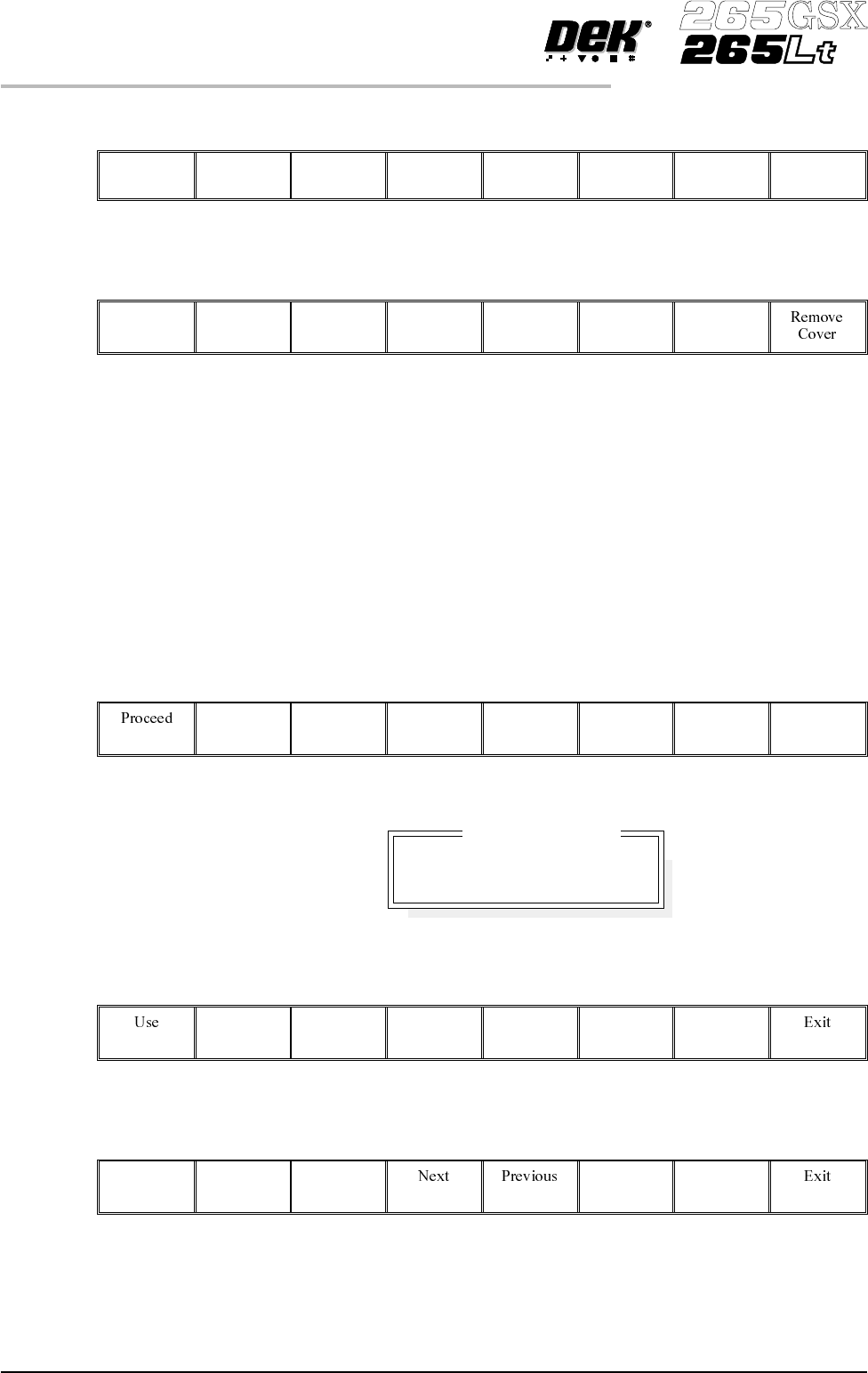
11.
Select Exit (F8).
Exit
12.
Select Yes (F1).
Yes
The message ‘The ProFlow unit will be placed in the REAR envelope’ is
displayed.
13. Ifthe ProFlow unit is required to be placed in another envelope continue with
Step 14. If the ProFlow unit is required tobe placed inthe machine preferred
envelope go to Step 18.
NOTE
The ProFlow unit needs to be in the rear envelope to replenish the ProFlow
transfer head.
14.
Select Select Another (F8).
Select
Another
The following window is displayed:
15.
Use the Next or Previous keys (F4 or F5) to highlight Front.
Next Previous
16.
Select Use (F1).
Use
9.68 User Manual Software Version 6
CONSUMABLE REPLENISHMENTS
PROFLOW
Preferred Envelope
REAR
FRONT
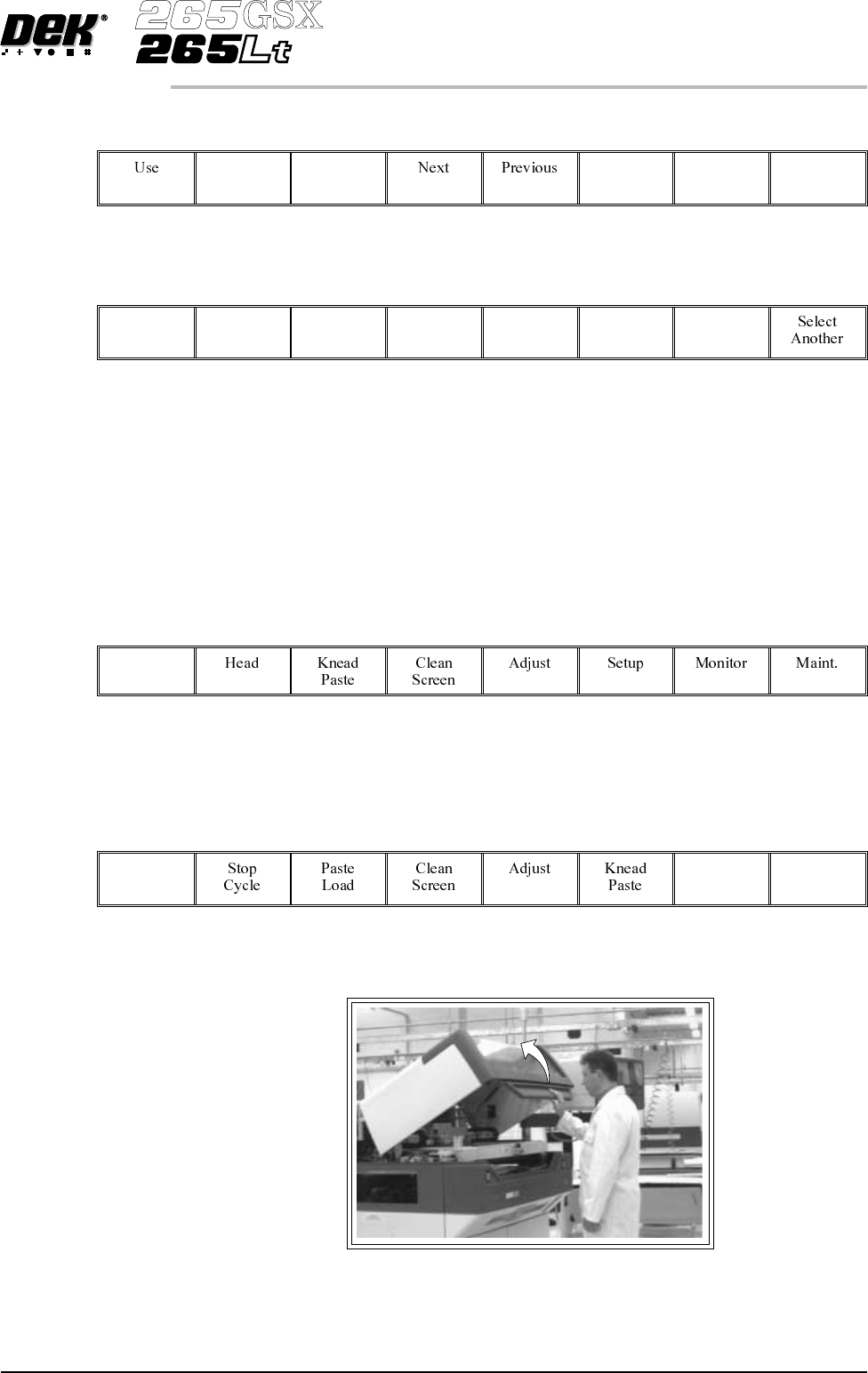
17.
Select Exit (F8).
Exit
18.
Select Proceed (F1).
Proceed
The ProFlow unit is placed in contact with the screen.
19. Go to Step 23.
20. If the ProFlow unit is in front of the image continue with Step 21. If the
ProFlow unit is at the rear of the image go to Step 23.
21.
Select Run (F1).
Run
The machine carries out a print cycle, the ProFlow unit moves to the rear of
the image.
22.
When the ProFlow unit is at the rear of the image, select End Run (F1).
End
Run
23. Open the front printhead cover.
Software Version 6 User Manual 9.69
CONSUMABLE REPLENISHMENTS
PROFLOW