YG12F_Ope_E.pdf - 第93页
2-35 2 asic operation 3 Open the P arts screen. Press the [Parts] button to open the Parts screen and select the component from the upper list . P arts screen 24221-M7-00 4 Displa y the basic par ameters. Select the [B…
2-34
2
asic operation
5. Settings on the mounter side
After installing the tape feeders in the surface mounter, you must make settings for the mounter.
5.1 Setting the "Package" parameter.
On the [Parts] – [Basic] tab screen, you must set the "Package" and "Tape Type" parameters.
1
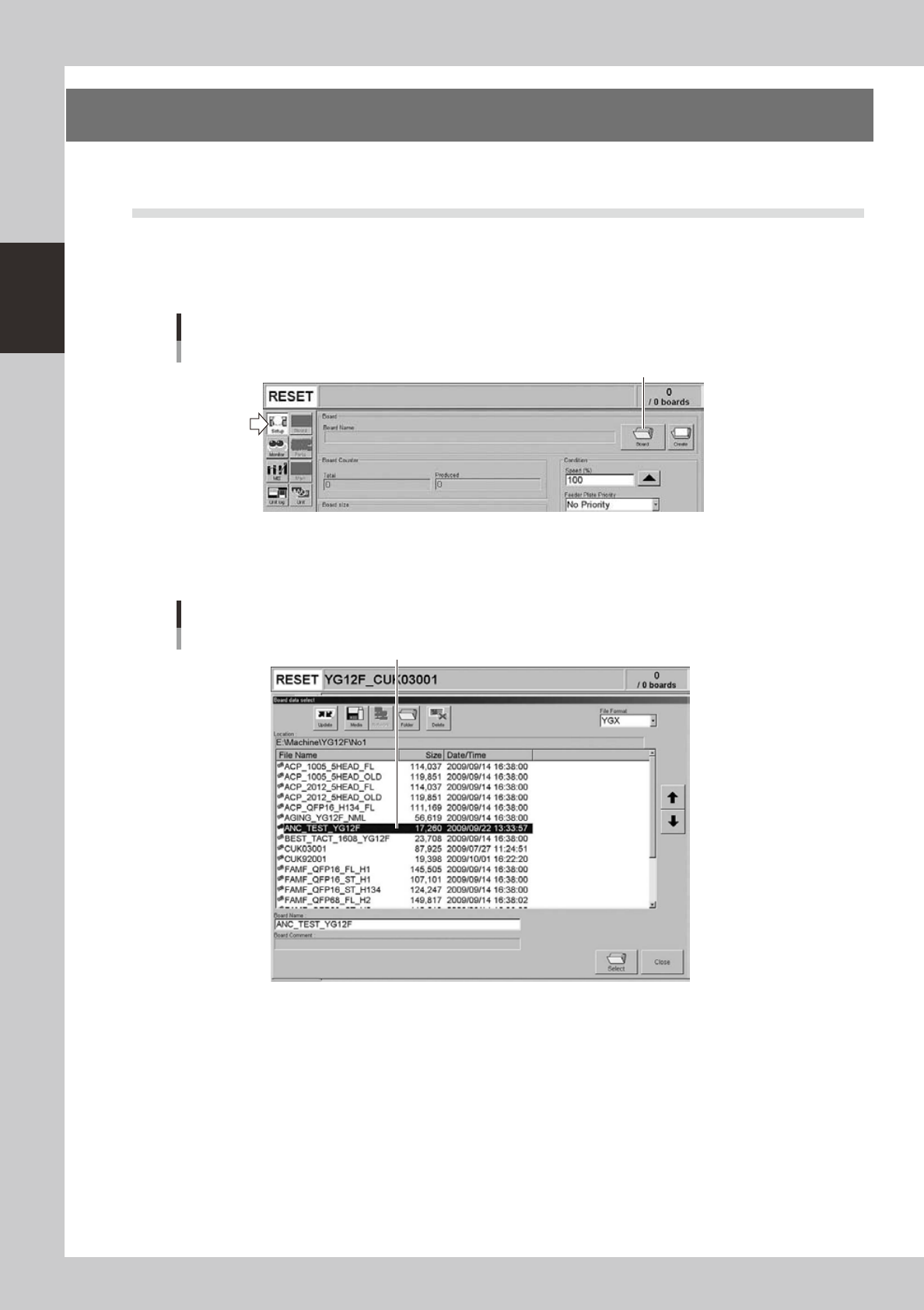
Open the "Board data select" screen.
On the Setup screen, press the [Board] to open the "Board data select" screen.
Setup screen
[Board] button
[Board] button
24219-M7-00
2
Select the board data.
Select the board data in the list and press the [Select] button.
"Board data select" screen
Select the board data.
24220-M7-00
2-35
2
asic operation
3
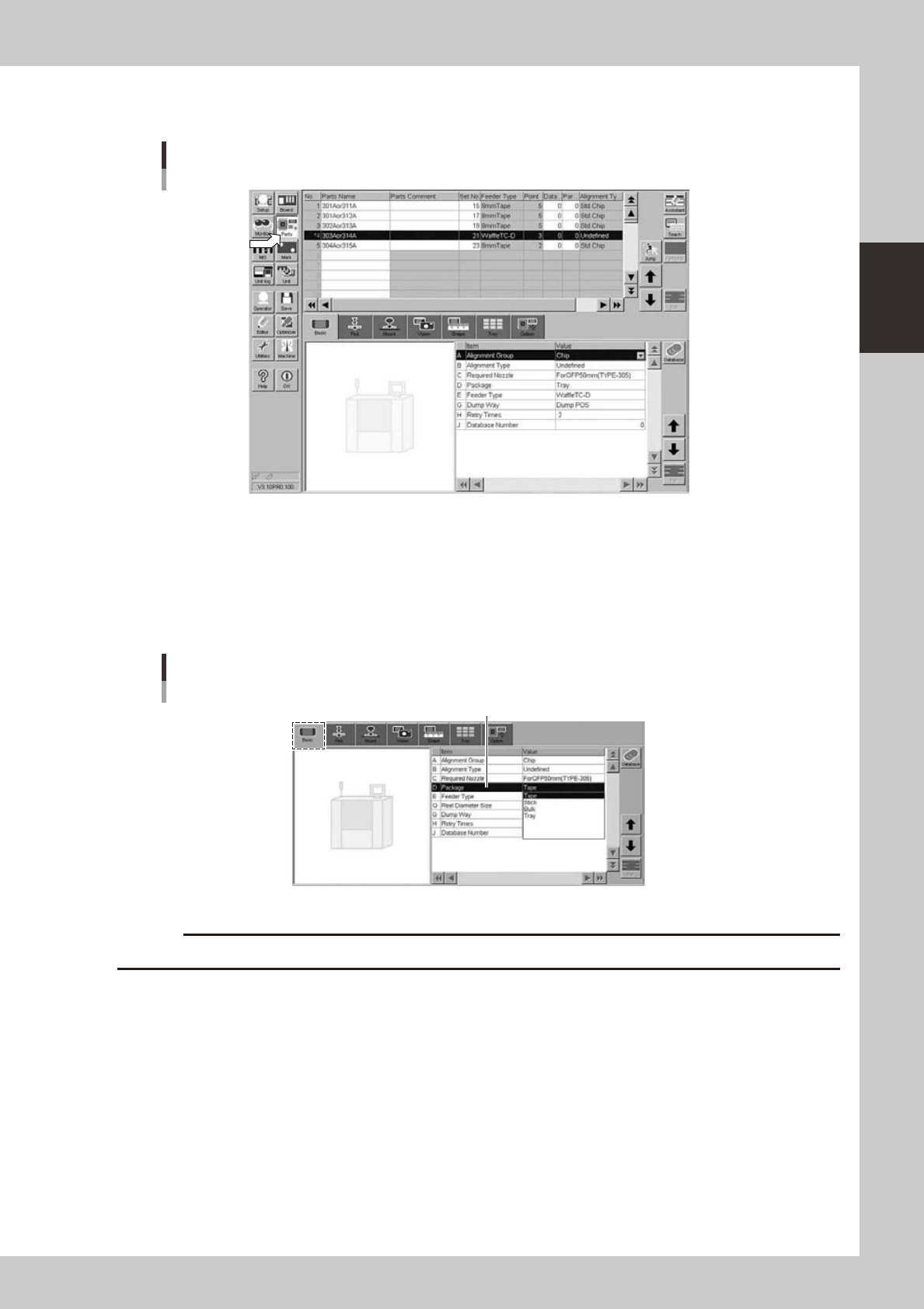
Open the Parts screen.
Press the [Parts] button to open the Parts screen and select the component from the upper list.
Parts screen
24221-M7-00
4
Display the basic parameters.
Select the [Basic] tab to display the basic parameters.
5
Set the "Package" parameter.
Double-click the "Package" parameter field and select "Tape" or "Tray" from the drop-down list according
to the component supply unit to be used.
[Parts]-[Basic] screen
"Package" parameter
"Package"
24222-M7-00
c
2-36
2
asic operation
n
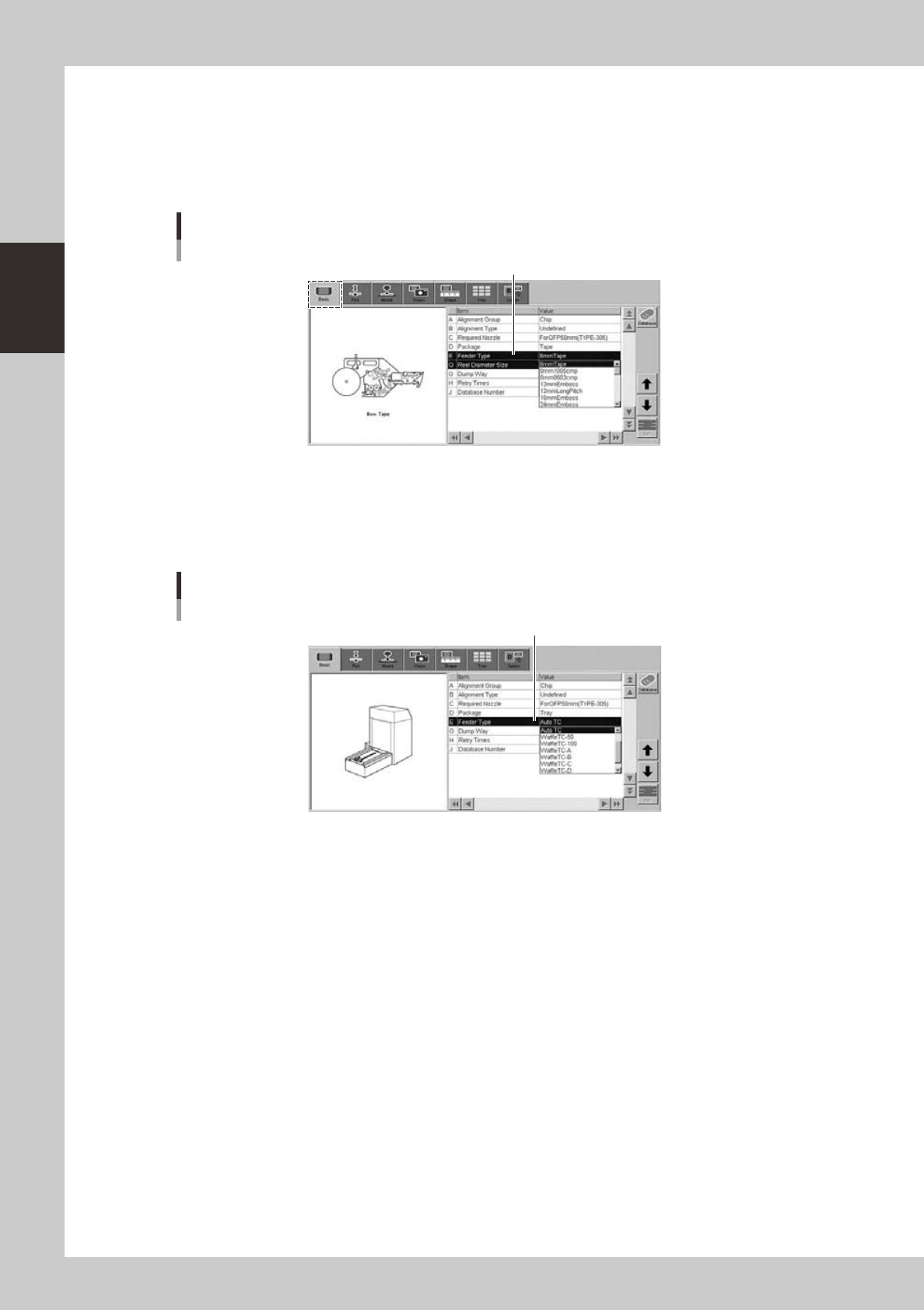
When using tape components
6
Set the "Feeder Type".
Double-click the "E: Feeder Type" entry field to open the pull-down menu and select the feeder type to
use (from among 8mm tape, 8mm 0603, 8mm 1005, 12mm long pitch and 16mm Emboss).
Changing the package type will also change the feeder type, so reassign the settings.
[Parts]-[Basic] screen
Feeder type
Feeder Type
24223-M7-00
n
When using tray components
6
Set the "Feeder Type" parameter.
Select "Auto TC" from the drop-down list.
[Parts]-[Basic] screen
Feeder Type
Feeder Type
24224-M7-00