00196743-01 - Install Guide SIPLACE Explorer 2.7_en.pdf - 第55页
Ins ta llat i on and Con fi gur ati on Gu id e SI PLA CE Exp lo rer 4 Co nfig ur ati o n Edi tio n 03/201 0 E N 4.1 St anda rd Moni to ring App lica tio n ( SMA ) 55 4.1. 1.3 Step 2 - Configu re Product ion Line → T his …
4 Configuration Installation and Configuration Guide SIPLACE Explorer
4.1 Standard Monitoring Application (SMA) Edition 03/2010 EN
54
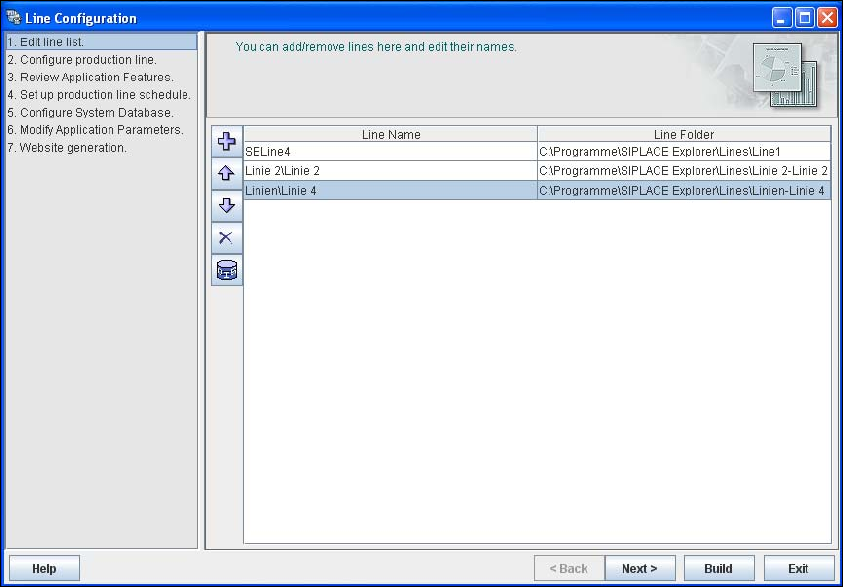
→ The added production lines will be shown in the Line Configuration - Edit Line List dialog
box.
4
Fig. 4 - 6 Step 1: edit line list
→ The OIS line name will be automatically used as production line name.
→ You can modify the production line name and the line folder at which the configured monitoring
application is to be stored for this production line. A *.gms file with the configuration settings
for the corresponding monitoring application will then be saved at the specified path.
→ Click on Next to continue with the next step.
Installation and Configuration Guide SIPLACE Explorer 4 Configuration
Edition 03/2010 EN 4.1 Standard Monitoring Application (SMA)
55
4.1.1.3 Step 2 - Configure Production Line
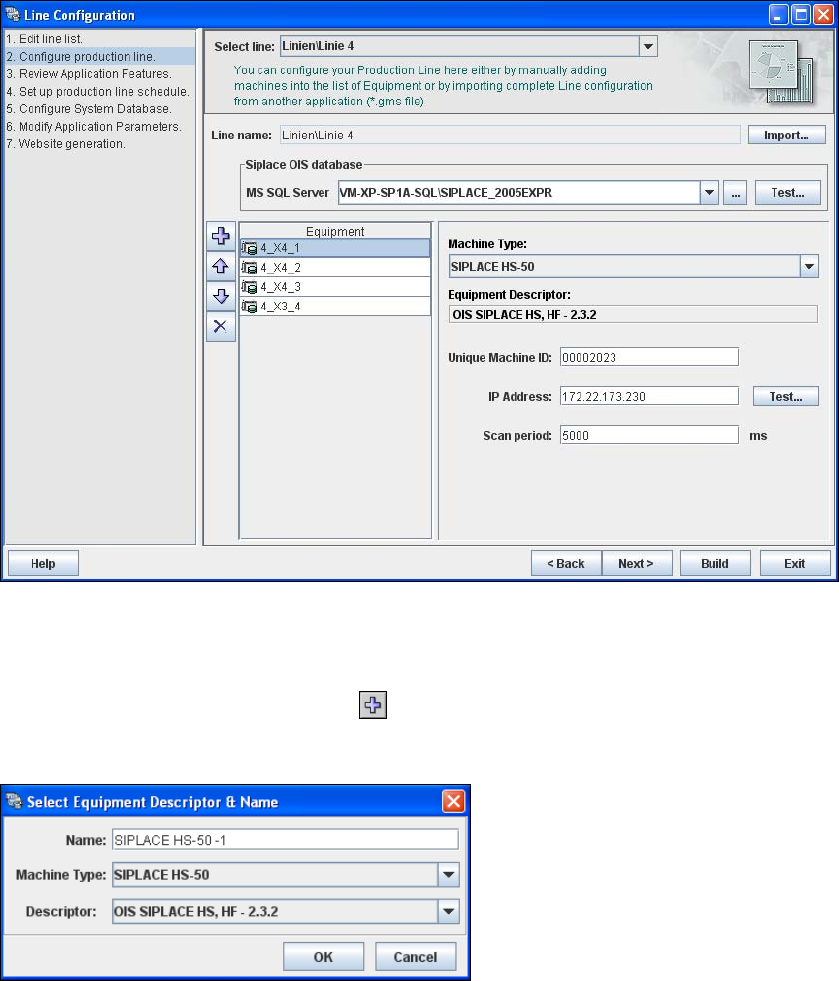
→ This is where you can configure your production line. Select the relevant production line with
Select Line and specify the parameters for access to the SIPLACE OIS database.
→ If you have already configured another application for your production line, you can import the
production line configuration from that existing application (.gms file). The equipment
information will be adopted from this imported data.
→ The data is automatically adopted if you import a production line from the OIS.
4
Fig. 4 - 7 Step 2 - configure production line
→ If you have not imported the line configuration from OIS, you will need to manually configure
all machines in the production line. Repeat the procedure for each machine in the line.
– Click on the Add equipment icon in the toolbar. The Select Equipment Descriptor
and Name dialog box will appear.
4
Fig. 4 - 8 Step 2 - configure production line
4 Configuration Installation and Configuration Guide SIPLACE Explorer
4.1 Standard Monitoring Application (SMA) Edition 03/2010 EN
56
– Select the equipment description and edit the name for the selected machine.
→ If you have not imported the line configuration from OIS, you will need to configure the machine
properties for each machine in the production line, as follows:
– Select the machine from the Equipment list on the left.
– Specify the machine properties from the window on the right.
→ For each type of equipment, you will be presented with a different box of properties. You will
need to specify the following values:
– Unique Machine ID (MID)
Specify the MID for the equipment concerned. The MID can be found on the equipment
label.
The MID is automatically entered during OIS import and OIS versions from 4.1 onwards. 4
– IP address
The IP address will be automatically entered during OIS import.
– The IP address and scan period for equipment available via SIPLACE OIS database. The
scan period defines the frequency with which SIPLACE Explorer checks the data in the OIS/
SIS database in order to import new data from that database. We recommend a scan period
of 60 secs.
→ After specifying the equipment properties, check the data consistency of the equipment with
OIS. To do this, click on the Test button.
The system will check whether the specified MID and IP address already exist in OIS. If this is
not the case, you will have to correct the MID and IP address accordingly. MID checks can only
be performed from OIS version 4.1 onwards. If you do not correct data inconsistencies, the
data monitored with SIPLACE Explorer will be stored in the database with their uncorrected
data inconsistencies. 4
→ When all machines in the production line have been defined and the data consistency has
been checked with OIS, click on the Next button to continue with the next step.