00196743-01 - Install Guide SIPLACE Explorer 2.7_en.pdf - 第63页
Ins ta llat i on and Con fi gur ati on Gu id e SI PLA CE Exp lo rer 4 Co nfig ur ati o n Edi tio n 03/201 0 E N 4.1 St anda rd Moni to ring App lica tio n ( SMA ) 63 → T he DB Mainten ance dialog box will open . I n this…
4 Configuration Installation and Configuration Guide SIPLACE Explorer
4.1 Standard Monitoring Application (SMA) Edition 03/2010 EN
62
→ Confirm your choice with OK. The database will be converted. This may take up to one
hour. The conversion time depends on the size of the database performance of the
computer.
4
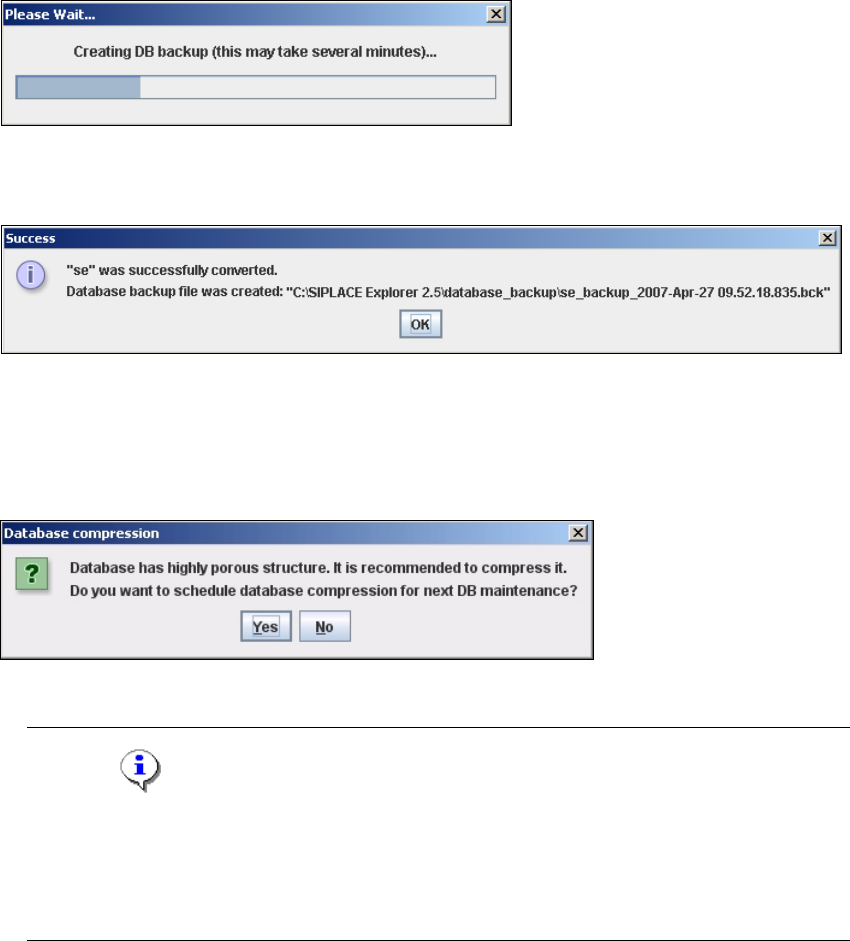
Fig. 4 - 16 DB backup
→ After successful conversion of the database, the following information window will open:
4
Fig. 4 - 17 Success
→ Click OK. You can now continue with the line configuration process.
→ Dependent of the database size, you can compress the database, the following information
window will open:
4
Fig. 4 - 18 Database compression
NOTE
We recommend activating this DB compression step, when the user has restored the
SIPLACE Explorer line database or has moved the raw database files to another disk or to
another computer.
With the DB compression it is possible to avoid extended access times of the websites. 4
→ Click Yes, to compress the database at next DB maintenance.
4
→ After you have established the database connection and converted the database for SIPLACE
Explorer V2.7, you need to define the maintenance details for the system database, with the
Maintenance button.
Installation and Configuration Guide SIPLACE Explorer 4 Configuration
Edition 03/2010 EN 4.1 Standard Monitoring Application (SMA)
63
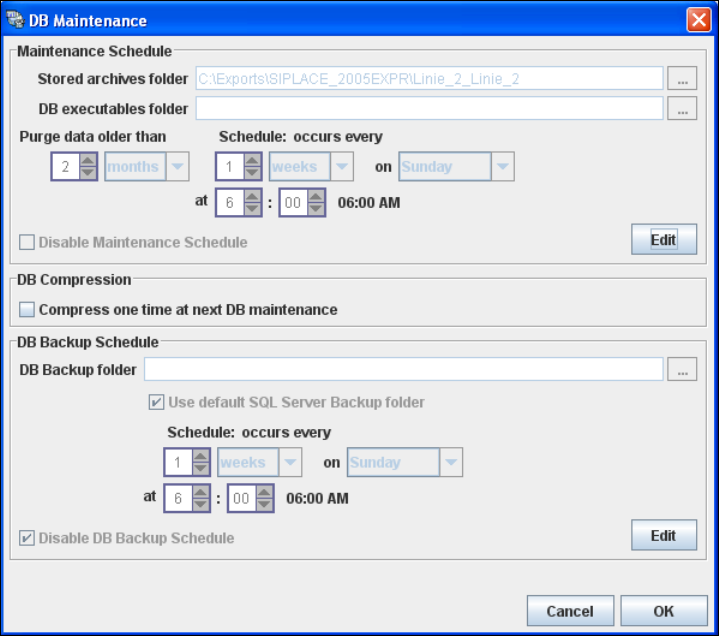
→ The DB Maintenance dialog box will open. In this dialog box the following functionalities
are available:
– create a new archiving schedule for the database
– edit the default maintenance schedule
– database compression
– automate the database backup
The archiving process involves taking data from the database and saving it in a file, so that
the size of the database can be controlled. 4
All input fields will be disabled. To start or edit a DB maintenance schedule, you must have
administrator privileges for the database and the database connection must already be
established. 4
4
Fig. 4 - 19 DB maintenance
4 Configuration Installation and Configuration Guide SIPLACE Explorer
4.1 Standard Monitoring Application (SMA) Edition 03/2010 EN
64
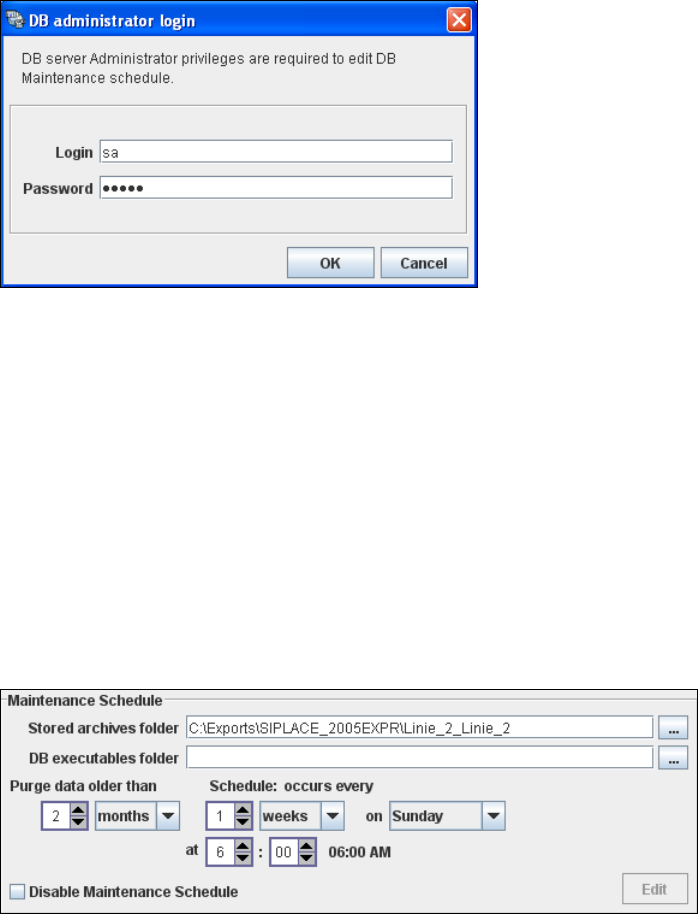
→ In the Maintenance Schedule panel click on the Edit button.
→ The DB Administrator Login dialog box will open.
4
Fig. 4 - 20 DB administrator login
→ Enter the access data here and confirm your entries with OK.
→ The input fields in the DB Maintenance dialog box will be enabled. The following details
can be defined:
– The file and path for the archived data
– A schedule specifying the intervals and times when data is to be removed from the line
system database and stored in the archive.
– When to execute the maintenance schedule.
– The archiving schedule defined here will be stored in the database and can be called up
when required.
4
Fig. 4 - 21 DB maintenance