00196743-01 - Install Guide SIPLACE Explorer 2.7_en.pdf - 第66页
4 Co nfi gur at io n Ins t a llat i on and Con f i gur at ion Guid e SI PLA CE Ex plo rer 4.1 Stan da rd Moni tori ng A p plic at ion (S MA) Ed ition 03 /201 0 EN 66 4.1. 1.7 Step 6 - M odif y Appl ication Parameters → P…
Installation and Configuration Guide SIPLACE Explorer 4 Configuration
Edition 03/2010 EN 4.1 Standard Monitoring Application (SMA)
65
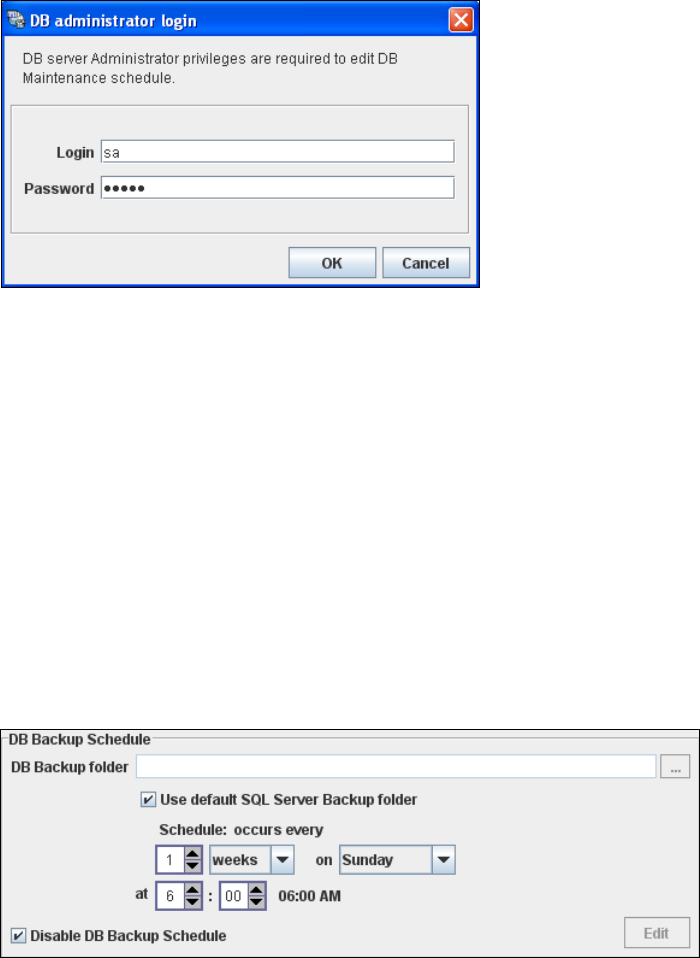
→ In the DB Backup Schedule panel click on the Edit button.
→ The DB Administrator Login dialog box will open.
4
Fig. 4 - 22 DB administrator login
→ Enter the access data here and confirm your entries with OK.
→ The input fields in the DB Maintenance dialog box will be enabled. The following details
can be defined:
– The file and path for the saved data
– A schedule specifying the intervals and times when data is to be removed from the line
system database and stored in the archive.
– When to execute the backup schedule.
– The backup schedule defined here will be stored in the database and can be called up
when required.
– Database compression with the next database maintenance.
4
Fig. 4 - 23 DB backup
→ Check your entries and confirm with OK.
→ Once you have defined all settings in Step 5, click on Next to continue with the next step.
4 Configuration Installation and Configuration Guide SIPLACE Explorer
4.1 Standard Monitoring Application (SMA) Edition 03/2010 EN
66
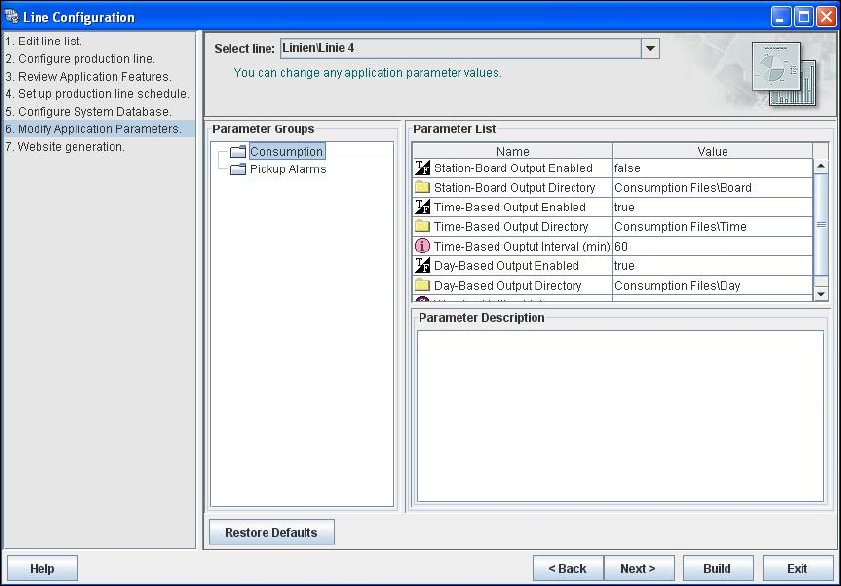
4.1.1.7 Step 6 - Modify Application Parameters
→ Parameters for the application you have created can be checked and edited here.
4
Fig. 4 - 24 Step 6: modify application parameters
→ Once you have made all modifications, click on Next to continue with the next step.
Installation and Configuration Guide SIPLACE Explorer 4 Configuration
Edition 03/2010 EN 4.1 Standard Monitoring Application (SMA)
67
4.1.1.8 Step 7: Website Generation
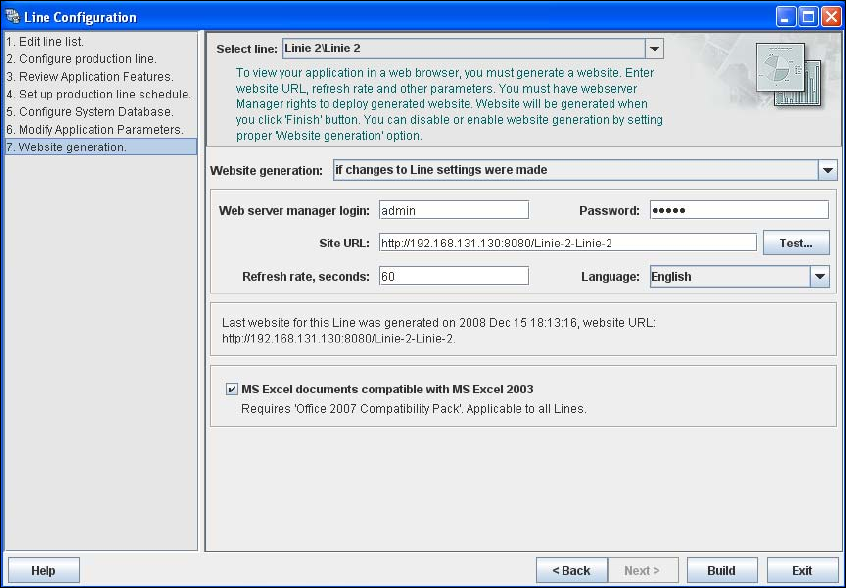
→ In order to monitor your production line in the web browser, you will need to generate a website.
For this purpose, you require web server manager privileges (Tomcat administrator) and the
corresponding password. If you have imported a production line from the OIS the webserver
access data are automatically adopted.
4
Fig. 4 - 25 Step 8: generating the website
→ At Website Generation, specify whether and when the website is to be generated. The
following options are available:
– Generate line website
The website will be generated for the selected line.
– If changes to line settings were made
A website will only be generated if changes have been made to the line configuration.
– Do not generate line website
Website generation will not be performed. This can be performed later, while editing the
generated application.
→ Specify the access data for the Tomcat administrator. If you entered admin and an empty
password during Tomcat configuration, this data will be automatically used as a default login.
If this is not the case, use the data you specified during Tomcat configuration. If you have
imported a production line from the OIS the webserver access data are automatically adopted.