PS288_PS388_PS588_981-0424-002D - 第125页
■ Administrator Functions ◘ Monitoring Statistics PS Series Owner’s Manual 3—55 back 1. Select Package Statistics in drop-down field in the upper left corner . 2. Click Rese t in the right-most column corresponding to th…
Operation ■ Administrator Functions
3—54 Data I/O • 981-0424-002
back
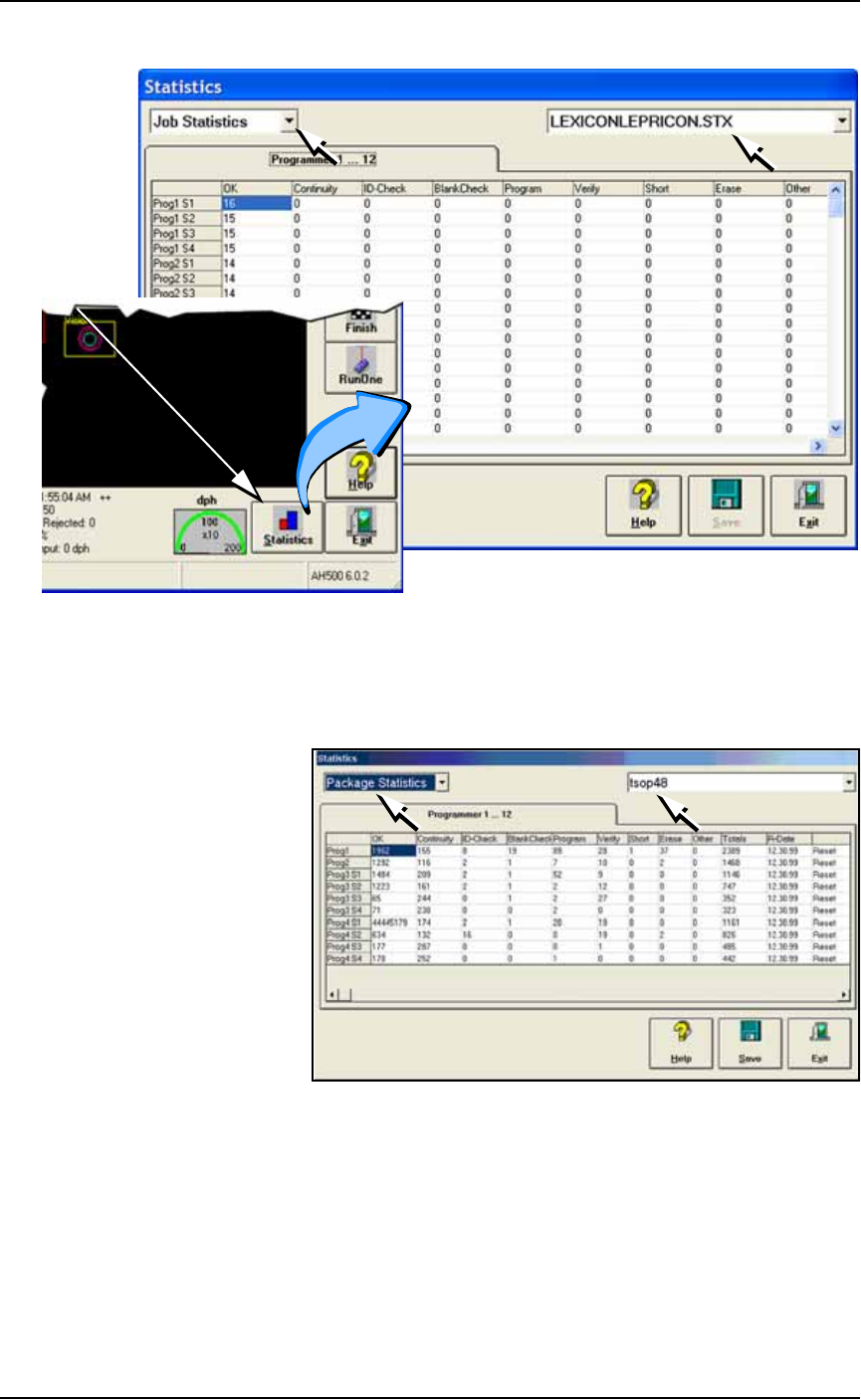
Figure 3-46: At the Statistics Window, the Job Statistic file can be
viewed (
Jobname.stx
) as shown. When Job Statistics is selected,
Pass/Fail criteria are logged for each individual socket and
programmer listed in the left column.
Figure 3-47: At the Statistics Window, statistics files by Package Type
(
PackageType.sts
) are shown here.
Resetting Package Statistics
The Package statistics displayed correspond to the Package File and
therefore to the Socket Adapter used. When a Socket Adapter is
replaced on a FlashCORE programmer, statistics for that Socket
Adapter must be reset.
To reset Package statistics:
A
t
R
u
n
o
r
S
y
s
t
e
m
W
i
n
d
ow
■ Administrator Functions ◘ Monitoring Statistics
PS Series Owner’s Manual 3—55
back
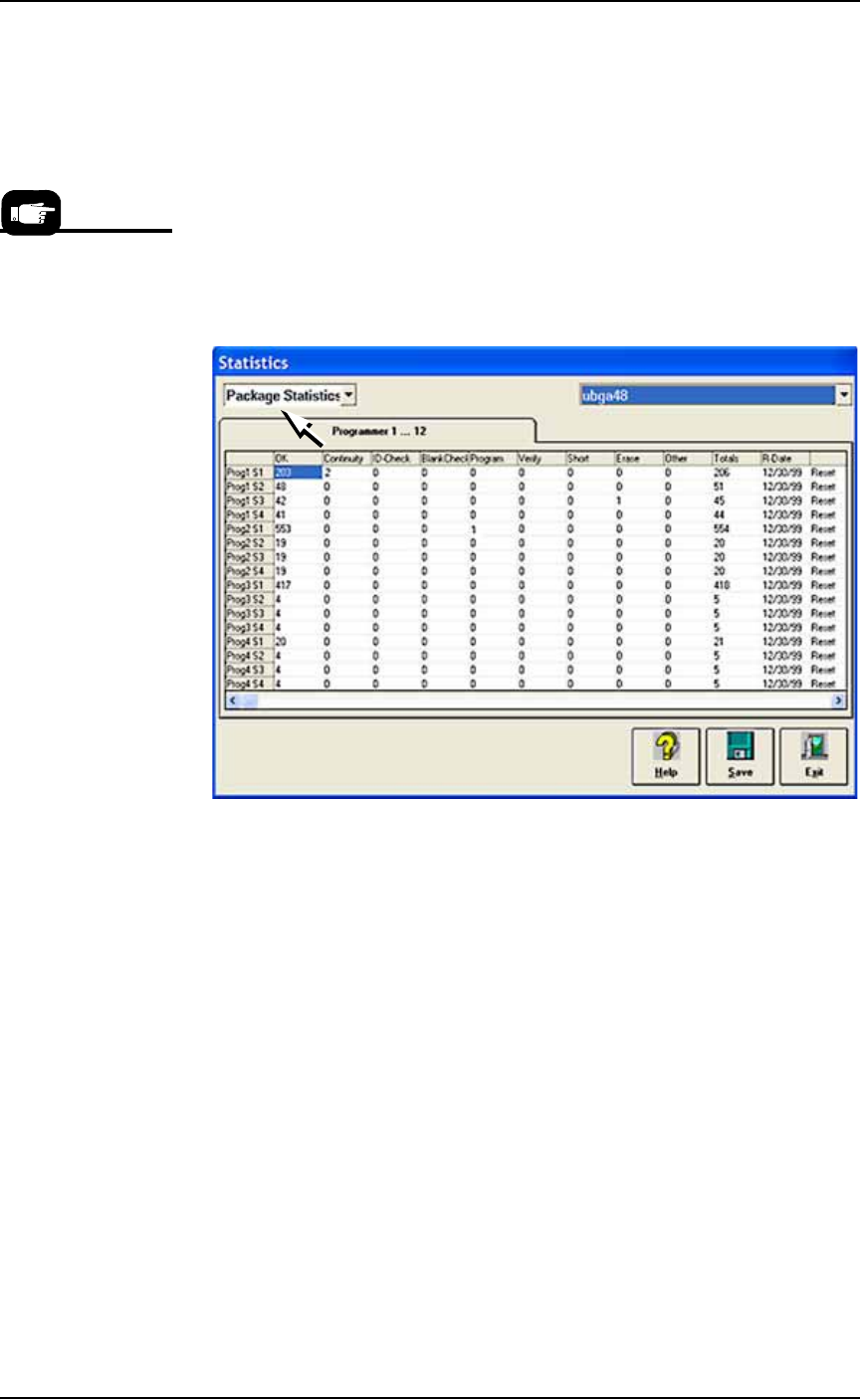
1. Select Package Statistics in drop-down field in the upper left
corner.
2. Click Reset in the right-most column corresponding to the
FlashCORE programmer on which the Socket Adapter was
replaced.
• If a Socket Adapter was replaced, reset all rows for that pro-
grammer.
• If an individual socket was replaced*, reset only the row corre-
sponding to the replaced socket.
The R-date (reset date) is set to the current date and statistics are
reset to all zeroes.
Figure 3-48: Resetting Package statistics.
Statistical Process Control Software
Most SPC (Statistical Process Control) Software (customer-supplied)
can import a comma-delimited file. AH500 can be set to generate a
comma-delimited file whose fields are described on the next page.
To generate a comma-delimited output file:
1. Enable file generation for SPC software—
1a. On the Handler Computer, navigate to C:\AH500 and open
winAH400.ini with Microsoft Notepad (or IDM Computer Solu-
tions’s UltraEdit).
1b. Locate the section for SPC Logging. It will look like this:
[SPC Logging]
LoggingEnabled=FALSE
MaxFileSize=10485760
TempLogFile=C:\spcout.txt
1c. Set the second line (LoggingEnabled) to TRUE.
1d. Save and close winAH400.ini.
*Only HIC Socket
Adapters and HPS
Socket Adapters are
designed to accommo-
date replacement of
individual sockets on
the adapter board.

Operation ■ Administrator Functions
3—56 Data I/O • 981-0424-002
back
Note: In the above example the SPC logging file is saved to
C:\
directory. It can, however, be saved anywhere on the Handler Com-
puter hard drive, or on a networked drive if the PS System is con-
nected to a network.
The SPCOut.txt file contains 19 semicolon-delimited fields, as fol-
lows:
The SPCOut.txt Field Descriptions
01 DevicesInputsystem - number of devices picked from Input
media
02 DevicesInspected - number of devices inspected by Vision system
03 InspectionQuality - as percentage, compared with reference
vision
04 InspectionYield
05 DevicesInsertedSocket - number of devices inserted into socket
06 SocketYield
07 ProgrammerYield
08 ProgSysYield - Yield of all programmers together
09 DevicesProcessedMarker
10 MarkingYield
11 SystemThroughputExcWait - starts with first device placed,
excludes wait times.
12 SystemTotalThroughputIncWait - starts when Run starts,
includes wait times
13 SystemYield
14 AreaID - Programmer #1 = “17”, Programmer #2 = “18”, …, Pro-
grammer #24 = “40”)
15 PosID - that is Socket #
16 TimeStamp - Date/Time of SPC log entry
17 OrderNumber - Job Name and or number
18 Package - Package File used for the job
19 VisionVPP - Reference Vision File used for the job