PS288_PS388_PS588_981-0424-002D - 第113页
■ Administrator Functions ◘ Teaching the Package File PS Series Owner’s Manual 3—43 back Setting Input Media Rotation When a device is inserted into a socket, pin 1 must match pin 1 loca- tion of the socket. CAUTION: Pos…

Operation ■ Administrator Functions
3—42 Data I/O • 981-0424-002
back
3. Set Vision Rotation to Zero
3a. Click the Vis label.
3b. Click the Actuator tab and then the Rotation button.
3c. Enter 0.0, press Enter on the keyboard.
3d. Click Save and Yes.
2. (Optional) recommended check—
2a. Right-click the yellow label for label P1 again.
2b. Press X,Y AutoFind.
2c. When the results appear, note the new values for X and Y. Click
No (to keep the previous values).
2d. Repeat Step 2b two more times and watch the results. Click No
each time to keep the previous values. If the resulting values
gradually increase to more than ±5, the camera may need cali-
bration. See Calibrating The Vision System on page 4-50.
■ Administrator Functions ◘ Teaching the Package File
PS Series Owner’s Manual 3—43
back
Setting Input Media Rotation
When a device is inserted into a socket, pin 1 must match pin 1 loca-
tion of the socket.
CAUTION: Possible socket and device damage. Devices and sock-
ets can be damaged if the devices in the input media are not
delivered to the sockets with the correct pin-1-orientation defined
in the job (via the Package file). Visually ascertain that rotation
information in the Package file is accurate. If it is not, do not start
the job until you either modify the Vision file or re-orient the
devices in the input media. See the steps for setting input media
rotation in the Package File below.
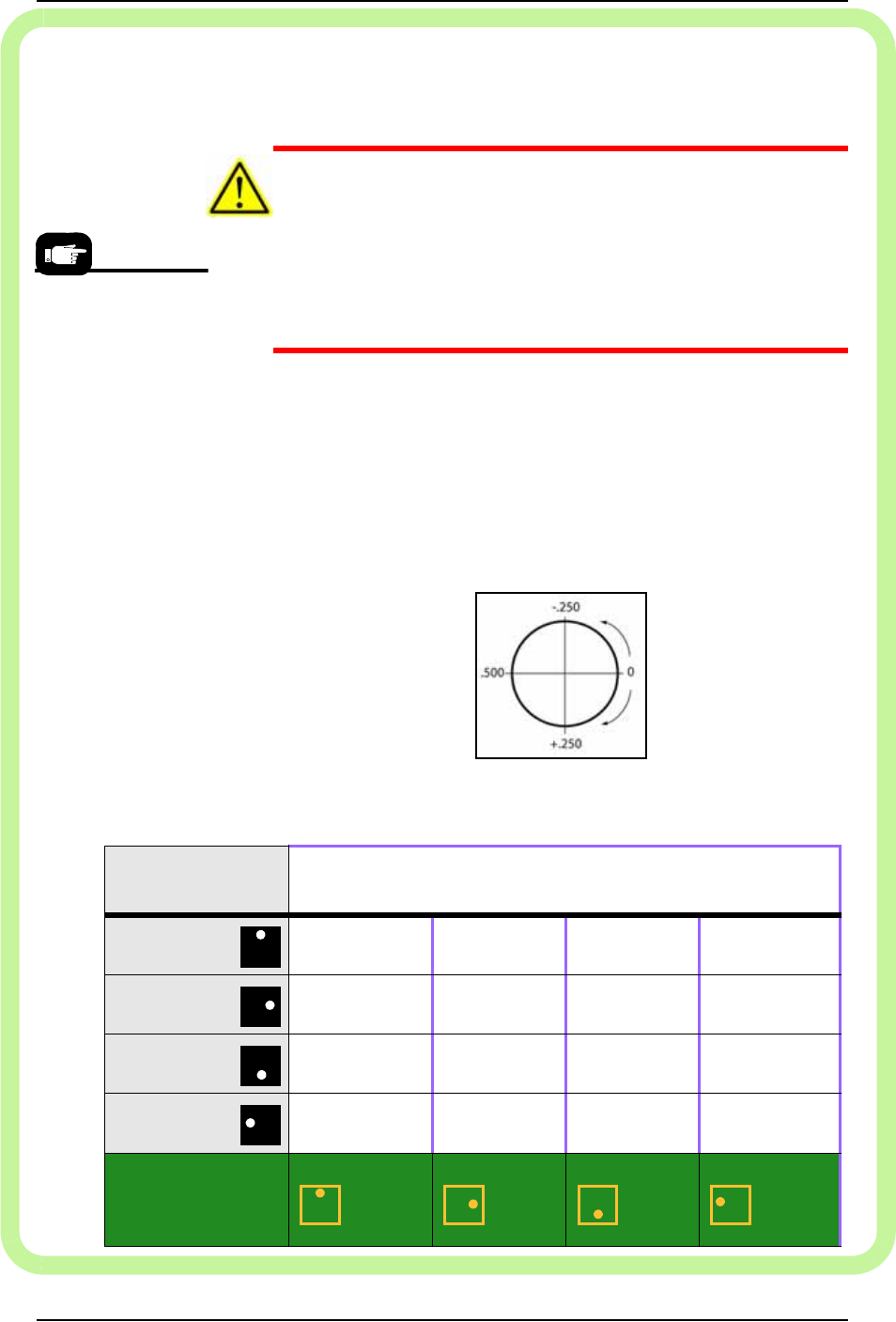
Rotation Values
When teaching the Package File, you are asked to enter the R-axis
rotation value for input media (such as devices in a tray) so that
pin 1 on the device will match pin 1 on the socket; use the fol-
lowing chart.
For example, if a device must be rotated a quarter turn in the clock-
wise direction as it goes from the input media to the socket, set the
R-axis at the socket to -0.250.
Figure 3-35: R-axis values for amount of rotation (not position) from
input media only. Output media is usually the same as the input media.
Pin 1 on most Data I/O
Socket Adapters is
away from the operator
(toward the back of the
machine.)
Pin 1 at my input
media is
Set rotation at input media to . . .
(Set rotation at output media the same as input media.)
Far side
.000 .250 .500 –.250
Right side
–.250 .000 .250 .500
Near side
.500 –.250 .000 .250
Left side
.250 .500 –.250 .000
Pin 1 on my
programmer
sockets is
Far side Right side Near side Left side
Operation ■ Administrator Functions
3—44 Data I/O • 981-0424-002
back
Setting Values for Trays
The PS System can have static tray or Automatic Tray Feeder (TF20)
input and output modules. Teaching tray locations is the same for
both.
Note: If the Automatic Tray Feeder option is installed, trays dis-
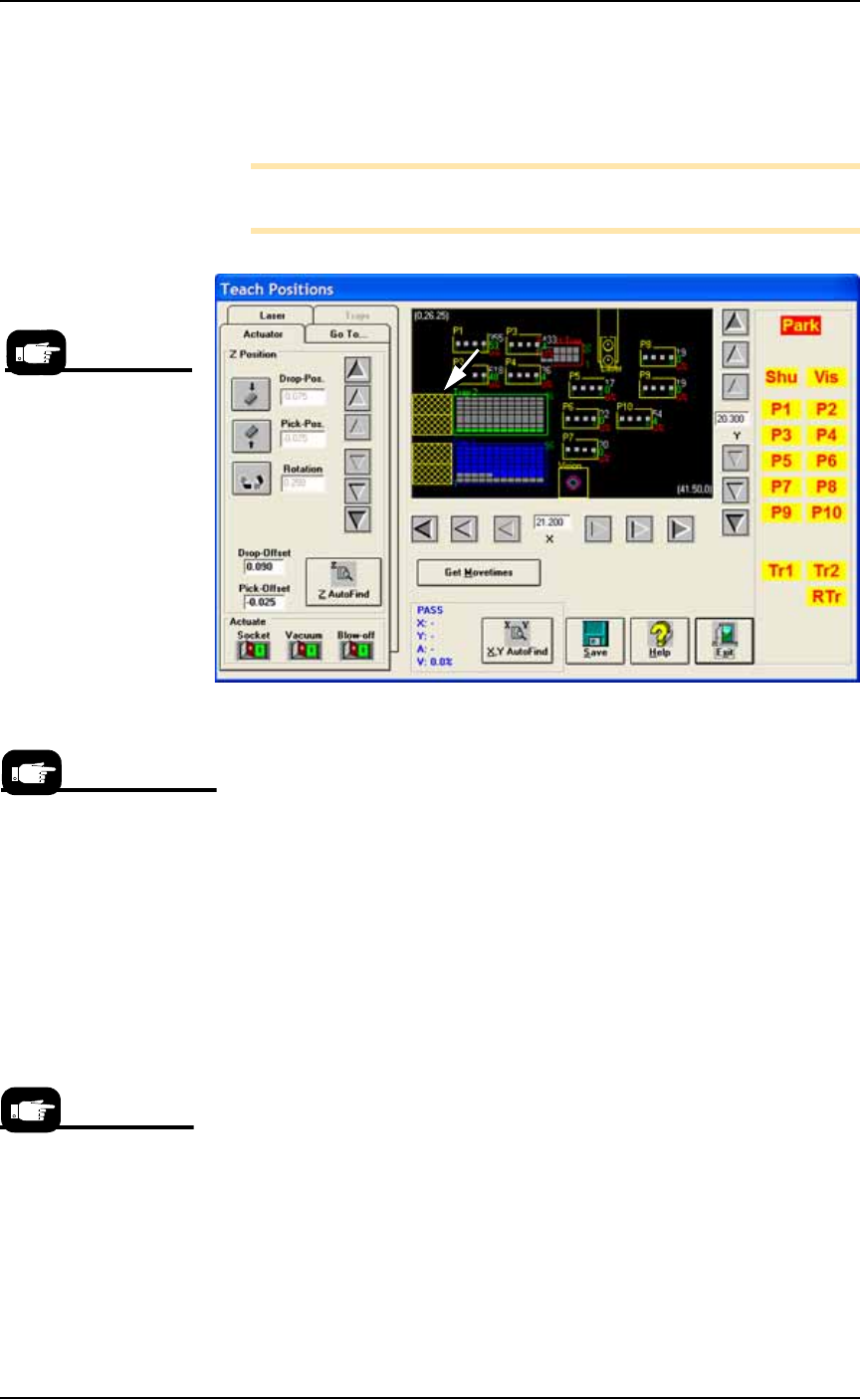
played in the Gantry Window are oriented as shown in Figure 3-36.
Figure 3-36: Gantry Window shown with an automatic tray feeder
installed. (PS588 shown.)
1. Setting X, Y, Z & R values for Trays—
1a. Click Park. Then manually place a device in each corner pocket
of the trays. (Devices in other pockets are okay.)
1b. Click Tr1: sends the probe to the left corner device in Tray 1.
1c. If necessary, center the probe over the device. Use the X and
Y-axis arrows (along the bottom and right side of the black work
area) so the probe is centered over the device.
1d. Click Save, and Yes.
1e. Click Z AutoFind (to set the vertical distance to the device) and
then Yes to save the value.
1f. Click Rotate icon.
1g. Type the desired rotation into the rotate field and press Enter on
the keyboard. See Rotation Values on page 3-43 for more informa-
tion.
1h. Save and click Yes.
1i. Press X,Y AutoFind. When the results appear, verify that the new
values for X and Y are less than ±5. If so, click No (to keep the
previous values).
If new values are greater than ±5, click Yes to use these new val-
ues. Then recheck (by clicking X, Y AutoFind again).
On-screen Label
abbreviations:
Tr1- Tray 1,
RTr- Reject Tray
Vib1- Vibrator 1
Vis- Vision Camera
If you are using one tray for
both input and output for
this job, then only that one
tray needs to be taught.
X,Y AutoFind sends the
probe to the vision cam-
era and compares the
device image with the
reference vision file.