PS288_PS388_PS588_981-0424-002D - 第138页
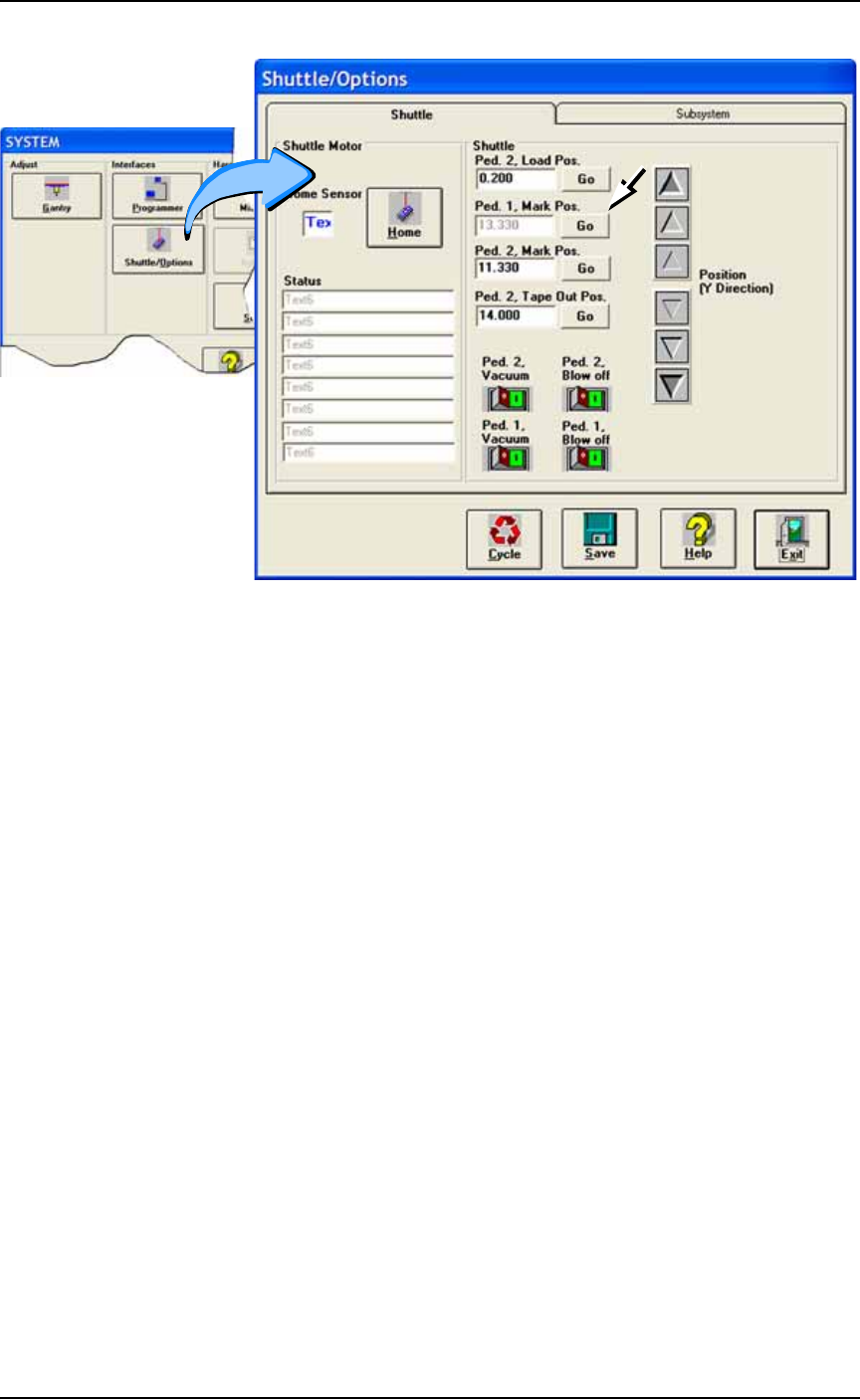
Operation ■ Printer Options 3—68 Data I/O • 981-0424-002 back Figure 3-5 7 : Adjust the marking position (Mark Pos. ) for eith er pedestal at the Shuttle/ Options Window if necessary. If no image appears on the paper: A)…
■ Printer Options ◘ (Optional) Creating a Laser Marking File
PS Series Owner’s Manual 3—67
back
Verifying Proper Laser Operation
WARNING: Toxic fume hazard! Laser marking generates vapors,
fumes, and particles that may be noxious, toxic, or even fatal. Fol-
low maintenance procedures on the fume extractor. Use proper
ventilation.
To verify that the laser is marking as expected:
1. At the Run Window, click RunOne.
Only one device will be processed.
1a. Verify that the marking graphic is centered on the device. If the
graphic is not centered, adjust the laser file. Refer to Figure 3-53
on page 3–63.
WARNING: Blindness hazard! Always wear eye protection when
the laser access doors are open. Direct or diffuse laser radiation
can damage eyes. Goggles must block 10.6
μ
m laser radiation.
Goggles protect against scattered energy but not against direct
viewing of the laser beam or reflections from metallic surfaces.
WARNING: Serious burn hazard! Laser radiation, whether direct
or diffuse, can cause serious burns. Keep hands and other parts of
the body out of the path of the laser beam.
Troubleshooting
If the device is not marked, perform the following USING
EXTREME CAUTION:
1. Remove the access panel on the right end of the Option Bay
when viewing it from the back of the PS System. Use a 1/8 inch
hex key to remove six fasteners.
2. Lay a sheet of white paper in the laser bay over the pedestals.
3. Temporarily disable the panel safety interlock (as with tape).
4. Fire the laser (by clicking Laser Marker on the Shuttle/Options >
Subsystem tab).
If the mark appears on the paper, make sure the mark is cen-
tered over the shuttle. If the mark placement needs adjustment,
change the Mark Position at the Shuttle/Options > Shuttle tab.
Operation ■ Printer Options
3—68 Data I/O • 981-0424-002
back
Figure 3-57: Adjust the marking position (Mark Pos.) for either
pedestal at the Shuttle/Options Window if necessary.
If no image appears on the paper:
A) Verify power to the laser marking assembly is connected and
turned on.
B) Ensure that the access panel interlock is disabled.
If all appears correct an still no results, contact Data I/O Customer
Support.
■ Additional Features ◘ Automotive Performance Pak
PS Series Owner’s Manual 3—69
back
Additional Features
Automotive Performance Pak
Data I/O offers several utilities that are especially useful to certain
industries. These utilities, labeled the Automotive Performance Pak
(AP Pak), are described below. If your PS System does not have this
feature, it can be ordered for use on PS Series machines that meet
these requirements:
• AH500 Version 6.0.0 or higher and TaskLink 7.0 or higher.
• AH400 Ver 6.0.1 or higher and TaskLink 7.0 or higher.
Contact Data I/O Sales.
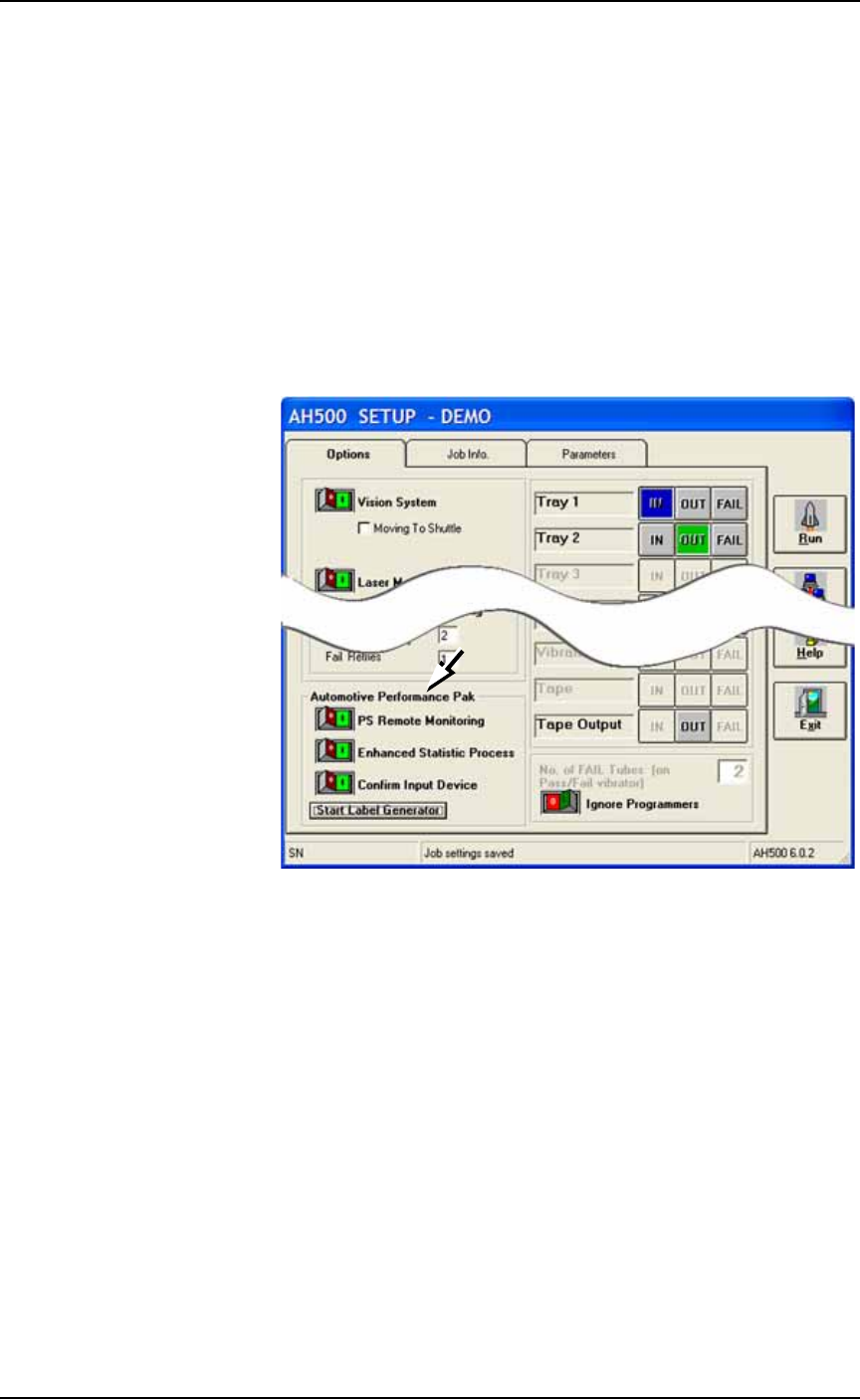
Figure 3-58: The Automotive Performance Pak features appear in the
Setup Window.
AP Pak Utility Descriptions
PS Remote Monitoring
The PS Remote Monitoring window displays Pass, Fail, and Yield
information of remote, networked PS Systems. Up to ten PS Systems
can be monitored.
Enhanced Statistic
This application allows precise tracking of machine behavior such as
uptime, downtime, yields, and throughput. It produces job log files
that are readable with Microsoft® Excel and Access software.
Confirm Input Device
This safety enhancement checks that the input device is the correct
one for the job each time the input media is changed.