PS288_PS388_PS588_981-0424-002D - 第146页
Maintenance ■ Workspace, Head and Gantry 4—6 Data I/O • 981-0424 -002 back 1b. At the Setup window , click System > Gantr y . Y ou may need to enter a password. Figure 4-1: The Gantry window (PS588 shown). 1c. Click o…
■ Workspace, Head and Gantry ◘ Socket Adapters and Actuation
PS Series Owner’s Manual 4—5
back
Workspace, Head and Gantry
The workspace includes the Socket Adapters and items on the
working surface, but not the Programmers or Vision System. They
are covered in separate headings.
Socket Adapters and Actuation
Under this heading you will learn about visually inspecting, cleaning
and adjusting sensors and air pressure for the workspace items.
Inspecting the Socket Adapters
The condition of the Socket Adapters has great throughput conse-
quences.
WARNING: Vision hazard. Always use care and wear protective
eye goggles when cleaning with pressurized air. Pressurized air or
debris blown into the eyes or skin could cause bodily damage.
1. Use clean, dry compressed air to remove dirt from the sockets.
2. Check the sockets for wear and replace if necessary.
Note: The socket replacement cycle depends upon the type of socket
used and the socket manufacturer. For life cycle guidelines, refer to
the documentation that came with your sockets.
Adjusting the Socket Actuator Sensors
[PS288, PS388 and Optima Programmers only on PS588] The Socket
Actuator sensor reports the position of the Socket Actuator (up or
down), and therefore controls when a device can be put into a socket.
Note: Sensors are set at the factory. They need adjustment only if
experiencing trouble. One possible indicator of needed adjustment
is an error message such as Socket Opener failed.
A PS588 with Optima Programmer and a Socket Adapter installed
are necessary for this procedure.
PS288 & PS388 require a FlashCORE programmer with a Socket
Adapter installed for this procedure.
To adjust the Socket Actuator sensor:
1. Preparation—
1a. Start the AH500 Application.
Maintenance ■ Workspace, Head and Gantry
4—6 Data I/O • 981-0424-002
back
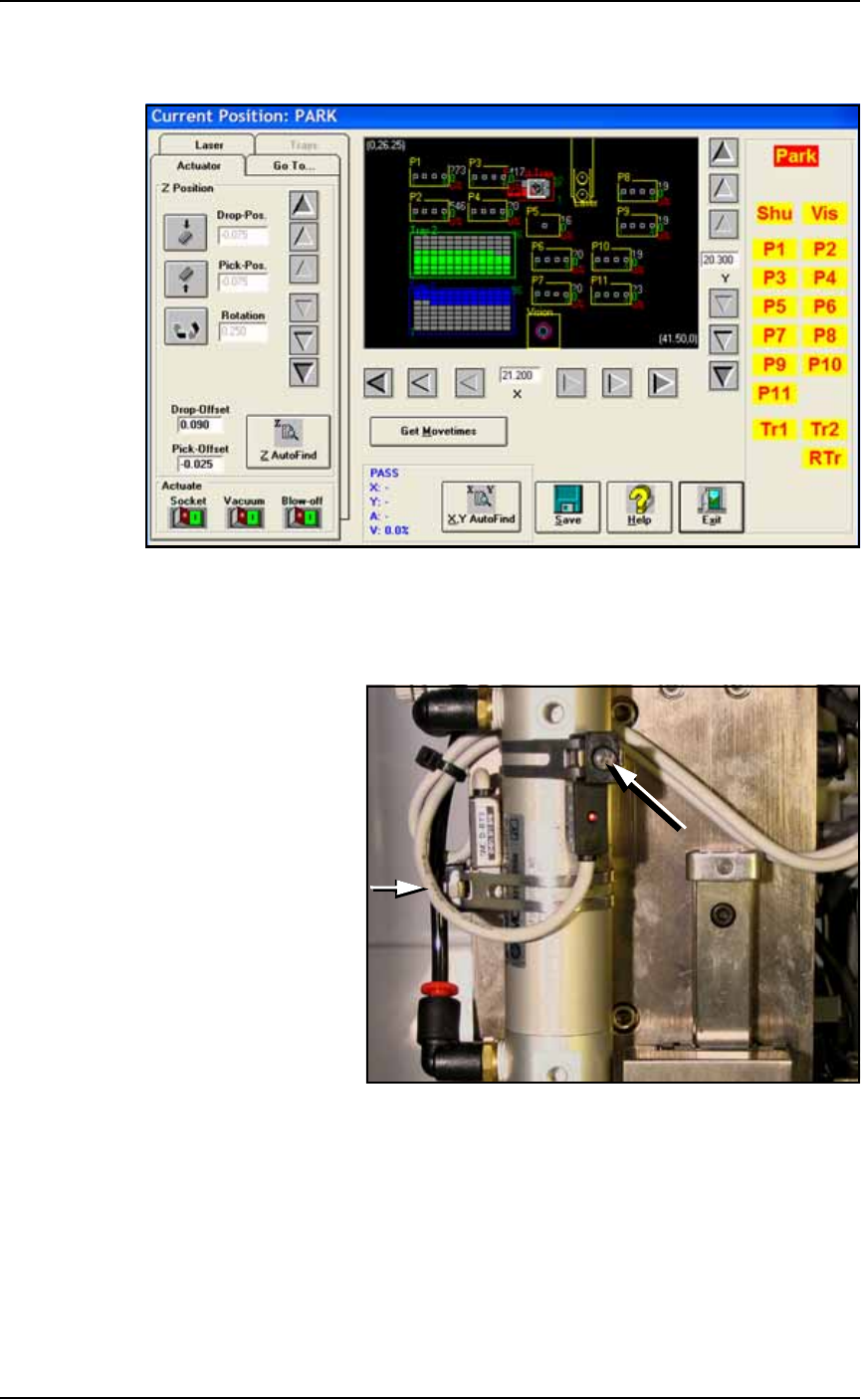
1b. At the Setup window, click System > Gantry. You may need to
enter a password.
Figure 4-1: The Gantry window (PS588 shown).
1c. Click on any programmer label (P1 through P12) that has an
Optima (Universal) programer installed to move the PNP head to
that programmer.
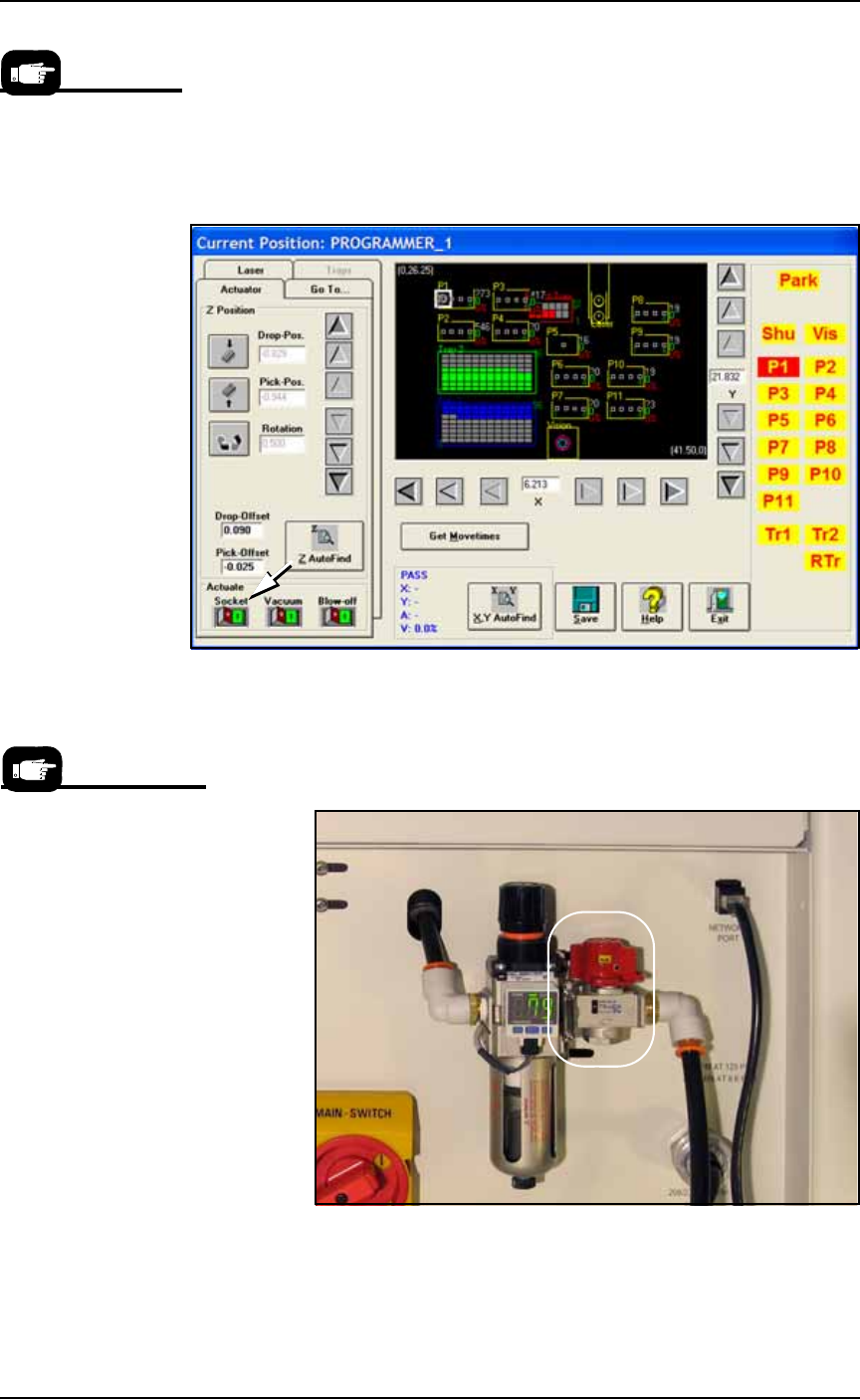
Figure 4-2: Cylinder Sensors for determining socket actuator positions;
viewed from back of PNP head. The long arrow points to the
adjustment screw for the Up position sensor and the short arrow for the
down sensor (screw partially hidden). Sensors may be radially oriented
differently on the cylinder.
2. Adjust up sensor—
2a. Locate the sensor adjustment screw at the back of the PNP head.
See Figure 4-2. Loosen the Phillips-head screw on the Up sensor
bracket.
■ Workspace, Head and Gantry ◘ Socket Adapters and Actuation
PS Series Owner’s Manual 4—7
back
2b. Move the up-sensor upwards just until the LED lights.
2c. Tighten the sensor bracket screw.
3. Adjust down sensor—
3a. On the Gantry window Actuator tab, click the Socket Actuator to
the ON position; see Figure 4-3. The Socket Actuator opens
(moves down).
Figure 4-3: The Gantry window shows the Socket Actuator air ON (for
programmer 1). PS588 shown.
3b. On the Power Panel, rotate the valve clockwise to shut off the
input air; it is off when the lock rings line up (some models). See
Figure 4-4.
Figure 4-4: The input air regulator/filter on the Power Panel (on the
back of the PS Machine). The air supply to the PS Machine is off when
the lock rings on the valve line up. The air valve on your model may be
different.
If your sensors do not
have LEDs on them, you
have a previous PS
model. Consult the man-
ual that came with your
PS Machine or contact
Data I/O Support.
On earlier models the air
shut off is a slide valve;
slide the valve down to
shut off the supply air.