PS288_PS388_PS588_981-0424-002D - 第187页
■ The Marking Systems and Shuttle ◘ Laser Marking Filters PS Series Owner’s Manual 4—47 back Figure 4-44: The location of Laser Computer f ilter on the back of the Laser Marker frame. (Some models only .) T o remov e the…
Maintenance ■ The Marking Systems and Shuttle
4—46 Data I/O • 981-0424-002
back
4c. Lift out the HEPA filter. Inspect and replace as necessary. Inspect
and clean or replace with a new one as necessary. If replacing it,
place the used one in the sealable bag.
4d. Lift out the carbon. Replace with a new one as necessary. If
replacing it, place the used one in the sealable bag.
4e. Place your gloves in the bag and seal the bag and dispose of as
hazardous waste.
WARNING: Hazardous Materials. Government regulations apply
to the storage of hazardous waste. Ensure that contaminated fil-
ters are properly labeled and stored in your hazardous waste stor-
age area. Also, make sure that they are not stored on your site
longer than government regulations allow (the typical limit is 90
days). Check your government regulations for hazardous waste
storage requirements.
Reinstall all the filters in the same stack-order (with new or cleaned
filters). Reinstallation steps are in reverse order of the removal,
above, with this precaution:
The HEPA filter is directional. Make sure that it is installed with the
arrow (on its label) pointing down.
Removing the Laser Computer Air Filter
[Laser Marking only] On some models, the Laser Computer is
located in the Option Bay and the filter can be accessed from the back
of the Option Bay.
Note: Some PS models don’t have Laser Computers.
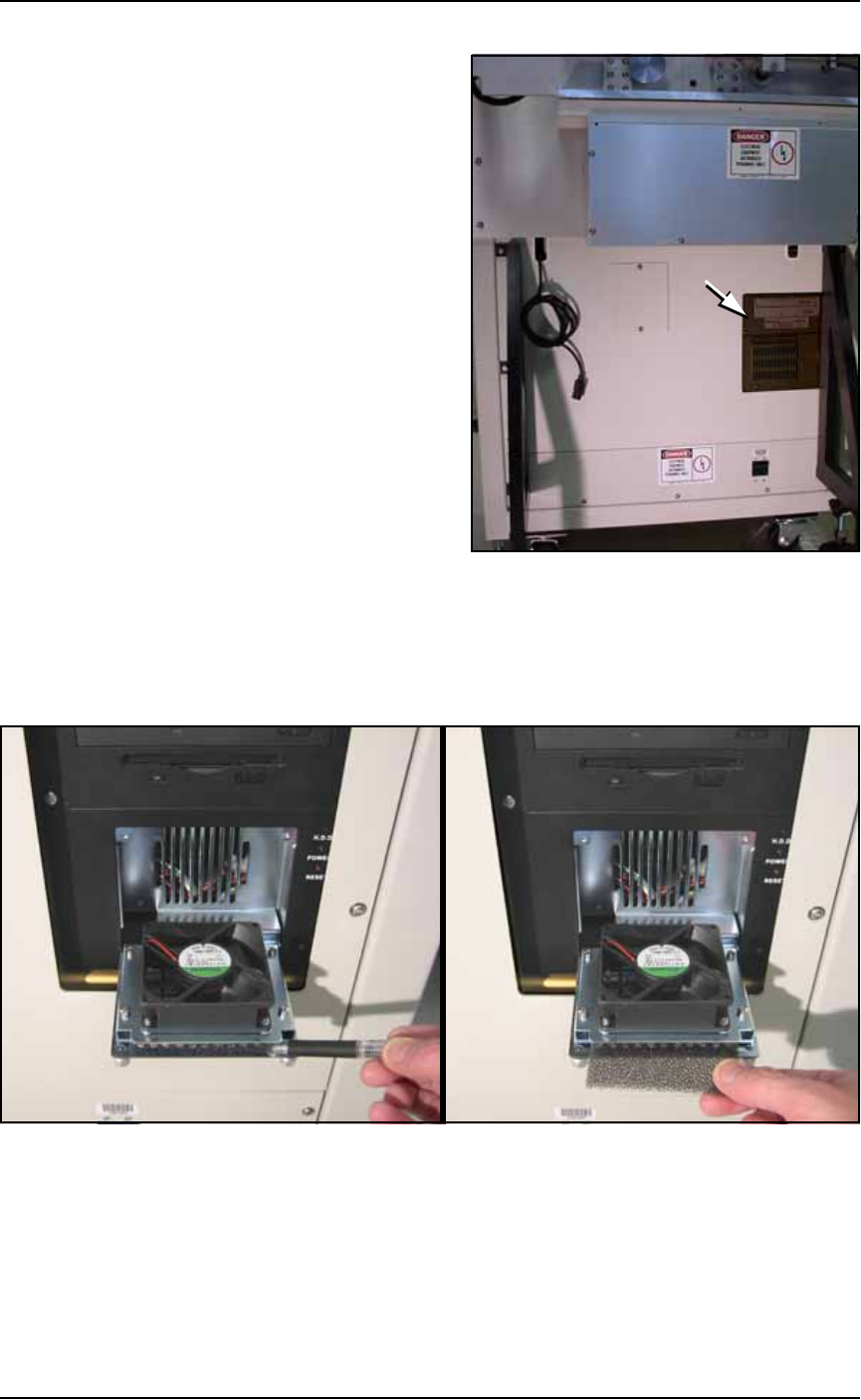
See Figure 4-44. In general, clean this filter every month and replace it
approximately every six months, depending on environment and
amount of use.
■ The Marking Systems and Shuttle ◘ Laser Marking Filters
PS Series Owner’s Manual 4—47
back
Figure 4-44: The location of Laser Computer filter on the back of the
Laser Marker frame. (Some models only.)
To remove the Laser Computer air filter:
1. Unscrew the two captive thumb screws on the filter cover and
open the cover door. See Figure 4-45.
Figure 4-45: After opening the Laser Marker Computer filter cover,
drag the filter out with a pen or pencil. (Early filter covers are not
hinged.)
2. Remove the old air filter. Clean or replace with a new air filter as
necessary.
3. Close the filter cover and screw in the thumb screws.
Maintenance ■ Handler Computer
4—48 Data I/O • 981-0424-002
back
Handler Computer
The main PS Machine computer, or Handler Computer, is accessed
from the front of the machine, in the lower left corner, and requires
little maintenance.
Handler Computer Air Filter
The Handler Computer has a air filter that requires period cleaning
or replacing.
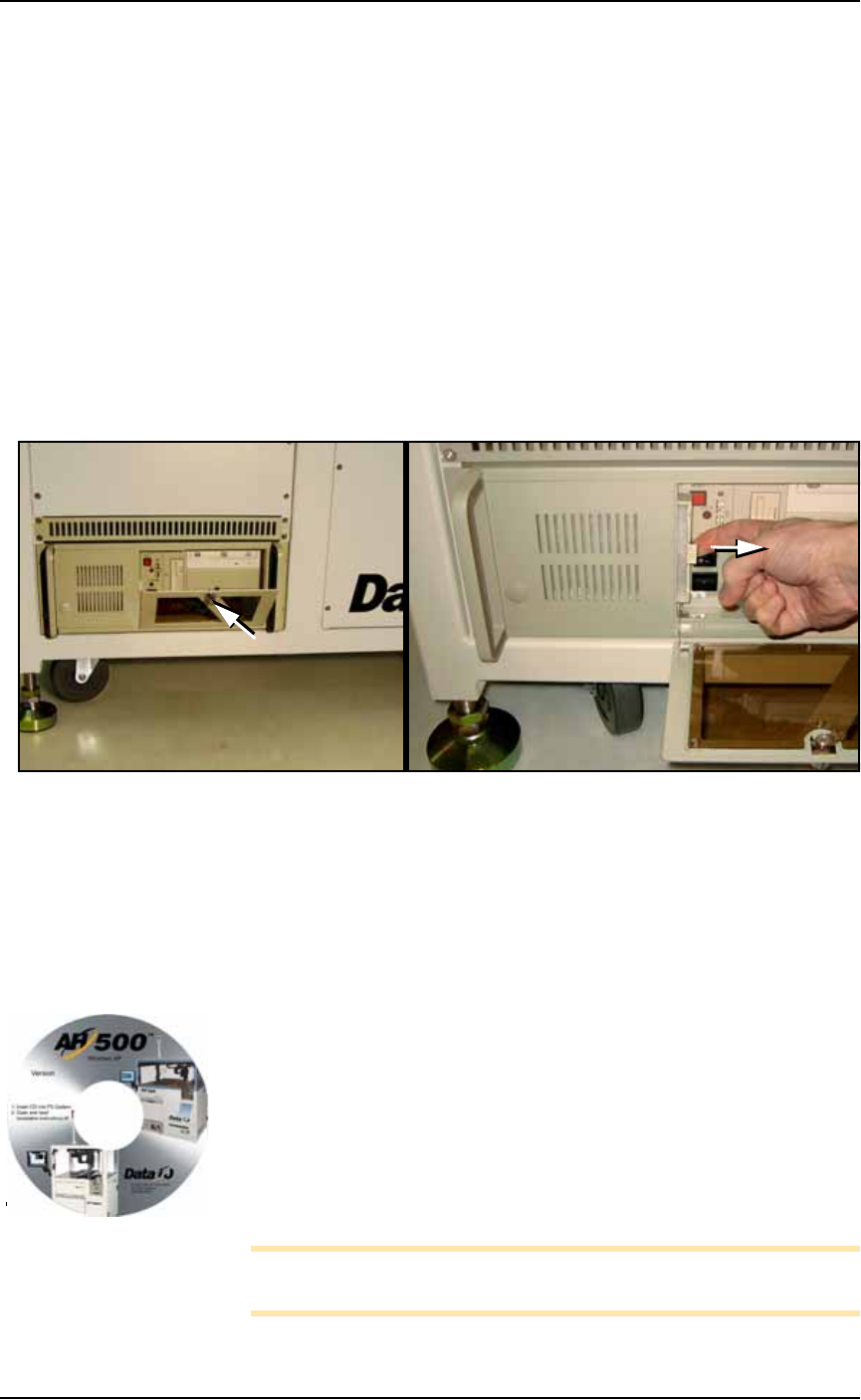
To remove the air filter:
1. Open the front panel by unlocking (if applicable) and twisting
the key knob right 1/4 turn.
Figure 4-46: The Handler Computer door and knob (A) and filter (B).
2. Pull out the filter to the right as shown in Figure 4-46. The fil-
ter should be white. Clean or replace as necessary.
Installing AH500 Software Updates
AH500 Software Updates are periodically published with improve-
ments. Delivery depends on contract options.
To install new AH500 Updates on the PS Handler Computer:
1. Create a backup copy of the
winAH500.ini
file (on your Handler
computer).
2. Insert the AH500 CD and follow instructions in the
Installa-
tion Instructions.rtf
file.
3. Rename your.ini file again back to
winAH500.ini
(replacing the
new.ini file) to keep your settings.
Note: Updating TaskLink is a different CD. For more TaskLink
information, see TaskLink’s on-screen Help.
A
B
Your CD looks similar to
this.