PS288_PS388_PS588_981-0424-002D - 第190页
Maintenance ■ T he Vision System 4—50 Data I/O • 981-0424 -002 back Figure 4-4 7 : Camera mounting screws and f ocus ring knobs. Dashed ov als indicat e screws hidd en in this vie w . 2c. Check the two lens focus-ring th…
■ The Vision System ◘ Inspecting the Vision Camera
PS Series Owner’s Manual 4—49
back
The Vision System
The vision system provides for angular correction up to 30 degrees
for devices on the probe before they are placed in the programming
socket. This angular correction is performed to reduce the likelihood
of device damage from improper insertion.
Inspecting the Vision Camera
WARNING: Electric shock hazard. The PS Machine operates at
high voltage. Switch off the PS System main power switch before
opening any access doors or removing any cabinet panels. See
Turning Off the System on page 4-4.
1. Preparation—
1a. Shut off the PS System power and ensure the main power switch
is in the OFF position. For more information see Turning Off the
System on page 4-4.
1b. Open the right access door.
CAUTION: Data could be rendered useless. When tightening fas-
teners, do not move the camera or the Vision System will need
recalibration (page 4-50) and all your vision files will be need to
be recreated (page 3-34).
2. Check fasteners—
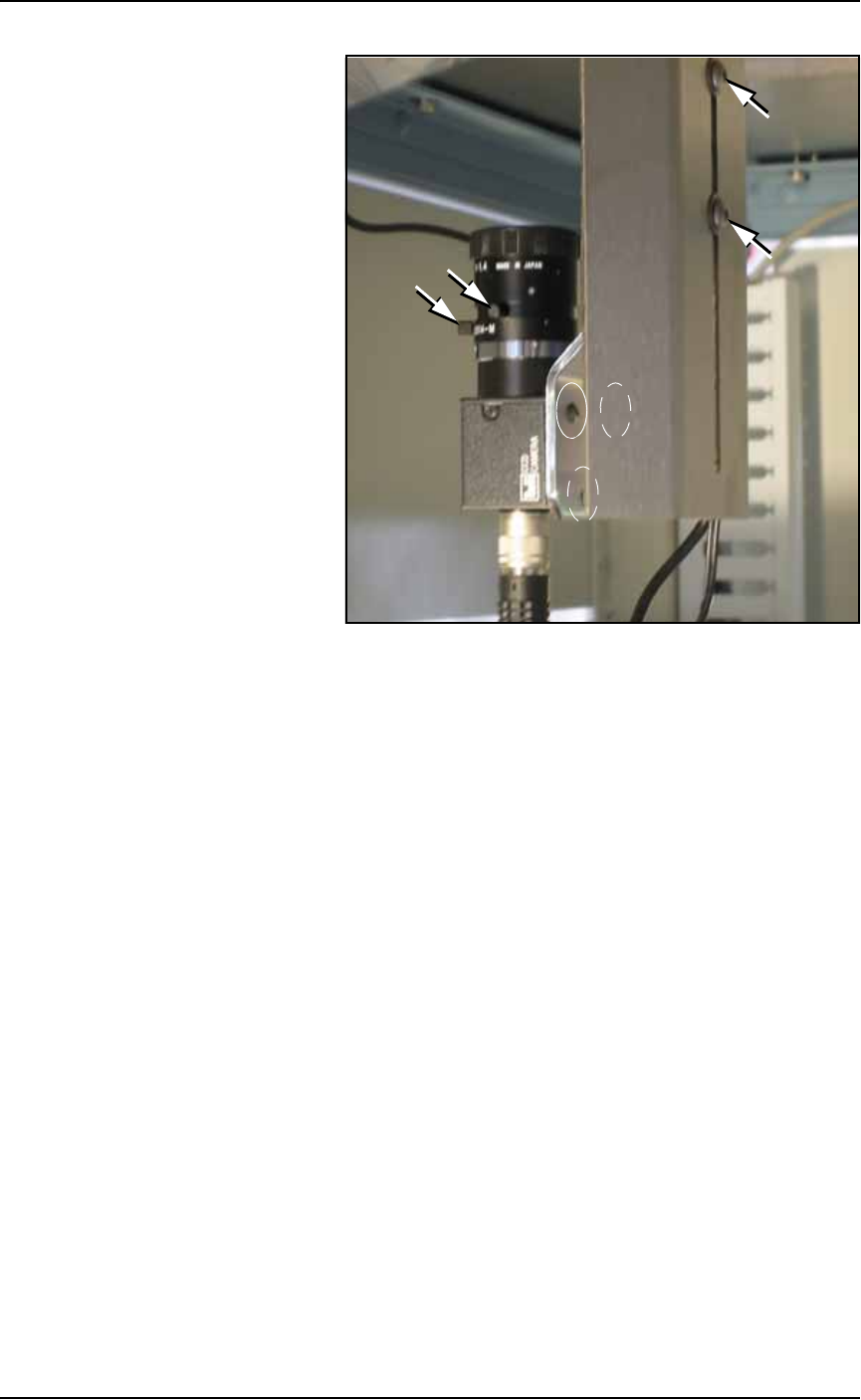
2a. Check the three mounting screws in the camera bracket and
tighten if necessary with a 1/8 inch Hex Key. See Figure 4-47.
2b. Check the two mounting screws in the camera lens body and
tighten if necessary with a 2 mm Hex Key.
Maintenance ■ The Vision System
4—50 Data I/O • 981-0424-002
back
Figure 4-47: Camera mounting screws and focus ring knobs. Dashed
ovals indicate screws hidden in this view.
2c. Check the two lens focus-ring thumb screws and tighten if they
are not snug. If they are actually loose, the camera might need
recalibration. Excessive device placement problems would con-
firm this. See Calibrating The Vision System below.
3. Reinstall all panels.
Calibrating The Vision System
When Does the Vision System Need Calibration?
If any of the following are true, the Vision System may require cali-
bration:
• The camera has been replaced, moved, refocused, or contrast
changed.
• Many devices are failing continuity due to placing errors.
• Many placed devices have bent leads.
• The PS Machine has been moved.
Prerequisites to Calibration
• You have a password for Supervisor rights.
• Prior to calibrating the camera, ensure that all fasteners are tight.
See Inspecting the Vision Camera on page 4-49.
• The probe vacuum is enabled.
■ The Vision System ◘ Calibrating The Vision System
PS Series Owner’s Manual 4—51
back
• The probe is in the center of the taught Vision location.
• The plastic lens cover is in place.
• The camera picture is well-focused with adequate light.
• The Glass Checkerboard Calibration Target is available. (Each
square is 1.1 mm x 1.1 mm.)
• Vision station height and travel height are the same.
• Vision drop/pick height setting allows for the calibration target
to clear the socket opener ribs (if present).
•Ensure that msec, delay before Vision Inspection equals 100 in
the Parameters Tab.
Getting a Good Picture: Vision System
To get a good, clear picture with the Vision System (Cognex camera):
1. Navigate to the System > Gantry Window.
2. Go to socket 1 of any programmer or tray and pick a device.
2a. To pick up a device: Click Tray 1 or Socket [X] in the Gantry Win-
dow to send the head to that component.
2b. Right-click to pick up the device. Click the Go To tab.
3. Click the Go To Vision button.
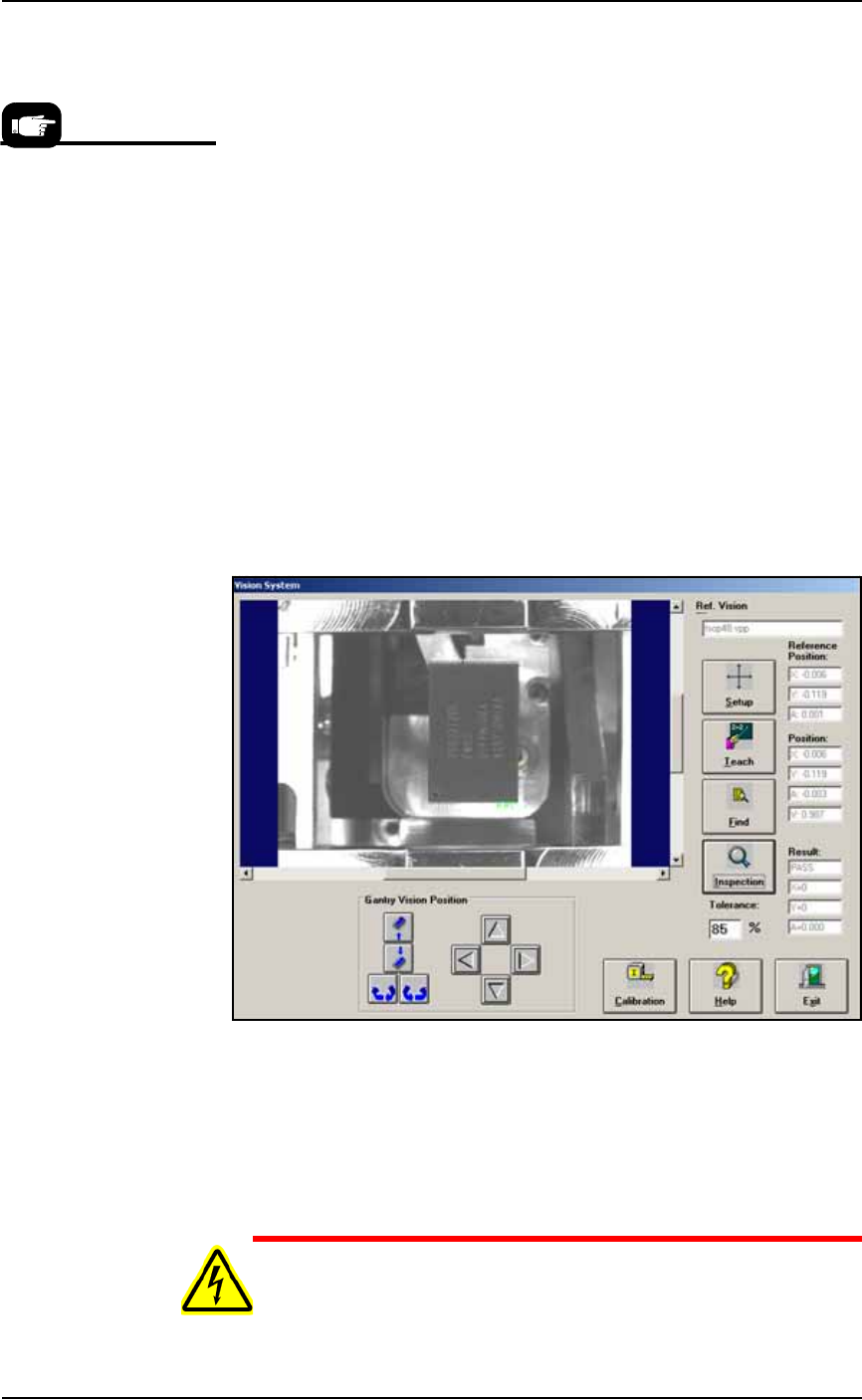
Figure 4-48: The Vision System Dialog with a good quality picture.
4. At the Vision System dialog, visually check that the picture is
good quality similar to the figure above.
5. If the image is not good (blurry, too dark, etc):
5a. Click the Calibration button.
5b. Click the Display Live Video button.
WARNING: Electric shock hazard. Opening any access doors
while the power is ON can be dangerous even when steps instruct
If the glass target is
unavailable, print a checker-
board target from the PDF
file on the installation CD:
Use card stock.
In the Adobe Reader Print
dialog, select NONE for the
PAGE SCALING field.