PS288_PS388_PS588_981-0424-002D - 第194页
Maintenance ■ T he Vision System 4—54 Data I/O • 981-0424 -002 back 3. Computing C alibration— 3a. Select Grab Calibration Image . 3b. P erform calibration by selecting Comput e Calibration . 3c. Select Current.Calibrati…
■ The Vision System ◘ Calibrating The Vision System
PS Series Owner’s Manual 4—53
back
Part 1–Calibrating Cognex Vision with Checkerboard
Target
CAUTION: After recalibrating your vision system, all existing .vpp
files (Vision and Package files) will need to be retaught.
To calibrate the Vision System:
1. Preparation—
1a. Create a good Vision System picture. See the previous heading
on page 4-51.
1b. Click the Vacuum on button.
1c. Place the calibration target by hand so that the checkerboard
pattern is facing downward, towards the camera.
2. Verify settings—
2a. Navigate to the Camera Calibration Tab (System > Gantry > Go-to
tab > Go-To-Vision button > Calibration tab) and then click the Cal-
ibrate tab.
2b. Verify that:
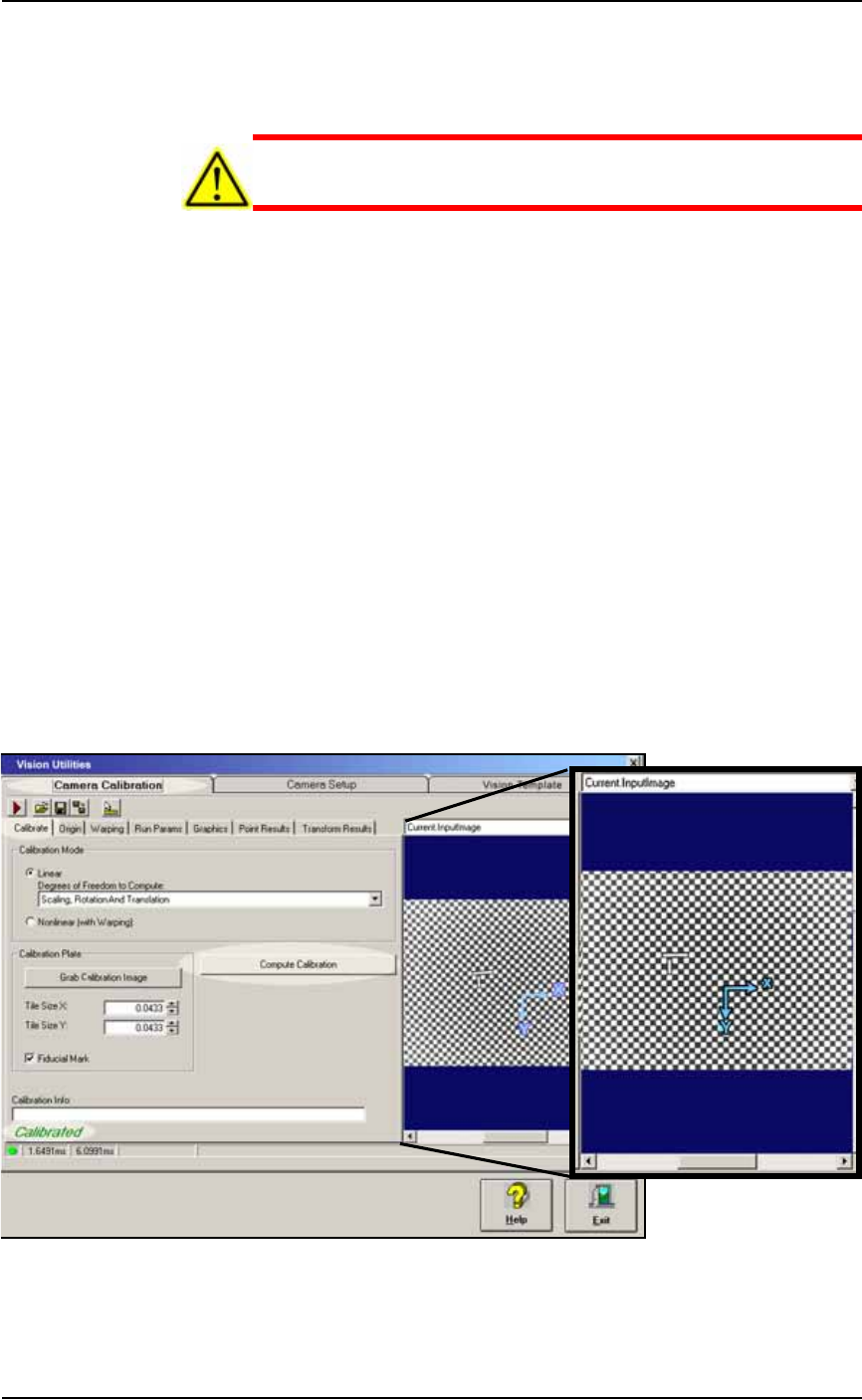
• the Calibration Mode is set to Scaling, Rotation and Translation,
and
• Tile Size X & Y are 0.0433, and
• Fiducial Mark is checked. See the figure below.
You can position the blue axis by selecting Current.CalibrationIm-
age from the drop-down list above the image window, and drag-
ging the axis to the new location.
Figure 4-50: The Vision Utilities Dialog with Camera Calibration Tab
selected, and then Calibrate tab selected. In this image, the Compute
Calibration function has finished successfully.
Maintenance ■ The Vision System
4—54 Data I/O • 981-0424-002
back
3. Computing Calibration—
3a. Select Grab Calibration Image.
3b. Perform calibration by selecting Compute Calibration.
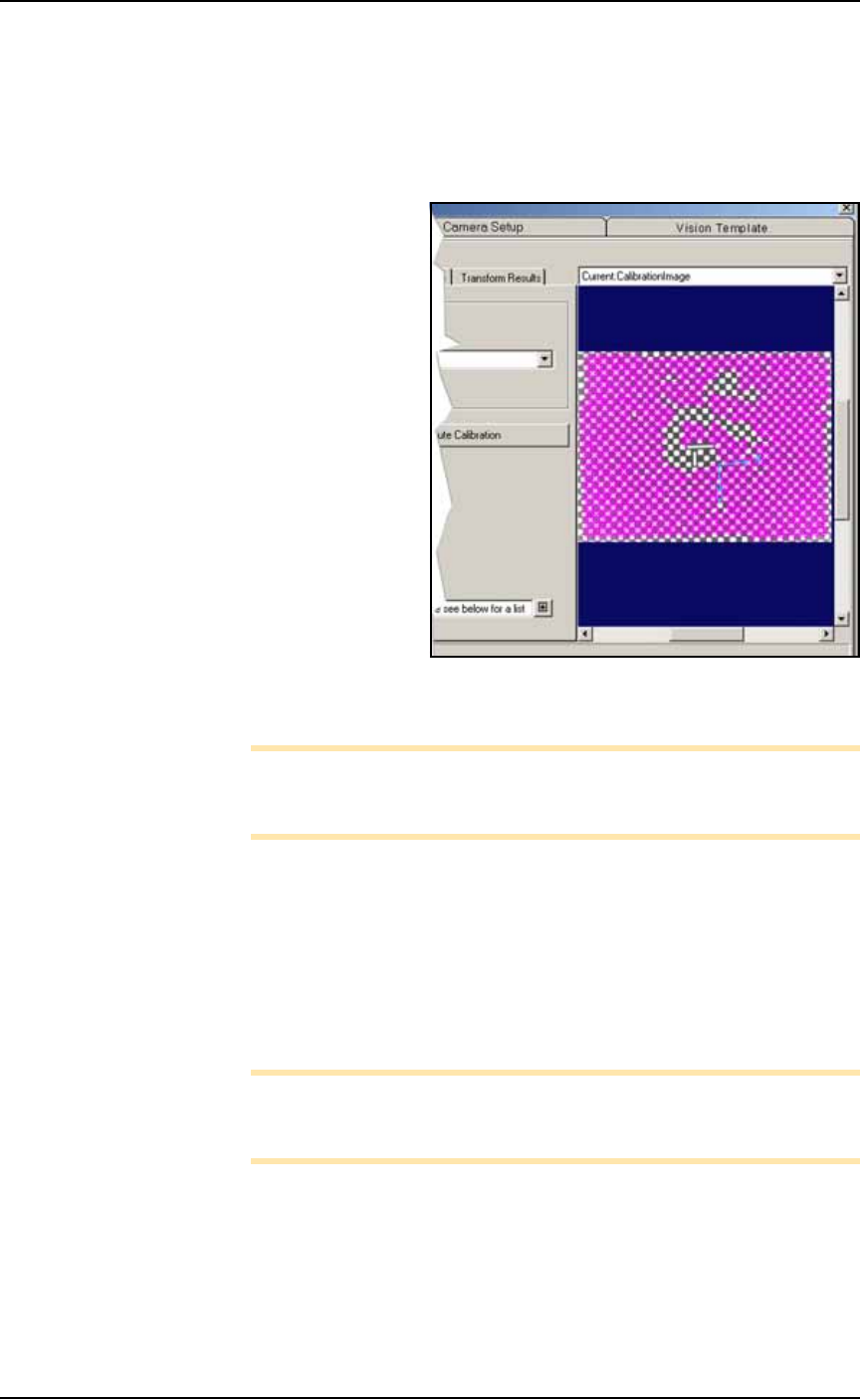
3c. Select Current.CalibrationImage from the pull-down list and ver-
ify that the majority of the picture is pink. The pink color means
those tiles were used for calibration.
Figure 4-51: This resulting calibration image shows plenty of pink
meaning more than enough tiles were used for calibration.
Note: Ensure no error messages display in the Calibration Info bar
at the bottom of the screen. If error information exists, apply the
message recommendation, and try to calibrate again.
4. Assessing results—
4a. If successful, the green Calibrated message displays in the
lower-left corner of the calibration screen. Save the current
image to the
CameraCalibration.vpp
file by clicking the Save
button, select
CameraCalibration.vpp
, and click Save. When
asked to replace the existing file click OK. Note that the
Camera-
Calibration.vpp
file must be saved from the Camera Calibra-
tion tab.
Note: If you accidentally replace the wrong file, there is folder
named Backup with the original files in them. Copy the desired
backup file to the current working directory.
4b. If NOT successful (there is not much pink color), then repeat
from Step 3 above or make Electronic Vision Adjustments as fol-
lows:
4b.1) Click the Camera Setup tab.
4b.2) Click Electronic Mode (lightning bolt)
4b.3) Adjust the Brightness and Contrast sliders.

■ The Vision System ◘ Calibrating The Vision System
PS Series Owner’s Manual 4—55
back
4b.4) Click the Camera Calibration tab and repeat from
Step 3 Computing Calibration.
5. Finish Part 1—
5a. Click Exit.
5b. Remove the checkerboard target by hand.
Part 2—Updating Vision File Parameters (and then the
Vision File itself)
1. Preparation—
1a. In the Gantry Window, pick up device by moving the probe to
socket 1 of a programmer and right-clicking.
1b. Ensure that the device is centered on the probe.
1c. Click the Go To tab. Click the Go To Vision button.
2. Update vision parameters—
2a. Click the Calibration button to open the Vision Utilities dialog.
2b. Click the Vision Template tab.
2c. Click the Train Parms tab.
2d. From the Algorithm drop-down select PatMax – High Sensitivity.
2e. Ensure that Ignore Polarity is unchecked.
2f. Click Grab Train Image.
2g. Select Current.TrainImage from pull-down menu above the right
camera picture.
2h. Adjust origin of the turquoise X-Y axes as close as possible to the
center of the device. Position the axes by clicking it and drag-
ging.
2i. Adjust the blue search-area rectangle to look similar to the one
in the figure below (roughly: just under the size of the opener).
Click a rectangle handle to resize it.