PS288_PS388_PS588_981-0424-002D - 第198页
Maintenance ■ Troubleshoot ing 4—58 Data I/O • 981-0424 -002 back Troubleshooting This section contains solutions to problems that may arise during operation of the PS System. T roubleshooting for the T ape Output System…
■ The Vision System ◘ Calibrating The Vision System
PS Series Owner’s Manual 4—57
back
1c. Click a handle of the blue rectangle and adjust the search region
to match the device boundary.
1d. Click Teach.
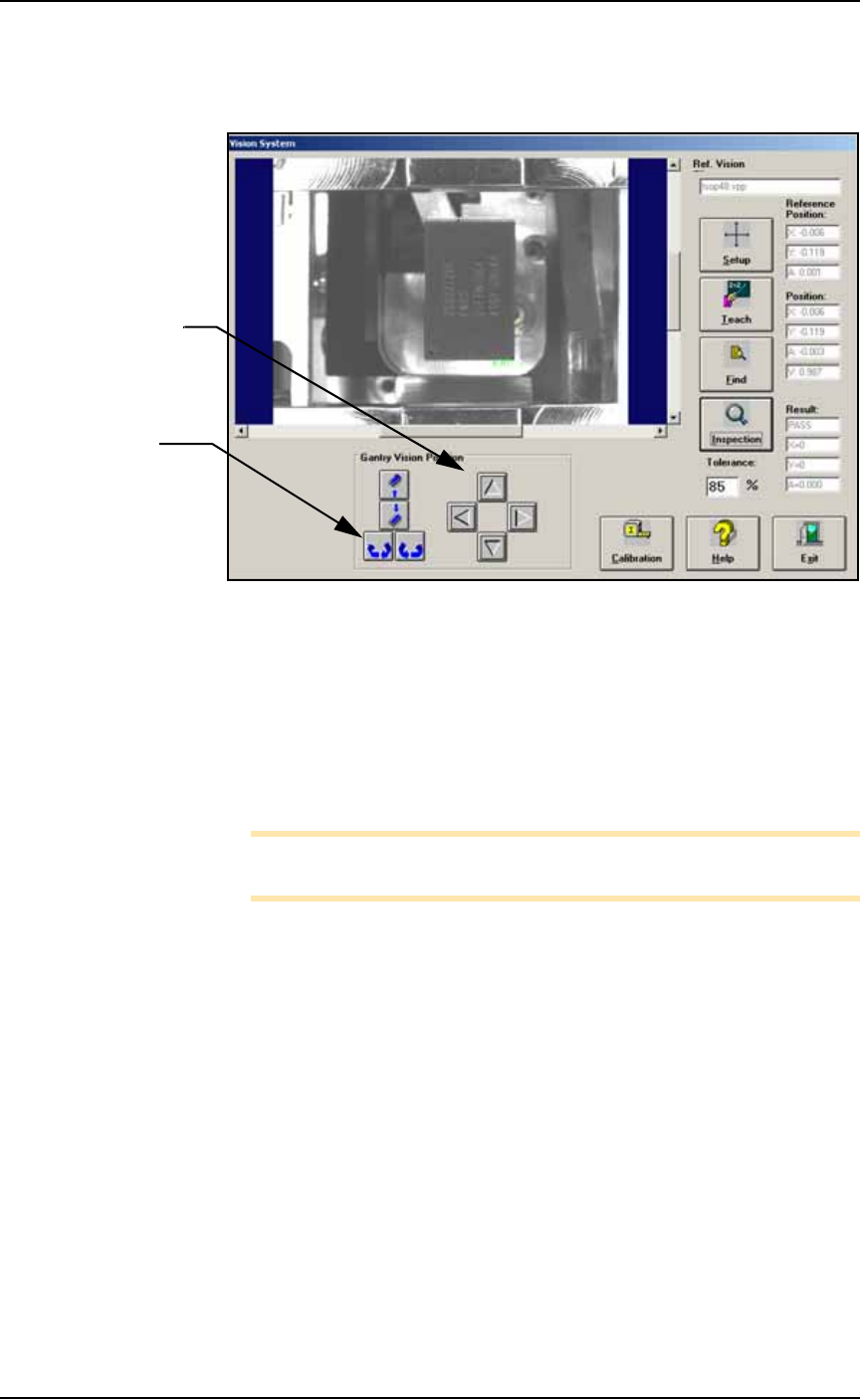
Figure 4-53: Testing the vision inspection with the Gantry Vision
Position buttons and rechecking the Results.
2. Test—
2a. Test the vision inspection by clicking Inspection and then verify-
ing that the results are
PASS, X = 0, Y = 0,
and
A = 0.00
.
2b. Further test by clicking the position arrows and probe rotation
buttons and then clicking Inspection and verifying the move-
ment in the Results fields. (This change is not saved.)
Note: Remember: prior to running existing jobs, reteach the vision
file.
Navigation Arrows:
each click moves the
head 0.010 inches.
Rotation buttons:
each click rotates the
probe 1 degree.

Maintenance ■ Troubleshooting
4—58 Data I/O • 981-0424-002
back
Troubleshooting
This section contains solutions to problems that may arise during
operation of the PS System.
Troubleshooting for the Tape Output System is covered in a separate
heading; see Troubleshooting the Tape Output System on page 4-74.
Common Error Messages
Restarting after Trouble
If the AH500 Software closes, locks up, or experiences some trouble
that qualifies as a crash, then the PS Machine power must be
switched off for 20 seconds prior to restarting the software. This is
required to reset internal amplifiers.
Error Message Resolution
“E-STOP
ACTIVATED”
but . . .
the
OK button is grayed
out in error message
(unavailable)
• Check that both E-Stop buttons are released.
• Check that all six safety shields are closed.
• Check that the Option Bay safety shield is closed.
• Check the LED sensors on the safety shields. Yellow LED indicates the
sensor is not detecting that the safety shield is properly closed. Re-close
safety shield.
• Once condition is solved, the OK button is enabled. Click
OK.
TRAY NOT PRESENT Conditions: You swapped input tray but the PS does not detect the tray and
when you click Run, you get error message Tray Not Present.
• Re-install the tray.
• If the tray is still not detected, remove the tray and place a finger over tray
present sensor.
–If sensor is working, tray outline appears. Re-install tray.
–If sensor is not working, the tray outline does not appear. In this case,
contact Data I/O Customer Support or a local Data I/O approved ser-
vice representative.
Z MOTION ERROR 800:
LIMIT EXCEEDED ON
AXIS 2
Conditions: A Red ERROR box appears in bottom right corner of the PS Machine
Monitor.
Call the Service Technician.
ERROR: TAPE OUT • If a device is jammed in the Tape Output system, clear it. Click the reset
button on Tape Output System. Then click
OK on PS Machine Monitor.
• If above doesn't work, call the Service Technician.
MAIN AIR OFF • Check that the main input air valve is in the ON position.
• Check that the main air hose is connected.
• Check that the air pressure is within the required range (green LED read-
out instead of red on 2009 models and later.)
• Call the Service Technician.
VACUUM ERROR Call the Service Technician.
■ Troubleshooting ◘ Monitoring Daily Operation Logs
PS Series Owner’s Manual 4—59
back
Monitoring Daily Operation Logs
Daily operation logs are saved for each operation that the PS System
performs. As the operation is performed, its completion status is
noted in the log file. Log files can be used for troubleshooting and
viewing machine status.
To view the daily operation logs:
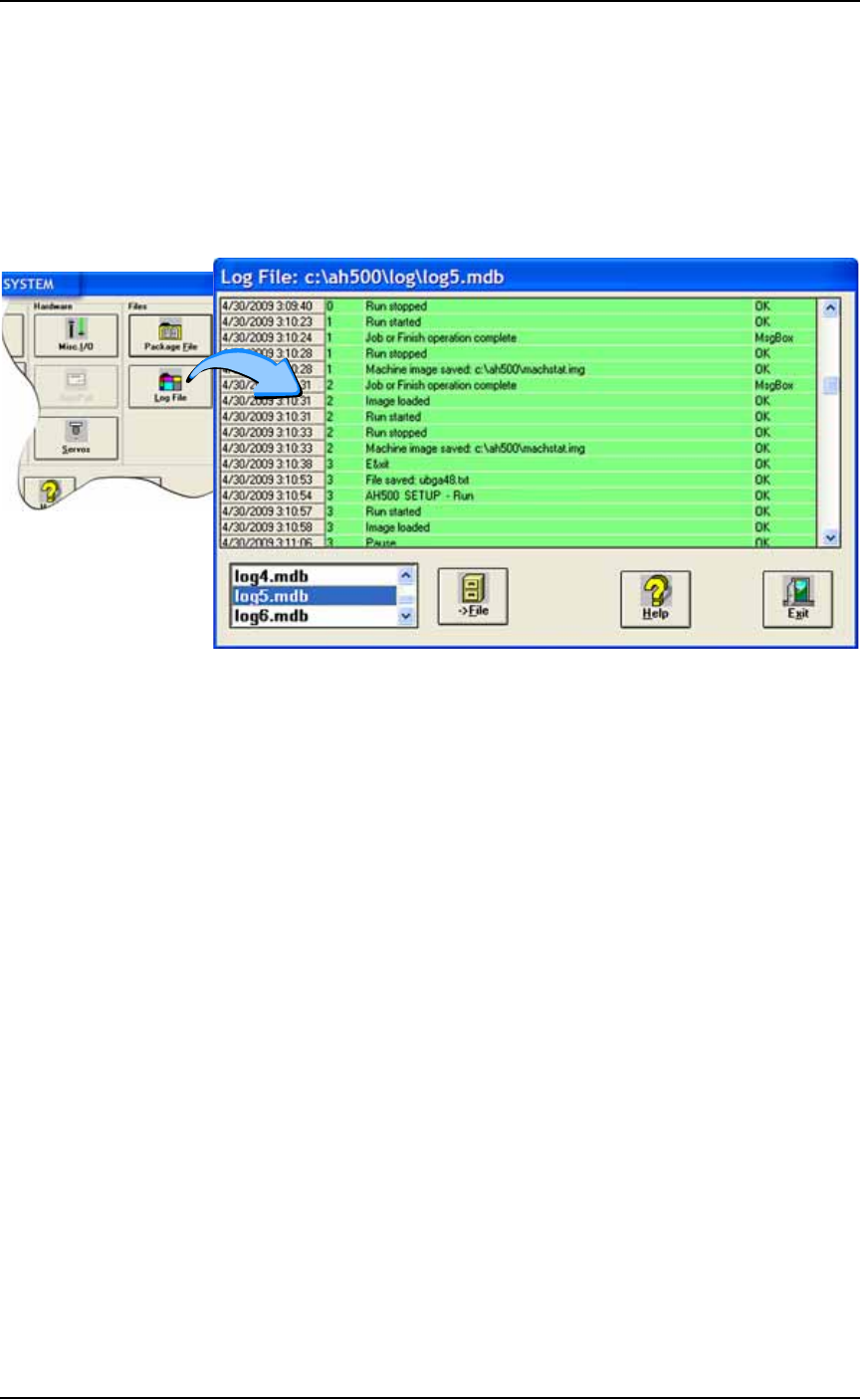
•At the Setup Window, select System > Log File.
Figure 4-54: At the Log File Window, Information is displayed about the
successful or unsuccessful completion of any operation of the
PS System. The system keeps a maximum of 7 days of history.
The Log Files are named
log1.mdb, log2.mdb, log3.mdb
, and so
on up to
log7.mdb
. They correspond to the days of the week,
log1.mdb
is for Sunday,
log2.mdb
is for Monday, and so on. On the
eighth day, the first file is overwritten. To save a record of daily oper-
ation logs, print the files or save them to another location.
Collect all PS System Logs
Collect PS Logs is a software utility on AH500 Software Version 6.3.6
and later, that collects all log files from the PS Machine. It creates a
ZIP file containing all the information that Data I/O, or trained ser-
vice technicians, need to evaluate your PS Machine status.
Programmer Related Problems
When you experience a programmer related problem:
1. Force the error to re-appear by running a job, or performing the
same steps that led to the trouble.
2. Close all Data I/O software like TaskLink, AH500. (Close AH500
the usual way: click Finish to stop a job, Exit the Run Window,
Exit the program.)
3. Start Collect PS Logs.