PS288_PS388_PS588_981-0424-002D - 第201页
■ Troubleshooting ◘ Collect all PS System Logs PS Series Owner’s Manual 4—61 back 2. (Optional) Check additional SPC files if the erro r rarely appears or appeared a long time ago. 3. (Optiona l) T o ent er a text descri…
Maintenance ■ Troubleshooting
4—60 Data I/O • 981-0424-002
back
Other Problems
For problems that are NOT programmer related, run the Collect PS
Logs application anytime after the problem has been seen.
Starting Collect PS Logs
There are two methods to start the Collect PS Logs application.
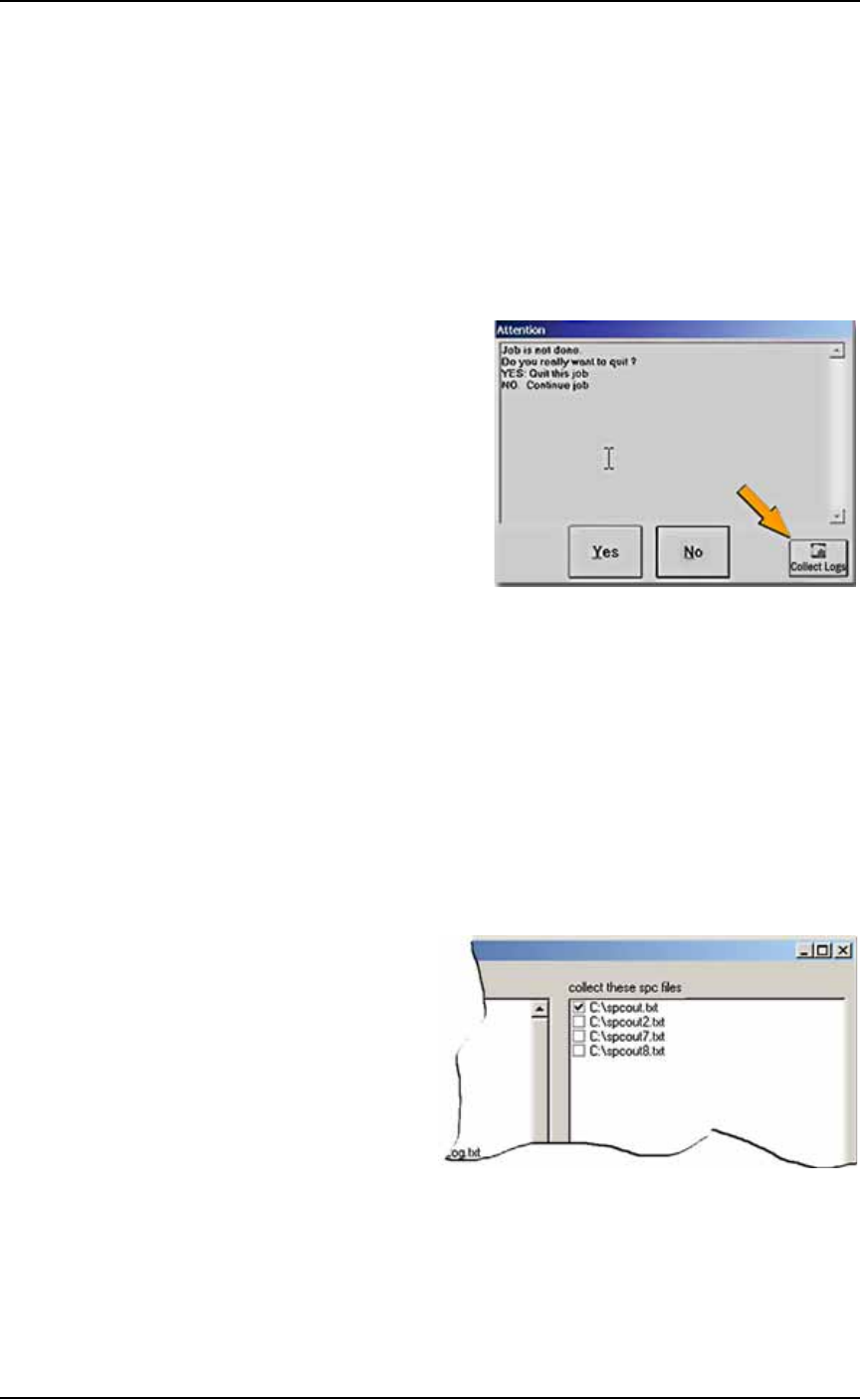
AUTO Mode uses default settings— The AH500 Software displays a
button in each message box that allows you to start the Collect PS
Logs application in AUTO Mode.
Figure 4-55: The Collect Logs button starts the Collect PS Logs Appli-
cation in Auto Mode.
When starting Collect PS Logs from a Message box (AUTO Mode),
only a progress screen is shown on the lower left corner of the screen.
All defaults are used and no user action is required.
The other method is to start from the Start menu (Windows XP) and
and it offers some options. An icon appears in Start > All Programs >
AH500 > Collect PS Logs.
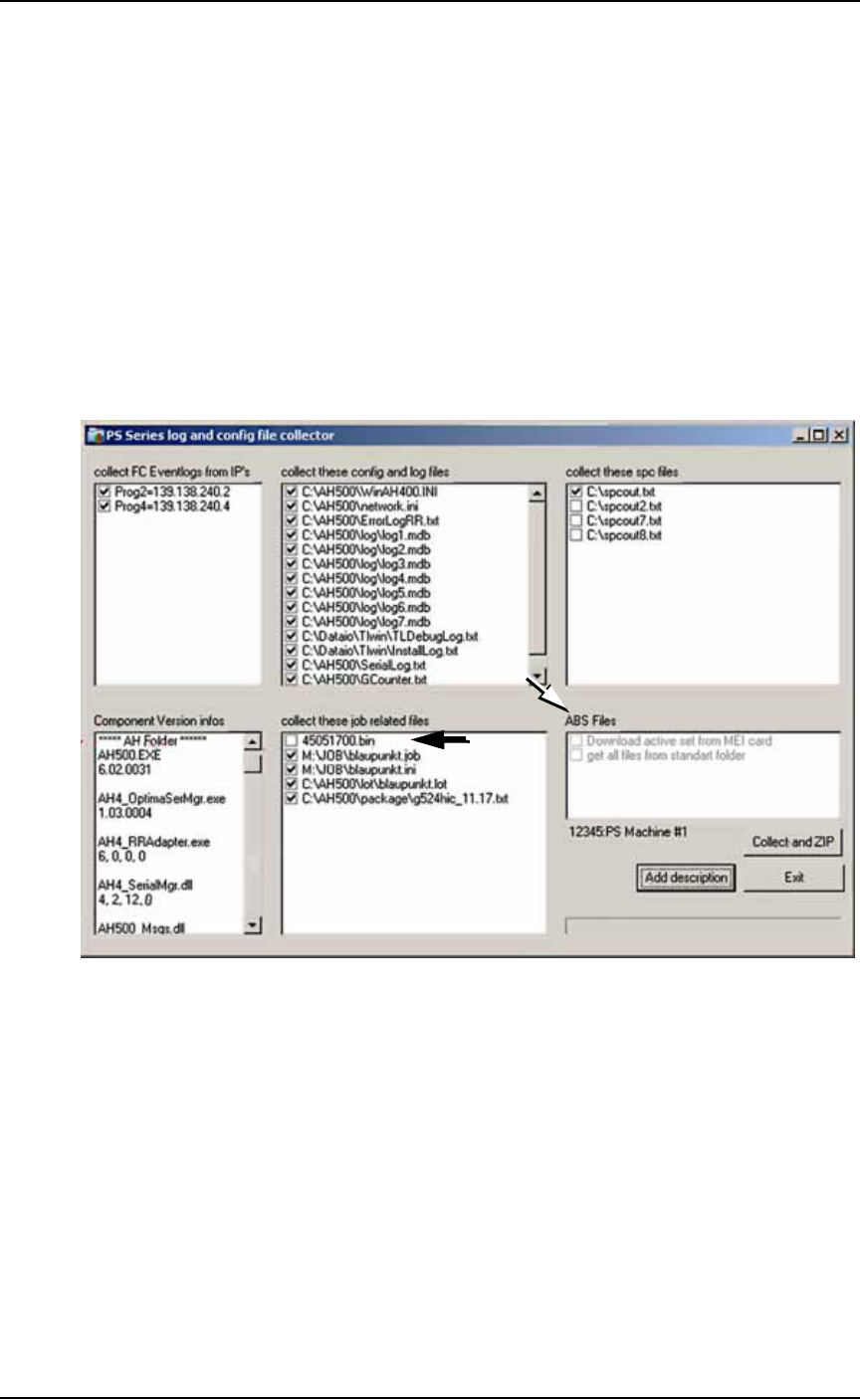
After starting Collect PS Logs from the Start menu, the main window
appears where you can select which items you wish to collected.
1. Select or clear check boxes for files as desired.
Figure 4-56: Only files with checked boxes are collected. The Collect PS
Logs Application automatically detects the name of the last job run. It
then identifies job-related files, including the data file used and serial
number configurations (if present).
■ Troubleshooting ◘ Collect all PS System Logs
PS Series Owner’s Manual 4—61
back
2. (Optional) Check additional SPC files if the error rarely
appears or appeared a long time ago.
3. (Optional) To enter a text description to the Zip file:
3a. Click Add description.
3b. Type a description into the field available. In addition to what
you type, the description will include the Date and Time the log
was captured and the serial number information from the
winah400.ini file.
4. Click Collect and ZIP.
A ZIP file is created in the same folder as the Collect PS Logs execut-
able. The ZIP file remains there even after exiting the Collect PS Logs
application. It is also copied to the Windows Clipboard.
5. Click OK to the message about pasting the ZIP file to another
desired folder.
Figure 4-57: . The ABS files (white arrow) are collected only when the
AH500 is not active. This ABS file field is disabled (dimmed as shown)
when an active handler is detected. By default, the data file (black
arrow) is not checked and therefore, will not be collected into the ZIP
file.
Command Line Support
When the command line parameter [
auto
] is passed to the applica-
tion, no Log Collector Window is displayed and all defaults are used.
A file with date/time stamp is being created. The naming format is
LogFiles__DD_MM_YYYY__HH_MM_SS.zip
for example:
LogFiles__13_09_2010__16_20_07.zip
.
Maintenance ■ Troubleshooting
4—62 Data I/O • 981-0424-002
back
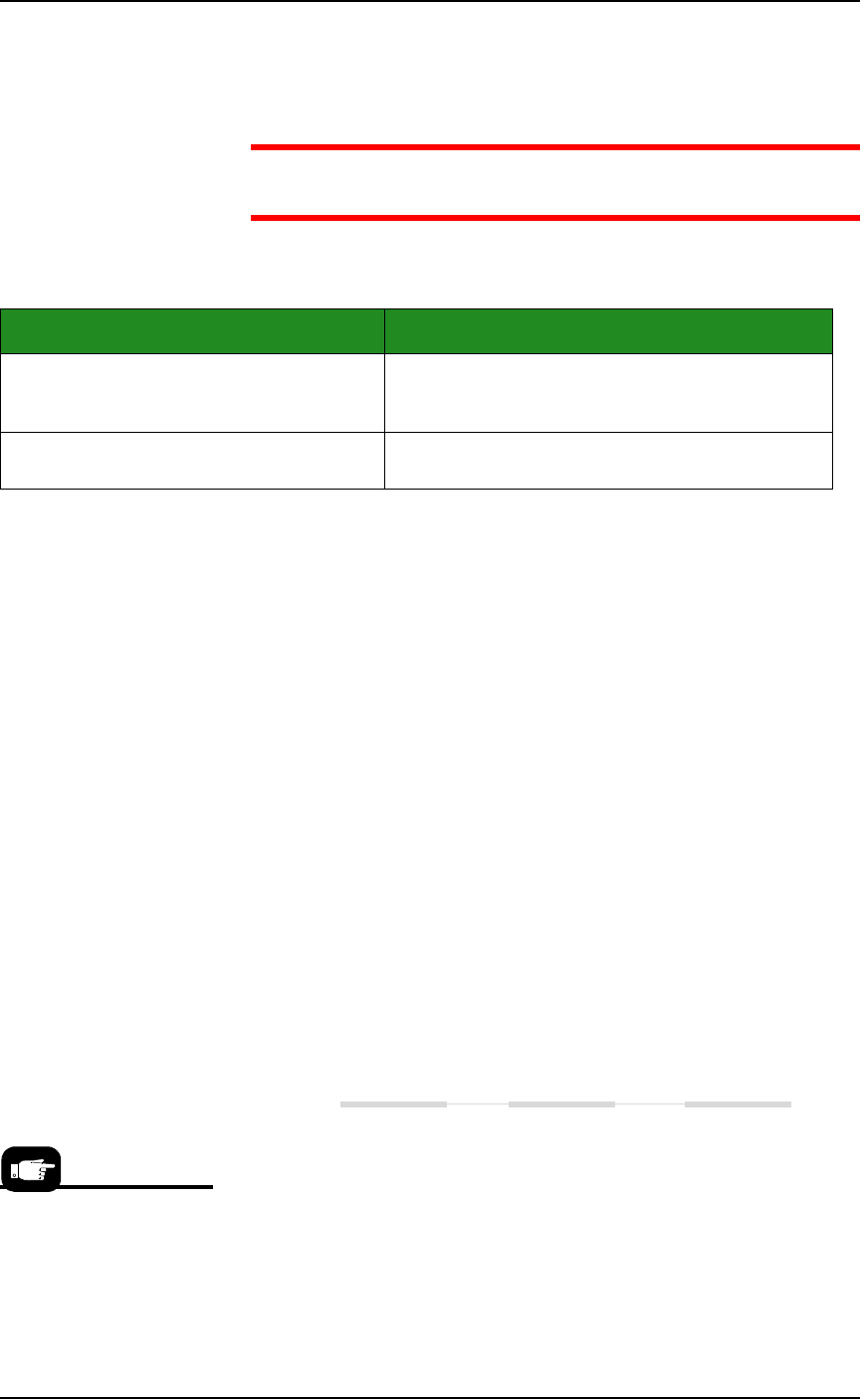
Optionally, you can pass a second parameter [
myfile.zip
] as
shown below which determines the zip file name.
CAUTION: These command-line commands overwrite existing
files without warning.
Examples:
Programmer Errors
Programmer errors discussed:
• A Programmer is being skipped
• Devices failure to program
• Disabling a Programmer
Clearing a Programmer Disabled Status
The status indicator disappears from a programmer outline on
the Run window, or
The PNP head skips a programmer.
Check the programmer status as follows:
1. Preparation—
1a. At the Run window, click Pause.
1b. Note which programmers are disabled, if any. Right-click the
programmer and select an command from the drop-down
menu.
For more information on changing programmer or socket status,
see Changing Programmer Status on page 3-25.
Devices Fail to Program
One programmer has many continuity failures (in Statistics
Window).
Move the Socket Adapter to another programmer to see if the
problem is the programmer or the adapter, as follows:
Code Description
Collect_logs auto [myfile.zip]
The application runs automatically and creates a
myfile.zip output file where myfile.zip is the name you
typed in the command line.
Collect_logs auto
The application runs automatically creating a
date/time stamped output file.
For information regarding
calibration of the PNP
head, see Teaching the
Package File on page
3-40.